

Dojo card machine
Set up a Dojo card machine so the till sends the amount to it and gets the result back: no typing the amount twice, and no mistakes. Dojo is the card machine partner of itsPOS. This page covers the card machine itself and linking it to each till; how card payments work is in Card payments with Dojo: how it works.
Built from the maker's documentation. We wrote this guide and the till's driver from the maker's own manuals and programming guides. We haven't checked this model on a real device yet, so tell us if something here doesn't match what you see.
What you need
- Dojo card machines, ordered through itsPOS, not on Dojo's own website: then we can link them to your tills and help you. In the back office, an Owner or Admin opens Integrations and presses Ask us to set it up on the Dojo card, ticks the shops and I agree, and presses Ask us. The itsPOS support team switches Dojo on for your shops once your Dojo account is open, and an Owner or Admin adds each shop's Dojo key.
- The card machine charged and connected to the internet: Wi-Fi, or its own mobile data. Dojo's quick start card in the box shows how; Dojo support helps with the machine itself.
- The till connected to the internet: card payments go from the till through itsPOS to Dojo.
1. Choose each till's card machine in the back office
Each till uses its own card machine. Owners, Admins and Shop managers do this.
- Open Settings › Tills and devices and open the till.
- Under Card machine, choose the card machine. Dojo lists the machines on your account by their id (TID) with their status, for example "VCM… · Available".
- Press Save changes. The till gets it within seconds. If another till already uses that card machine, the page asks before it moves it; No card machine takes it off the till.
2. Or choose it on the till
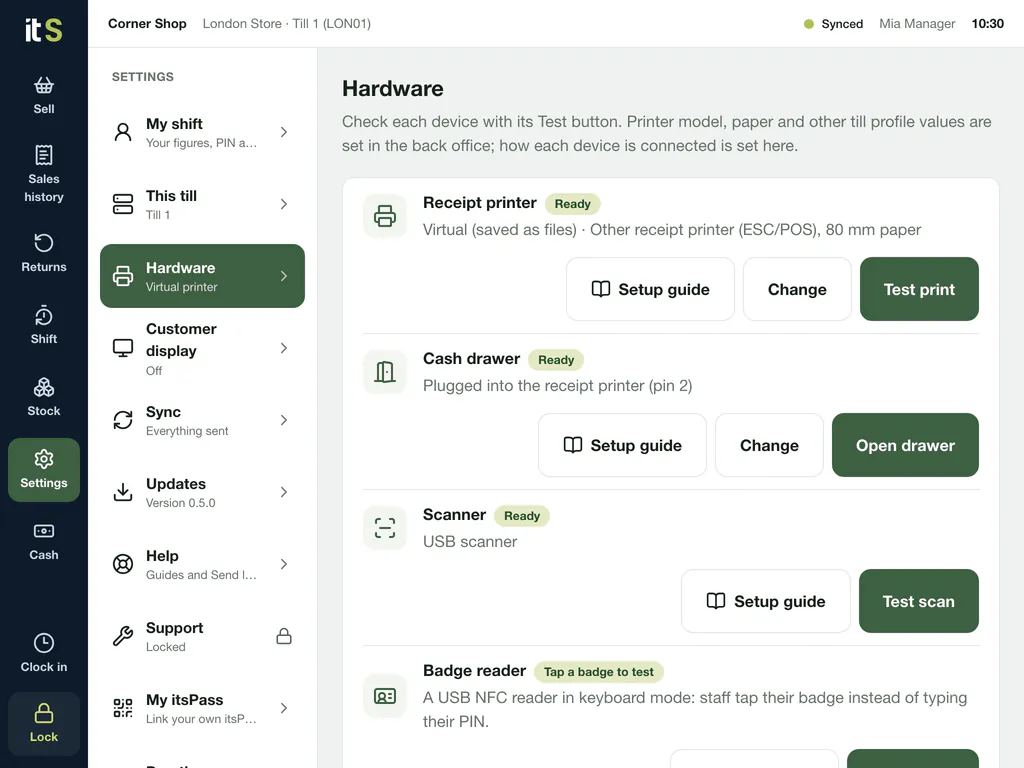
- On the till, open Settings › Hardware. The Card machine row shows the card machine this till uses, or No card machine chosen.
- Press Change (Owners, Admins and Shop managers), then Choose card machine. The till needs the internet for this ("Card payments need a connection.").
- Press Use next to the right card machine. The till says "This till now uses …" and the button says In use.
- To take it off this till, press Remove: "Card machine removed from this till."
If Dojo's list doesn't show your machine, you can type its id from Dojo in "Or type the card machine's id from Dojo" and press Use.
Where to find the Hardware screen on the till
On the till, tap Settings, then Hardware. Each device has a row with its status, the model and its badge, a Setup guide button and a large test button.
- Owners, Admins, Shop managers and Supervisors open Hardware and run the tests.
- Owners, Admins and Shop managers also see Change on a row, to set how the device is connected to this till. Only Owners and Admins change the scale.
- Cashiers see Hardware greyed out with "Not allowed for your role". A supervisor or manager signs in to run a test.
Setup guide opens this page: Open in the browser shows it on the till's computer (not in kiosk mode), and Print the link prints the address with a QR code to scan with a phone.
Every test asks you whether it worked (Yes or No). The answer is saved with the till, and your manager sees it in the back office under Settings › Tills and devices, in the till's Hardware tests.
3. Test it
- On the Card machine row, press Check connection. The till asks Dojo about this till's card machine and shows "The card machine answered: ready." (or what Dojo says it is doing). The answer is saved for your manager to see.
- Then run one real small payment: Settings › This till › Run a test sale takes £1.00 on the card machine, prints the receipt and refunds it to the card. See Run a test sale.
Common problems
| What happens | What to do |
|---|---|
| The row says Not set up for this shop | Dojo isn't switched on for this shop yet. Ask us from Integrations (step "What you need"). Until then, use Card on another machine at the till. |
| The row says No card machine chosen | Choose one for this till (step 1 or 2). |
| "The chosen card machine was not found. A manager can choose it again." | Press Change, Choose card machine and pick it again. |
| Check connection says the card machine is offline or busy | Turn the card machine on, check its Wi-Fi or mobile signal, and finish or cancel any payment on it. |
| The Payment screen says Card machine not linked | The till can't reach Dojo right now. Take the payment on the card machine on its own, then tap Paid on the card machine (no manager PIN needed). itsPOS matches it with Dojo the next day. |
| The row says Paused by itsPOS | The itsPOS support team has paused card payments through the till for a while. Use Cash or Card on another machine. The status page at status.itspos.io says why. |
| The till says Card machine in test mode | The shop's Dojo key is a test key: no real money is taken. An Owner or Admin adds the live key under Integrations. |
For installers
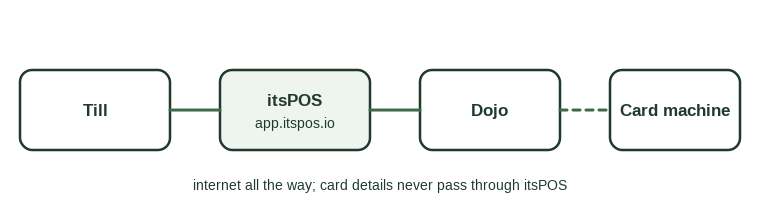
- The till never talks to the card machine directly: it asks itsPOS, and itsPOS asks Dojo's cloud. Card details never pass through itsPOS. Nothing to install on the till, and no cable between the till and the card machine.
- Keep the card machine away from the staff badge reader, so neither picks up the other's cards.
Still stuck?
The itsPOS support team is here 08:00 to 20:00 every day except Christmas Day.
- Call or WhatsApp: +44 7488 880320
- Email: support@itspos.io
- In the back office: Help › Contact support, or go to app.itspos.io/help/contact after you sign in
- On our website: itspos.io/contact
Tell us your shop's name and what you were trying to do. A screenshot of the screen helps.
For a device, tell us its model and the till's name, and if you can, send a photo of the device's cables and of the till's Settings › Hardware screen.