

Products and prices
Print shelf-edge labels (back office and till)
Print shelf-edge labels with each shop's own prices. Scan or search the products into one list, or add a category, a promotion or every product whose price changes today, then print all the labels at once: as a PDF on an office printer, on a till's label printer, or on the till itself.
For: Owners, Admins, Shop managers, Supervisors and Stock staff8 min read
Before you start
- In the back office: Owners, Admins, Shop managers and Stock staff.
- On the till: Owners, Admins, Shop managers, Supervisors and Stock staff.
- A label printer on a till is set up in Settings › Hardware and on the till's profile in Settings › Till profiles.
- To change what a label looks like, see Design your own labels.
Scan or search products into one list
Walk the shop with a barcode scanner, a phone or a tablet, or type the names, then print every label in one go.
- Go to Catalogue › Print labels.
- Choose the Shop, for example Green Street Grocer. Labels show that shop's prices, and each shop has its own list.
- In Add products, scan a barcode into Scan or search products. The product goes to the top of Labels to print with one label.
- Scan the same product again for one more label.
- Or type a name or SKU, for example "baked beans", and choose the product from the list.
- On a phone or tablet, press Scan products to label and point the camera at each barcode. Press Done when you've finished.
- "Barcode … is not on file" means no product has that barcode. Press Add as a new product to add it, or scan the next one.
- In Labels to print, use − and + to change how many labels each product gets (1 to 999). Tap the number to type it. Remove takes a product off the list; press Undo if that was a mistake.
- Choose the look and print (see below). Every label on the list prints in one PDF, in the order you added the products.
The list stays until you clear it, even if you leave the page or change the label size. Press Clear list when you've finished, then Clear list again to confirm.
Print today's labels
Do this every morning, or after a price change.
- Go to Catalogue › Print labels and choose the Shop.
- Under Or add a group of products, in Which products, choose Labels to reprint today: "Price changes, prices and promotions that start or end today, and unit prices now per kg."
- Press Add to list. Labels to print shows each product with its Price, Unit price, Was price, barcode and why it needs a new label, for example Heinz Baked Beans in A Rich Tomato Sauce 415g, £1.65, "Price changed".
- Change how many labels each product gets with − and + if you need more than one.
At the top of the page, "1 shelf label to reprint today at …" reminds you on days with changes; press Add them to the list. On Catalogue › Products the same reminder has Print them.
Other ways to add products
Under Or add a group of products, in Which products, you can also choose these and press Add to list:
- Products whose price changed, since the date in Price changed since. The old price after a price drop is ticked for you.
- A category, with the categories under it.
- Products in a promotion, for the promotion's shelf labels.
Or tick products on Catalogue › Products and press Print labels above the list. On a product's page, Print labels adds that product. They go on the same list.
A product that is already on the list keeps its number of labels when you add a group.
Choose the look and print
Under Label size and print, choose the Label design (your shop's default is chosen for you) or the Label size. A4 sheets are for an office printer and show the code on the box, for example A4 sheet, 21 labels (63.5 × 38.1 mm) — L7160. Label rolls are for a label printer, for example Label roll, 58 × 40 mm. Sizes you added are under Your sizes (see Label sizes).
- With the standard layout on an A4 sheet you can choose Colours: Black and white, Red offer prices, Yellow labels, red offers, Green prices, red offers, or Choose colours for the name, the price, offer prices, the small lines and the label. A colour that is hard to read is refused with a note. Colour prints on a colour printer; offer prices are also bold with the old price struck through, so nothing is lost in black and white.
- Label printers print black only, so a label roll has no colours: it says "Label rolls print in black and white, product pictures too. To print in colour, use an A4 sheet size." Press Use an A4 sheet size to switch to the closest A4 sheet.
Under On the label, tick what to add:
- The old price after a price drop ("Was £2.00"): only shown when the price really went down.
- The price list name.
- The location in the shop ("Aisle 4, Bay 2"), set on each product's page under Stock.
- Also show the member price, when the members' price is lower.
- Cut lines, for plain paper.
Press Preview to look first, then Print. All the labels on the list open as one PDF: print it at actual size (100%), not "Fit to page".
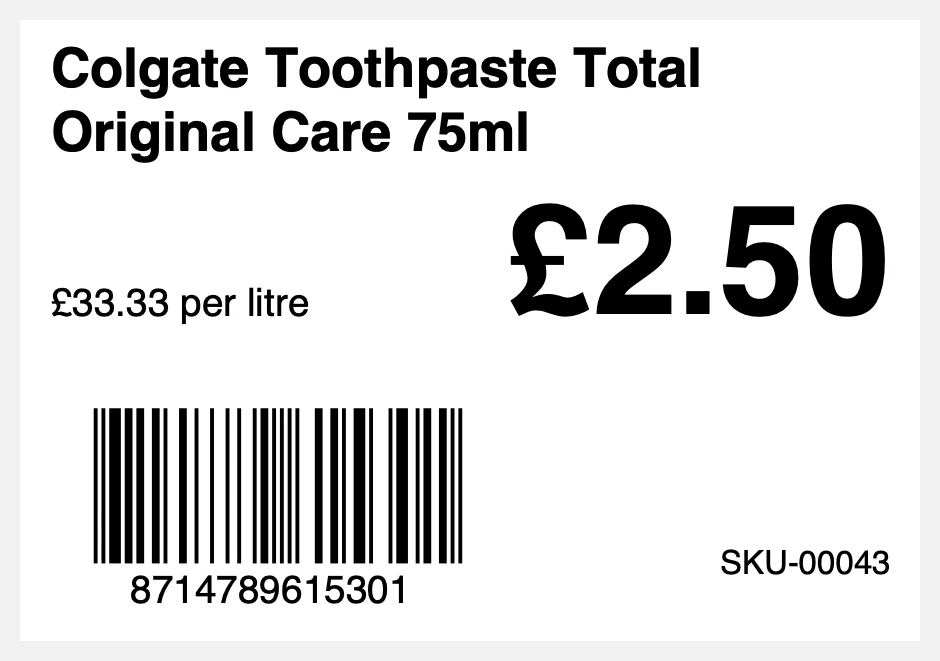
A printed 58 × 40 mm shelf label for Colgate Total 75ml Or press Send to a till and choose a till with a label printer. The till prints them between sales; an offline till prints them when it's back online (within 24 hours).
Label sizes
Catalogue › Print labels › Label sizes lists every size: the common A4 sheets with the code on the box (L7160, L7651, L7159, L7654, L7163, L7162, L7161, LP27/63, L7164, L7173, L7165 and L7674 shelf-edge strips) and the label rolls (58 × 40, 38 × 25, 50 × 25, 40 × 30, 50 × 30, 76 × 51, 100 × 50 and 58 × 60 mm).
If yours isn't there, an Owner, Admin or Shop manager presses Add a size:
- Choose Label roll or A4 sheet, and type a Name if you like, for example "Deli labels".
- Type the Label width and Label height in mm. For an A4 sheet also type Labels across, Labels down, the Top margin and Left margin, and the Pitch across and Pitch down (from one label's edge to the same edge of the next) from the box or the maker's template. The preview shows the sheet; labels past the edge of the page show in red.
- Press Print a test sheet, print it at actual size (100%) on plain paper and hold it against your labels.
- Press Add size. It is in every size list now: Print labels, Reduce to clear, label designs and Settings › Till profiles › Label size for a label roll.
Print labels on the till
- On the till, tap Stock, then Labels.
- Scan the products to label: each scan adds a label, scan it again for one more. Set how many with − and +.
- Choose the Label design and tap Print labels.
If the till says "No label printer on this till", connect the label printer in Settings › Hardware on the till and print a test label first.
Monday morning label run
Prices from the cash and carry changed over the weekend. Before opening, a Shop manager opens Catalogue › Print labels, chooses Labels to reprint today for Green Street Grocer, presses Add to list, then scans three shelf edges with torn labels so they are on the list too. Send to a till prints them all on the back-office till's label printer. A Stock assistant puts them on the shelves.
If something goes wrong
- A product has no label: the message under the box says which products have no label and why, for example no price at that shop.
- "The list holds up to 1,000 products": print the list, press Clear list, then carry on. One print takes up to 5,000 labels.
- The PDF prints too small or too big: print at 100% (actual size).
- The till doesn't print: check the till is online and its profile has a label printer; it prints between sales, not during one.
Still stuck?
The itsPOS support team is here 08:00 to 20:00 every day except Christmas Day.
- Call or WhatsApp: +44 7488 880320
- Email: support@itspos.io
- In the back office: Help › Contact support, or go to app.itspos.io/help/contact after you sign in
- On our website: itspos.io/contact
Tell us your shop's name and what you were trying to do. A screenshot of the screen helps.