

Scan barcodes with your phone's camera
In the back office on a phone or tablet, every box that takes a barcode has a Scan with camera button. The phone's camera then does what a USB scanner does at a computer: check in a delivery at the back door, count the chiller, or check a price on the shop floor. Anyone who signs in to the back office can use it, on every plan. The till doesn't use a camera: it has its own scanner.
Before you start
- A phone or tablet with a camera, signed in at app.itspos.io in Safari (iPhone and iPad) or Chrome (Android). The button isn't shown on a laptop or desktop computer, even one with a webcam.
- Good light. The camera reads ordinary barcodes, QR codes and the square Data Matrix codes on food and medicine packs.
- Pictures never leave the phone: the code is read on the phone and only the code is sent.
Scan into a stock document
Deliveries, purchase orders, stock adjustments, waste, transfers, stock requests, supplier returns and credits, gap scan and ordering with the rep all work the same way.
Open the document and tap Scan with camera next to its scan box.
The first time, the phone asks whether app.itspos.io may use the camera: allow it.
The sheet says "Scanning into" and the page's name, for example "Scanning into New adjustment". Point the camera at the barcode: "Point at the barcode. Hold it about a hand's width away."
The phone beeps and the line under the picture says what happened, for example "Added 1 × Heinz Baked Beans in A Rich Tomato Sauce 415g". Holding the phone still never adds it twice.
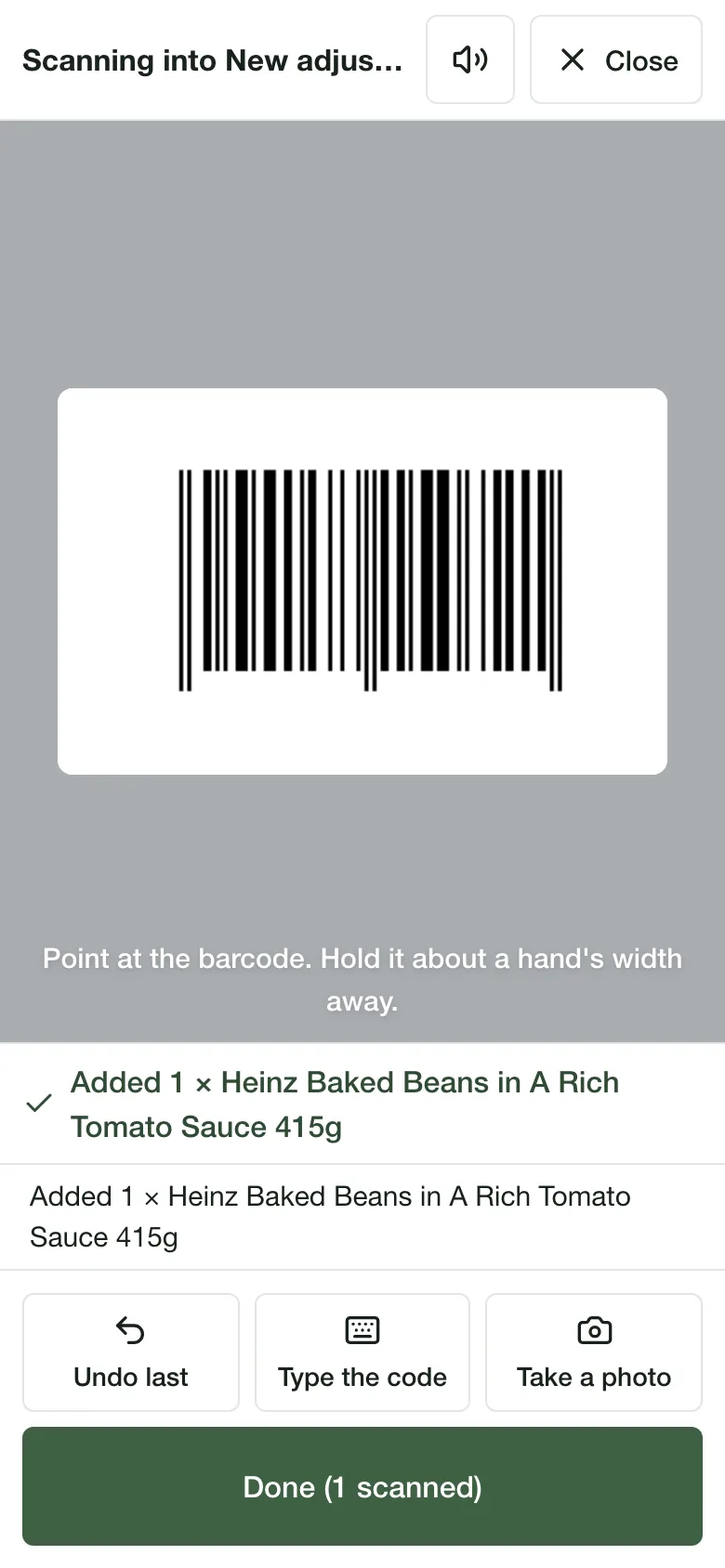
Scan the next item, and the next. Each one joins the list.
Tap Done ("Done (12 scanned)") to go back to the document, check the lines and save it as usual.
Inside the sheet:
- Undo last takes the last scan off the list ("Undone: …").
- Type the code opens a number pad (ABC for letters) when a barcode won't read.
- Take a photo reads the barcode from a photo instead of the live picture.
- Zoom 2× and Switch camera appear when the phone has them; the speaker button turns the beep on or off.
- When a barcode is on both the single item and its case, the sheet asks "…: Case of 24 or Single?" (your Stock rules can answer it for you).
- A barcode that isn't on any product says so, with Add as a new product for people who may add products. In a delivery, "Which product is this?" lets you match it to one of your products.
- After a while without scanning the camera pauses to save battery: "Paused to save battery. Tap to carry on."
Count by scanning
In a stock count, each scan asks "How many?": One less and One more (the big − and + buttons), or tap the number to type it, then Save. Turn on Each scan counts 1 to add one with every scan instead; the phone remembers your choice. A count saved by scanning is corrected with a recount: there is no undo once it is saved.
Find a product, a sale or a gift card
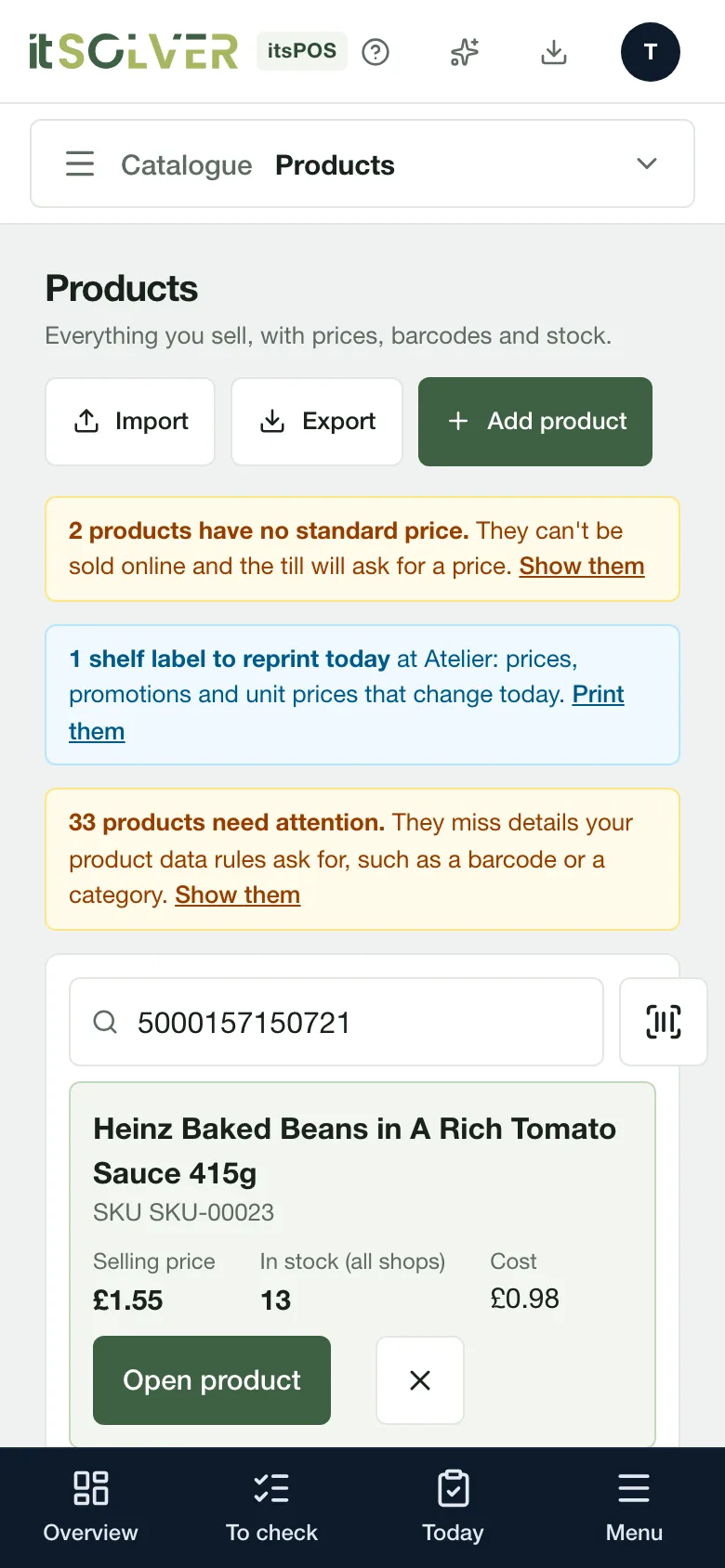
In a search box, one scan finds what you are looking for and the sheet closes:
Catalogue › Products and Stock › Stock (the stock levels): a card shows the product with its Selling price, In stock (all shops), the cost (for people who may see costs) and Open product.
Sales › Sales history: the barcode or QR code on a receipt, or an itsPass return code, opens that sale.
Customers › Gift cards: a gift card's barcode finds the card.
Catalogue › Print labels: Scan products to label adds each product to the list of labels to print (scan it again for one more label).
Settings › Selling rules: Test a barcode scans a barcode and shows how the till reads it.
Packs with batch and use-by dates
The square GS1 codes on food and medicine packs (and GS1 QR and Digital Link codes) find the product by the barcode inside them, in every box. With batch and expiry tracking, the scan also fills in the batch and date for products that record batches: in deliveries (a date on its own too), stock documents and stock counts. A product's barcode keeps only the barcode inside the code. A web address in a code is read, never opened. See Reading batch and use-by from barcodes and Scan GS1 barcodes, which has a printable test sheet.
When it won't read
| What happens | What to do |
|---|---|
| There is no Scan with camera button | You're on a computer, or the browser is old. Use a phone or tablet with Safari or Chrome. |
| "itsPOS can't use the camera." | The camera was refused. iPhone: Settings › Apps › Safari › Camera › Allow, or tap aA in the address bar › Website Settings › Camera. Android (Chrome): tap the icon left of the address › Permissions › Camera › Allow. Then tap Try the camera again. |
| "The camera couldn't start." | Another app is using the camera. Close it and tap Try the camera again, or use Take a photo. |
| It won't read a barcode | More light, hold the phone a hand's width away and straight on, try Zoom 2×, or use Take a photo or Type the code. |
| "No barcode found in the photo. Take it closer and straight on, or type the code." | Take the photo again closer, or type the code. |
| "No connection. Nothing was added." | The phone lost its connection. Scan again when it's back; nothing was saved twice. |
Still stuck?
The itsPOS support team is here 08:00 to 20:00 every day except Christmas Day.
- Call or WhatsApp: +44 7488 880320
- Email: support@itspos.io
- In the back office: Help › Contact support, or go to app.itspos.io/help/contact after you sign in
- On our website: itspos.io/contact
Tell us your shop's name and what you were trying to do. A screenshot of the screen helps.
For a device, tell us its model and the till's name, and if you can, send a photo of the device's cables and of the till's Settings › Hardware screen.