

Hardware
Scan GS1 barcodes (batch, use-by and weight)
Scan the square code on a pack once and itsPOS fills in the product and everything else the code carries: its batch, its use-by or best-before date, its weight and, on some packs, a serial number or price. It works in every box that takes a barcode, with Scan with camera on a phone or tablet or with a USB or Bluetooth scanner.
For: Owners, Admins, Shop managers, Supervisors, Cashiers and Stock staff7 min read
What a GS1 barcode is
Many food, medicine and fresh-food packs carry a GS1 barcode as well as (or instead of) the normal one: a small square code (GS1 DataMatrix), a QR code, or a long stripy barcode (GS1-128 or GS1 DataBar). Inside it are the product's normal barcode and extra details, each with a number in brackets that you sometimes see printed under the code:
| Printed as | What it is |
|---|---|
| (01) | The product's barcode |
| (10) | Batch number |
| (17) or (15) | Use-by or expiry date, or best-before date |
| (21) | Serial number |
| (3103) | Weight in kg |
| (3922) | Price |
Some QR codes hold a web address with the same details (a GS1 Digital Link). itsPOS reads the details from the address and never opens it.
Where it works
In the back office, every box that takes a barcode, with the camera or a scanner:
- Stock › Deliveries, and receiving a purchase order
- Stock › Stock adjustments, Waste, Transfers, Stock requests and Supplier returns
- Stock › Stock counts (scan to count)
- Stock › Purchase orders, Catalogue › Print labels and the gap scan
- The search boxes on Catalogue › Products, Stock › Stock and Stock › Batches
- Add a product and a product's barcodes
- Settings › Selling rules, Test a barcode
On the till: Sell, Price check, Returns, Customer orders and the stock jobs (Receive, Count, Waste).
itsPass codes, receipts, gift cards and normal barcodes work exactly as before.
What gets filled in
| What the code carries | What itsPOS does with it |
|---|---|
| The product's barcode | Finds the product. A search box searches that barcode. In a product's barcode box only this barcode is kept |
| Batch | Goes on the line of a product that keeps batches (see below) |
| Use-by, expiry or best-before date | Goes on the line with the batch. A code with a date and no batch is fine too: a delivery takes the date and names the batch for you; a waste, transfer or adjustment uses the batch in stock with that date; a count counts the batch with that date |
| Weight | For a product sold by weight it is the quantity: "Added 0.454 kg of Cheddar" |
| Serial number | Goes on the line of a product that records serial numbers. In Returns on the till it finds the sale |
| Price | Only on the till, and only for products sold by weight or without their own price. A product with its own price keeps it |
A purchase order, a label or a search uses only the product.
Batches and dates need batch and expiry tracking On some plans
Batch numbers and dates are filled in only when your business has batch and expiry tracking and the product keeps batches (on the product, Batch and expiry is not Don't track). For any other product the scan just finds the product, so nothing is added that the product can't keep. See Batch and expiry tracking.
On the till
Needs itsPOS Till 0.5.38 or later. On the Sell screen, scan the code on the pack:
- The till finds the product and adds it, with the batch from the code when the till profile's Read batch and expiry from barcodes is on. Past a use-by date the till's rules for expired items apply.
- A weighed pack (cheese, meat) sells its weight at the price per kg. A price in the code is used only for products sold by weight or without their own price.
- Price check shows the product for any of these codes and sells nothing.
- In Returns, scanning an item with a serial number in its code finds the sale it was sold on. A code without one says "That's the product's barcode. Scan the receipt, or tap Refund without a receipt."
Set up the scanner
- Phone or tablet camera: tap Scan with camera next to the box. Nothing to set up. See Scan barcodes with your phone's camera.
- USB or Bluetooth scanner: it must read 2D codes and send the GS1 separator (also called FNC1 or GS) between the parts of a code. The scanners on our list are set up that way by their setup barcodes. For another scanner, scan the maker's setup barcode for "GS1 separator" or "FNC1 as GS (ASCII 29)": see Any other USB scanner. A Bluetooth scanner works in the back office on an iPad or phone when it is paired as a keyboard.
- Till profile: Settings › Till profiles, Scanner, Read batch and expiry from barcodes on. See Reading batch and use-by from barcodes.
Try it with our test sheet
Print the GS1 test sheet (PDF, 2 pages) at 100% (Actual size). It has 12 codes for made-up products in the itsPOS Test Shop (Coffee Beans 250g, Butter Croissant, LED Bulb E27 and Loose Cheddar), and under each code what you should see in the back office and on the till. In your own shop, use packs from your shelves the same way.
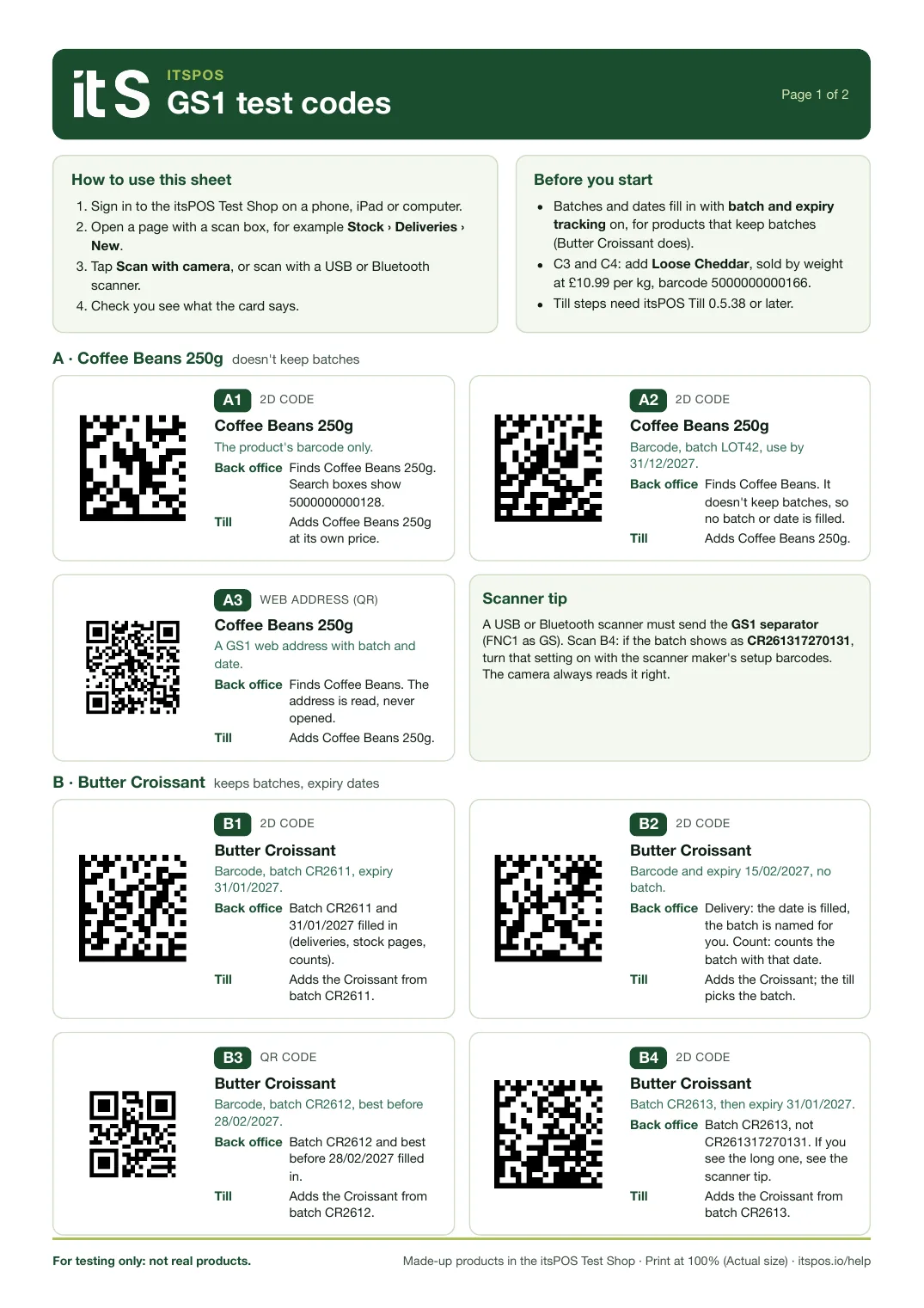
Open Stock › Deliveries, start a delivery and tap Scan with camera (or click the scan box and use your scanner).
Scan B1: Butter Croissant is added with batch CR2611 and 31/01/2027.
Scan B2: a second line with 15/02/2027; the batch is named for you when you finish.
Scan B4 with a USB or Bluetooth scanner: batch CR2613. If it shows CR261317270131, the scanner doesn't send the GS1 separator (see Set up the scanner).
Open Stock › Stock adjustments, start a new one and scan A2: "Added 1 × Coffee Beans 250g" with no batch, because Coffee Beans doesn't keep batches. Then scan B1: the Croissant's line gets its batch.
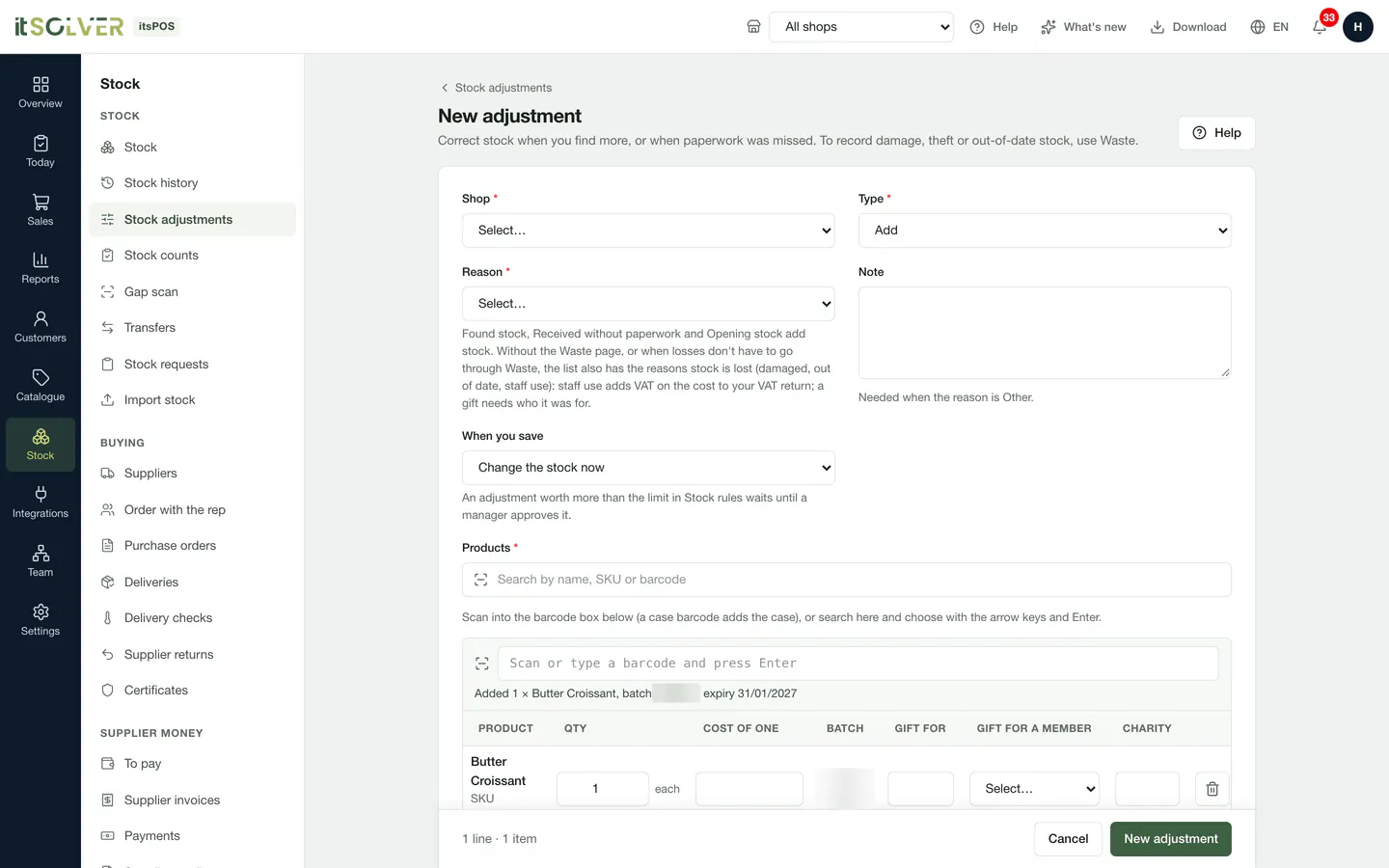
A new stock adjustment after scanning a GS1 code To see what any code holds without a scanner, open Settings › Selling rules, type or paste it into Test a barcode and press Test.
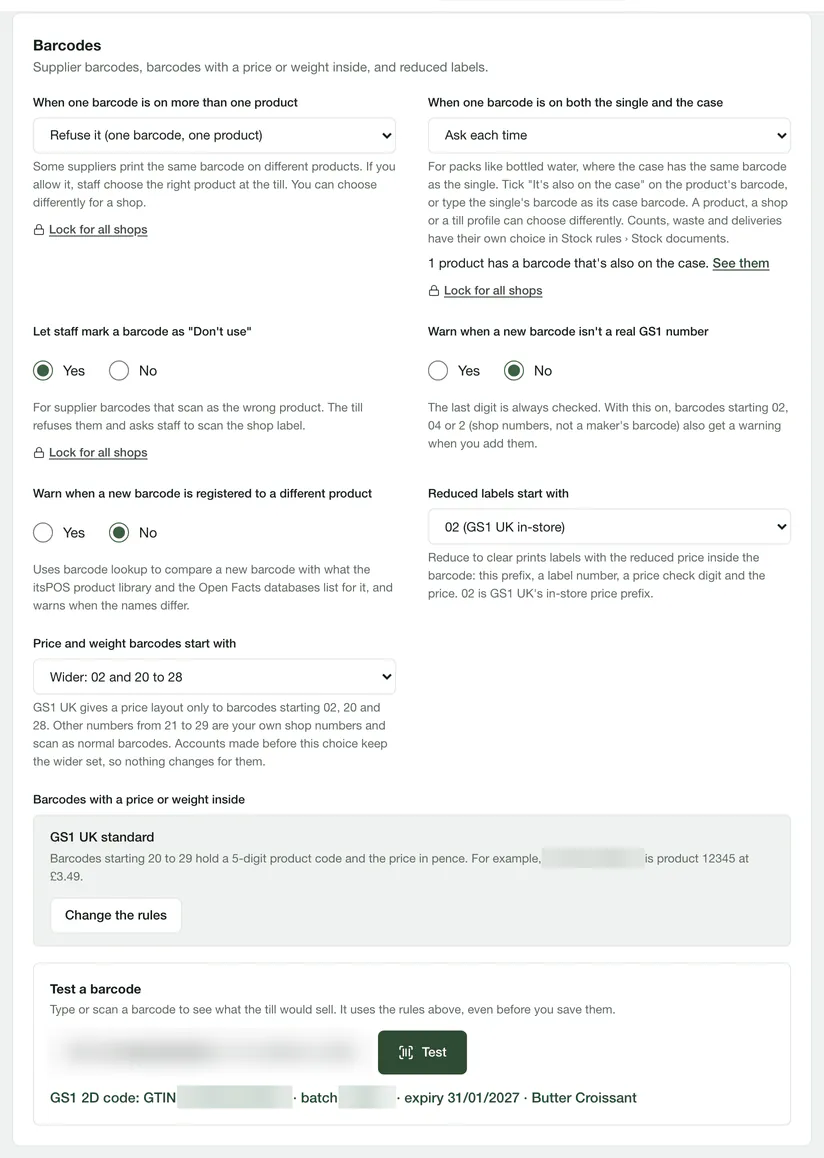
Selling rules, Barcodes
If something goes wrong
| What happens | What to do |
|---|---|
| The batch has the date stuck on the end, like CR261317270131 | The scanner doesn't send the GS1 separator. Scan the maker's "GS1 separator" or "FNC1 as GS" setup barcode. itsPOS takes a date or weight off the end of a batch by itself, but it can't split a batch from a serial number |
| "Barcode … is not on file." with a long number starting 0 | The barcode inside the code isn't on any product. Add it to the product's barcodes (only the barcode, without the batch) |
| The product is found but no batch or date fills in | Your business doesn't have batch and expiry tracking, or the product doesn't keep batches |
| The search box shows a long code with brackets or letters | The scanner adds a prefix or isn't set to the UK keyboard. Scan its setup barcodes again |
| A normal barcode on the same pack adds no batch | Only the square code carries the batch. Scan that one |
| The camera won't read the code | More light, hold the phone a hand's width away, try Zoom 2×, or Type the code |
Still stuck?
The itsPOS support team is here 08:00 to 20:00 every day except Christmas Day.
- Call or WhatsApp: +44 7488 880320
- Email: support@itspos.io
- In the back office: Help › Contact support, or go to app.itspos.io/help/contact after you sign in
- On our website: itspos.io/contact
Tell us your shop's name and what you were trying to do. A screenshot of the screen helps.