

Dibal PI-100 scale
Set up a Dibal PI-100 so the itsPOS till sells loose items by weight, with the scale working out the price.
Built from the maker's documentation. We wrote this guide and the till's driver from the maker's own manuals and programming guides. We haven't checked this model on a real device yet, so tell us if something here doesn't match what you see.
How it works
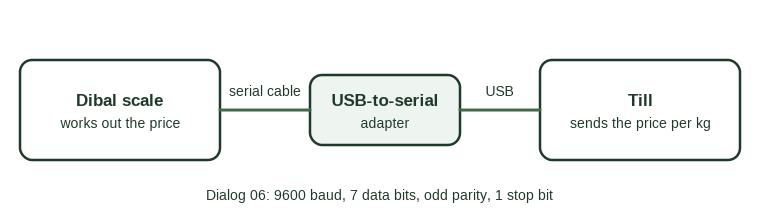
The till sends the scale the item's price per kg. The scale weighs, works out the price itself and sends the weight, the price per kg and the price back to the till, which puts them on the sale, the customer display and the receipt unchanged. Dibal and other scale makers call this way of working Dialog 06.
In the UK a scale used to sell goods by weight must be approved for trade and passed as fit for use, and when it is connected to a till the scale and the till must be approved together. Every till shows Not for trade use until an approved verifier or Trading Standards has checked the scale and the till together in your shop and an Owner or Admin has switched on trade use in the back office, ticking a declaration that the set-up is verified (Selling by weight legally › Switch on trade use). Selling by weight legally explains what that means.
What you need
- The Dibal PI-100 scale, bought through us: we supply Dibal scales through our Dibal account, set to work with itsPOS. Ask us when you are ready to order.
- The serial cable that comes with the scale, and a USB-to-serial adapter (FTDI or Prolific) for the till.
- The customer display switched on, so customers can see the weight and the price (customer display guide).
- A working receipt printer: a weighed sale always prints a receipt.
- The maker's own documentation: Dibal PI-100 on dibal.com.
Set it up in the back office
Only an Owner or Admin can change the scale in a till profile.
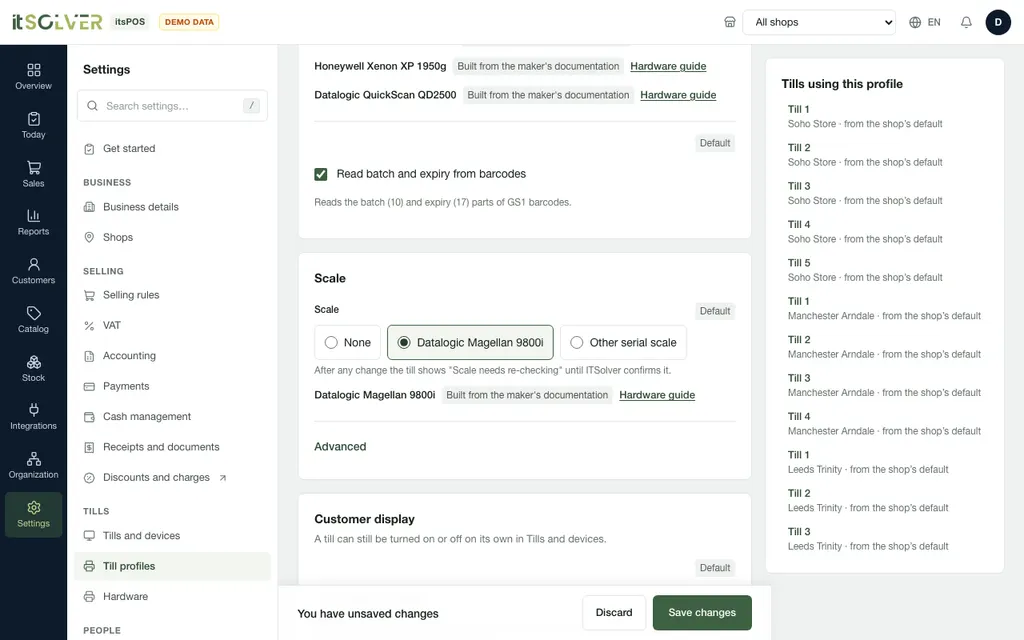
- In the back office, open your till profile (see below).
- Under Scale, set Scale to Dibal KS-400, D-POS 400, G-325 or PI-100 (Dialog 06: the scale works out the price).
- Press Save changes. Tills using the profile show Scale needs re-checking, and trade use is off, until an Owner or Admin switches on trade use again once the scale has been checked with the till; that's expected.
Where to find the till profile in the back office
Settings that are the same for every till of a kind live in a till profile in the back office, not on the till. Sign in at app.itspos.io, open Settings › Till profiles and open the profile your tills use (most shops have one, called Standard). Change the value and press Save changes: every till using that profile gets it within a minute, between sales. Owners and Admins change till profiles; Shop managers change them for their own shops. The till shows the values it got at the bottom of Settings › Hardware, under Till profile.
Check the scale's settings
The scale's communication must be set to Dialog 06 at 9600 baud. We set this before the scale reaches you. The scale's legal settings are protected by its seal, so don't change them yourself: breaking the seal means the scale has to be passed as fit for use again. If you moved a scale from another system, ask us to check it.
Set it up on the till
Only an Owner or Admin can choose the scale's port. Shop managers and supervisors can run the tests below.
- Plug the USB-to-serial adapter into the till.
- On the till, open Settings › Hardware and press Change on the Scale row. The panel says The scale works out the price and Only an Owner or Admin changes the scale.
- Choose the adapter in Choose the scale's port. The till can't find this scale by itself. If you're not sure which port it is, unplug the adapter, look at the list, plug it back in and pick the one that appeared.
- Windows: the adapter shows as a COM port, for example COM3. If no new port appears, install the driver from the adapter's maker.
- Mac: pick the port that starts /dev/cu. (for example /dev/cu.usbserial-A10K), not the one that starts /dev/tty.
- Press Turn on. The toast says Scale saved. and the Scale row says Connected on … and The scale works out the price.
- When the scale first starts, it asks the till for a check. Once it accepts it, Change shows Scale check: The scale accepted this till.
Where to find the Hardware screen on the till
On the till, tap Settings, then Hardware. Each device has a row with its status, the model and its badge, a Setup guide button and a large test button.
- Owners, Admins, Shop managers and Supervisors open Hardware and run the tests.
- Owners, Admins and Shop managers also see Change on a row, to set how the device is connected to this till. Only Owners and Admins change the scale.
- Cashiers see Hardware greyed out with "Not allowed for your role". A supervisor or manager signs in to run a test.
Setup guide opens this page: Open in the browser shows it on the till's computer (not in kiosk mode), and Print the link prints the address with a QR code to scan with a phone.
Every test asks you whether it worked (Yes or No). The answer is saved with the till, and your manager sees it in the back office under Settings › Tills and devices, in the till's Hardware tests.
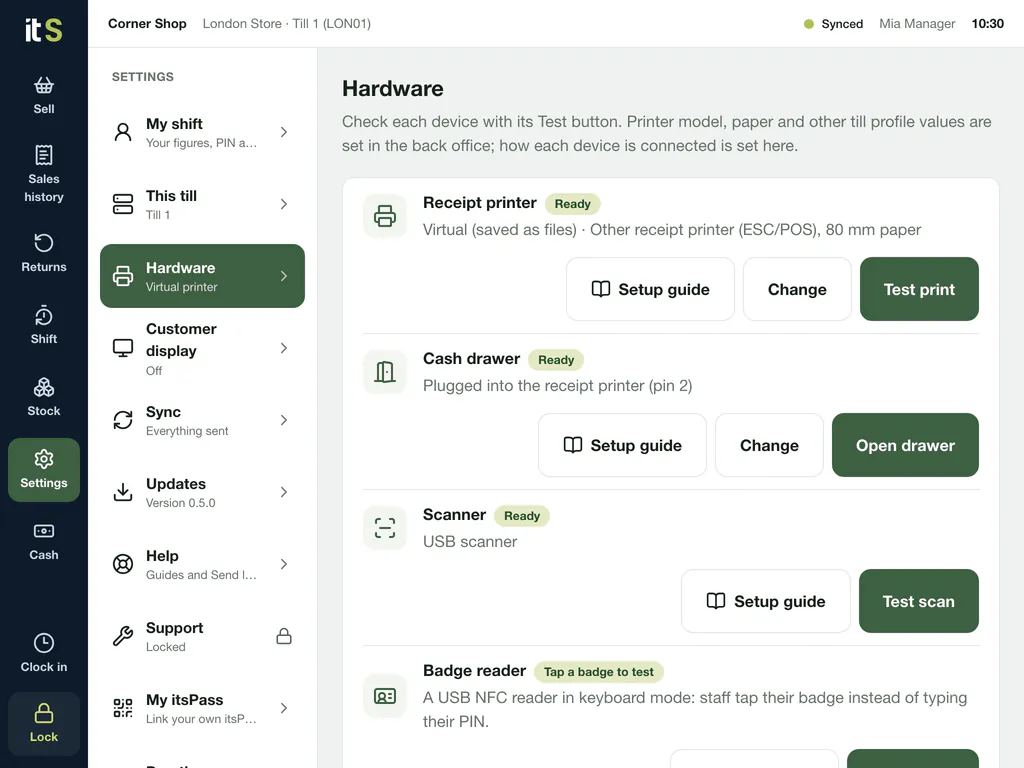
Until trade use is switched on for this till, the Scale row says Not for trade use until an Owner or Admin switches on trade use in the back office (till 0.5.37 and earlier: "until the itsPOS support team approves it"), and weighed items can't be sold from the scale. Once an approved verifier or Trading Standards has checked the scale and the till together in your shop, an Owner or Admin switches it on in Settings › Compliance › Weighed goods, ticking a declaration that the set-up is verified: Selling by weight legally › Switch on trade use.
The verifier reads the till's weighing software on the till: Settings › Hardware, Scale row, "Weighing software 1.0.0 · checksum 3afbc0df" (till 0.5.43 and later; Change shows the full checksum). An update that changes it switches trade use off with Scale needs re-checking, like a change of the scale.
Test it
- On the Scale row, press Read weight. The till sends the scale a test price of £1.00 per kg.
- Put something you know the weight of on the scale, for example a 1 kg bag of sugar, and press Weigh.
- The till shows the scale's answer, for example 1.000 kg · £1.00. If the weight is right and the price matches it, press Yes; otherwise No.
The result is saved with the till, and your manager sees it in the back office under Settings › Tills and devices. There is no Zero button for this scale: zero it with the scale's own zero key.
When you sell, the receipt and the customer display show the weight, the price per kg and the price exactly as the scale worked them out; staff can't change them on the till.
What this changes
- Sell: tapping or scanning a product sold by weight opens the weigh sheet with The scale works out the price; the till sends the product's price per kg (and its tare) to the scale.
- Receipts: a weighed sale needs a working receipt printer, so keep paper in it.
- Back office: the test results show in Settings › Tills and devices; Settings › Compliance › Weighed goods lists each till's scale and its trade use, where an Owner or Admin switches it on or off.
Common problems
| What the till says | What to do |
|---|---|
| Choose the scale's port. | In Change, pick the adapter's port, then Turn on. |
| Scale not responding or The scale isn't answering. Check it is on and the cable. | Check the scale is on and the serial cable is plugged in at both ends. Unplug the adapter for 10 seconds and plug it back in. |
| Can't open the scale's port (…) | Another program is using the adapter, or it was unplugged. Close the other program, plug the adapter back in, then Turn on again. |
| The scale didn't understand the till. Check the cable. | The cable or the adapter is loose or the wrong kind. Use the cable that came with the scale. |
| The scale didn't accept the till's message. Check the scale's settings. | The scale isn't set to Dialog 06 at 9600 baud. Don't change its settings yourself: call us. |
| The scale reports an error. Switch it off and on. | Switch the scale off and on. If it keeps happening, call us. |
| The scale didn't accept this till's check. Ask the itsPOS support team to set the scale check for this till. | Call us: the itsPOS support team sets the check for each till when the scale is approved in your shop. |
| Take the item off the scale and put it on again | Lift the item off, wait for zero, then put it back. |
| Below the scale's smallest weight | The item is too light for this scale to price by weight. |
| Press zero on the scale | Take everything off and press the scale's zero key. |
| Too heavy for the scale | Weigh it in smaller parts. |
| Make sure the item is fully on the scale | Nothing may hang over the edge or touch the scale. Move the item onto the scale. |
| The scale used a different price per kg. Check the scale. | The scale used its own price for this item, so the till refused the weighing: a customer is never charged a price the till didn't send. Weigh again; if it repeats, call us. |
| The scale is set to pounds | The scale must weigh in kilograms, and only its verifier can change that: call us. |
| This scale is not for trade use. An Owner or Admin switches on trade use in the back office once the scale and till have been checked. (till 0.5.37 and earlier: "This scale is not approved for trade use yet.") | Expected until trade use is switched on for this till: Selling by weight legally › Switch on trade use. |
For installers
- Checkout Dialog 06 over RS-232: 9600 baud, 7 data bits, odd parity, 1 stop bit; only send, receive and ground are wired (no RTS, CTS or DTR). The port is chosen by hand on the till (no automatic find); on macOS the till opens the
/dev/cu.port. - The till sends record 05 (price per kg, tare, 13-character name) or 01/03/04, asks for the weighing every 150 ms for up to 5 seconds, and checks every 30 seconds that the scale is there.
- The scale's check (records 10 and 11) is answered with the pairs the itsPOS support team sets for the till at verification, or the till's own until then.
Still stuck?
The itsPOS support team is here 08:00 to 20:00 every day except Christmas Day.
- Call or WhatsApp: +44 7488 880320
- Email: support@itspos.io
- In the back office: Help › Contact support, or go to app.itspos.io/help/contact after you sign in
- On our website: itspos.io/contact
Tell us your shop's name and what you were trying to do. A screenshot of the screen helps.
For a device, tell us its model and the till's name, and if you can, send a photo of the device's cables and of the till's Settings › Hardware screen.