

Hardware
Selling by weight legally: approved scales and the till
When you sell loose fruit, deli cheese or pick and mix by weight, the weight has to come from a scale that is approved for trade, and the customer has to know the weight before they pay. This page explains what that means at an itsPOS till. It is a summary, not legal advice: your local Trading Standards office has the final word.
For: Owners, Admins and Shop managers10 min read
Needs itsPOS Till 0.5.35 or later.
What the law asks in the UK
- An approved scale: A scale used to sell goods by weight is a "non-automatic weighing instrument" (NAWI). It must be of an approved type for trade use, carry the conformity markings (the UK or CE mark followed by the M metrology mark, or older stamps and seals), and be passed as fit for use for trade by a Weights and Measures inspector or an approved verifier. After a repair or adjustment it must be passed again.
- The scale and the till together. When a scale is connected to a till that shows or prints the weight and price, the till is part of the weighing set-up: the two must be approved to work together. That's why an approved verifier or Trading Standards checks the scale and the till together in your shop, not just the scale.
- Keep the papers: keep the scale's approval and the verification record for the scale and till together, and show them if Trading Standards asks.
- The customer knows the weight. Weigh in front of the customer with the scale's display in view, or give them the weight in writing: the itsPOS receipt prints the weight, the price per kg and the price of every weighed line.
- Metric units: Loose goods are sold by the kilogram; a price per pound may be shown as well, never more prominently.
Read more on GOV.UK: Weights and measures: business guidance and Weighing equipment for legal use (Business Companion, from Trading Standards).
What "Not for trade use" on the till means
Every till starts as Not for trade use. You see it on the Scale row of Settings › Hardware ("Not for trade use until an Owner or Admin switches on trade use in the back office"), on the weigh sheet ("Not for trade use: trade use is not switched on for this scale.") and on the customer display while you weigh.
While a till is not for trade use:
- the scale works for training and checks: Read weight shows the weight;
- Add the weight from the scale on the weigh sheet refuses with This scale is not for trade use. An Owner or Admin switches on trade use in the back office once the scale and till have been checked., so no weighed line is sold from that scale;
- staff can still type a weight (see below).
It is not a fault. It changes to Trade use on once an Owner or Admin has switched on trade use for that till (below). Tills up to version 0.5.37 show the older words ("until the itsPOS support team approves it"); they follow the switch in the back office all the same.
Switch on trade use
Do this only after your scale is set up with one of the set-ups below and an approved verifier or Trading Standards has checked the scale and that till together in your shop. Your business is responsible for its scale set-up and its verification, whichever set-up you use.
- In the back office, open Settings › Compliance and go to Weighed goods. Scales on your tills lists every till whose till profile has a scale, with Trade use on, Not for trade use or Needs re-checking.
- On the till's row, press Switch on trade use. Only an Owner or Admin sees the button; shop managers see the state.
- Type the scale's serial number and who checked it and when, if you have them (both optional, they help you find the papers later).
- Read the declaration and tick it: "I confirm this scale is an approved model, and that an approved verifier or Trading Standards has checked this scale and this till together in this shop. I keep the papers."
- Press Switch on trade use. Within a minute the till drops "Not for trade use": weighed lines come from the scale (with the scale's price, or with one cable the price the till works out from the scale's weight), and typing a weight is no longer offered on that till.
What the declaration means: you, not itsPOS, confirm that the set-up was verified in your shop, and that you keep the papers. itsPOS keeps your name, the date, the wording you ticked and the scale in Team › Activity. itsPOS doesn't see or check the papers.
To stop selling by weight from that scale, press Switch off on its row (no declaration needed). The till shows "Not for trade use" again within a minute.
Any change to the scale switches trade use off: another scale in the till profile, moving the till to a profile with another scale, another cable, port or adapter on the till (tills newer than 0.5.37), or an update that changes the till's weighing software (till 0.5.43 and later, see below). The row and the till then say Needs re-checking: switch it on again once the new set-up has been checked, or press Keep it off.
Weighing software version and checksum
Verifiers usually ask which weighing software the till runs. From till 0.5.43 the till shows it:
- On the till: Settings › Hardware, Scale row: "Weighing software 1.0.0 · checksum 3afbc0df". Change on that row opens the Scale panel, which shows the same line and the full checksum (SHA-256) under it.
- In the back office: Settings › Compliance › Weighed goods, on each till's row, as the till last reported it. The declaration dialog shows it too, and Team › Activity keeps the version and checksum the till had when you switched on trade use.
The checksum covers the till's weighing code: the scale drivers, the weigh sheet, the price of each weighing and its rounding, and the weight lines on the receipt and the customer display. Each till release note says whether it changed. If an update changes it, trade use switches off on every till that had it on, and the till and the back office say Needs re-checking, as for a change of the scale: have the set-up checked again, then switch trade use on again (or keep it off).
The scale set-ups itsPOS supports
| Set-up | Who works out the price | For selling by weight | Guide |
|---|---|---|---|
| Dibal KS-400, D-POS 400, G-325 or PI-100 with Dialog 06 | The scale | Yes, once it is verified with your till and you switch on trade use | Dibal KS-400, D-POS 400, G-325, PI-100 |
| Datalogic Magellan 9800i with Dialog06 (two cables) | The scale | Yes, once Datalogic confirms its UK approval covers it with a PC till, it is verified with your till and you switch on trade use | Magellan 9800i with Dialog06 |
| Datalogic Magellan 9800i with Dialog06 on two serial cables (HOST to COM1, SCALE to COM2) | The scale | The same as Dialog06 above: the barcodes just come on their own serial cable | Magellan 9800i on two serial cables; two-cable guide to print (PDF) |
| Datalogic Magellan 9800i on one cable (USB or RS-232) | The till | Yes, once it is verified with this itsPOS till and you switch on trade use | Magellan 9800i (one cable); one-cable guide to print (PDF); USB-cable guide to print (PDF) |
| Other serial scale (uses the Magellan's commands): one RS-232 cable, a scale that answers the Magellan's single-cable commands | The till | Yes, once it is verified with this itsPOS till and you switch on trade use | Ask us before you buy |
Setting up a Magellan 9800i? Download the printable set-up guide for its cables, with every setup barcode, the till steps and the test: Set up a Datalogic Magellan 9800i scanner-scale.
With Dialog 06 the till sends the price per kg to the scale, and the scale sends back the weight, the price per kg and the price. The till keeps them exactly as the scale worked them out, and refuses a weighing where the scale used a different price per kg (The scale used a different price per kg. Check the scale.).
With one cable the scale sends only the weight, and the till works out the price: the net weight times the price per kg, rounded to the nearest penny. The till is then part of the weighing set-up, so the verifier must check this scale with this itsPOS till: an approval of the same scale with another till system doesn't count. The declaration dialog says so for these set-ups. The weigh sheet says The till works out the price from the scale's weight (till 0.5.41 and later), and the receipt prints the weight, the price per kg and the price.
We wrote the drivers from Dibal's and Datalogic's own documents. The Datalogic Magellan 9800i on one serial cable and on two serial cables was then checked with the itsPOS till on a real scale (27 November 2026: the weights on the till matched the scale's display), so those set-ups say Checked by itsPOS; every other set-up still says Built from the maker's documentation. "Checked by itsPOS" means a working check, not a trade approval: we don't hold a certificate for any scale and till combination yet. Dibal scales are bought through us; ask us before you buy any scale.
Label scales at the counter
A Dibal label scale at the deli or butcher's counter weighs and prints a label with the price and a barcode; the till then scans the label. That scale is approved on its own, and itsPOS only sends it the PLUs and prices: see Dibal label scales and Barcodes on scale labels.
Typing a weight
When there is no scale on the till, or trade use is off for the till's scale, the weigh sheet offers Type a weight (grams).
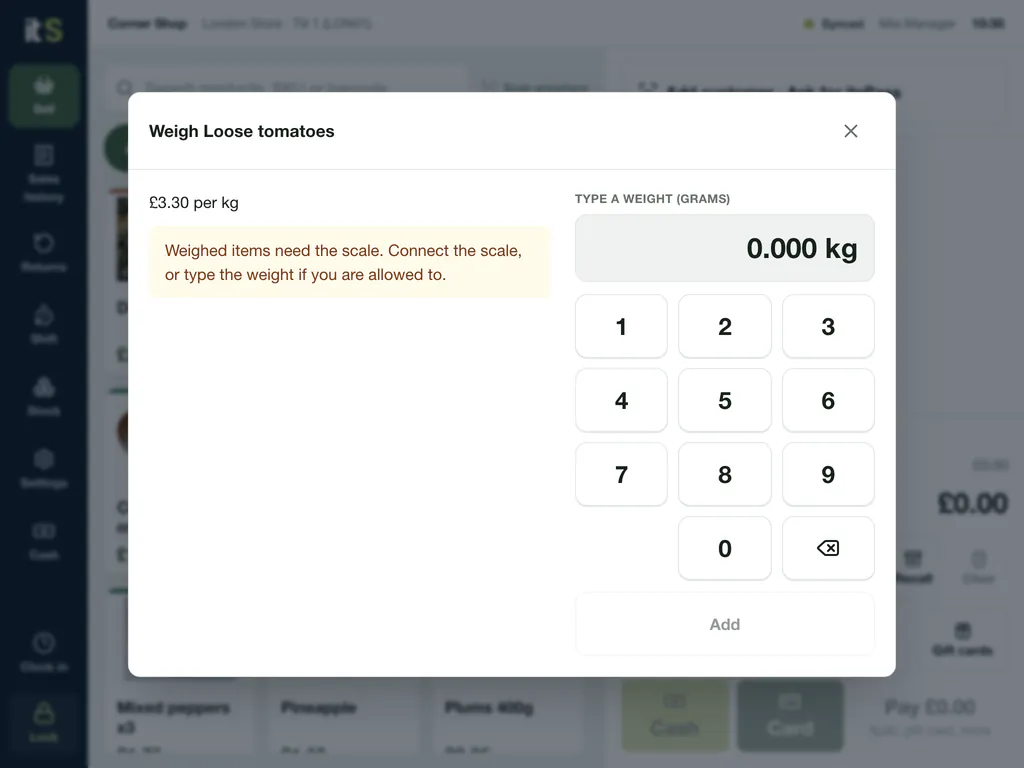
Every role that sells may type a weight without approval by itsPOS default; your business can make it Needs approval or Not allowed per role in Team › Roles. How to do it at the till: Sell by weight.
A typed weight must still come from a scale approved for trade, weighed where the customer can see it, for example a separate approved counter scale. Don't type a guessed weight. A till with trade use on never offers typing: the weight must come from its scale.
Receipts and the printer
A weighed sale needs a printed receipt. While Stop a weighed sale if the printer is not working is on (itsPOS default), the till won't take payment for a weighed line until the printer works: see Sell by weight.
Where you see it in the back office
Settings › Compliance, Weighed goods, lists the tills with a scale and their trade use, with who declared it and when, and each till's weighing software version and checksum: see Weighed goods and unit prices. Each change is in Team › Activity.
Still stuck?
The itsPOS support team is here 08:00 to 20:00 every day except Christmas Day.
- Call or WhatsApp: +44 7488 880320
- Email: support@itspos.io
- In the back office: Help › Contact support, or go to app.itspos.io/help/contact after you sign in
- On our website: itspos.io/contact
Tell us your shop's name and what you were trying to do. A screenshot of the screen helps.