

Receipt printer settings: copies, paper, simple mode and layout
What each receipt and printer setting in a till profile does to the paper, and what staff and customers see. Owners, Admins and Shop managers change them in the back office; every till using the profile gets the change within a minute. Every plan.
The printer's own set-up (connection, IP address, USB) is in its guide: Epson TM-T88VII, Epson TM-T20III, Star TSP143IV, Star mC-Print3 or another receipt printer. What goes on the receipt (logo, header, footer, QR code) is in Design your receipt.
Where to change them
- In the back office, open Settings › Till profiles and open the profile your tills use.
- Change the settings in the Receipt and Printer sections.
- Press Save changes. "Saved. Tills using this profile get the change within 1 minute."
On the till, the values show read-only at the bottom of Settings › Hardware, under Till profile. Use default next to a setting puts back itsPOS's own value.
Receipt
| Option | What it does | What staff or shoppers see | Also changes |
|---|---|---|---|
| Print a receipt | Ask after each sale (the default), Always print or Never print. | With Ask after each sale the till asks on the Sale complete screen, after the sale is saved. | Weighed items and VAT invoices always print, whatever you choose, because the law needs a receipt for them. The same setting is in Settings › Selling rules for the whole business; a till profile can set its own. |
| Show the receipt on screen before printing | Off by default. On: staff see the receipt first and then tap Print. | One more tap at the end of each sale. | — |
| Receipt layout | Standard (the default) or Compact: single lines and less paper. | A shorter receipt with no blank lines between parts. | — |
Printer
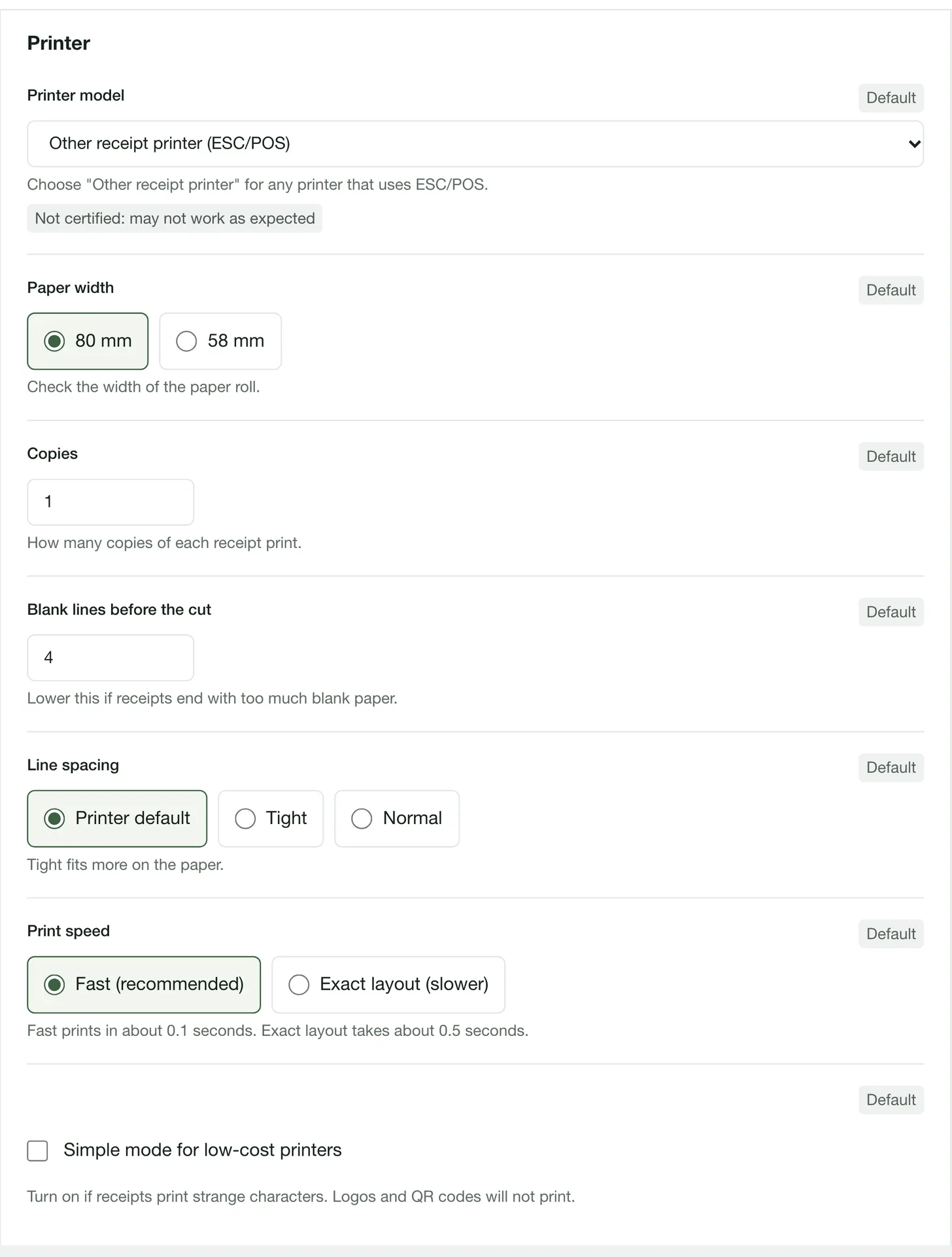
| Option | What it does | What staff or shoppers see | Also changes |
|---|---|---|---|
| Printer model | Epson TM-T88VII, Epson TM-T20III, Star TSP143IV, Star mC-Print3, Other receipt printer (ESC/POS) (the default) or No printer. | The till uses the model's own commands and line width. A badge under the choice says whether itsPOS built it from the maker's documentation; Other receipt printer says "Not certified: may not work as expected". | No printer: nothing prints, the till's Receipt printer row says No printer in the till profile and Test print is off. A sale with weighed items can't finish without a printer. |
| Paper width | 80 mm (the default) or 58 mm. Match the width of your paper roll. | On 58 mm paper fewer characters fit on a line: about 30 to 35 (32 on another receipt printer), against 42 to 48 on 80 mm. | Never switch an Epson TM-T20III to 58 mm: Epson says it can't go back to 80 mm. |
| Copies | 1 (the default) to 3 copies of each receipt. | Every sale's receipt prints that many times. Reprints and gift receipts print once. | More paper. |
| Blank lines before the cut | 0 to 10, 4 by default. | Lower it if receipts end with too much blank paper; raise it if the cut goes through the last line. | — |
| Line spacing | Printer default (the default), Tight or Normal. | Tight fits more on the paper. | — |
| Print speed | Fast (recommended) (the default) or Exact layout (slower): about 0.1 seconds against 0.5 seconds a receipt. | Exact layout changes only Epson printers; Star and other printers print the same either way. | — |
| Simple mode for low-cost printers | Off by default. Turn it on if receipts print strange characters on a cheap printer. | Logos and QR codes don't print. £ prints as "GBP", € as "EUR", and accents are dropped (é becomes e). | The receipt's QR code is gone, so customers can't scan it to join itsPass or see your offers. Try Code page PC858 on the till first (printer guide, step 3). |
Two copies on a cheap 58 mm printer
A cash and carry wants a customer copy and a shop copy on a low-cost 58 mm printer:
- Printer model: Other receipt printer (ESC/POS). Paper width: 58 mm. Copies: 2. Save changes.
- On the till, press Test print on the Receipt printer row. If £ prints as a strange character, open Change and choose Code page PC858, then test again.
- Only if characters are still wrong, turn on Simple mode for low-cost printers, knowing the QR code disappears.
See Other receipt printers for setting up the printer itself.
Still stuck?
The itsPOS support team is here 08:00 to 20:00 every day except Christmas Day.
- Call or WhatsApp: +44 7488 880320
- Email: support@itspos.io
- In the back office: Help › Contact support, or go to app.itspos.io/help/contact after you sign in
- On our website: itspos.io/contact
Tell us your shop's name and what you were trying to do. A screenshot of the screen helps.
For a device, tell us its model and the till's name, and if you can, send a photo of the device's cables and of the till's Settings › Hardware screen.