

Dibal label scales: prices and products from itsPOS (CS-2200 and others)
Keep the PLUs, prices, ingredients, allergens and pictures on your Dibal label scales (for example a CS-2200 at the deli or butcher counter) up to date from itsPOS. Change a price in the back office and the scale has it within a few minutes, with no typing on the scale.
Built from the maker's documentation. We wrote this guide and the till's driver from the maker's own manuals and programming guides. We haven't checked this model on a real device yet, so tell us if something here doesn't match what you see.
How it works
Dibal's own PC software reads a file and sends it to your scales: DGI knows how to read the file, and RGI watches a folder and sends each new file to the master scale, which copies it to the other scales. itsPOS makes that file whenever something changes, and gets it to the scale in one of three ways (you choose on the scale's page):
| Way | Who puts the file in the folder | For |
|---|---|---|
| A till in this shop puts them in the scale's folder | Any till in the shop that can reach the folder; if one is off, another takes over | Scales on the same shop network as the tills (most shops) |
| The itsPOS Scale Sync app on the scale's PC | A small itsPOS app on the scale's Windows PC | A scale no till can reach (a back room, another building or network). Shown once we've switched it on for your business: see The itsPOS Scale Sync app |
| I download the file and import it myself | You, from the scale's page in the back office after each change | Trying it out, or a scale you update by hand |
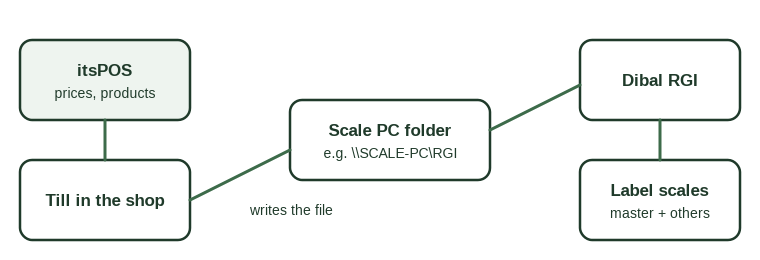
Each file is the whole list with a version number, so a late or repeated file can never bring an old price back.
What you need
- Your Dibal label scales, bought through us: we supply Dibal scales through our Dibal account. Dibal's own pages: Dibal label scales on dibal.com.
- Dibal's DGI and RGI software on the scale's PC (a CS-2200 is itself a Windows PC). We set them up once for you, remotely.
- For the till way: a shared folder on the scale's PC that the tills can reach on the shop network, for example
\\SCALE-PC\RGI, or a till that runs on the scale's own PC. - A PLU (the number staff key in on the scale) on every product you sell on the scale, in the product's PLU and barcodes card in the back office.
1. Add the scale in the back office
Owners and admins can add scales; shop managers can for their own shops. The full page is explained in Settings › Hardware: scales, PLUs and Send to scale.
- In the back office, open Settings › Hardware and press Add a scale.
- Give it a Scale name (for example "Deli counter"), choose the Shop, and leave Brand on Dibal.
- Products on the scale: Every product sold by weight, or the categories or tags you choose.
- How the scale gets its files: choose A till in this shop puts them in the scale's folder and type the Scale's folder as the shop network reaches it, for example
\\SCALE-PC\RGI. It must be a computer name or address on your shop's own network. (Or I download the file and import it myself.) - Barcode on the scale's labels: PLU and price (the usual choice), PLU and weight, or No barcode, and Barcode starts with (20 unless you use another start). Use a start your tills read in Settings › Selling rules, Barcodes: see Barcodes on scale labels.
- Press Add scale. The page says Scale added. Send it its PLUs when you're ready.
- Press Send every PLU again for the first file. After that, changes go by themselves within 5 minutes while Send changes automatically is on.
2. Check the folder on the till
Only for the till way. Owners, admins and shop managers can change the folder; supervisors can run Test and Send now.
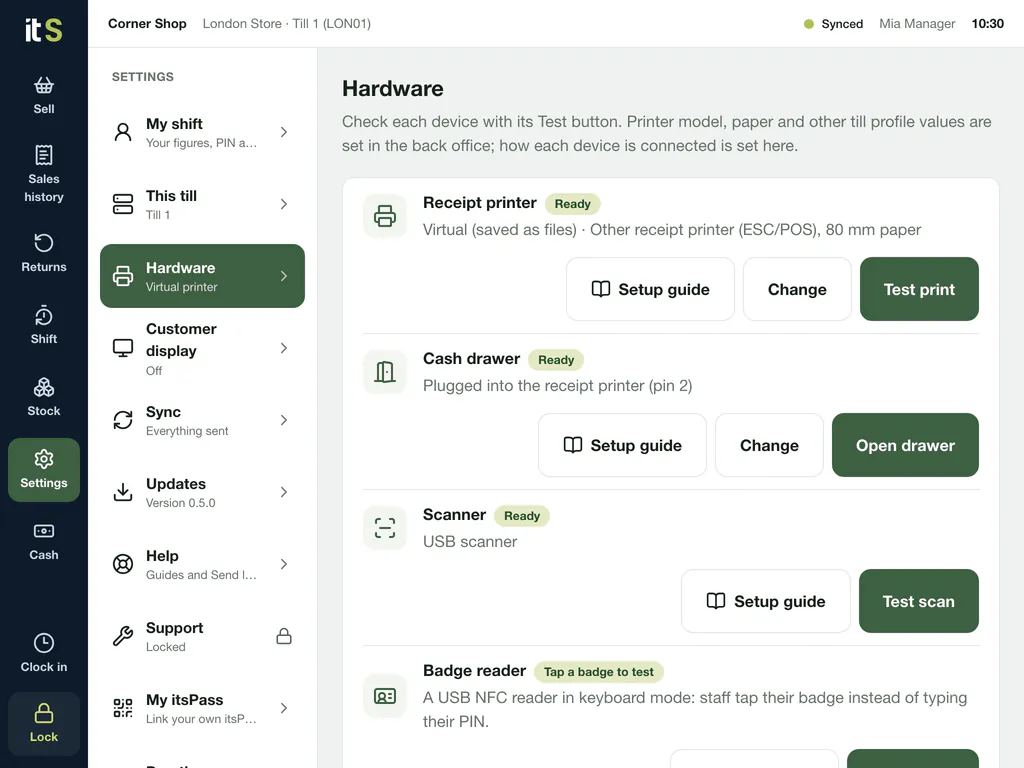
- On the till, open Settings › Hardware. A Dibal scale files row appears when the shop has a Dibal scale delivered by its tills. Press Open.
- The panel shows the scale's folder and its status. Press Change folder to change it for every till in the shop; the till's keys include \ / : _ - . $ for typing a folder. It says Folder saved. The newest price file goes into it now.
- Windows tills use
\\SCALE-PC\RGIas it is. Mac tills: first connect to the share in Finder (Go, then Connect to Server, typesmb://SCALE-PC/RGI); it appears as/Volumes/RGI. Type that in Folder on this Mac. - Press Test: the till writes a small hidden file into the folder and removes it again. It says This till can reach it with the folder when it worked. The result is saved as the till's Dibal scale folder test.
- Press Send now to send the newest file straight away: The newest price file went into the folder. (or Nothing new to send.). The till also looks for a new file every minute.
Where to find the Hardware screen on the till
On the till, tap Settings, then Hardware. Each device has a row with its status, the model and its badge, a Setup guide button and a large test button.
- Owners, Admins, Shop managers and Supervisors open Hardware and run the tests.
- Owners, Admins and Shop managers also see Change on a row, to set how the device is connected to this till. Only Owners and Admins change the scale.
- Cashiers see Hardware greyed out with "Not allowed for your role". A supervisor or manager signs in to run a test.
Setup guide opens this page: Open in the browser shows it on the till's computer (not in kiosk mode), and Print the link prints the address with a QR code to scan with a phone.
Every test asks you whether it worked (Yes or No). The answer is saved with the till, and your manager sees it in the back office under Settings › Tills and devices, in the till's Hardware tests.
3. DGI and RGI (we do this for you, once)
We connect to the scale's PC remotely and:
- In DGI, create an import design for PLUs from the itsPOS file (
itspos-<scale>.csv, semicolons, column names on the first line, UTF-8), mapping its columns to the scale's fields: PLU, article code, name, price, sold by weight or by the item, tare, VAT, ingredients, allergens, use-by days, extra text (beef labelling and origin) and section. Rows markeddeleteremove the PLU from the scale. Pictures come from theimagesfolder next to the file, named by PLU (201.jpg). - In RGI, watch the shared folder, use that design for
itspos-*.csv, send to the master scale and let Dibal copy it to the other scales. - Set the scale's label barcode to match Barcode on the scale's labels (for example EAN-13 starting
20, then the PLU and the price) so your tills read the labels.
4. Test it
- Change the price of one product on the scale in the back office.
- Within 5 minutes (or press Send now on the till), the scale's page in the back office shows the new version, when it went and which till sent it, for example "Up to date: version 2 delivered".
- Call up that PLU on the scale: it shows the new price. Print a label and scan it at the till: the till adds the product at the label's price.
With I download the file and import it myself, the page says, after each send, "Sent 5 PLUs at 07:29 on 19 Nov. Download the file and import it in the scale's software." Older files stay under Files sent.
What this changes
- Back office: Settings › Hardware lists the scale with its delivery status, and shows an amber alert when it hasn't had the latest prices for 20 minutes.
- Till: with the till way, a Dibal scale files row on every till of the shop; tills scan the scale's labels at the label's price.
Common problems
| What happens | What to do |
|---|---|
| An amber alert: "The scale hasn't had the latest prices for 20 minutes. Check that a till in … is on and can reach …" | Check that a till in the shop is on and online, and that it can reach the folder: on the till open Dibal scale files and press Test. |
| This till can't reach \SCALE-PC\RGI | Check the scale's PC is on and the folder is shared with the tills. On a Mac, connect to the share in Finder first and set Folder on this Mac. |
| The back office won't save the folder | The folder must be on your shop's own network: a computer name (\\SCALE-PC\RGI) or a local address (\\192.168.1.20\RGI). |
| The file arrives but the scale doesn't change | RGI isn't running or isn't watching that folder. Restart the scale's PC, or call us to check RGI. |
| A product is missing on the scale | The scale's page lists it under "products aren't on the scale" with the reason, for example "No PLU. Give it a PLU in the product's PLU and barcodes card." Give the product a PLU (up to 6 digits), and check it is in the scale's Products on the scale. |
| Labels from the scale don't scan at the till | The scale's label barcode and Barcode on the scale's labels don't match, or the tills read a different start in Settings › Selling rules, Barcodes. Make them the same (Barcodes on scale labels). |
| A picture doesn't show on the scale | Look at the scale's page in the back office: it lists pictures still being prepared (they go to the scale on their own within a few minutes) and products whose picture the scale can't use, with why. Any product picture works (JPEG, PNG or WebP): itsPOS sends the scale a JPEG copy up to 480 px wide. |
For installers
- The till writes
itspos-<scale>.csv(UTF-8,;, CRLF; columnsversion;action;plu;item_code;name;price;per;tare_g;vat_percent;barcode_type;barcode_prefix;ingredients;allergens;use_by_days;image;extra_text;category) andimages/<PLU>.jpg(at most 480 pixels wide, 2 MB), each written whole as a hidden temporary file and then renamed, so RGI never reads half a file. - The till only writes into the folder Core gives it, only those file names, and never through links. A share must be a computer name or a private IPv4 address on the shop's network, because a Windows till signs in to a share with its Windows account.
- Licences to confirm with Dibal: DFS/DGI-RGI for the site, and the CS-2200 option to show the picture and allergens to the customer.
- The itsPOS Scale Sync app (Windows service on the scale's PC) delivers the same versioned file for scales away from the tills; the back office offers it once the itsPOS team has switched it on for the business (with the Dibal integration).
- The download route's file is named
<scale>-<date>-<time>-dibal-v<version>.csvwith the same columns.
Still stuck?
The itsPOS support team is here 08:00 to 20:00 every day except Christmas Day.
- Call or WhatsApp: +44 7488 880320
- Email: support@itspos.io
- In the back office: Help › Contact support, or go to app.itspos.io/help/contact after you sign in
- On our website: itspos.io/contact
Tell us your shop's name and what you were trying to do. A screenshot of the screen helps.
For a device, tell us its model and the till's name, and if you can, send a photo of the device's cables and of the till's Settings › Hardware screen.