

Hardware
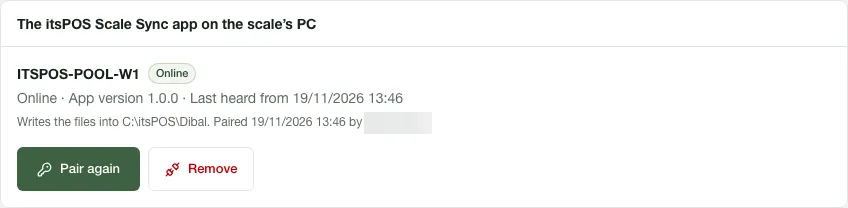
The itsPOS Scale Sync app on the scale's PC
Most Dibal label scales get their prices from a till in the same shop (see Dibal label scales). When no till can reach the scale's PC, for example a butcher's scale in a back room on its own network, the itsPOS Scale Sync app runs on the scale's Windows PC and writes the prices, ingredients, allergens and pictures into the folder Dibal's RGI watches, straight from itsPOS.
For: Owners, Admins and Shop managers5 min read
We switch it on for your business. The app is part of the Dibal integration, so the itsPOS team turns it on for you when we set up your first Dibal scale. If How the scale gets its files doesn't show The itsPOS Scale Sync app on the scale's PC, ask us to set it up.
What you need
- A Dibal label scale whose PC runs Windows 10 or 11, with Dibal's DGI and RGI set up (we do this with you once).
- That PC connected to the internet.
- Someone who can install programs on that PC (an administrator).
- Owner, Admin, or Shop manager for that shop in the back office.
In the back office
Open Settings › Hardware and open the scale (or Add a scale with Brand Dibal).
In How the scale gets its files, choose The itsPOS Scale Sync app on the scale's PC. Folder on the scale's PC can stay empty: the installer fills it in.
Press Save changes. The scale's page gets a card The itsPOS Scale Sync app on the scale's PC.
On that card press Set up the app. It shows three steps:
- Download for Windows (the installer, signed by IT SOLVER LTD).
- A pairing code to type in the installer, with Copy. It works once, for 10 minutes.
- The folder Dibal's RGI watches: the installer suggests
C:\itsPOS\Dibal.
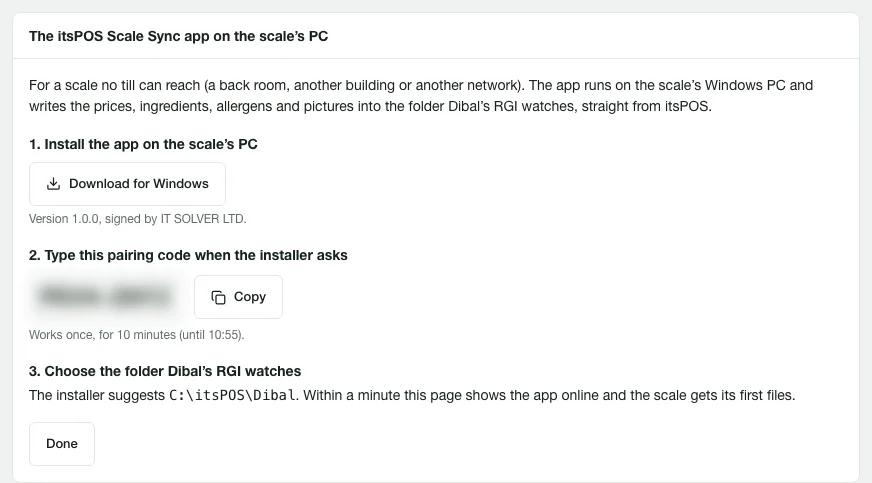
The Scale Sync app card after Set up the app Press Done when the installer has finished.
On the scale's PC (Windows)
Run the installer you downloaded. Windows asks Do you want to allow this app to make changes to your device? and shows Verified publisher: IT SOLVER LTD. Press Yes.
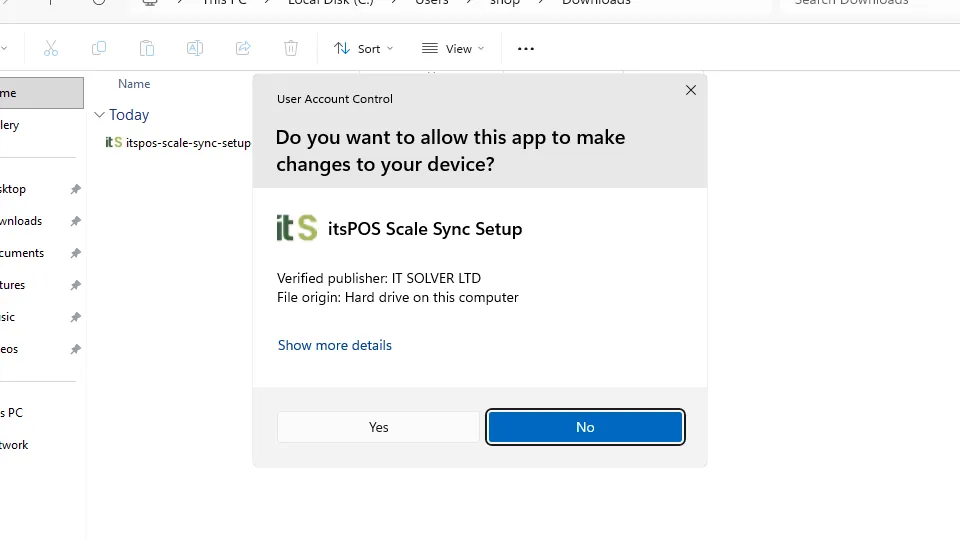
Windows asks Do you want to allow this app to make changes to your device? for itsPOS Scale Sync Setup, Verified publisher On Pair with itsPOS, type the code from the back office in Pairing code: and press Next.
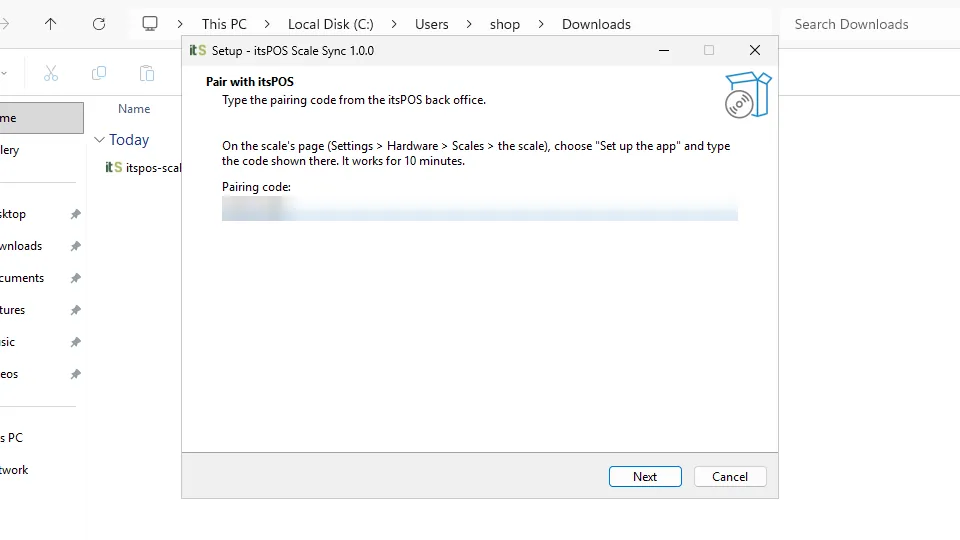
Setup - itsPOS Scale Sync 1.0.0, Pair with itsPOS On The scale's folder, keep
C:\itsPOS\Dibalor press Browse... to choose the folder RGI watches, then Next. It must be a folder on that PC: the app doesn't write to shared folders.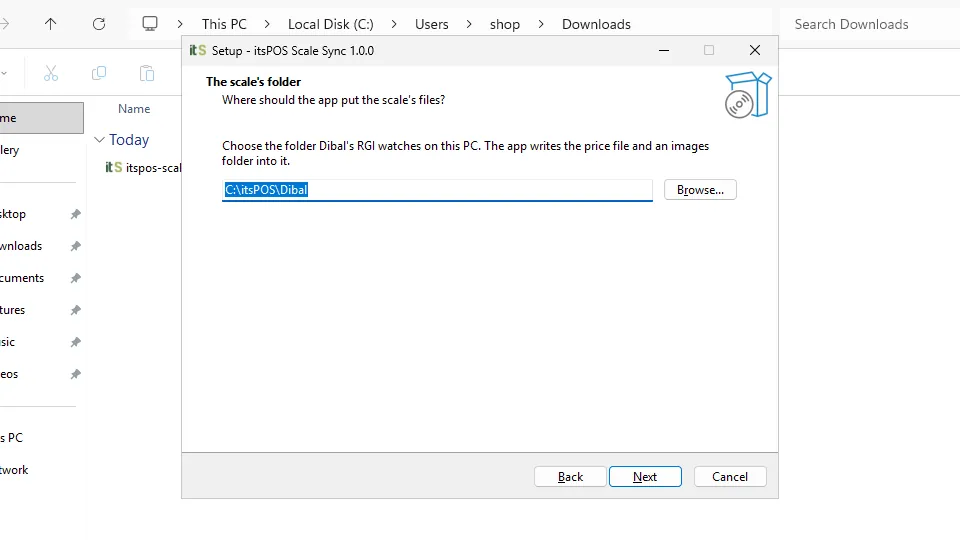
The scale's folder On Ready to Install, press Install, then Finish. The app runs as a Windows service, so it keeps working after a restart, with nobody signed in.
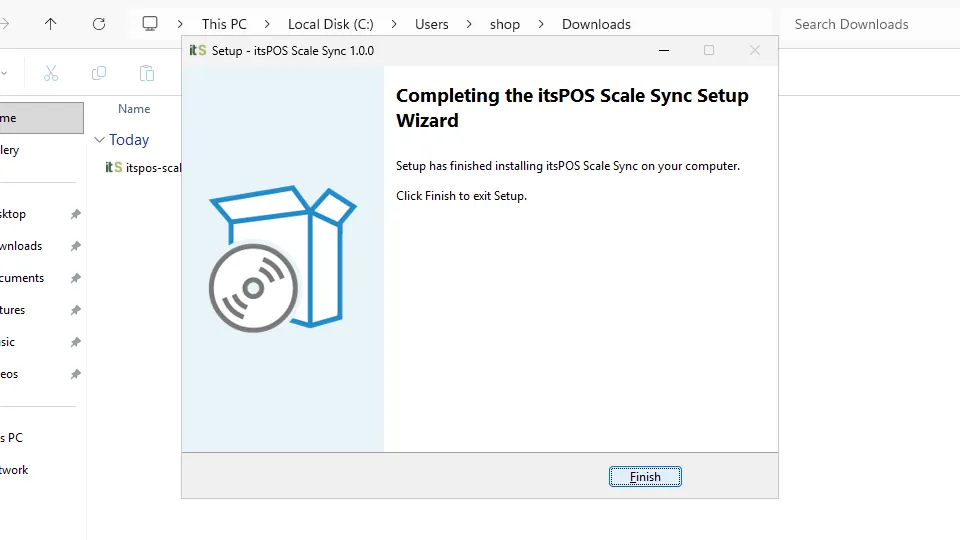
Completing the itsPOS Scale Sync Setup Wizard
Within a minute the card in the back office shows the PC's name with Online, the app version and Last heard from, and the scale gets its first files.
Test it
- In the back office, change the price of one product on the scale.
- Within 5 minutes the scale's page shows the new version delivered by the Scale Sync app.
- Call up that PLU on the scale: it shows the new price.
Change or remove it
- Pair again makes a new code, for a new PC or after reinstalling Windows.
- Remove stops the app: the scale keeps the files it has but gets no price changes until you pair the app again. You can then uninstall itsPOS Scale Sync from the PC (Windows Settings › Apps).
- The app updates itself when we release a new version; you don't need to do anything.
Common problems
| What you see | What to do |
|---|---|
| No The itsPOS Scale Sync app on the scale's PC choice, or "The itsPOS Scale Sync app isn't switched on for your business" | Ask us to set it up: we switch it on with the Dibal integration. Until then choose A till in this shop puts them in the scale's folder or I download the file and import it myself. |
| "Pairing with itsPOS didn't work" in the installer | The code was mistyped, already used or more than 10 minutes old: press Pair again in the back office and use the new code. |
| "The itsPOS Scale Sync service didn't start" | Restart the PC and run the installer again; if it repeats, call us. |
| "Choose a folder on this PC, for example C:\itsPOS\Dibal. The app doesn't write to shared folders." | Pick a folder on that PC's own disk and point RGI at it. |
| The card says Offline, or an alert "The itsPOS Scale Sync app on … has been offline since …" | Check the PC is on and connected to the internet. |
| The file arrives but the scale doesn't change | RGI isn't running or isn't watching that folder: see Dibal label scales. |
For installers
- Silent install:
itspos-scale-sync-setup-<version>.exe /VERYSILENT /CODE=<code> /FOLDER=C:\itsPOS\Dibal. Running the installer again updates the app; the code may then be left empty to keep the pairing. - The app writes the same versioned Dibal file and
images/<PLU>.jpgas a till does, each written whole and then renamed. - The service is itsPOS Scale Sync, running under its own Windows account (
NT SERVICE\itsPOSScaleSync) with a delayed automatic start; Windows restarts it if it stops.
Still stuck?
The itsPOS support team is here 08:00 to 20:00 every day except Christmas Day.
- Call or WhatsApp: +44 7488 880320
- Email: support@itspos.io
- In the back office: Help › Contact support, or go to app.itspos.io/help/contact after you sign in
- On our website: itspos.io/contact
Tell us your shop's name and what you were trying to do. A screenshot of the screen helps.