

Hardware
Settings › Hardware: scales, PLUs and Send to scale
Settings › Hardware is where you keep the scales at your deli, butcher's or cheese counter up to date: itsPOS sends each scale the PLU, name and price of the products it sells, and sends again whenever a price changes. These are scales that print their own price labels. The scale on a till is set in a till profile instead: see your scale's guide in Selling by weight legally.
For: Owners, Admins, Shop managers and Accountants6 min read
Who can use it
| Role | What they can do |
|---|---|
| Owner, Admin | Everything on the page |
| Shop manager | Add, change, send and remove scales for their own shops |
| Accountant | Look at the page |
| Supervisor, Cashier, Stock | Nothing (they don't see the page) |
What you see
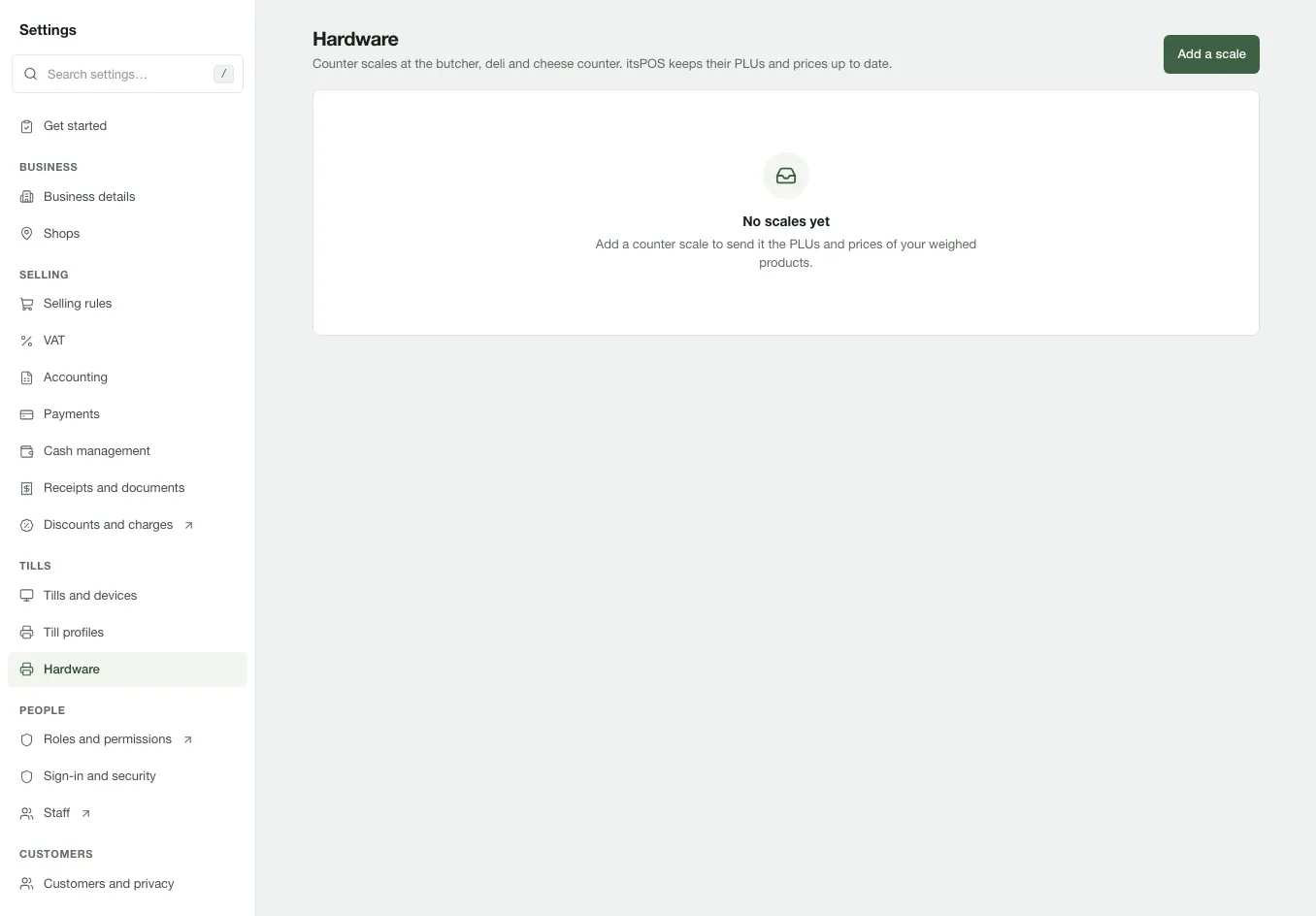
- Add a scale at the top.
- The list of scales: Scale, Shop, Brand, PLUs, Status and Delivery (how its files get there and when they last did). A scale switched off shows Disabled.
- An amber alert when a scale hasn't had the latest prices for 20 minutes, for example "Deli counter hasn't had the latest prices." with what to check.
- With no scales yet: No scales yet.
Add a scale
Press Add a scale.
Fill in the Scale card:
Field What to choose What it changes Scale name A name staff recognise, for example "Deli counter" (required) Shown in the list and on the tills' Dibal scale files row Shop The shop the scale stands in "The scale gets this shop's prices." Brand Dibal (itsPOS default) or File export (CSV) Dibal gets a file for Dibal's DGI and RGI with ingredients, allergens and pictures, and the Files for the scale card. File export makes a plain CSV for other scale software, which you import yourself Send changes automatically On (itsPOS default) Within 5 minutes of a price or name change, and when a price from a date starts, the scale gets the change. Off: changes wait until you press Send This scale is in use On (itsPOS default) Off: nothing is sent; the list says Disabled Choose Products on the scale: Every product sold by weight (itsPOS default), Products in these categories or Products with these tags (tick at least one). Each product needs a PLU, the number staff key in on the scale, set in the product's PLU and barcodes card (Barcodes and packs for a product sold by the each).
For a Dibal scale, fill in Files for the scale:
Field Options What it changes How the scale gets its files A till in this shop puts them in the scale's folder (itsPOS default), I download the file and import it myself; The itsPOS Scale Sync app on the scale's PC once we've switched it on for your business The till way puts a Dibal scale files row on every till in the shop. The download way shows Download the file after each send. The app way: The itsPOS Scale Sync app Scale's folder (till way) The shared folder Dibal's RGI watches, as the tills reach it, for example \\SCALE-PC\RGI(required)Must be a computer name or a private address on your shop's network Barcode on the scale's labels PLU and price (itsPOS default), PLU and weight, No barcode What the label scale prints in its barcode, so the till can sell from the label Barcode starts with 20 (itsPOS default); 02 or 20 to 29 Must be a start your tills read: see Barcodes on scale labels. Anything else says "The barcode starts with 02 or 20 to 29" Press Add scale. The scale's page opens with Scale added. Send it its PLUs when you're ready.
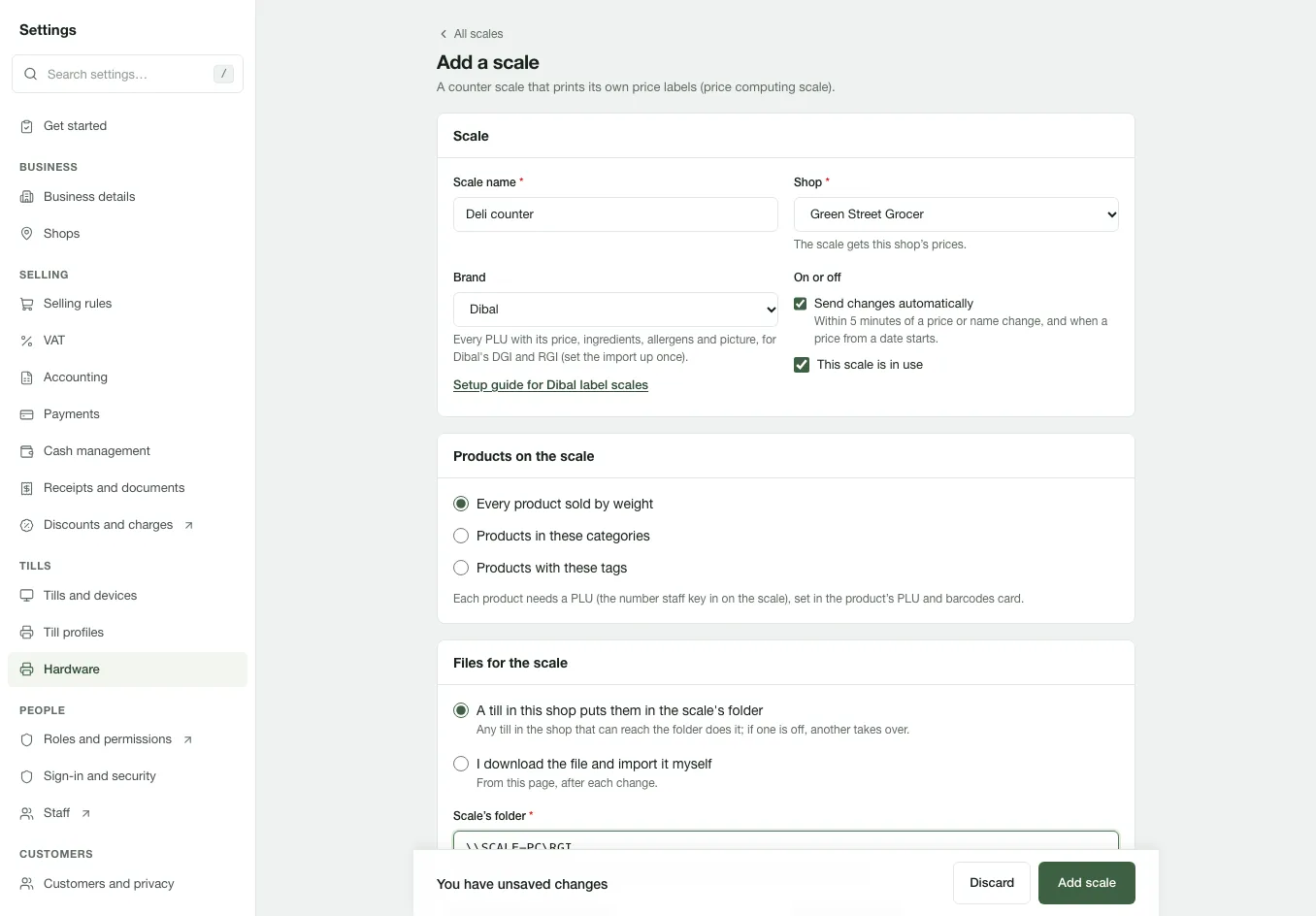
Add a scale for Deli counter at Green Street Grocer with Brand Dibal
A scale's page
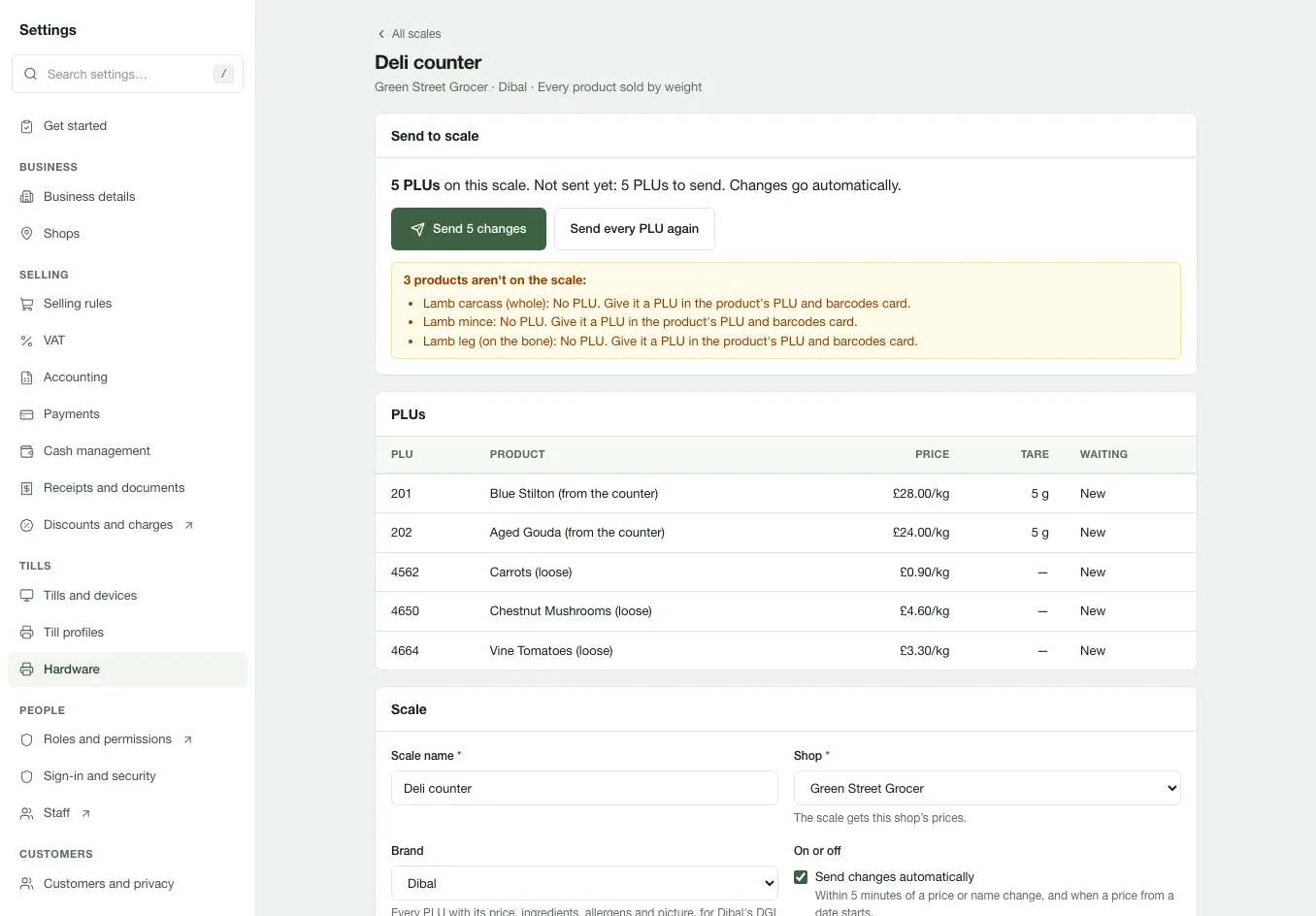
- Send to scale: how many PLUs the scale has and what's waiting, for example "5 PLUs on this scale. Not sent yet: 5 PLUs to send."
Send 5 changes sends only what changed; Nothing waiting when it's up to date.
Send every PLU again sends the whole list, for example after the scale was reset.
After a send: "Sent 5 PLUs at 07:29 on 19 Nov." It then says what happens next:
- the till way: "A till in Green Street Grocer puts it in the scale's folder within a minute.";
- the app way: "The Scale Sync app on BACKROOM-PC puts it in its folder within a minute.";
- the download way: Download the file and import it in the scale's software.
With the till way, a box shows which till delivers the files to the folder and the newest version it delivered, for example "Up to date: version 2 delivered by Till 1 (MAI11) at 13:31 on 19 Nov."
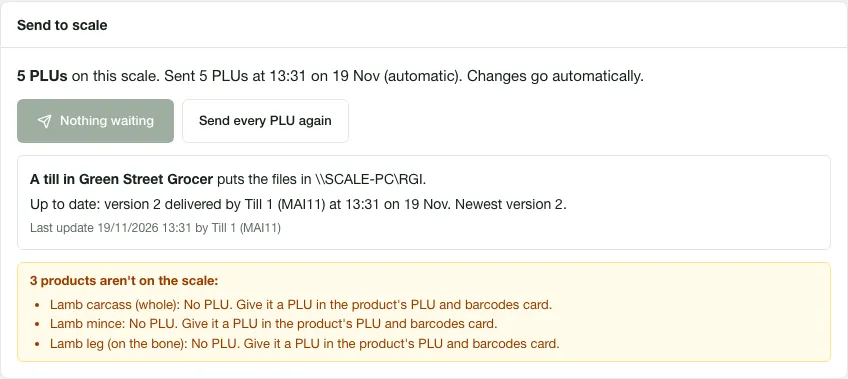
Send to scale for a scale the tills deliver to
- The products that aren't on the scale, each with the reason, for example "Lamb mince: No PLU. Give it a PLU in the product's PLU and barcodes card." A PLU longer than 6 digits is refused too: "The PLU is longer than 6 digits; scales take up to 6."
- Pictures (Dibal): every product picture goes to the scale as a JPEG up to 480 px wide, whether it was uploaded as a JPEG, PNG or WebP. A new picture can take a few minutes to be ready; meanwhile the page says, for example, "12 pictures are still being prepared; they go to the scale automatically when ready." A picture the scale can't use is named with why, for example "1 product has a picture the scale can't use: Lamb back." (a picture from another website: upload it on the product).
- PLUs: each PLU with its product, price (for example £3.30/kg), tare and whether it is New or Changed and waiting.
- The scale's settings, as when you added it, with Save changes.
- Files sent: the last 20 files with when they went and who sent them, each with Download.
Remove a scale
- On the scale's page, press Remove this scale.
- The question says "itsPOS stops making files for it. The scale itself keeps its PLUs." Press Remove scale (or Cancel).
- The list says, for example, "Deli counter removed." The tills' Dibal scale files row goes too.
Ingredients and allergens on the scale
Dibal files carry each product's ingredients, allergens and use-by days from the product's food information, so the scale can print them on the label. Food information is on every plan.
Where it shows up
- Till: with the till way, Settings › Hardware gets a Dibal scale files row on every till in the shop (Dibal label scales).
- Selling: the till sells a scanned scale label at the label's price (Sell by weight).
- Products: a product's PLU and tare are in its PLU and barcodes card (the PLU of a product sold by the each is in Barcodes and packs) (Products sold by weight).
Still stuck?
The itsPOS support team is here 08:00 to 20:00 every day except Christmas Day.
- Call or WhatsApp: +44 7488 880320
- Email: support@itspos.io
- In the back office: Help › Contact support, or go to app.itspos.io/help/contact after you sign in
- On our website: itspos.io/contact
Tell us your shop's name and what you were trying to do. A screenshot of the screen helps.