

Integrations
API keys: let your other systems read itsPOS
An API key lets another system, such as a stock tool, a reporting tool or your website, read your itsPOS products, stock and sales. "It can only read, never change anything." This guide is for you; your developer's side is in the full API guide.
For: Owners and AdminsOn some plans3 min read
What you get
- Read access to Products and prices, Stock levels and Sales, each one or more of them.
- All your shops or only the ones you choose. "The key can't read sales or stock of other shops. Products are the same in every shop."
- A key that expires when you choose, and works only from the addresses you allow if you like.
Before you start
- Owners and Admins create keys. Creating one is a high-trust permission: it "gives other software access to your data".
- Ask your developer or the tool's supplier what it needs to read.
Create a key
Open Integrations › API keys and press Create key.
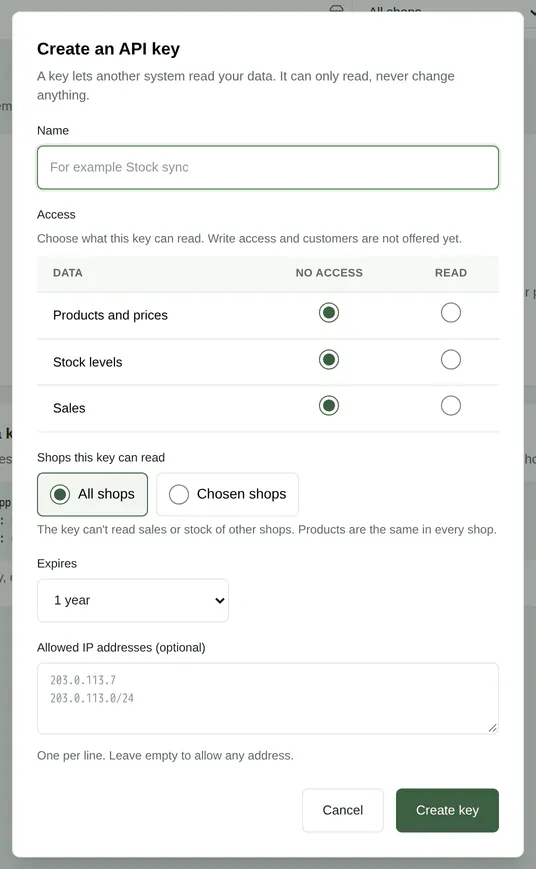
Create an API key Type a Name that says what uses it, for example "Stock sync".
Under Access, choose Read for each kind of data it needs and leave the others on No access.
Under Shops this key can read, choose All shops or Chosen shops.
Choose when it Expires: 30 days, 90 days, 1 year or Never.
If your developer gives you the addresses their system calls from, type them under Allowed IP addresses (optional), one per line.
Press Create key.
"You will not see this key again. Store it somewhere safe." Press Copy, give it to your developer through a safe channel (not plain email), then press I have stored the key.
Test it
Your developer sends a read request with the key, as How to use a key on the page shows: the key in the Authorization header and your site code in the second header. The list shows when the key was Last used. A key without access to something gets "You do not have permission to do this."
Change or stop a key
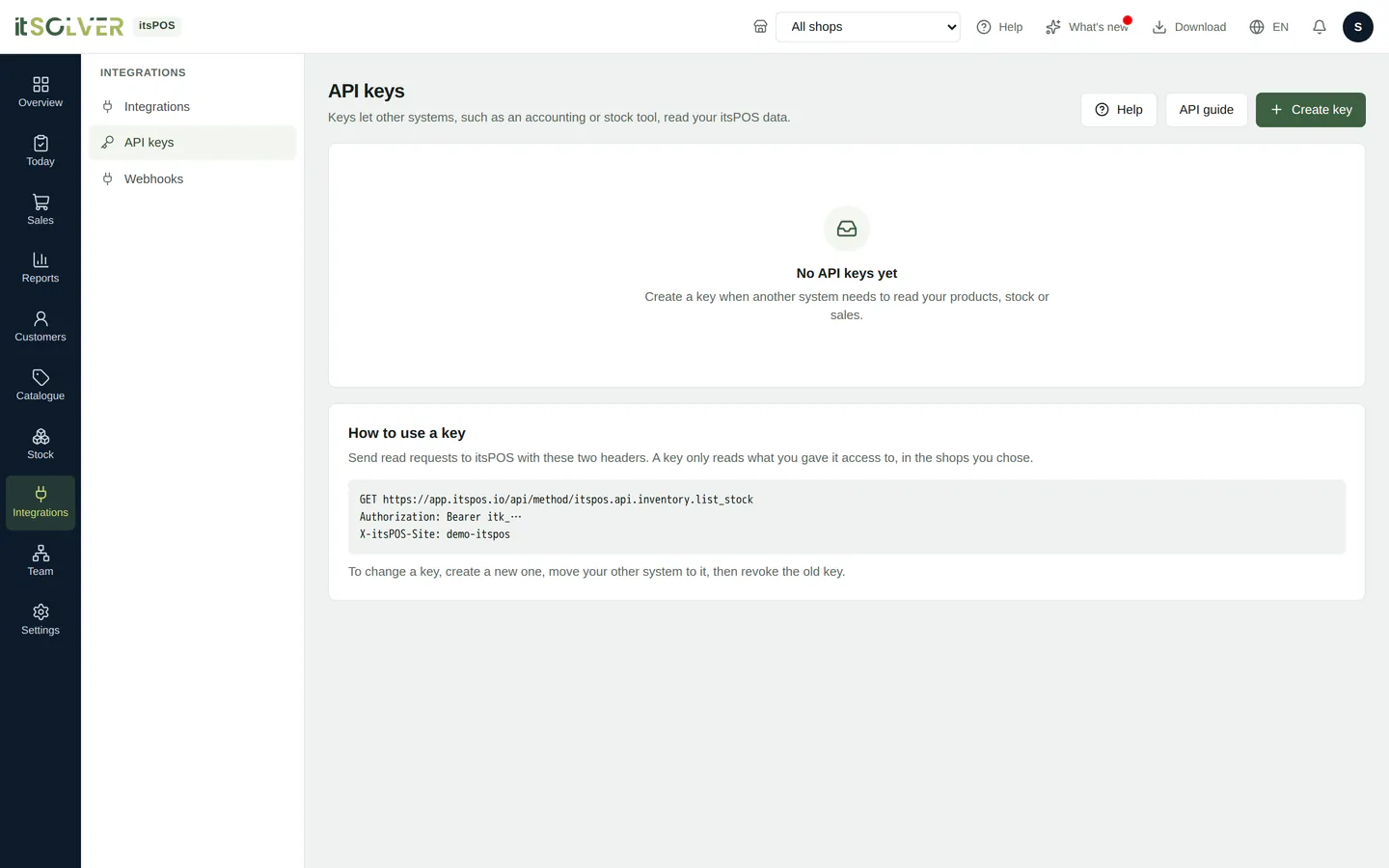
- Rename changes its name only.
- Shops changes which shops it reads; "The change applies to the key's next request."
- Revoke: "Anything using this key stops working straight away." Confirm with Revoke key. A revoked key stays in the list as Revoked.
- To change what a key reads, create a new one, move your other system to it, then revoke the old key.
What changes elsewhere
- Every key's creation, change and revocation is in Activity.
- Your plan sets how many API reads a month are included; Settings › Plan and add-ons shows how many are used.
- Keys also let your developer catch up on webhooks they missed (Webhooks).
Still stuck?
The itsPOS support team is here 08:00 to 20:00 every day except Christmas Day.
- Call or WhatsApp: +44 7488 880320
- Email: support@itspos.io
- In the back office: Help › Contact support, or go to app.itspos.io/help/contact after you sign in
- On our website: itspos.io/contact
Tell us your shop's name and what you were trying to do. A screenshot of the screen helps.