

Integrations
Integrations: what works with itsPOS and how we switch it on
Integrations lists the partners and services that work with itsPOS. "We set them up for you": you ask, sign up with the partner through itsPOS, and the itsPOS support team switches the integration on for your business. You can't switch a partner on yourself with your own keys, so every connection is one we can support.
For: Owners, Admins, Shop managers and Accountants4 min read
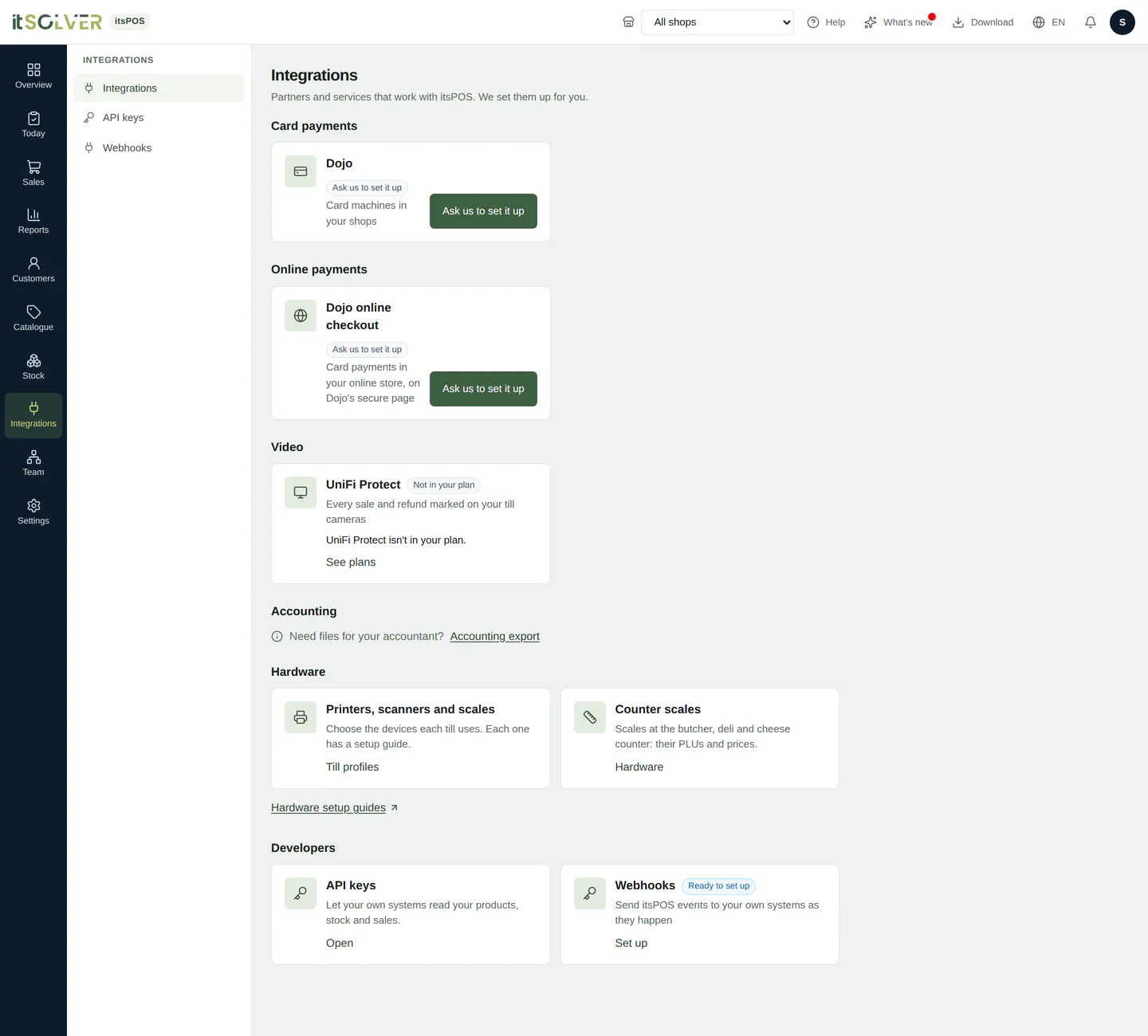
What is on the page
| Group | Card | What it does | More |
|---|---|---|---|
| Card payments | Your card payment partner | Card payments on card machines from your tills | How card payments work, "Set up card payments" in Help |
| Online payments | Online card payments | Card payments in your online store, on the card payment partner's secure page | "Online card payments" in Help |
| Video | Your shop's cameras | Every sale and refund marked on your till cameras (an add-on) | Ask us |
| Accounting | Accounting export | Files for your accountant: journals, sales, purchases and VAT | Reports › Accounting export (Reports and accounts section) |
| Hardware | Till profiles, Hardware | The printers, scanners and scales each till uses, with their setup guides | The Hardware section |
| Developers | API keys, Webhooks | Let your own systems read itsPOS, or hear about sales and orders as they happen | API keys, Webhooks |
Card payments come from our card payment partner for every itsPOS shop. Other payment providers aren't offered; the itsPOS support team can set one up for one business only in exceptional cases.
What a card's status means
| Status | What it means |
|---|---|
| Ask us to set it up | Not set up. Press it to ask |
| Asked | We've got your request and will be in touch |
| Not switched on yet | Shown on the partner's page until the itsPOS support team switches it on for you |
| Ready to set up | Switched on for you (or, for API keys and webhooks, in your plan): add the details on its page |
| Test mode | Connected with test details: no real money moves |
| Connected | Working |
| Needs attention | Something stopped working: see "When an integration needs attention" in Help |
| Paused by itsPOS | We paused it, for example while the partner fixes a problem; the card says why |
| Not in your plan | An add-on or a higher plan includes it: See plans |
| Set up by itsPOS as an exception | Set up for your business only, with a reason we keep |
Ask us to set one up
Press Ask us to set it up on the card.
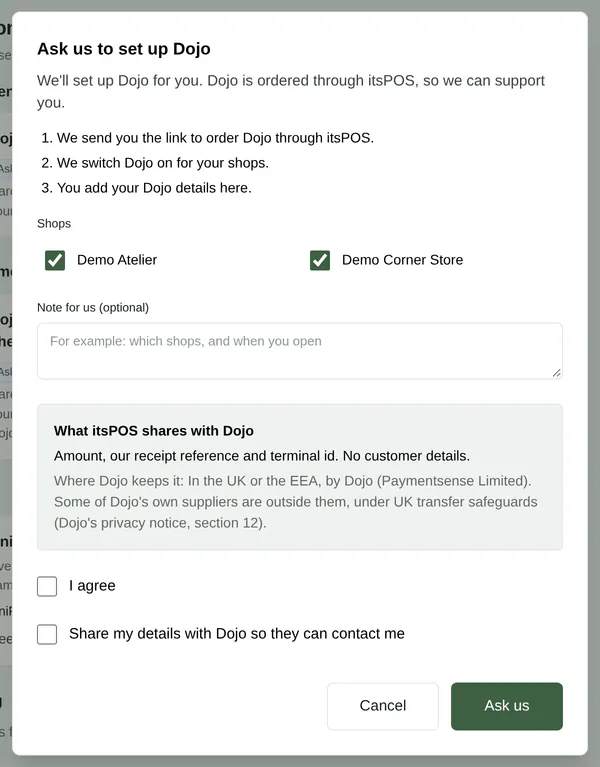
Ask us to set up online card payments Read the three steps and What itsPOS shares with the partner.
Add a Note for us (optional), for example which shops and when you open.
Tick I agree. Tick Share my details with the partner if they may contact you.
Press Ask us. "We'll be in touch."
When a partner is ordered through itsPOS (such as card payments), sign up through our link ("Open the partner's page") so your account is linked to itsPOS and we can support you. Then we switch it on and you add the partner's details on its page.
Each partner's page
Press Open on a connected card. Overview says what it does, "What itsPOS sends" to the partner, "Who can change it" and what happens "If the internet is down", with each shop's status and Test connection. Settings holds the partner's details for each shop, Problems what needs attention, and Activity what was sent and when. Full guide opens the partner's guide.
Who can do what
- Owners and Admins ask us, agree to the data sharing, add details, test and disconnect.
- Shop managers see integrations and retry problems.
- Accountants see integrations and use the accounting export.
- Supervisors and Cashiers don't use the back office: the till shows them what they need, such as the card machine.
Still stuck?
The itsPOS support team is here 08:00 to 20:00 every day except Christmas Day.
- Call or WhatsApp: +44 7488 880320
- Email: support@itspos.io
- In the back office: Help › Contact support, or go to app.itspos.io/help/contact after you sign in
- On our website: itspos.io/contact
Tell us your shop's name and what you were trying to do. A screenshot of the screen helps.