

Hardware
The Hardware screen on the till
Settings › Hardware on the till shows every device of this till with its status, and checks each one with a test. How a device is connected is set here; which model it is comes from the till profile in the back office.
For: Owners, Admins, Shop managers and Supervisors3 min read
Needs itsPOS Till 0.5.35 or later.
Who can use it
| Role | What they can do |
|---|---|
| Owner, Admin | Everything, including Change on the Scale row and, for a scanner on its own serial port, on the Scanner row |
| Shop manager | Run every test; Change on the printer, drawer, card machine and label printer rows, and Change folder under Dibal scale files |
| Supervisor | Run every test; no Change |
| Cashier | Nothing: Hardware is greyed out with "Not allowed for your role" |
What you see
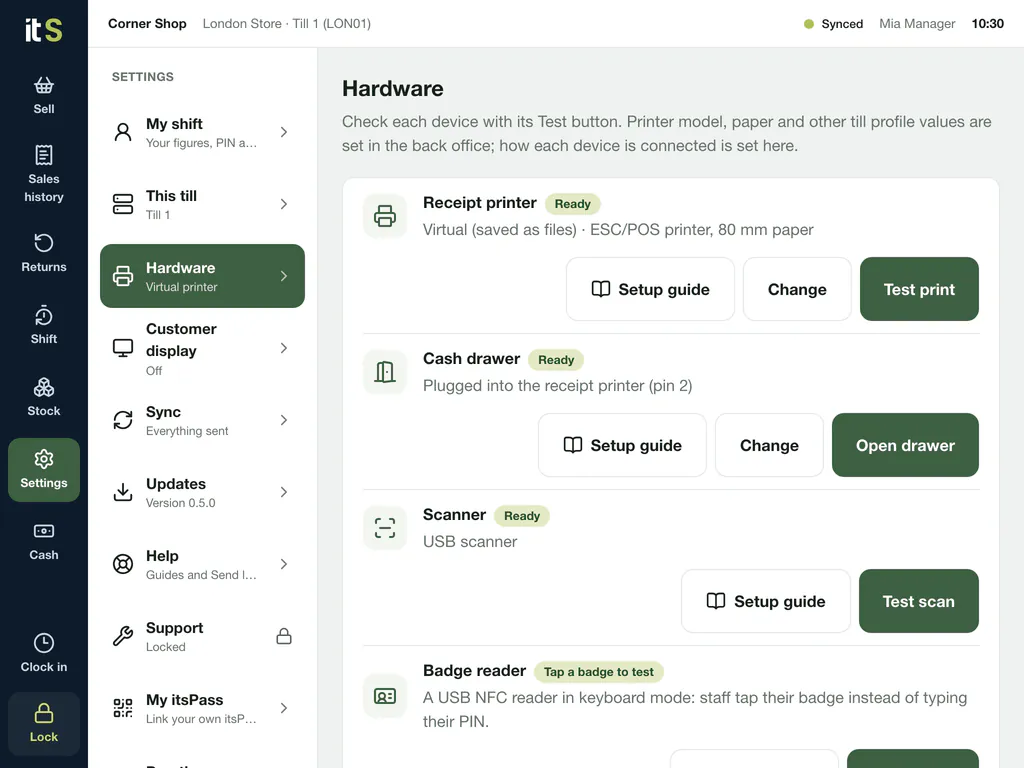
A row for each device, in this order: Receipt printer, Cash drawer, Scanner, Badge reader, Scale, Dibal scale files (only when your shop has a Dibal label scale delivered by its tills), Card machine, Customer display and Label printer. Each row has:
- its status, for example Ready, Not answering, Out of paper, Not connected, Not in the till profile or Connected on …;
- the model and its badge, how it's connected, and the last test ("Last test (Test print): worked, …");
- Setup guide: Open in the browser, or Print the link with a QR code to open it on a phone (in kiosk mode the browser can't open over the till);
- Change, for the people above;
- the test button: Test print, Open drawer, Test scan, Test badge, Read weight (and Zero for a Magellan on one cable), Check connection, Show test screen or Test label.
Setting up a Datalogic Magellan 9800i? Print its set-up guide first, then use Read weight (and Zero with one cable) for its test: Set up a Datalogic Magellan 9800i scanner-scale has the one-cable and two-cable guides to download.
Under the rows, the Till profile panel shows the values the back office sets for this till, each marked "Set in the back office": printer model, paper, copies, receipt choices, drawer, scanner, scale and label printer.
An amber Scale needs re-checking. note at the top means the scale changed (in the till profile, or its cable, port or adapter on the till): trade use is off and weighed items show "Not for trade use" until an Owner or Admin switches on trade use again in the back office (Selling by weight legally › Switch on trade use).
What you can do
- Test a device: press its test button. Most tests then ask a question, for example Test print sent. Did it print?: answer Yes or No. The answer is saved with the till.
- Change how it's connected: press Change, for example to type a printer's new IP address, choose the scale's port, choose the port of a scanner on its own serial port (never the scale's port) or choose the card machine. The model itself is changed in the back office: Till profiles: choosing each till's devices.
- Open the device's guide: press Setup guide.
Where it shows up
- In the back office, Settings › Tills and devices, open the till: Hardware tests lists each test's answer, and Send a test print prints from the back office without going to the till.
- When something isn't working, each device's guide has a "Common problems" table.
Still stuck?
The itsPOS support team is here 08:00 to 20:00 every day except Christmas Day.
- Call or WhatsApp: +44 7488 880320
- Email: support@itspos.io
- In the back office: Help › Contact support, or go to app.itspos.io/help/contact after you sign in
- On our website: itspos.io/contact
Tell us your shop's name and what you were trying to do. A screenshot of the screen helps.