

Team
Adding staff
Add a new member of staff in under a minute: their name, their role and the shops they work in. itsPOS makes their till PIN for you, and emails an invitation to people who also use the back office.
For: Owners, Admins and Shop managers6 min read
Before you start
- Owners and Admins add and change anyone. Admins can't change Owners or give the Owner role.
- Shop managers add and change people who work only in their own shops, with any role except Owner and Admin. They see only the people of their shops.
- Nobody else sees Team › Staff.
- Your plan includes a number of team members (Team members on your plan).
Add someone
In the back office, go to Team › Staff and press Add staff.
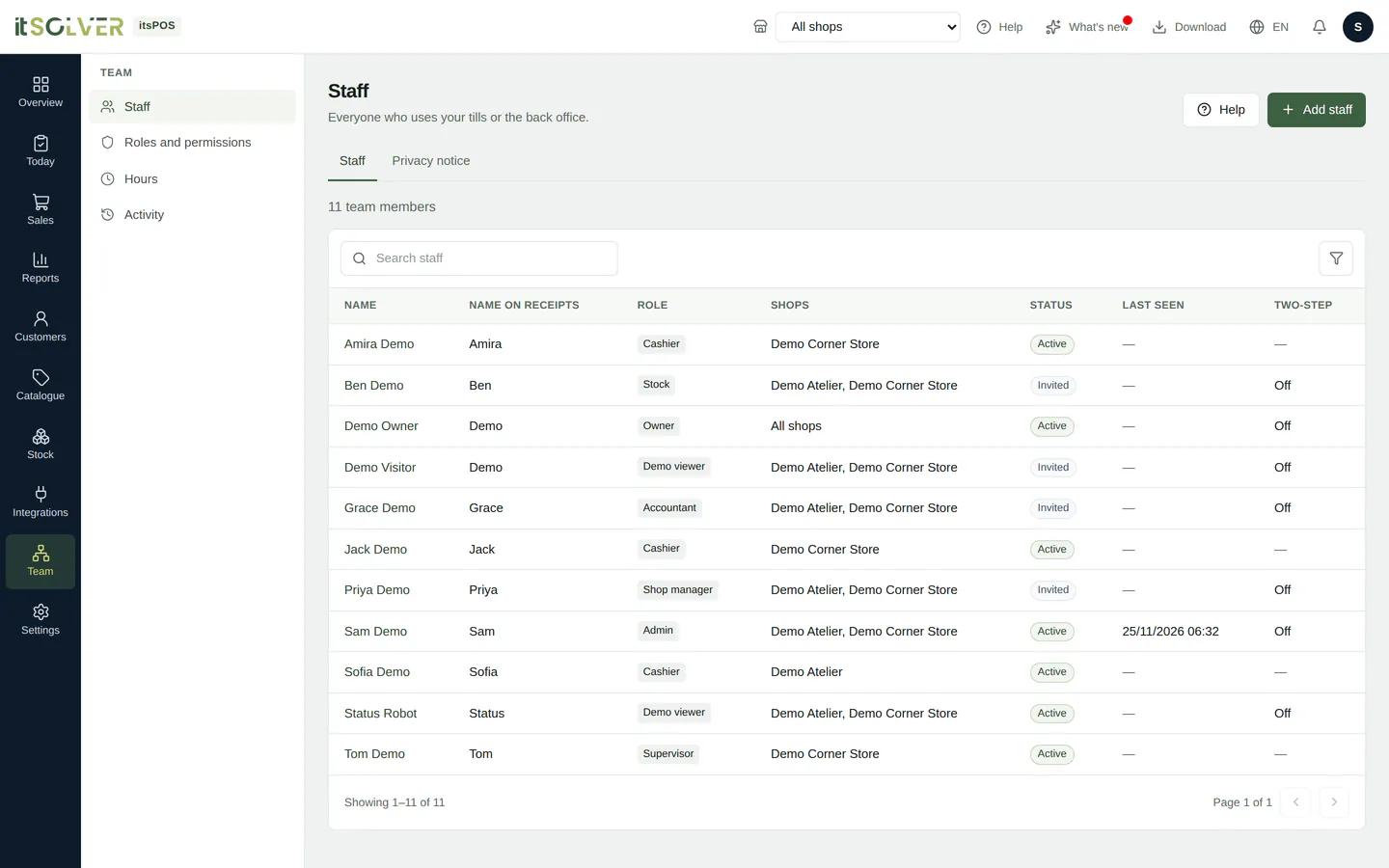
Team › Staff Under Who, fill in the First name, Last name and Role. Tick more than one role if someone does two jobs.
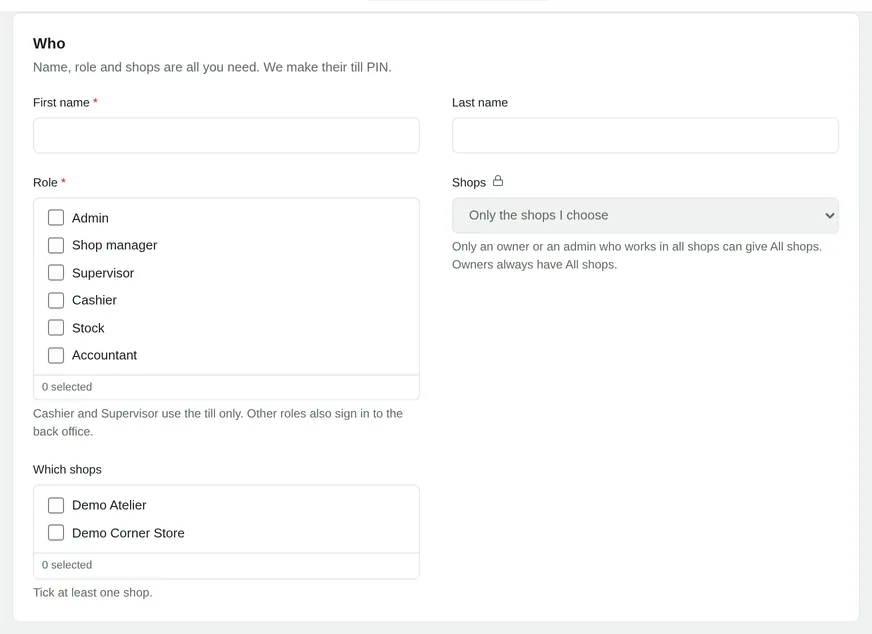
Add staff, the Who card Under Shops, choose Only the shops I choose and tick their shops under Which shops, or choose All shops, including new ones. Only Owners and Admins who work in all shops can give All shops. Owners always have all shops.
Under More (optional), fill in only what you use:
- Email: needed for roles that sign in to the back office. We email them an invitation. Till-only staff don't need one.
- Name on receipts: shown on receipts and on the till. Leave it empty to use their first name.
- Phone number and Start date: for your records.
- Payroll number: matches them in your payroll software when you export hours (Hours and the payroll export).
- Under 18 until: their 18th birthday. Until then a manager approves each alcohol sale they make. We never store a date of birth.
- Hourly rate: optional, seen only by Owners and Admins, used for the labour cost in Hours.
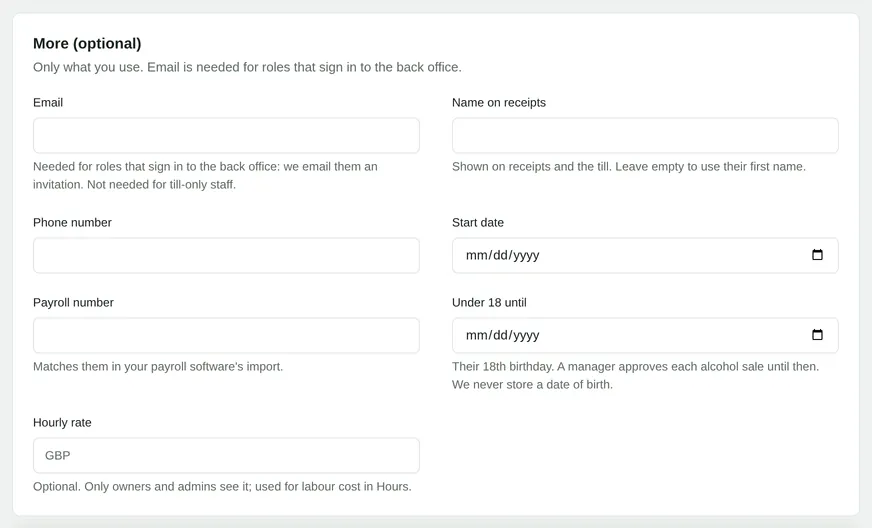
Add staff, the More (optional) card Press Add staff. Giving someone the Owner or Admin role? If you signed in more than 15 minutes ago, itsPOS asks you to Confirm it's you first (your passkey, or your password and code), then adds them with what you typed. Cancel saves nothing and keeps your answers on the form. See Confirm it's you.
itsPOS shows their PIN once, for example "Lily's PIN is 4612. Give it to Lily privately. You won't see it again." Press Print PIN slip to print a small slip with their name, PIN and shops, then Done.
Nobody can read a PIN afterwards, not even Owners. If it's lost, make a new one: see PINs and badges.
Till only, or the back office too?
The role decides:
| Role | Signs in to |
|---|---|
| Cashier, Supervisor | The till only, with their PIN or badge. No email needed |
| Owner, Admin, Shop manager, Stock, Accountant | The till and the back office. An email is needed |
| Your own roles | You choose: Can sign in to the back office on the role |
A role that signs in to the back office without an email is refused: "Add an email address: this role signs in to the back office."
Invitations to the back office
- People whose role signs in to the back office get an email invitation to app.itspos.io. The link works once and lasts 7 days.
- From the invitation they choose a password and can add a passkey, so they sign in with their fingerprint, face or phone (Signing in safely). The invitation also links to your staff privacy notice.
- Until they accept, the Staff list says Invited. They can already use their PIN on the till.
- On their page, Resend invitation sends a new link for another 7 days, and the old one stops working.
The Staff list
| Column | What it shows |
|---|---|
| Name, Name on receipts | Their name, and the name on receipts |
| Role, Shops | Their roles, and their shops or "All shops" |
| Status | Active, Invited, Away (for example "Away until 5 Jan"), "Leaving 31 Dec" when a leaving date is set, or Left |
| Last seen | Their last sign-in on a till or in the back office, whichever was later |
| Two-step | Whether two-step sign-in is on (back-office people only) |
Search by name, or press the filter button for Role, Shop and Status: people who left show only when you choose Left. Above the list you see how many team members you have, for example "14 team members" (Team members on your plan).
A person's page
Tap a name to open their page:
- Who and More (optional): their details, with Works until (they become Away the day after, for example a Christmas temp). Press Save changes.
- Roles, with What can Lily do?: everything they may do on the till and in the back office, merged across their roles, with limits. High trust marks what matters most.
- Till: their PIN and badge (PINs and badges).
- Back-office sign-in: the invitation, Reset password and the phone and computer they're signed in on (Owners and Admins).
- Hours this week, Leaving (When someone leaves), Data (Staff privacy) and itsPass (their own itsPass, linked on the till).
Taking on a Christmas temp
- Add them as a Cashier at their shop, with their Payroll number.
- On their page, set Works until to their last day, for example 31 Dec, and press Save changes.
- The day after, they become Away by themselves: their PIN stops working on every till and they stop counting as a team member. Their hours stay for payroll.
What happens next
- Every till of their shops gets them within seconds when it's online (an offline till when it reconnects). They sign in with their PIN straight away (The till: lock screen, clock and badges).
- The Start date is for your records only: they can use their PIN as soon as you add them. To keep someone off the tills until their first day, add them nearer the day.
- Every change shows in Team › Activity.
If something goes wrong
- "Add an email address: this role signs in to the back office.": add their email, or choose a till-only role.
- "Your plan includes 10 team members. Ask us to add a team member.": see Team members on your plan.
- The invitation didn't arrive: check the email address on their page, then press Resend invitation.
- Someone whose role can approve other people's actions gets a 6-digit PIN; everyone else 4 digits.
- Giving someone the Owner or Admin role asks you to Confirm it's you if you signed in more than 15 minutes ago.
Still stuck?
The itsPOS support team is here 08:00 to 20:00 every day except Christmas Day.
- Call or WhatsApp: +44 7488 880320
- Email: support@itspos.io
- In the back office: Help › Contact support, or go to app.itspos.io/help/contact after you sign in
- On our website: itspos.io/contact
Tell us your shop's name and what you were trying to do. A screenshot of the screen helps.