

Team
Your own account: sign-in, devices, notifications, exports, your data and My activity
The account menu (your initial, top right in the back office) holds the pages that are only about you. Everyone sees only their own.
For: Owners, Admins, Shop managers, Stock staff and Accountants2 min read
What each page is for
| Page | What it's for |
|---|---|
| Sign-in and security | Two-step sign-in with a passkey or an authenticator app, your recovery codes, and Change my password. See Signing in safely |
| Signed-in devices | The phone or tablet and the computer you're signed in on, with Sign out for the one you don't use. See Your phone and computer |
| My notifications | The alerts you get by email and as a push on your phone, for example a cash difference over the allowed limit. You start with the alerts your role gets; changes save straight away |
| Exports | Big exports (over 5,000 rows) are prepared in the background and emailed to you; each file is kept here for 7 days |
| Your data | Download my data: one zip file with your staff record, roles and shops, sign-ins, hours, the sales and refunds you made, and the Activity entries about you. We may ask you to confirm it's you first |
| My activity | What you did in itsPOS, and changes others made for you. Sign-ins are kept for 12 months, the rest for 6 years |
| Staff privacy notice | What the tills and the back office record about the people who work here, why, who sees it and how long it's kept. See Staff privacy |
What you see
Sign-in and security says which email you sign in with, for example "How you sign in to the back office as mia.manager@example.com". Two-step sign-in is optional unless your business asks for it.
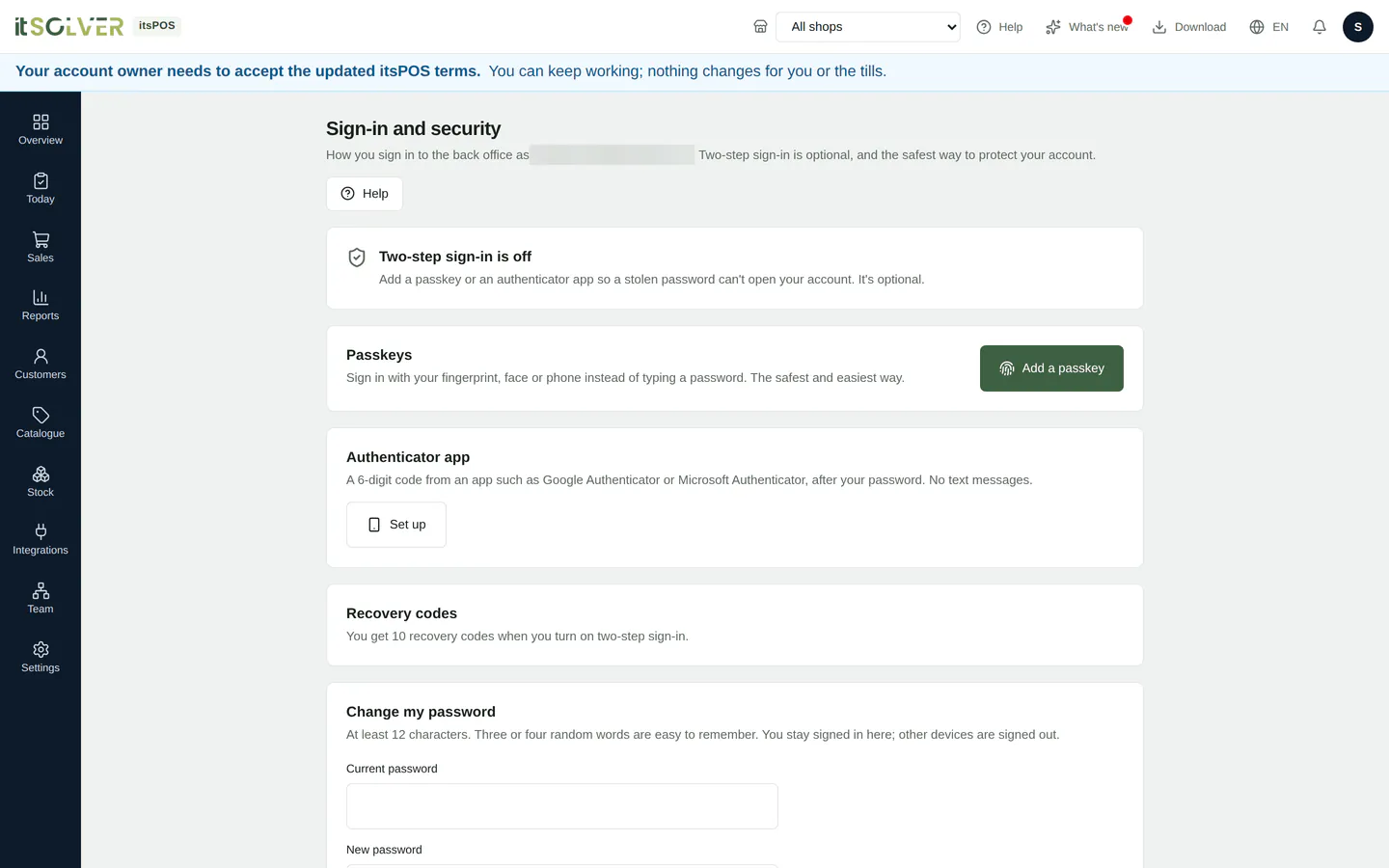
Sign-in and security My activity has the same Period choices as Team › Activity, and each line says "You …", for example "You approved Ben Back's hours".
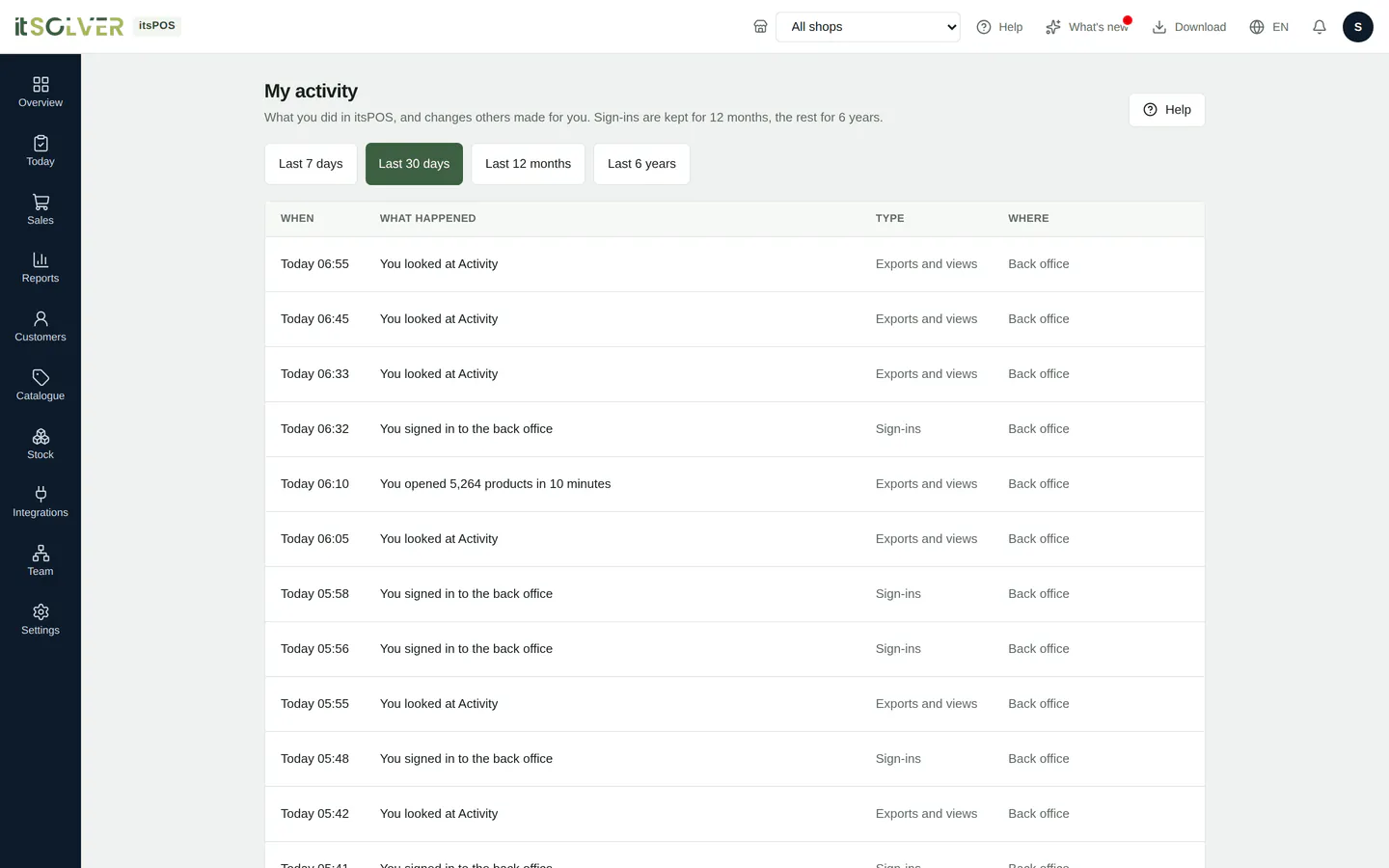
My activity Your data: press Download my data. The zip has a README that explains each file.
Where it shows up
- Changes you make here are in My activity and, for Owners and Admins, in Team › Activity.
- Staff who use only the till see their own figures, a new PIN and the staff privacy notice in My shift on the till (The till: lock screen, clock and badges).
Still stuck?
The itsPOS support team is here 08:00 to 20:00 every day except Christmas Day.
- Call or WhatsApp: +44 7488 880320
- Email: support@itspos.io
- In the back office: Help › Contact support, or go to app.itspos.io/help/contact after you sign in
- On our website: itspos.io/contact
Tell us your shop's name and what you were trying to do. A screenshot of the screen helps.