

Team
PINs and badges
Everyone signs in at the till with their own PIN, or by tapping their own staff badge on a small reader. itsPOS makes every PIN for you, so nobody chooses one and nobody learns a colleague's PIN.
For: Owners, Admins and Shop managers5 min read
Needs itsPOS Till 0.5.25 or later.
How PINs work
- itsPOS makes each PIN and shows it once. It's never weak (no 1111 or 1234) and never the same as anyone else's in your business.
- 4 digits for most staff, 6 digits for people whose role can approve other people's actions at the till, such as refunds over a cashier's limit.
- The till signs someone in as soon as the last digit is typed. No 4-digit PIN is ever the start of a 6-digit one, so the till never signs in the wrong person.
- Nobody can read a PIN afterwards, not even Owners. A lost or shared PIN is replaced, never looked up.
Make a new PIN in the back office
The Saturday boy forgot his PIN? Make him a new one.
Go to Team › Staff and tap the person.
In the Till card, press Make a new PIN, then Make a new PIN again to confirm ("Ben's old PIN stops working on every till.").
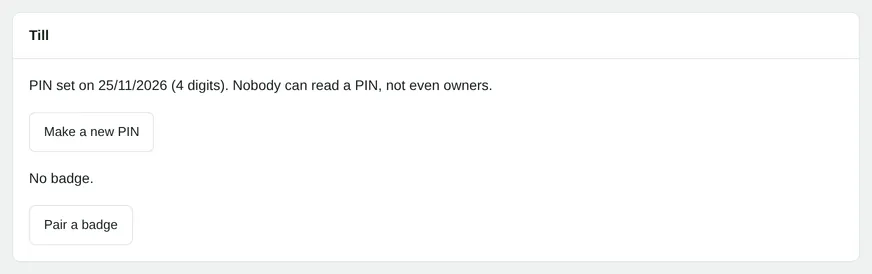
A person's Till card itsPOS shows the new PIN once. Give it to them privately, or press Print PIN slip, then Done.
Who can do it: anyone who can change that person (Owners, Admins, and Shop managers for people of their shops).
If someone's role changes so that they can now approve, their page says "Ben can now approve. Make a new 6-digit PIN." Their 4-digit PIN keeps working until you do.
Your own PIN: on your own page, type Your current PIN or password and press Make a new PIN. The current PIN or password is only needed if you signed in more than 15 minutes ago.
Get a new PIN on the till
Staff change their own PIN without a manager, for example when someone saw them type it: on the till, open My shift, press Get a new PIN and type the current PIN. The till shows the new PIN once, and the old one stops working on every till. The till must be online. See The till: lock screen, clock and badges.
Wrong PINs
After 5 wrong PINs in a row for the same person, the till and the back office make them wait 30 seconds, then longer after each further miss, up to 15 minutes. After 10, a manager unlocks the till with their own PIN or badge. Every wrong PIN is in Team › Activity (never the digits typed).
Staff badges
A badge is a contactless card or key fob, tapped on a small USB reader next to the till instead of typing a PIN. It works wherever a PIN works: the lock screen, a manager's approval and clocking in. A badge tapped on the sell screen never adds anything to the sale.
You need a USB NFC reader that types like a keyboard, plugged into the till. See the badge reader setup guide.
Pair a badge from the back office
Go to Team › Staff and tap the person.
In the Till card, choose the Shop with the reader if they work at more than one shop, and press Pair a badge.
The back office says "Tap Ben's badge on a till's reader at Green Street Grocer" and counts down 2 minutes. Any online till of that shop shows "Tap Ben's badge on the reader" on its lock screen.
Ben taps the badge on the reader, then enters his own PIN on that till.
The back office says Badge paired: "Ben can now tap their badge on HC team check and every other till where they work, wherever a PIN works." Press Done.
Only that person's own PIN pairs the badge, so a badge tapped at another till can't become theirs. A product barcode is never paired as a badge ("That's a product barcode, not a badge. Tap the badge on the reader.").
Press Cancel to stop waiting. Nobody pairs their own badge from the back office: someone else pairs it for them. Pair a new badge replaces the old one.
Pair a badge on the till
On the till, open My shift, press Pair my badge and tap the badge. A manager at the shop, who is 18 or over and isn't you, approves it with their PIN or badge. The till must be online.
A lost badge
On the person's page press Unpair badge, then Unpair badge again ("The badge stops working on every till straight away."). One badge belongs to one person: a badge already paired to someone else is refused ("That badge is already paired to someone else. Ask your manager to unpair it first.").
When someone leaves
Remove access now or a leaving date deletes their PIN and badge. Away switches the PIN off but keeps it, so it works again after Bring back. See When someone leaves or comes back.
Approvals with a PIN or badge
When a manager approves something at the till, the sale says how: "Approved by Mia (PIN)", "(badge)" or "(phone)". Nobody approves their own action. With Badge and PIN for bigger approvals on (Settings › Sign-in and security), a badge over your amount asks for that person's PIN too. Which actions need approval, and who may approve them, is in your back office's Help: "Manager approvals at the till".
Still stuck?
The itsPOS support team is here 08:00 to 20:00 every day except Christmas Day.
- Call or WhatsApp: +44 7488 880320
- Email: support@itspos.io
- In the back office: Help › Contact support, or go to app.itspos.io/help/contact after you sign in
- On our website: itspos.io/contact
Tell us your shop's name and what you were trying to do. A screenshot of the screen helps.