

Team
When someone leaves or comes back
When someone leaves, one button takes away their access to every till and the back office at once. For seasonal staff or long leave, make them Away instead and bring them back later with everything kept.
For: Owners, Admins and Shop managers5 min read
Away, Left and Active
| Status | Tills and back office | Their PIN and badge | Counts as a team member |
|---|---|---|---|
| Active (or Invited) | Signs in as usual | Working | Yes |
| Away | Can't sign in | Switched off, kept | No |
| Left | Can't sign in | Deleted | No |
All three keep their name on past sales, hours and Activity.
Before you start
- Owners, Admins and Shop managers (for people of their own shops) make people Away, bring them back, set leaving dates and remove access.
- You can't remove your own access, and the business always keeps at least one active Owner.
Make someone Away
For long leave or a seasonal break.
Go to Team › Staff, tap the person and find the Leaving card.
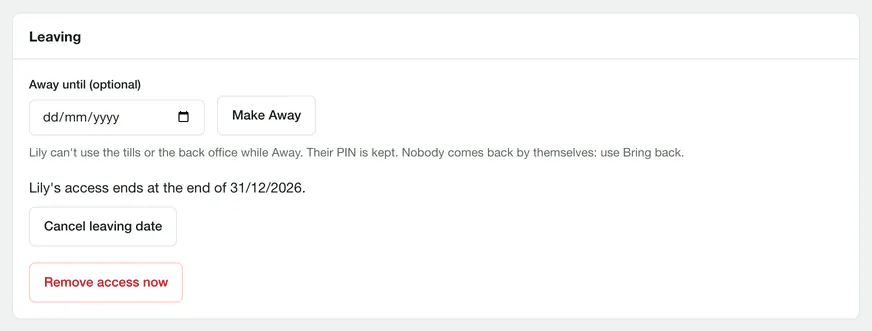
The Leaving card If you like, choose Away until (optional). It's a reminder only: nobody comes back by themselves.
Press Make Away. They're signed out of the back office, and every till drops them within seconds.
To bring them back, open their page and press Bring Aaron back (with their name). Their old PIN works again.
A Works until date on their details does the same by itself: they become Away the day after.
Set a leaving date
When you know their last day:
- In the Leaving card, pick the Leaving date: today or a later day.
- Press Set leaving date. The card says, for example, "Lily's access ends at the end of 31/12/2026."
At the end of that day itsPOS does everything in Remove access now (below) by itself, within the hour. Changed your mind? Press Cancel leaving date.
Someone who has already gone: use Remove access now instead. A date that has passed is refused ("Use Remove access now for a date that has passed.").
Remove access now
- Open their page and find the Leaving card.
- If they made API keys, webhooks or report schedules that still work, they're listed under What Ben made. Choose Keep or Turn off for each. API keys and webhooks start on Turn off; report schedules start on Keep, and a schedule you keep becomes yours.
- Press Remove access now. itsPOS asks "Remove Ben's access now?": "Ben won't be able to use any till or the back office. Their phone stops getting alerts, their waiting approval requests end and their own itsPass is unlinked. Their name stays on past sales and hours."
- Press Remove access, or Cancel.
At that moment itsPOS:
- signs them out of the back office and ends every session;
- deletes their PIN, badge, password and passkeys, and their two-step sign-in;
- tells every till, so an online till signs them out and refuses their PIN within seconds; an offline till catches up when it reconnects;
- stops alerts to their phone and ends approval requests waiting for them;
- unlinks their own itsPass, which was used to check staff don't collect points on their own sales;
- keeps their name on past sales, refunds and hours.
Their page then says "Ben left on 19/11/2026. Their name stays on past sales and hours." Missed something? Their page still lists What Ben made that keeps working, so you can turn it off later.
A member of staff leaves on bad terms
- Press Remove access now straight away, before anything else. Choose Turn off for anything they made.
- Check Team › Activity for what they did in their last days: filter by Person.
- Change any shared code they knew, for example a safe code. Their PIN and badge already stopped working.
Bring someone back
- From Away: open their page and press Bring Aaron back. Their PIN works again.
- From Left: choose Left in the Staff list's Status filter and open their page. In the Leaving card, tick their Role and Shops again and press Bring Ben back. itsPOS makes a new PIN and shows it once. Back-office people get a new invitation.
Bringing someone back counts as a team member again (Team members on your plan).
What happens to their data
- PIN and badge: deleted the day they leave.
- Email, phone, payroll number and hourly rate: deleted automatically 12 months after they left. If they ask you to delete them sooner, press Delete contact details in their Data card.
- Name: kept on sales, hours and Activity for 6 years after they left, as the law needs for tax and pay records, then replaced by "Former staff member 1".
- Before or after they leave, Download data in their Data card gives you everything itsPOS keeps about them, for a request to see their data.
See Staff privacy for the details.
What happens next
- On the till, someone Away or Left isn't on the lock screen any more, and their PIN and badge don't work.
- They stop counting as a team member at once.
- Their hours stay in Team › Hours for payroll (Hours and the payroll export).
Still stuck?
The itsPOS support team is here 08:00 to 20:00 every day except Christmas Day.
- Call or WhatsApp: +44 7488 880320
- Email: support@itspos.io
- In the back office: Help › Contact support, or go to app.itspos.io/help/contact after you sign in
- On our website: itspos.io/contact
Tell us your shop's name and what you were trying to do. A screenshot of the screen helps.