

Team
Hours and the payroll export
Staff clock in and out on the till, with breaks. In Team › Hours you see everyone's week, fix a missed clock-out with a reason, approve the week and download a file your payroll software imports: BrightPay, Sage, Xero, Staffology, Moneysoft or a spreadsheet.
For: Owners, Admins, Shop managers and Accountants8 min read
Before you start
- Owners and Admins see and change everyone's hours; Shop managers those of their shops. Accountants see and export hours. Nobody approves their own week except Owners and Admins.
- Fill in each person's Payroll number on their page in Team › Staff: your payroll software matches people on it.
Clocking in at the till
After signing in with their PIN or badge, staff press Clock in, Start break, End break or Clock out (see The till: lock screen, clock and badges). It works offline and catches up when the till is back online.
- Someone clocked in at one till is clocked in at every till of that shop.
- Clocking in at another shop asks first, then clocks them out at the first shop.
- Each shop can Clock in when you first sign in (Hours settings, below): the till clocks people in at their first PIN or badge instead of asking.
Team › Hours
Go to Team › Hours. Each person is a row with their payroll number, each day of the week a box with the hours worked, then the Total, the Cost (Owners and Admins, with an hourly rate) and whether the week is Approved. Clock-out missing is marked in the day's box.
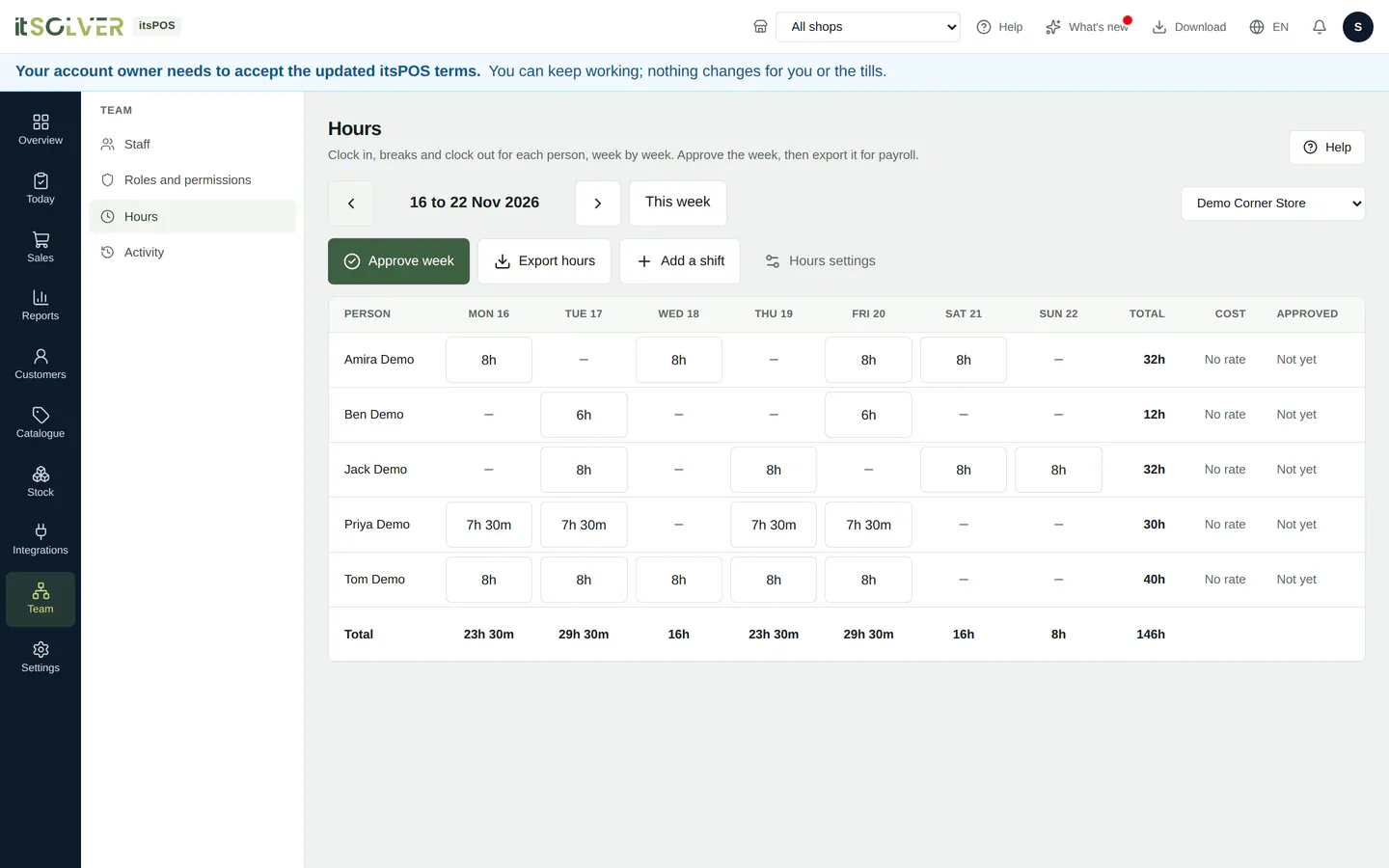
Team › Hours for 16 to 22 Nov 2026 at Green Street Grocer Choose the Shop, and use Previous week and Next week.
Tap a day to open the shift: the shop and till, clock-in and clock-out, breaks, hours worked, and every change with its reason, for example "Shift added: “Forgot to clock in”".
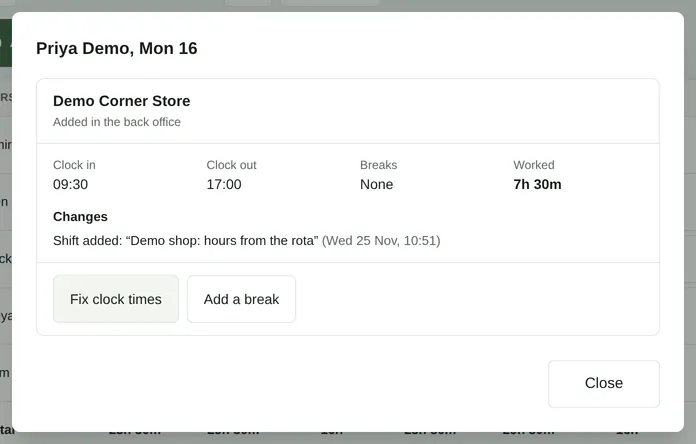
Lily Leaving's shift on Mon 16
In the shift:
- Close shift for someone still clocked in who has gone home.
- Fix clock times when a time is wrong.
- Add a break, or Change or Delete a break. Tick Paid break (counts as worked time) to pay for one break.
Above the grid, Add a shift is for someone who worked but didn't clock in: choose Who, the Shop, Clock in and Clock out (empty if still working).
Every change asks Why? (kept in Activity). Times can't be in the future, a clock-out can't be before the clock-in, and shifts can't overlap ("Lily has another shift at that time.").
Forgot to clock out
A shift still open is closed by itself an hour after the shop's closing time, or 16 hours after clocking in if the shop has no closing time. The shift then says "Nobody clocked out, so itsPOS closed the shift at 15:49. Fix the clock-out time if you know it." It shows as Clock-out missing here and in Things to check.
- Tap the day marked Clock-out missing.
- Press Fix clock times, put in the real Clock out, and type why, for example "Forgot to clock out".
- Press Save. The shift says "Clock times saved." and lists the change.
Breaks
Breaks are taken off the hours worked unless your business pays for breaks (Hours settings). The law gives adults a 20-minute break after 6 hours' work, and under-18s 30 minutes after 4 and a half hours. The till reminds them, without ever stopping them.
Approve the week
- Choose the Shop and the week, and check every row.
- Press Approve week. itsPOS asks, for example, "Approve Green Street Grocer hours for 2 to 8 Nov 2026? 1 person, 12h in total. Payroll can then use these hours. A change after this needs approving again."
- Press Approve week again. The Approved column fills in.
Approve week waits while someone still has an open shift or a missing clock-out: the page names them, for example "Test Cashier has an open shift or a missing clock-out this week. Fix it before approving." With All shops chosen, it says "Choose a shop to approve its week."
Take back approval reopens the week: "the hours stay as they are, they just need approving again."
Hours settings
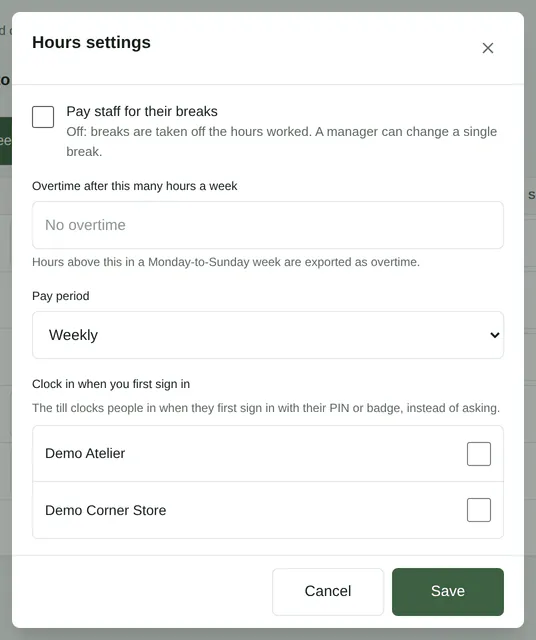
Press Hours settings (Owners and Admins):
| Setting | What it does |
|---|---|
| Pay staff for their breaks | Off (the default): breaks are taken off the hours worked. A manager can still change a single break |
| Overtime after this many hours a week | Hours above this in a Monday-to-Sunday week are exported as overtime. Empty: no overtime |
| Pay period | Weekly, Fortnightly, Every 4 weeks or Monthly: the export's starting choice |
| Clock in when you first sign in | Per shop: the till clocks people in at their first PIN or badge instead of asking. Off by default |
Export hours for payroll
Press Export hours, then choose:
- your Payroll software, or Spreadsheet (CSV);
- the Pay period (weekly, fortnightly, every 4 weeks or monthly) and the day it Starts on;
- the shop, and the pay codes if your software needs them.
The sheet warns you about weeks not approved yet and people without a payroll number, and shows the steps for your payroll software. Press Download.
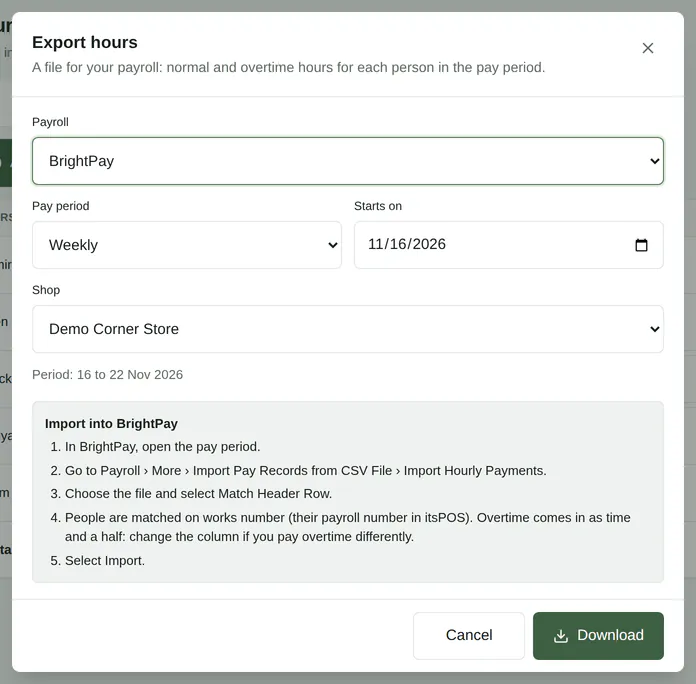
Hours above Overtime after this many hours a week (Monday to Sunday, set in the Hours settings) are exported as overtime; leave it empty for no overtime. People are matched by the Payroll number on their page in Team › Staff, so fill it in for everyone first. Hours are in decimals (7.50 is seven and a half hours).
BrightPay
- In BrightPay, open the pay period.
- Go to Payroll › More › Import Pay Records from CSV File › Import Hourly Payments.
- Choose the file and select Match Header Row.
- Select Import.
People are matched on works number (their payroll number in itsPOS). Overtime comes in as time and a half: change the column if you pay overtime differently.
Sage Payroll
- Sage 50 Payroll: go to File › Data Import › Import Sage Payroll Data.
- Choose Employee Payments (Hours and Rates) and select the file.
- Check the preview and import.
Before exporting, type the reference numbers of your hourly payments in Sage (Company › Pay Element Settings › Payments) as the payment references for normal hours and overtime. People are matched on employee reference (their payroll number in itsPOS); each payment must already be on the person's record, and the rate stays as it is in Sage.
Sage Payroll (the online version) has no import for hours: use the file as the list to type in.
Xero Payroll
Xero has no built-in file import for UK timesheets. Use a Xero timesheet import app that reads the file's columns (first name, last name, date, hours and earnings rate type), or type the lines into Payroll › Timesheets.
Before exporting, type the names of your earnings rates in Xero (for example Ordinary Hours and Overtime Hours), exactly as they're spelled there. People are matched on first and last name, so they must be spelled as in Xero.
Staffology
- In Staffology, open the pay run.
- Go to Import › Payments and choose the file.
Before exporting, type your pay codes from Staffology (Settings › Pay Codes): leave normal hours empty to use each person's basic pay, and overtime is OVERTIME unless you use another code. People are matched on payroll code (their payroll number in itsPOS).
Moneysoft
- In Payroll Manager, go to Pay › Pay Details and select Import CSV.
- Choose the file and untick the header row.
- Set the columns: Works Number to Employee works number, Rate 1 hours and Rate 2 hours to your normal and overtime rates.
- Select Import.
People are matched on works number (their payroll number in itsPOS).
Spreadsheet (CSV)
Opens in Excel, Numbers or Google Sheets: one row per person with normal, overtime and total hours, breaks and whether the week is approved.
Labour cost
Reports › Staff and till activity › Hours and labour shows hours by shop and day. With an Hourly rate on people's pages, owners and admins also see the labour cost and its share of sales. Nobody else sees rates or cost.
Who can do what
| Owner, Admin | Shop manager | Accountant | Others | |
|---|---|---|---|---|
| See hours | Yes | Their shops | Yes | No |
| Fix clock times and breaks, add a shift | Yes | Their shops | No | No |
| Approve week | Yes | Their shops | No | No |
| Export hours | Yes | Their shops | Yes | No |
| See rates and labour cost | Yes | No | No | No |
Your own roles can be set differently in Team › Roles and permissions.
How long hours are kept
Clock times, breaks and approved weeks are kept for 6 years after the pay period, as National Minimum Wage rules need, then deleted automatically. Every change is in Team › Activity.
Still stuck?
The itsPOS support team is here 08:00 to 20:00 every day except Christmas Day.
- Call or WhatsApp: +44 7488 880320
- Email: support@itspos.io
- In the back office: Help › Contact support, or go to app.itspos.io/help/contact after you sign in
- On our website: itspos.io/contact
Tell us your shop's name and what you were trying to do. A screenshot of the screen helps.