

Stock
Batch and expiry tracking
Batch and expiry tracking keeps each delivery's batch number and date apart, so you always know how much of each batch you have, what is about to go out of date, and where a recalled batch went. This guide uses Free Range Eggs 6 (best before) and Strawberries 400g (use by) at Green Street Grocer.
For: Owners, Admins, Shop managers and Stock staffOn some plans8 min read
Needs itsPOS Till 0.5.35 or later.
Batch and expiry tracking is on Premier and Enterprise. Without it, no batch or date fields show anywhere: not on products, deliveries, stock documents, the Stock menu or the till.
Before you start
- Who: Owners, Admins and Shop managers set it up, stop selling a batch and correct batches. Stock staff see the batches and write off expired stock.
- Decide which products need dates. Food that goes off needs a use-by date by law; non-food such as cosmetics has an expiry date; best before is about quality only.
Turn it on for a product
Go to Catalogue › Products and open the product, for example Strawberries 400g.
In the Stock card, find Batch and expiry and choose how you track it:
- Batch and date: the supplier's batch number and a date (eggs).
- Date only: only a date; itsPOS names the batch, like D261118-1 (strawberries).
- Batch only: a batch number with no date.
- Don't track: no batches.
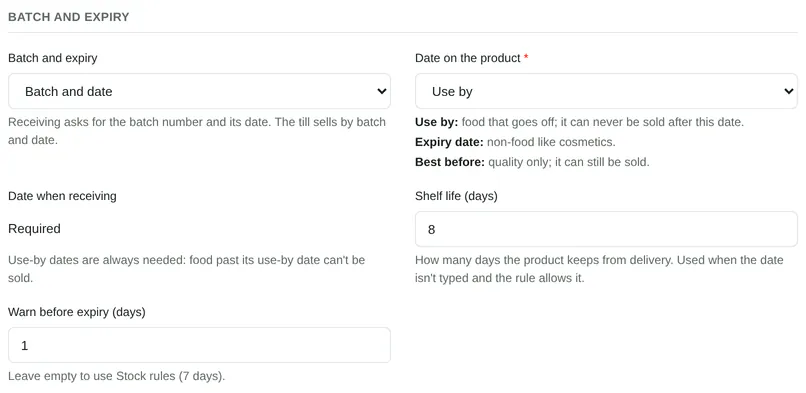
The Batch and expiry section of a product Choose Date on the product:
- Use by: "food that goes off; it can never be sold after this date."
- Expiry date: "non-food like cosmetics."
- Best before: "quality only; it can still be sold."
Date when receiving: Required, or Use the shelf life if not typed. Use-by dates are always required.
Shelf life (days): how long it keeps from delivery, for example 5 for strawberries. Warn before expiry (days): leave it empty to use Stock rules (7 days).
Press Save changes. Tills get the change within 1 minute.
New products can start with batch tracking on: see Settings › Products.
Receive a delivery with batches and dates
When a tracked product is on a delivery, each line has a Batch and a date box named after the product's date (Use by, Best before or Expiry date).
- In Stock › Deliveries, press Receive a delivery and add the product as usual.
- Type the supplier's batch number from the pack, for example FR1811. Leave Batch empty and itsPOS names it when you finish, like D261118-1.
- Type the date from the pack, for example best before 16 Dec 2026. A use-by date that has already passed is refused.
- Two batches of the same product on one delivery: add a line for each.
- Press Finish. The line shows "Batch FR1811 · Best before" with its date.
On the till, Stock › Receive asks for the batch and date too, and a scanner reads them from GS1 barcodes that carry them.
See your batches
Go to Stock › Batches. The tiles show Batches in stock, Expiring soon, Expired and Selling stopped. Choose a shop to see only its batches.
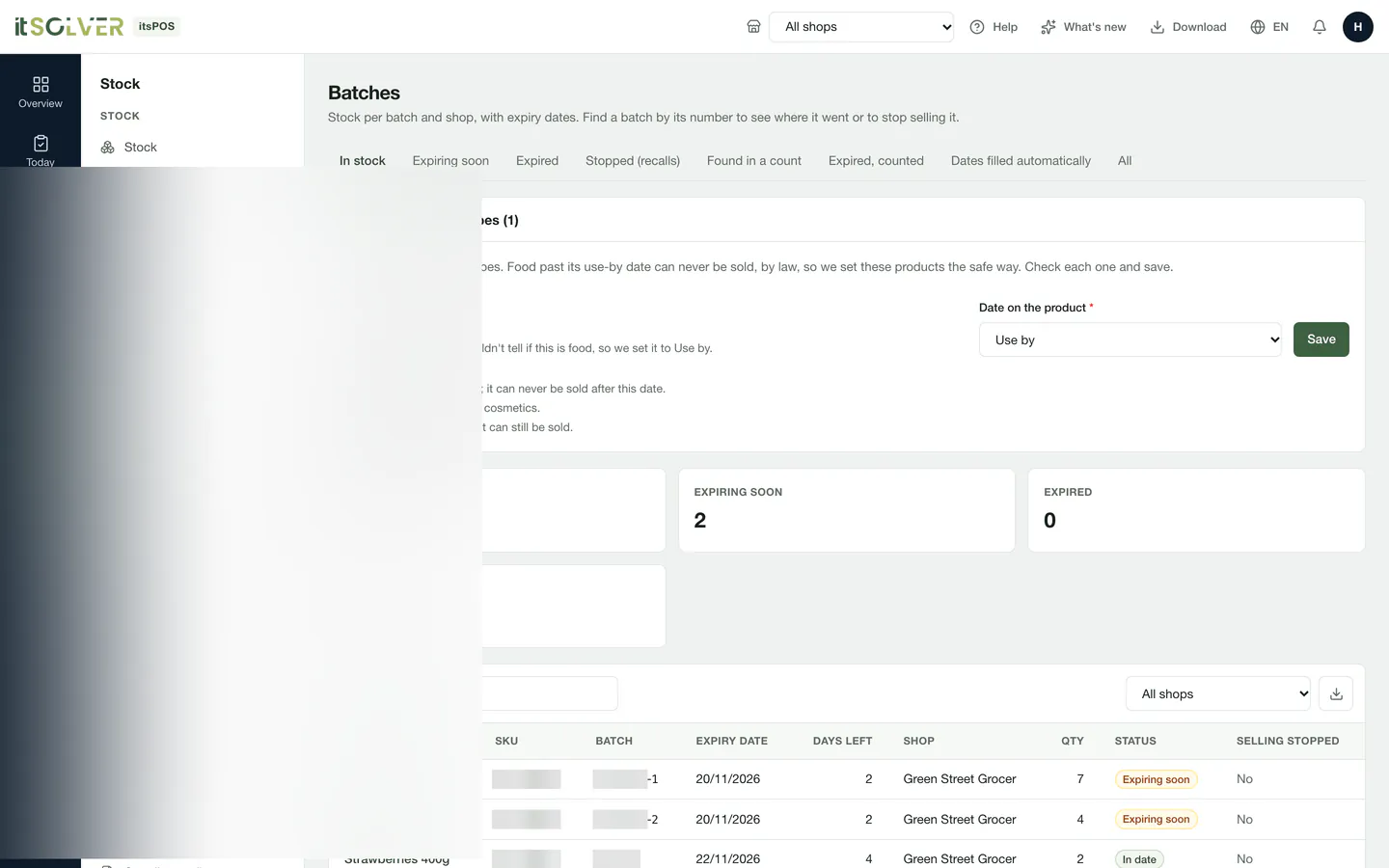
The tabs:
| Tab | What it lists |
|---|---|
| In stock | Every batch with stock |
| Expiring soon | Batches that reach their date within each product's warning days. Today's dates and reduced items left over come first |
| Expired | Batches past their date still in stock: open one to write it off |
| Stopped (recalls) | Batches you stopped selling |
| Found in a count | Batches a stock count found that nobody recorded (named F261114-1 and so on) |
| Expired, counted | Batches counted above 0 after their date |
| Dates filled automatically | Dates taken from the shelf life because nobody typed one: check the packs |
| All | Every batch, also those sold, wasted or sent back |
Check expiry date types appears above the list when itsPOS couldn't tell whether a product is food. Choose its Date on the product and press Save.
What the till does
Needs itsPOS Till 0.5.13 or later.
- The till sells the batch that expires first, unless the scanned barcode names a batch. Selling rules can make the cashier pick from a list instead ("Choose the batch on the pack. The one that expires first is at the top.").
- Use by: an item past its use-by date can't be sold. No manager can override it. Take it off the shelf and record it as waste.
- Expiry date: what happens follows Settings › Selling rules: block it, block it unless a manager approves (the default), or warn.
- Best before: it sells, with a note to check it.
- Sales are never refused for stock: a till that was offline still sends its sales.
- Stock › Stock check lists a product's batches and, when the shop holds more than its batches do, ends with Not in a batch: for example Free Range Eggs with batches of 5 and 12 and 35 in stock shows Not in a batch: 18. That is stock counted or received without a batch number. To put it in a batch, count the product in a stock count.
Expiring soon and expired stock
Each morning, open Stock › Batches › Expiring soon. For example, Fruit Pot 250g batch P261118-1 with use by 20 Nov and 2 days left.
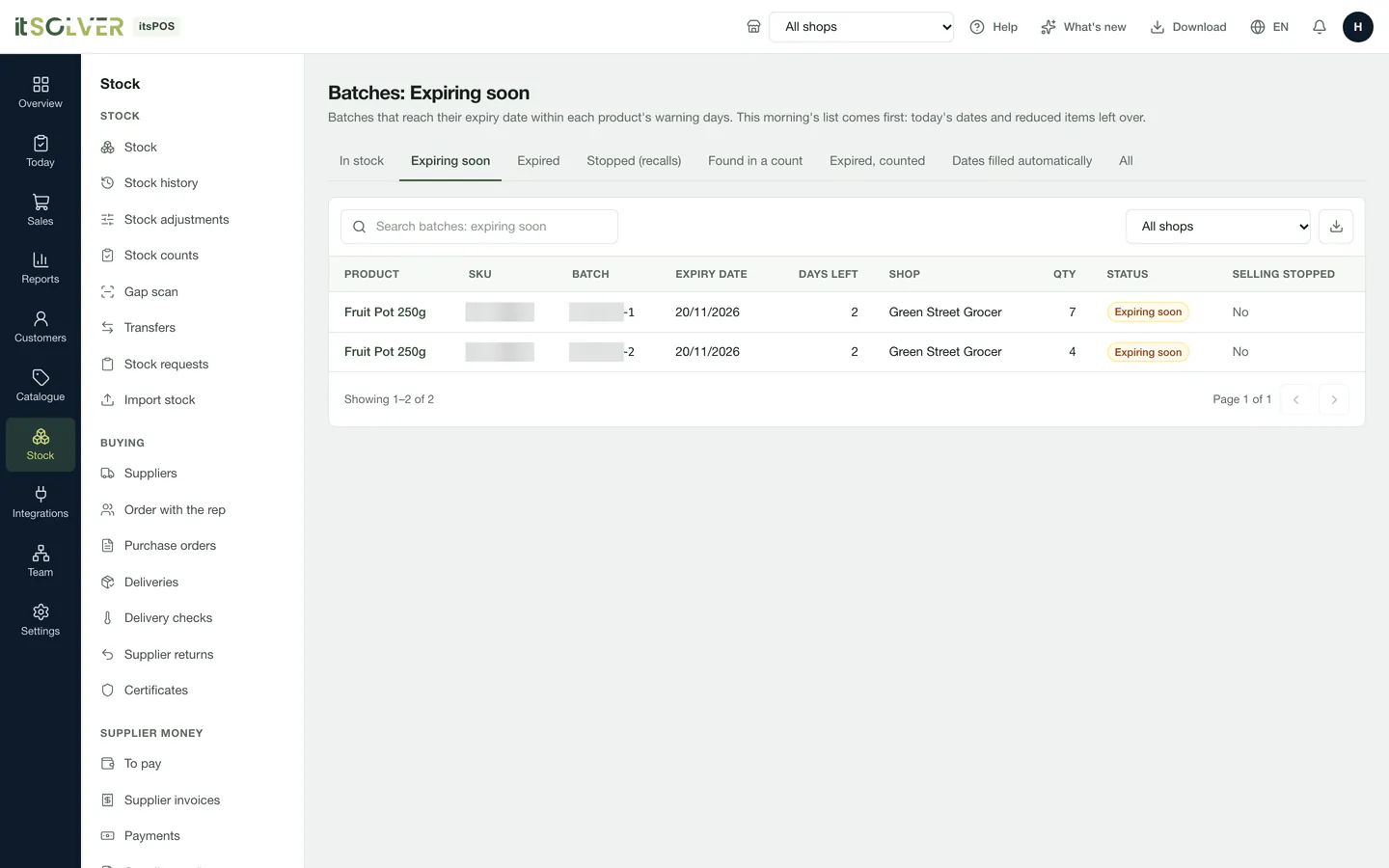
Batches Reduce them to sell: see Reduce to clear. Labels you make for a batch sell until the batch's date.
When a batch has expired, open it from Expired. In Write off, choose the Shop and leave Quantity empty to write off all of it, then press Write off. It is recorded as waste with the reason "Expired".
The daily expiry email and the Today list show dated stock too.
Stop selling a batch (recall)
When a supplier recalls a batch:
Go to Stock › Batches, search for the batch number, for example ST1811, and open it.
In Selling, type the Reason, for example "Supplier recall", and press Stop selling this batch. Confirm.

A batch's Selling card You see "Selling stopped. Tills and the online store will not sell this batch." Tills stop selling it at their next update, and the online store leaves it out of the stock it offers.
Where it went shows how many were received, sold and are still in stock at each shop, and Sales of this batch lists the receipts and the customers you know. Business customers who bought it lists trade customers to tell.
Press Print a recall notice for an A4 notice for your counter: "PRODUCT RECALL. Do not eat or use this product", with the product, batch and date.
Take the stock off the shelf and write it off with the reason Recalled, or send it back with a supplier return.
When the supplier says it's safe again, press Allow selling again.
Correct a batch
Typed the wrong batch number or date? Open the batch and use Correct this batch: change the Batch number or Expiry date and press Save batch. Tills pick up the change.
Print labels on a batch prints shelf or item labels with its batch number and date (add those fields to a label design in Catalogue › Print labels › Label designs).
Batches in counts, waste and transfers
- Stock counts: count each batch on its own; batches nobody recorded show on Found in a count. To correct how much of a batch you have, count it.
- Stock adjustments: Add and Remove lines have a Batch box. Set changes a product's total stock, not its batches, so it has no Batch box: "Set changes a product's total stock, not its batches. To set the stock of each batch, use a stock count."
- Waste and Transfers: each line has a Batch box. Leave it empty and itsPOS takes the batch that expires first.
- Made products get a batch and a date from their recipe's shelf life (see Production).
- Online store: batches past their use-by or expiry date and stopped batches are never offered online. Sell expired items online in Stock rules allows non-food expiry-date items only.
If something goes wrong
- "Date on the product" is required: choose Use by, Expiry date or Best before before you save.
- The till still sold a recalled batch: the till was offline. The sale is kept and the batch's history shows it.
Still stuck?
The itsPOS support team is here 08:00 to 20:00 every day except Christmas Day.
- Call or WhatsApp: +44 7488 880320
- Email: support@itspos.io
- In the back office: Help › Contact support, or go to app.itspos.io/help/contact after you sign in
- On our website: itspos.io/contact
Tell us your shop's name and what you were trying to do. A screenshot of the screen helps.