

Offers and messages
Make your offers flyer
Your offers flyer builds itself from your promotions, with the right prices, dates and legal lines. You get a web page to share, a PDF to print and pictures for social media and WhatsApp, all from one place: Catalogue › Promotions › Offers flyer. It keeps itself up to date when your promotions change.
For: Owners, Admins and Shop managersOn some plans11 min read
Before you start
- The offers flyer is part of the Premier and Enterprise plans. On Essentials and Professional it is an add-on you can try for 30 days (Add-ons). It isn't on Basic. Without it, you won't see the Offers flyer tab.
- Owners and Admins make, publish and change flyers. Shop managers make and check flyers for their own shops; an Owner or Admin publishes them.
- The flyer is made from your promotions, so make those first. See Promotions.
Make a flyer
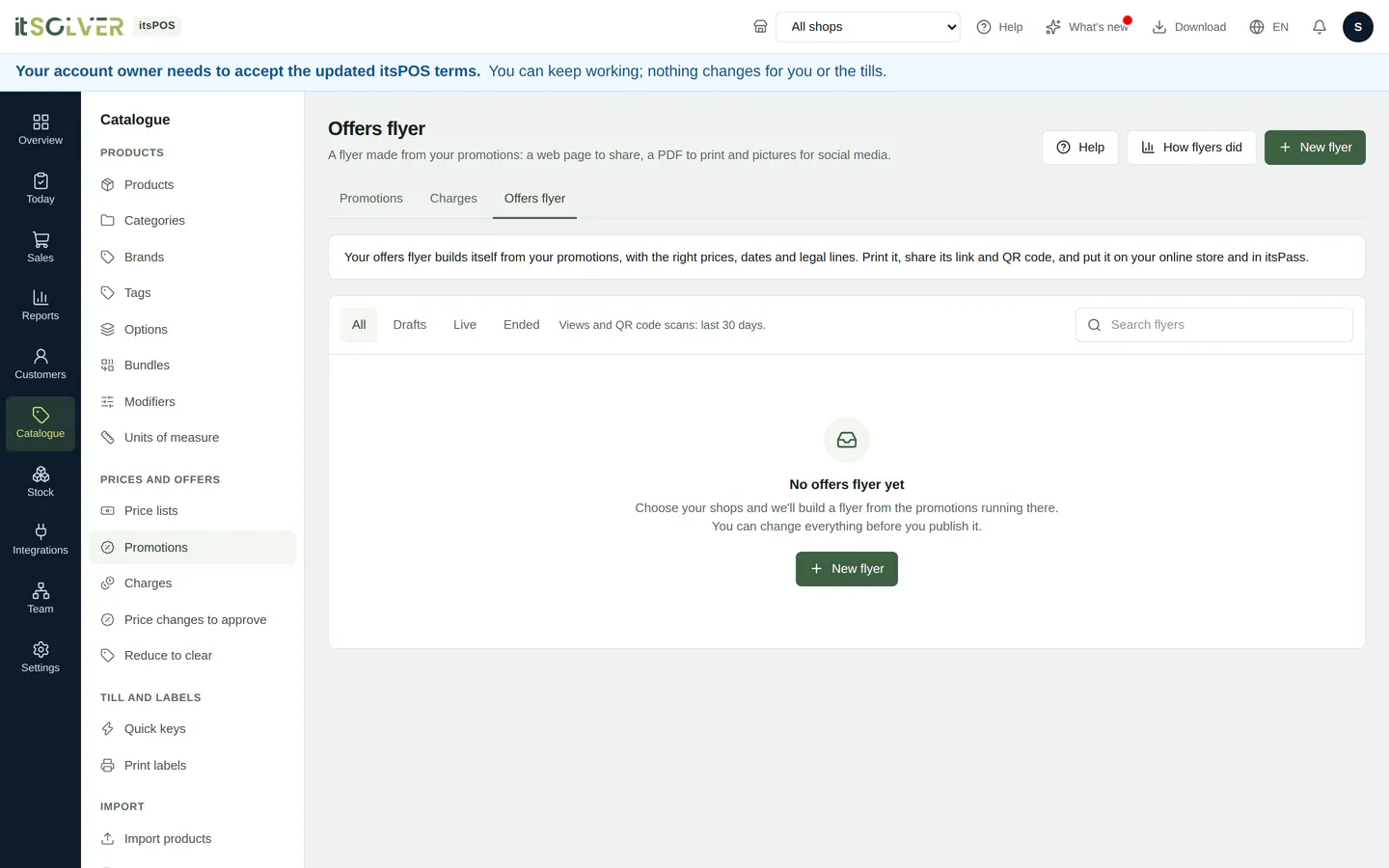
- Go to Catalogue › Promotions and open the Offers flyer tab.
- Press New flyer.
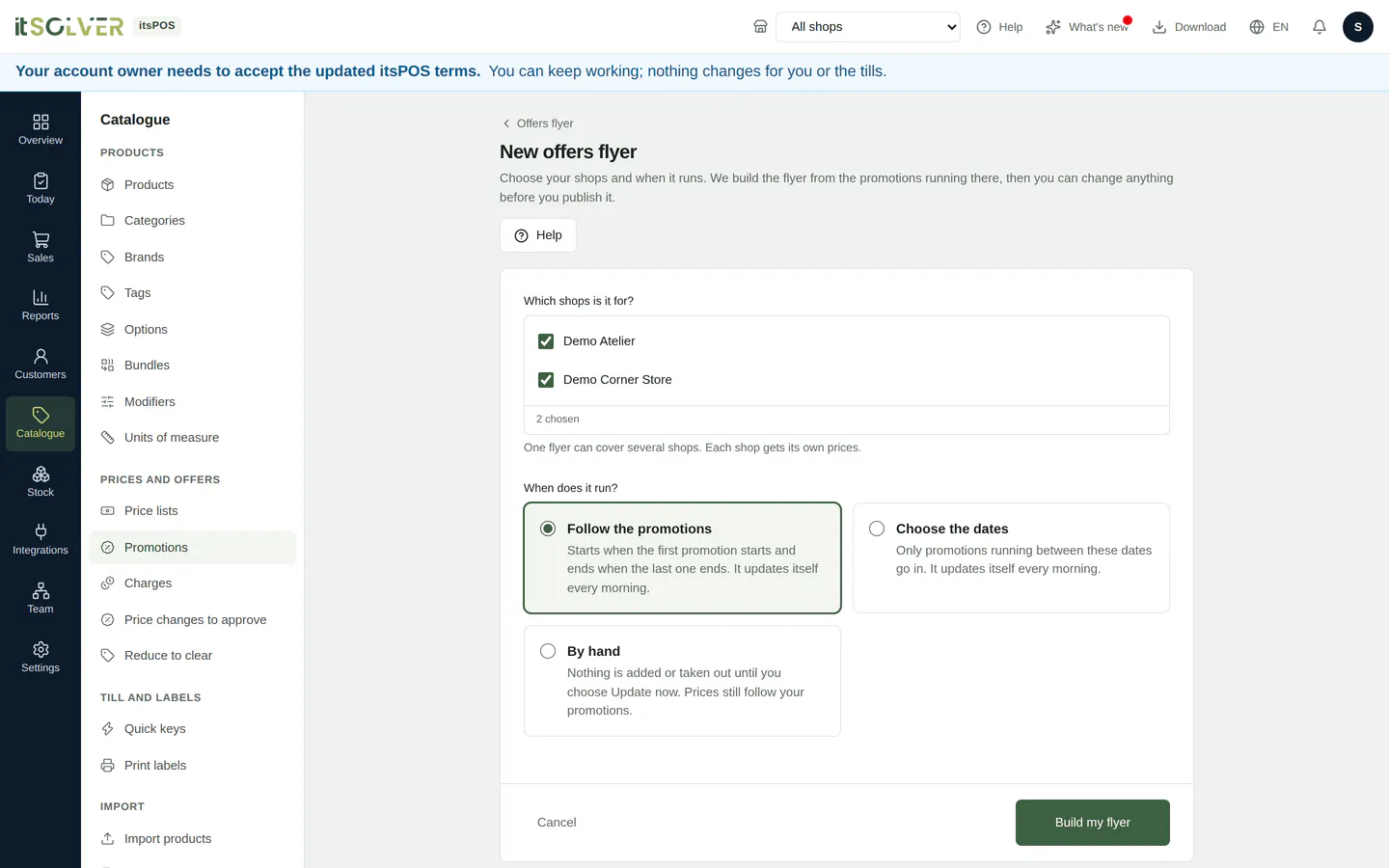
- Under Which shops is it for?, tick the shops. One flyer can cover several shops, and each shop gets its own prices.
- Under When does it run?, choose:
- Follow the promotions (the usual choice): it starts when the first promotion starts and ends when the last one ends.
- Choose the dates: only promotions running between your First day and Last day go in.
- By hand: nothing is added or taken out until you press Update now. Prices still follow your promotions.
- Press Build my flyer. We put in every promotion running at those shops in those dates, and the flyer opens.
In our test shop, flyer FLY-2026-00001 for Green Street Grocer follows the promotions: it holds the itsPass price on Nescafé 300g (the big one), 3 for 2 on crisps and Sprite 3 for £2.50.
Who gets it and Show in the offers flyer
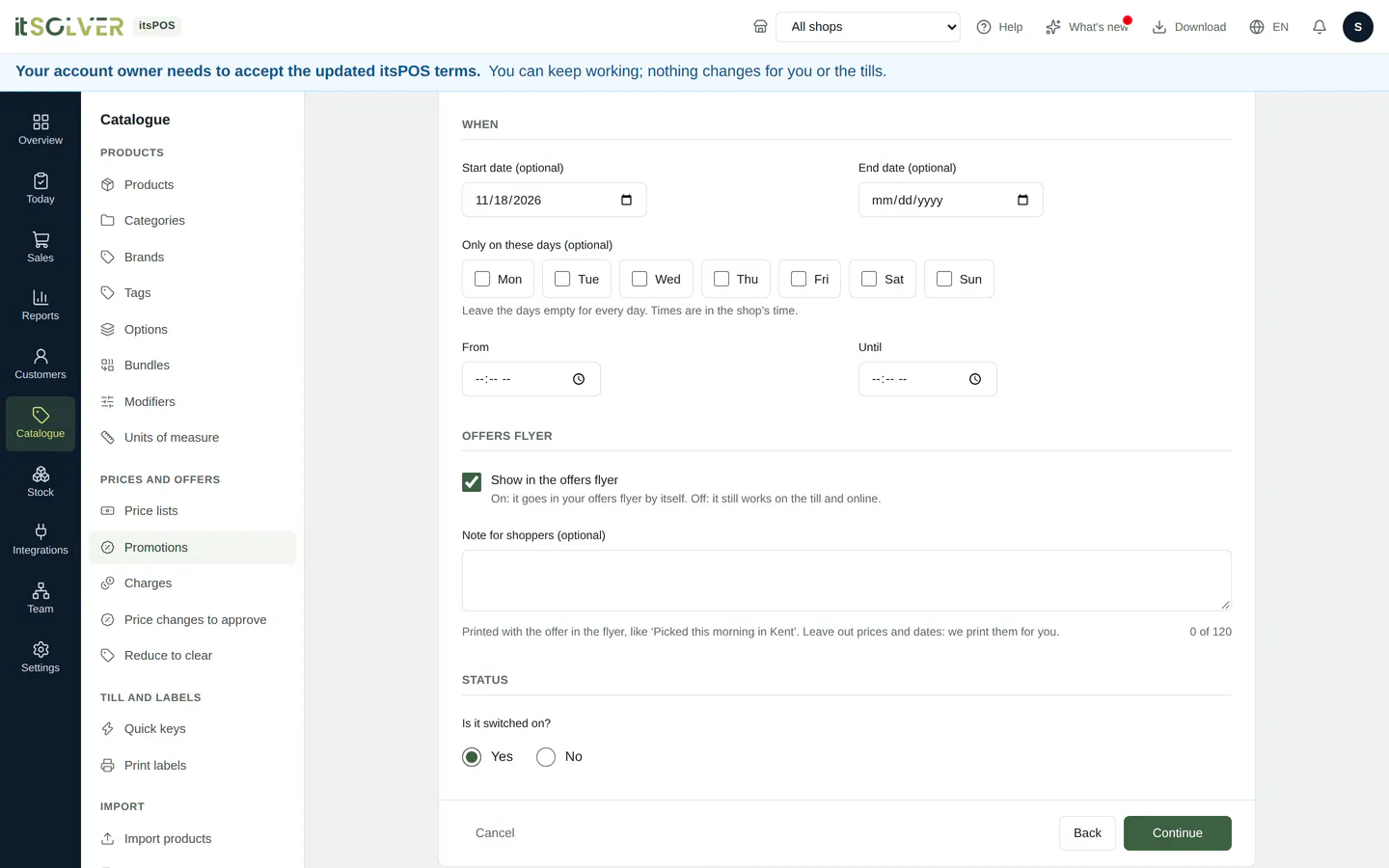
Each promotion decides whether it goes in the flyer. Open it in Catalogue › Promotions:
- Who gets it? Everyone, itsPass members (an itsPass price: members get it when they scan itsPass at the till or sign in online, everyone else pays the regular price) or A group of customers. Promotions for a group never go in the flyer.
- Show in the offers flyer is on for every new promotion. Switch it off to keep a promotion out of the flyer: it still works on the till and online. Reduced-to-clear markdowns never go in.
- Note for shoppers (optional): one short line printed with the offer, like "Picked this morning in Kent". Leave out prices and dates: we print them for you.
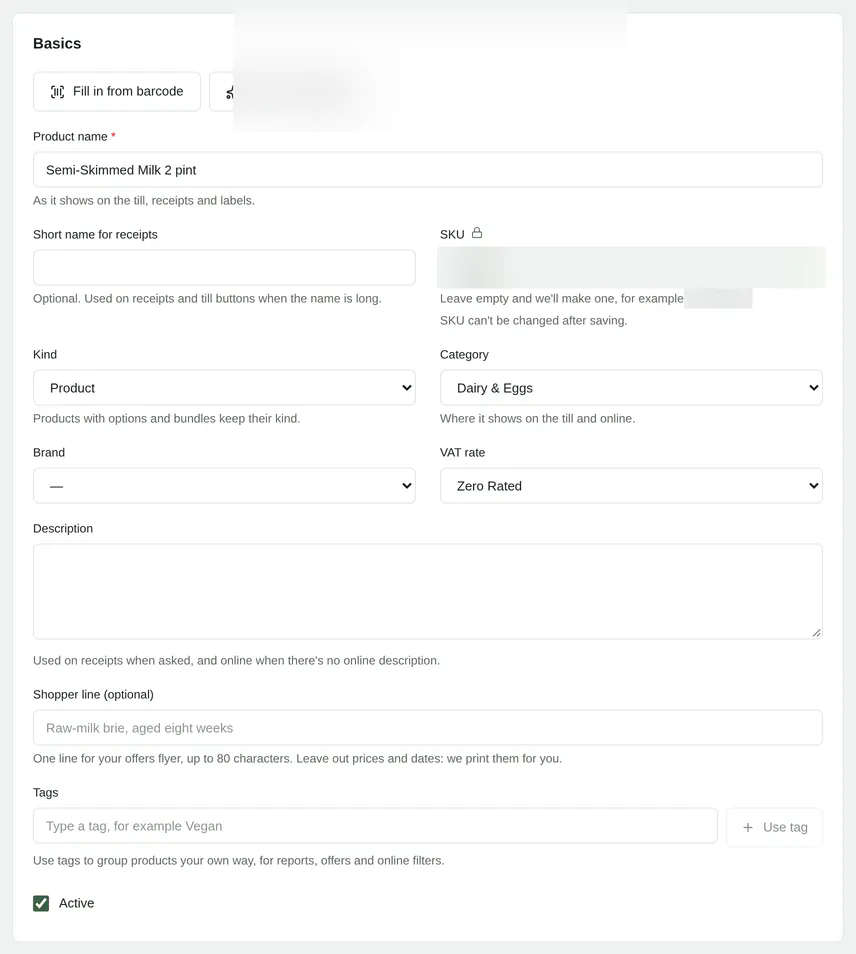
A product can also have its own Shopper line (optional) in Catalogue › Products, under Basics: up to 80 characters, used on every flyer. Under Photos, "For your offers flyer" says how well the product's photo will print, and asks for a bigger one when it's too small.
Change what's in it
The flyer has three cards on the left and the checks and a preview on the right.
What's in it lists the offers in order, with the big one first.
- The up and down arrows change the order.
- The star makes an offer the big one: it goes at the top, larger than the rest.
- The pencil (Change) sets a shopper line just for this flyer and how the photo looks (Choose for me, Cut out from its background, On a coloured tile, Fill the space or No photo, words only). A mix-and-match deal shows your 5 best sellers, or up to 5 products you choose.
- The cross takes an offer out: "… is out of the flyer. Find it under Taken out." It stays out when the flyer updates itself; open Taken out and press Put back to return it.
- Add product adds a product from a promotion that runs in the flyer's dates.
- Needs attention shows only the offers with something to fix. New marks offers the flyer added by itself since you last saved.
Words and look
- Headline, for example "This week's offers", an Introduction (optional) and A note from you (optional). Keep prices and dates out of your own words: we print them, and words like "Last chance" or "Today only" are refused because we print the real end date.
- Style: Supermarket (bold prices and big savings), Fresh and local (warm and friendly, for grocers, bakeries and cafés) or Premium (calm and elegant, for delis and boutiques).
- Paper: A4 or A5. Pages: 1 page (a flyer), or 2 to 8 pages (a brochure, A4 only).
- Extra parts: the itsPass join QR code and link are always included. Points or stamps shows how members earn with you, when you run points or stamps. Coupon (optional) prints a coupon code, what it gives and its conditions.
When and where
- Shops and When does it run?, as when you made it.
- Who sees it? Web page and PDF (recommended), Web page only, or PDF only (print it for the shop; there's no page to share).
- Show "Offers" in your online store's menu, and Show "Offers now" on your shop in itsPass (members with itsPass 1.0.1 or later see your offers on your shop). See Offers on your online store and Offers in itsPass.
Each card has its own Save button. The Preview on the right shows the page, the square picture or the story picture, for each shop and each page of a brochure.
The checks
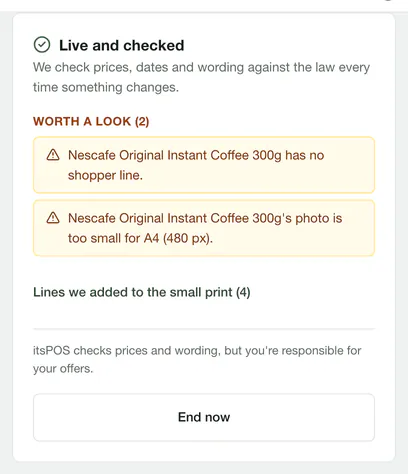
We check prices, dates and wording against the law every time something changes. The panel at the top right says Ready to publish or Fix these before you publish:
- Must fix: publishing and downloads wait until these are fixed. Show the product takes you to it. For example, a missing size so we can show the price per kg or litre, or your own words that break a rule.
- Left out for you: we leave these out, each for the reason shown. You don't need to do anything.
- Worth a look: things that would make the flyer better, like products with no photo or no shopper line.
- Lines we added to the small print: dates, limits, 18+ and Drinkaware for alcohol, "Ask us about allergens" and similar lines, made from your data.
Why products are left out
| Reason | What happens |
|---|---|
| No proven "was" price | The product stays, without a "Was" price. We show one only when you charged the higher price at that shop for at least 28 days just before the offer, and the offer runs no longer than that. Without it, the deal shows the new price ("Now £4") and no saving. See Was prices and the 28-day rule. |
| Products that can't be advertised | Tobacco, heated tobacco, cigarette papers, herbal smoking products, vapes and nicotine products, lottery, knives, medicines and infant formula. A deal that includes any of them is left out whole. |
| Alcohol multi-buys in Scotland | Multi-buys that include alcohol are left out at shops in Scotland, and kept at your other shops. |
| High fat, sugar or salt multi-buys | Left out when your business is too big for them under the HFSS rules. |
| Group prices and markdowns | Promotions for a group of customers and reduced-to-clear markdowns. |
| Show in the offers flyer is off | You switched it off on the promotion. |
itsPass prices need updated tills. Before the flyer can advertise an itsPass price at a shop, every till at that shop needs itsPOS Till 0.5.28 or later, because older tills can't give the price. Until then you see a Must fix: "Update the tills at Green Street Grocer to itsPOS Till 0.5.28 or later before advertising itsPass prices: older tills can't give them." See itsPass prices.
itsPOS checks prices and wording, but you're responsible for your offers.
Publish
Owners and Admins publish. Shop managers can build, change and check flyers for their own shops, then see "Only the owner or an admin can publish. Tell them when it's ready."
- When the panel says Ready to publish, press Publish.
- Read what happens and press Publish again.
Once it's live:
- Shoppers can open it from its link and QR code, and on your online store and in itsPass if you chose them.
- It updates itself every morning and within a few minutes when a promotion changes. With By hand, press Update now to add or drop offers.
- Only Owners and Admins can change a live flyer. A shop manager sees "This flyer is live: only the owner or an admin can change it."
- A shop has one live flyer at a time: a second live flyer for the same shop in the same dates is refused.
- End now stops it early. Its link then shows your current offers, or says there are none. Printed copies still show their own dates.
- A draft nobody has seen can be removed with Delete draft. Ended flyers stay in the list for their figures.
Print and share
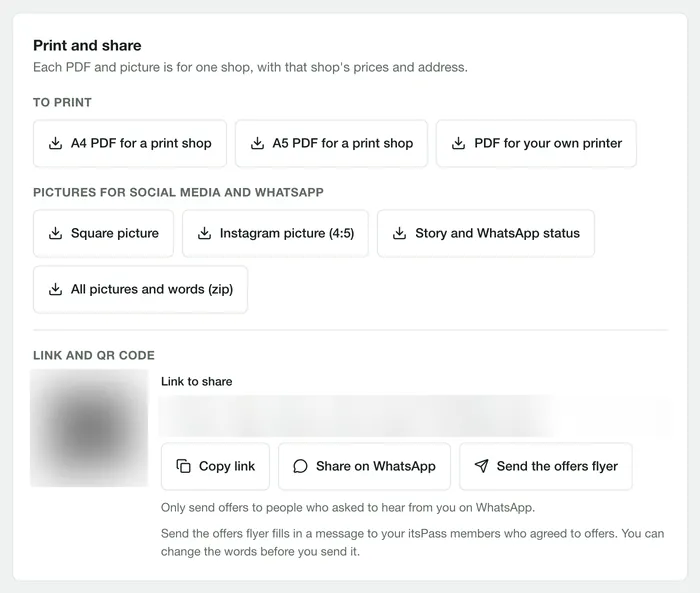
Each PDF and picture is for one shop, with that shop's prices and address. With several shops, choose the Shop first.
| Button | Use it for |
|---|---|
| A4 PDF for a print shop, A5 PDF for a print shop | Professional printing: 3 mm bleed and crop marks, print-ready colours |
| Brochure PDF | A brochure of 2 to 8 pages |
| PDF for your own printer | Printing in the shop on A4 paper |
| Square picture, Instagram picture (4:5) | Social media posts |
| Story and WhatsApp status | Stories and your WhatsApp status |
| All pictures and words (zip) | Every picture and the words to share, in one file |
Link and QR code (not for PDF only):
- Link to share: the flyer's short link and its QR code. It works once you publish.
- Copy link and Share on WhatsApp (opens WhatsApp with the words typed). Only send offers to people who asked to hear from you on WhatsApp. More in Share on WhatsApp.
- Send the offers flyer fills in a message to your itsPass members who agreed to offers: see Send your offers flyer.
- For a QR code on every receipt, see Our offers QR on receipts.
If a price changes after you print, the flyer says "Your printed flyer is out of date", with what changed. Download it again before you print more.
Figures
How it's doing at the bottom of the flyer shows:
- Page views, QR code scans, Downloads and Shares, and where people found it (receipts, store materials, the printed flyer, WhatsApp and social media, shared links, messages to members, itsPass).
- Sales of the flyer's products: Units sold and Sales (with VAT) while the flyer runs, against the same number of days just before, and the share Bought by itsPass members.
Everything is counted without cookies: we never know who looked. The list shows each flyer's views and QR code scans for the last 30 days. How flyers did (also in Reports) compares all your flyers.
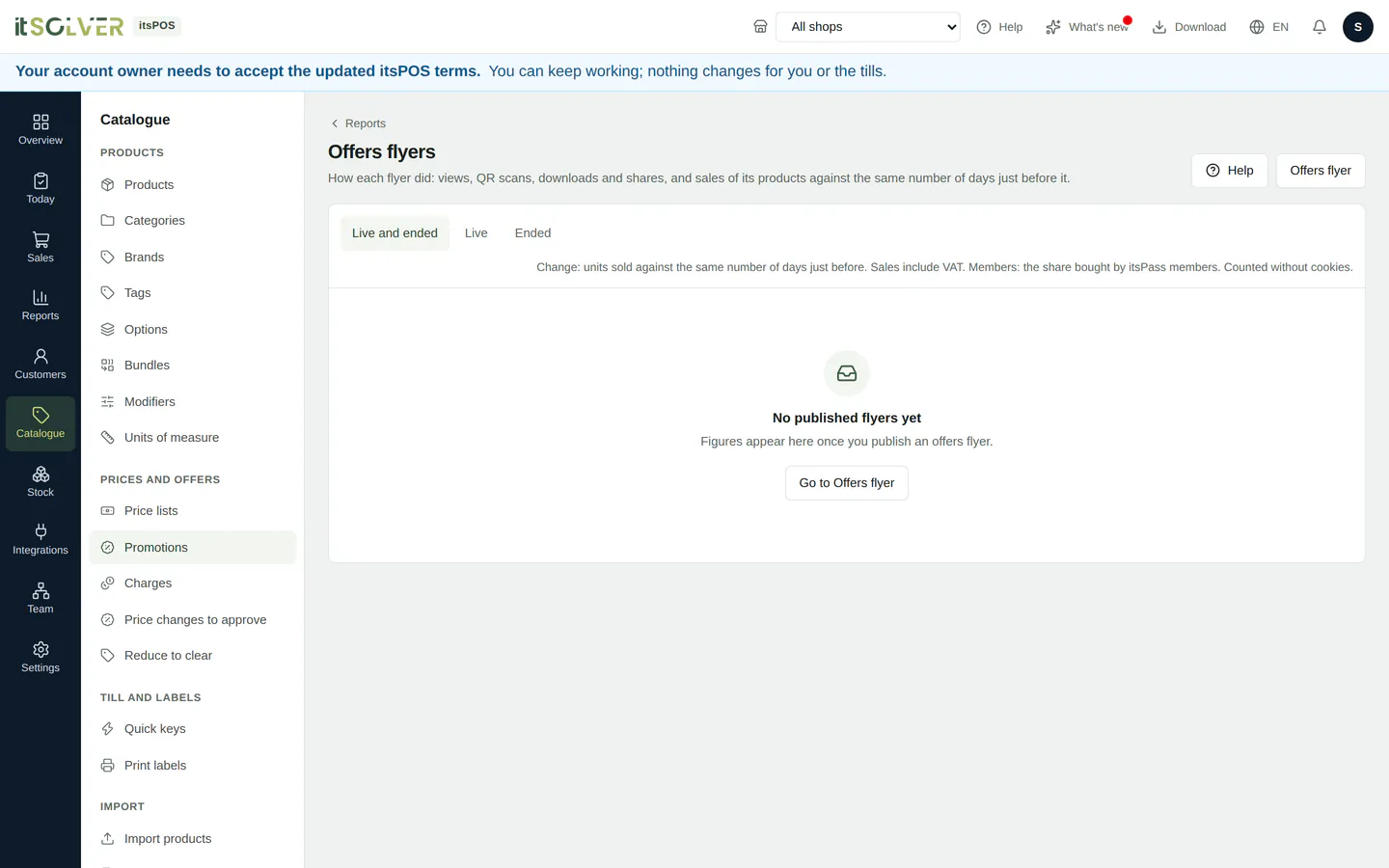
Shop managers see the figures of their own shops only.
If something goes wrong
- "Your printed flyer is out of date", with what changed, for example "Any 3 for 2 came off; Nescafe Original Instant Coffee 300g was added": a promotion changed after you downloaded. Download the PDF again before you print more.
- A product is missing: look under Left out for you in the checks for the reason, and check Show in the offers flyer on its promotion.
- Publish isn't there: you're a Shop manager ("Only the owner or an admin can publish. Tell them when it's ready."), or a Must fix item is waiting.
Who can do what
| Owner, Admin | Shop manager | Cashier | |
|---|---|---|---|
| See flyers and figures | Yes | Their shops | No |
| Make, change and check a draft | Yes | Flyers for their shops only | No |
| Publish, End now, change a live flyer | Yes | No | No |
Still stuck?
The itsPOS support team is here 08:00 to 20:00 every day except Christmas Day.
- Call or WhatsApp: +44 7488 880320
- Email: support@itspos.io
- In the back office: Help › Contact support, or go to app.itspos.io/help/contact after you sign in
- On our website: itspos.io/contact
Tell us your shop's name and what you were trying to do. A screenshot of the screen helps.