

Offers and messages
Automatic messages: welcome, birthday, we miss you, points expiring
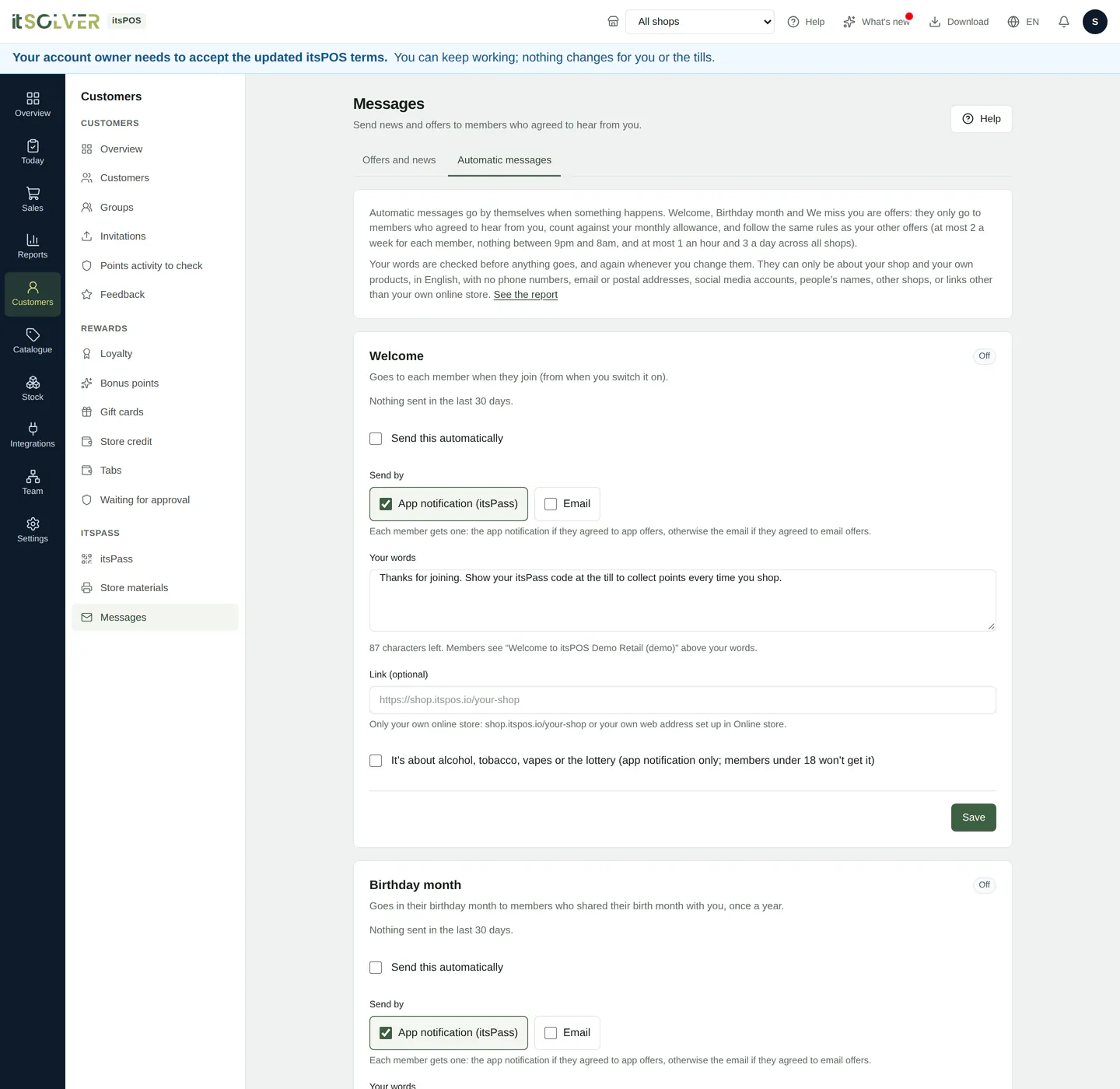
Automatic messages go by themselves when something happens: a member joins, it's their birthday month, they haven't been in for a while, or their points are about to expire. Write the words once and switch each one on in Customers › Messages, on the Automatic messages tab.
For: Owners and AdminsOn some plans5 min read
Before you start
- Owners and Admins switch automatic messages on and change their words.
- Welcome, Birthday month and We miss you are offers: "they only go to members who agreed to hear from you, count against your monthly allowance, and follow the same rules as your other offers (at most 2 a week for each member, nothing between 9pm and 8am, and at most 1 an hour and 3 a day across all shops)."
- Your words are checked before anything goes, and again whenever you change them, with the same rules as other messages (about your shop and your own products, in English, no phone numbers, addresses, social media accounts, people's names, other shops or links other than your own online store). See Send news and offers to members.
The four messages
| Message | Goes to | When | Members see above your words |
|---|---|---|---|
| Welcome | Each member who joins, from when you switch it on | When they join | "Welcome to" and your business name |
| Birthday month | Members who shared their birth month with you | Once a year, in their birthday month | "Happy birthday from" and your business name |
| We miss you | Members who haven't been in for 60 days (or the days you choose) | Once each time they stay away | Your business name and "misses you" |
| Points expiring | Members with points about to expire | 14 days before | A service message: it's on to start with, doesn't need their agreement and doesn't use your allowance |
Each member gets one: the app notification if they agreed to app offers, otherwise the email if they agreed to email offers. Points expiring goes by app notification if they use itsPass, otherwise by email.
Switch one on
- Go to Customers › Messages and open Automatic messages.
- Find the message, for example We miss you.
- Tick Send this automatically.
- Choose Send by: App notification (itsPass), Email or both.
- For We miss you, After how many days without a visit: "Leave it empty to use your Lapsed days (60), set on Customers › Groups."
- Write Your words. The count says how many characters are left. For example: "We've missed you. Pop in this week: fresh bread every morning and new British cheeses on the deli counter."
- Link (optional): only your own online store or your own web address.
- Tick It's about alcohol, tobacco, vapes or the lottery (app notification only; members under 18 won't get it) if it is.
- Press Save: "Saved. Your words are being checked; it starts once they pass."
The states
| State | What it means |
|---|---|
| Off | Not sending. Your words are kept |
| Checking | "We're checking your words. It starts once they pass, usually within a minute." |
| Waiting for review | "itsPOS staff are checking your words by hand. It starts once they approve them." |
| On | Sending to the members it's for |
| Refused | "Your words weren't approved, so nothing is sent", with the reason, for example "Messages can't include phone numbers." Change the words and save again |
| Needs words | "Write your words and save to switch it on." |
| Not sending | "Your plan or account can't send offers right now, so nothing is sent." |
| Stopped by itsPOS | "itsPOS has stopped messages from your business, so nothing is sent." |
Under each message: what went in the last 30 days (sent, waiting, opened, came back and their spend), or "Nothing sent in the last 30 days.", and why some members didn't get it, for example "had 2 offers from you this week already". See the report shows more.
What happens next
- Welcome goes only to members who join after you switch it on.
- Changing the words checks them again; nothing goes until the new words pass.
- You can change your words a limited number of times a day: "You've changed the words of your automatic messages many times today. Try again tomorrow."
If something goes wrong
- Refused: the reason is under the message. In our test shop, words with a phone number were refused with "Messages can't include phone numbers."; words about fresh bread and British cheeses passed and the message switched to On.
- Nothing sent: only members who agreed get offers, and the weekly limit and quiet hours apply. A Birthday month message needs members who shared their birth month.
What shoppers see
Automatic messages arrive like any message from your shop: in Messages, behind the bell on My code, and as a notification or an email for members who chose those. Each opens on its own page, with the line above your words (for example "Welcome to" and your business name). Welcome, Birthday month and We miss you have Stop offers from this shop; Points expiring is a service message, so it still comes. Your words are never translated.
Members can turn off kinds of messages from your shop in its Choices: Receipts and points, Rewards and reminders and Ask me about my visits. See What members share with you, leaving and deleting.
Still stuck?
The itsPOS support team is here 08:00 to 20:00 every day except Christmas Day.
- Call or WhatsApp: +44 7488 880320
- Email: support@itspos.io
- In the back office: Help › Contact support, or go to app.itspos.io/help/contact after you sign in
- On our website: itspos.io/contact
Tell us your shop's name and what you were trying to do. A screenshot of the screen helps.