

Offers and messages
Our offers QR on receipts
Receipts are read. Print a QR code at the bottom of every receipt that opens your offers for the shop that printed it. Your tills print it as they are: no till update needed.
For: Owners, Admins and Shop managersOn some plans2 min read
Before you start
- Who can change receipts is the same as for every other receipt setting in Settings › Receipts and documents.
- Our offers needs the offers flyer in your plan and a store address (below). The other choices work on every plan.
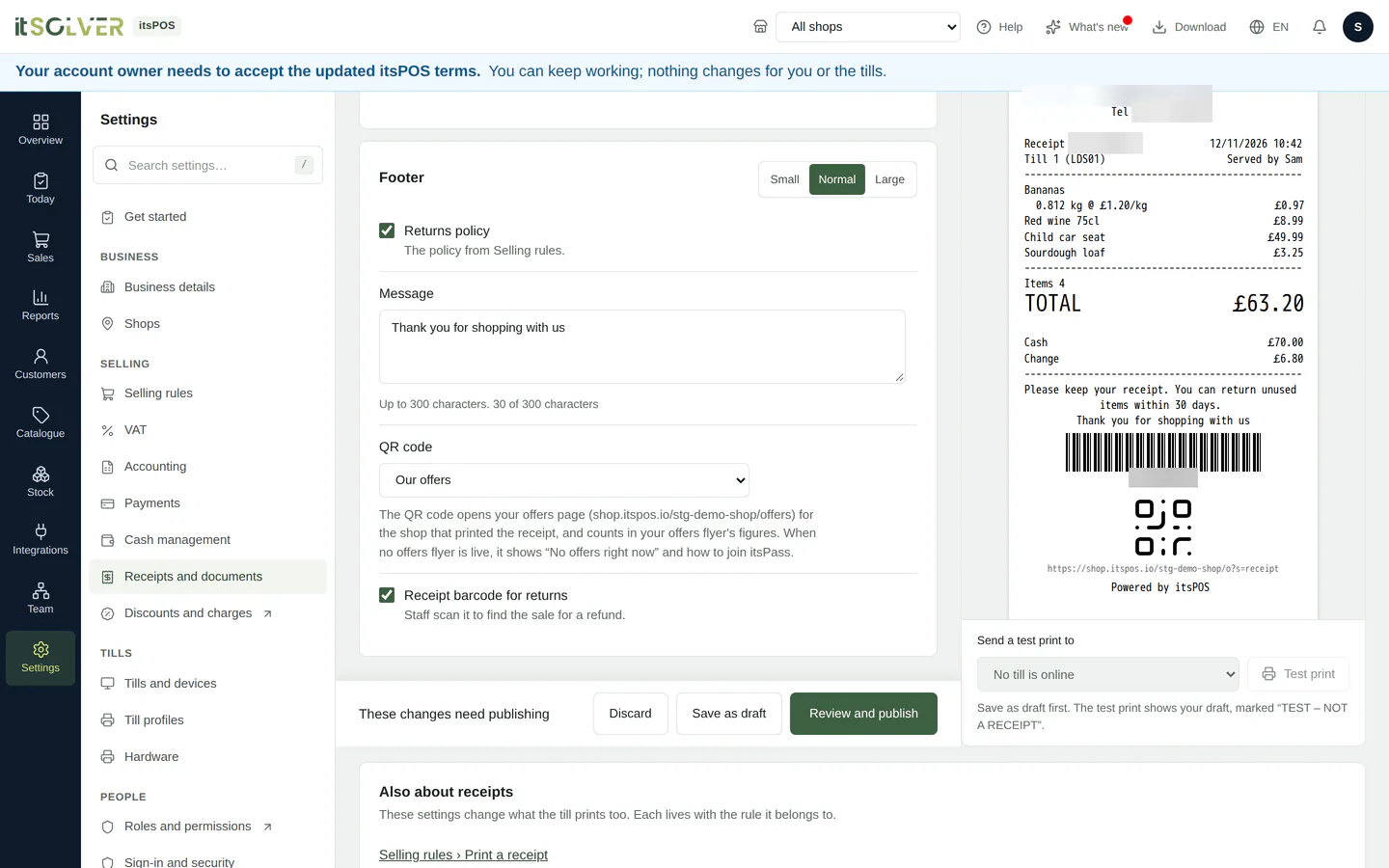
Set it up
- Go to Settings › Receipts and documents and open your receipt.
- In Footer, set QR code to Our offers. The other choices are Off, Link to your digital receipt, Link to a review page and Your own link.
- Check the preview on the right: it prints the QR code exactly as your tills will. Choose a shop to see that shop's link.
- Press Review and publish. The review lists "Footer › QR code: Our offers". Publish it, and your tills print it on the next receipt after they pick up the change.
What happens next
- The QR opens your Offers page for the shop that printed the receipt, for example shop.itspos.io/test-shop/offers for Green Street Grocer. See Offers on your online store.
- Each scan counts under Receipts in your offers flyer's How it's doing.
- The link never changes, so it keeps working from flyer to flyer. When no offers flyer is live, it shows "No offers right now" and how to join itsPass.
- Email receipts carry the same link. Gift receipts don't print it.
If something goes wrong
Our offers needs two things. Until you have both, the receipt editor tells you why, and no QR code prints:
- The offers flyer in your plan: "Your plan doesn't include the offers flyer. Ask us about adding it." It's part of Premier and Enterprise, and an add-on on Essentials and Professional.
- A store address: "Your business needs a store address first, so the QR code has somewhere to go." See Your store address.
Not the same as the Join itsPass QR
The Join itsPass QR printed on receipts of customers who aren't members is a separate setting, in Settings › Customers and privacy. See Paper receipts for members and the join QR on receipts.
Still stuck?
The itsPOS support team is here 08:00 to 20:00 every day except Christmas Day.
- Call or WhatsApp: +44 7488 880320
- Email: support@itspos.io
- In the back office: Help › Contact support, or go to app.itspos.io/help/contact after you sign in
- On our website: itspos.io/contact
Tell us your shop's name and what you were trying to do. A screenshot of the screen helps.