

Offers and messages
Store materials
Posters, stickers, counter cards, social posts and WhatsApp pictures that invite your customers to join your shop on itsPass. Each one is made for your shop, with its name, colour and its own join QR code, ready to print or share. Find them in Customers › Store materials (under itsPass). They come with every plan that has itsPass.
For: Owners, Admins and Shop managers6 min read
What this page is for
Getting people to join: a poster in the window, a card by the card machine, the staff script card behind the till and pictures for your social media. Everything carries the shop's own join QR and your welcome line, for example "Get 50 points when you join".
What you see
From the top: the Shop to make them for, Choose a look, Made for the shop (the join code, the join link in every QR and the welcome line), Your shop on the materials, then the items in three groups: To print, For screens and social media and WhatsApp. Each item says where it goes, its sizes with PDF and PNG downloads, and whether you've downloaded it: "Not downloaded yet", "Up to date" or "Out of date".
Choose a look
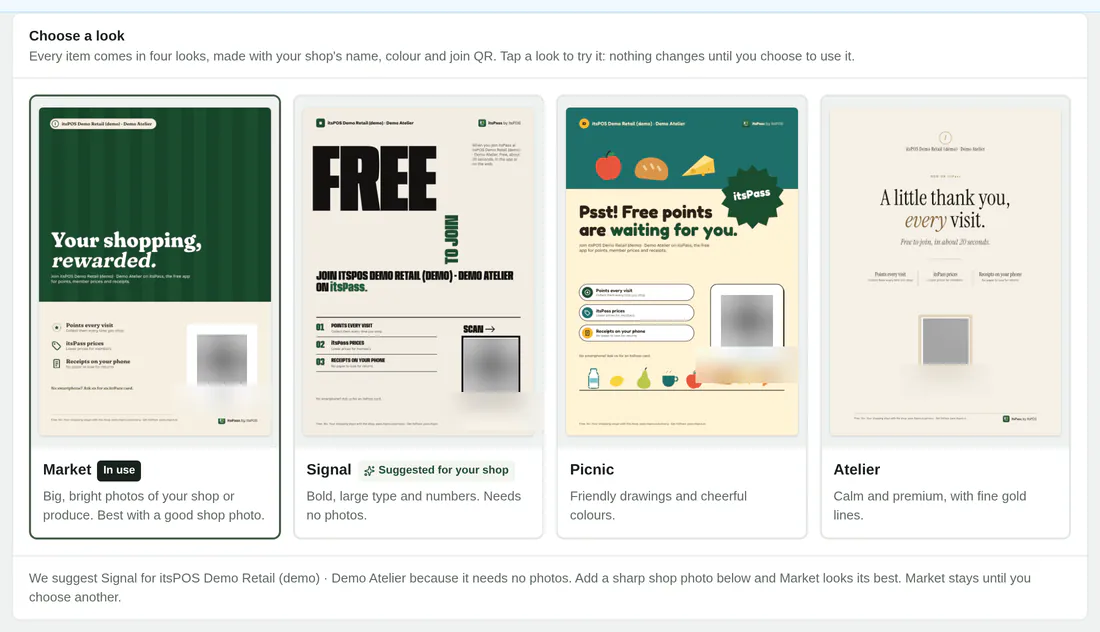
Every item comes in four looks:
| Look | What it's like |
|---|---|
| Market | Big, bright photos of your shop or produce. Best with a good shop photo. |
| Signal | Bold, large type and numbers. Needs no photos. |
| Picnic | Friendly drawings and cheerful colours. |
| Atelier | Calm and premium, with fine gold lines. |
Market is "In use" until you choose another. We may mark another look Suggested for your shop and say why: "We suggest Signal for Green Street Grocer because it needs no photos. Add a sharp shop photo below and Market looks its best." We never change your look by ourselves.
- If you have several shops, choose the Shop at the top and press Show. Each shop has its own look and details.
- Under Choose a look, tap a look to try it. Every preview and download on the page uses it, and nothing is saved yet.
- The page says "You're trying Signal. The previews and downloads below use it; Green Street Grocer still uses Market." To keep it, press the button to use it for the shop, for example "Use Signal for Green Street Grocer". The other button goes back to the look in use, for example "Back to Market".
You can try any look and download in it. Saving a look needs the Owner, an Admin or the shop's manager.
Your shop on the materials
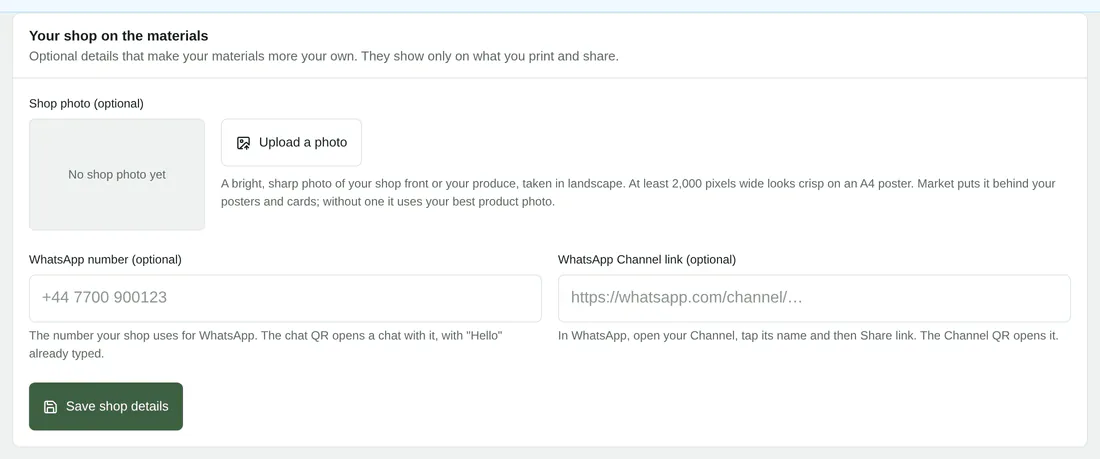
Optional details that make your materials your own:
- Shop photo (optional): a bright, sharp photo of your shop front or your produce, taken in landscape. At least 2,000 pixels wide looks crisp on an A4 poster. Market puts it behind your posters and cards; without one, it uses your best product photo, or a pattern in your shop's colour. We remove the location and camera details before uploading, and a smaller photo gets a note that it may look soft on a poster.
- WhatsApp number (optional) and WhatsApp Channel link (optional): for the WhatsApp QR codes. See Share on WhatsApp.
Press Save shop details. They show only on what you print and share. Others see "The owner or a manager can change these."
Saving can make things you printed out of date: "1 item you downloaded is out of date. Download it again, print, and take the old one down."
The items
The page groups them as To print, For screens and social media and WhatsApp. New items have a New tag.
| Item | Where it goes |
|---|---|
| Poster (A4, A3) | Window, door or wall |
| Window sticker (round, 150 mm) | Door or window, facing out |
| Counter card (A5, A6) | On the counter |
| Tent card (A5, folded from A4) | Tables, counters and shelves |
| Till-side card (A7) | Next to the card machine |
| Shelf wobbler | Shelf edges, at eye level |
| Shelf talker and till topper | Busy aisles, the queue, on top of the till |
| Staff script card | Behind the till, with what to say and answers to questions |
| Stamp card versions | Counter and window, when you give stamps |
| Refer a friend card | Counter and social media, while Refer a friend is on |
| Social post (square, Instagram 4:5, story) | Your own social media |
| Customer display screen | Shown by the till after payment |
| Email signature and website button | Your emails and website |
| Receipt footer | Printed by the till on receipts |
| WhatsApp status, chat QR, Channel QR and pack | See Share on WhatsApp |
Each size lists its downloads (PDF, PNG, or a zip file). A size that can't be made yet says why, for example "Shows while you have a public offers flyer live."
Printing: the PDFs are ready for a print shop, with 3 mm bleed and crop marks. At home, print at actual size (100%) and cut along the corner marks. Printed at 100%, every QR code is big enough to scan.
App badges: the materials show the App Store and Google Play badges, now that the itsPass app is in both stores.
Out of date and "The design changed"
Each item shows whether you've downloaded it and whether it's still current. When something on it changes, such as your welcome points, your shop photo or your look, it says "Out of date" or "The design changed", and a banner counts the items you downloaded that are out of date. Print the new one and take the old one down. Making a new join code puts everything with the old QR out of date: see Your join code and QR.
Where it shows up
- On the till: the customer display's join screen (switched on in Customers › itsPass) shows the shop's join QR. The receipt footer prints a join QR of its own for each sale, so the shopper gets that sale's points when they join (switched on in Settings › Customers and privacy).
- On the staff script card: what staff say at the till. See Telling staff about itsPass.
Who can do what
- Anyone who can see Customers can see the page, try looks and download.
- The Owner, Admins and shop managers (for their own shops) can choose the look and change the shop details.
Still stuck?
The itsPOS support team is here 08:00 to 20:00 every day except Christmas Day.
- Call or WhatsApp: +44 7488 880320
- Email: support@itspos.io
- In the back office: Help › Contact support, or go to app.itspos.io/help/contact after you sign in
- On our website: itspos.io/contact
Tell us your shop's name and what you were trying to do. A screenshot of the screen helps.