

Offers and messages
Offers on your online store
When your offers flyer is live with a web page, shoppers can see it at your store address followed by /offers, for example shop.itspos.io/test-shop/offers for our test shop. It works on any phone or computer, in light and dark, and you don't need an open online store to have it.
For: Owners, Admins and Shop managersOn some plans3 min read
Before you start
- You need a live offers flyer with Web page and PDF or Web page only under Who sees it?. See Make your offers flyer.
- Owners and Admins publish flyers; Shop managers build them for their own shops.
How shoppers get there
- The flyer's QR code and short link (your store address followed by /o), on your printed flyer, posters, receipts and WhatsApp. We count each scan, then open the Offers page.
- "Offers" in your online store's menu, while a flyer with a web page is live and Show "Offers" in your online store's menu is ticked in the flyer's When and where card. It needs an open online store.
- Your own domain: with a connected domain, the page is also at /offers on it, for example shop.yourbrand.co.uk/offers.
- itsPass: members see the same offers on your shop in the app. See Offers in itsPass.
What shoppers see on the page
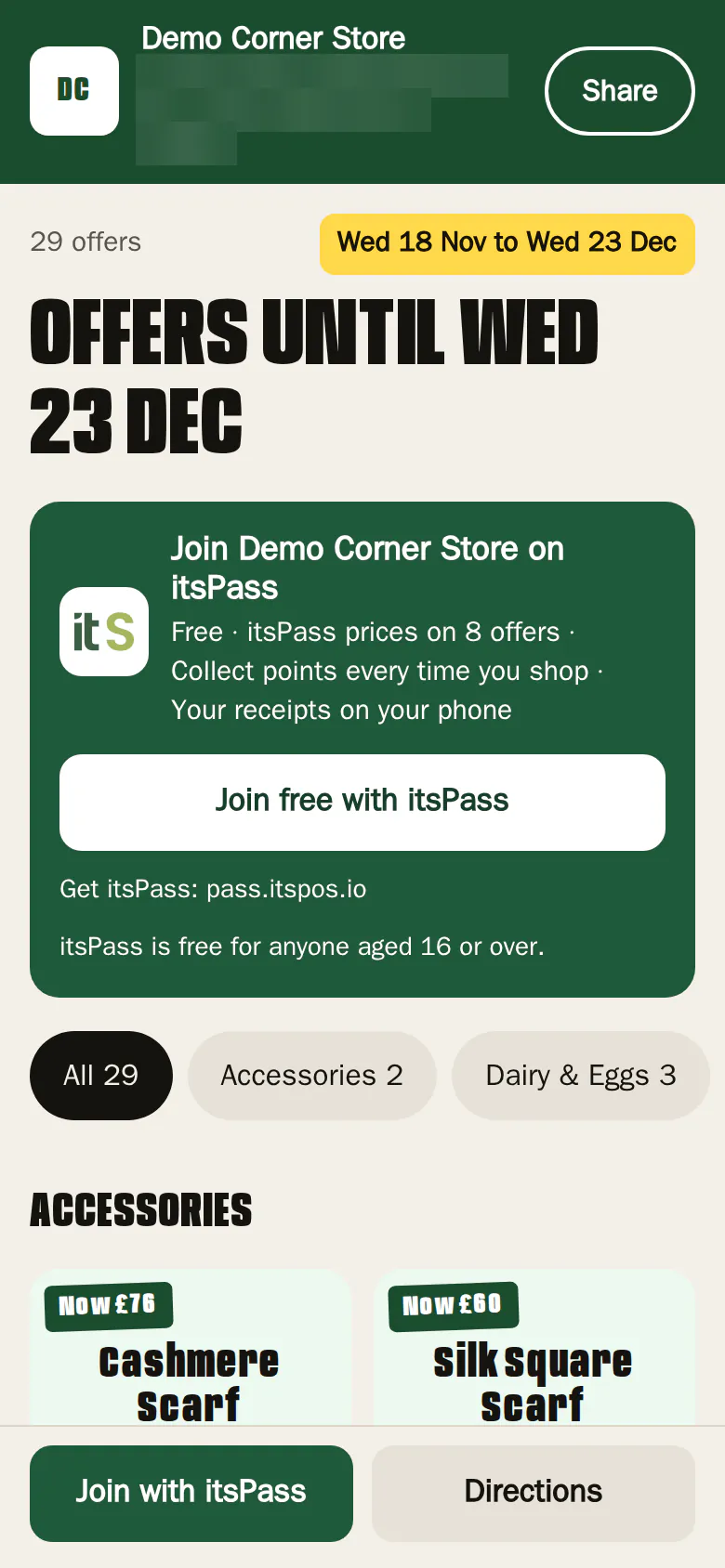
- Your shop's name and today's hours, the number of offers and the dates, for example "5 offers, Wed 18 Nov to Tue 15 Dec".
- Your offers in the flyer's style, with your colours: the big offer first, then each section, mix-and-match deals, itsPass prices beside the regular price, "Was" prices only when proven (Was prices and the 28-day rule), coupons, points and the small print.
- A card to join your shop on itsPass, with what members get there (for example "An itsPass price on 1 offer") and the App Store and Google Play badges.
- "Share", "Directions" and "Print these offers (PDF)" (the PDF for a home printer), and "Shop online" when your online store is open.
Depending on your flyer, shoppers may see instead:
| Page | When |
|---|---|
| "Which shop?" | The flyer covers several shops with different prices. Shoppers pick theirs, with its address and today's hours. The QR code on a receipt goes straight to that shop's offers. |
| "These offers are in the shop" | The flyer is PDF only. The page shows the shop's address, today's hours and Directions. |
| "No offers right now" | No flyer is live, or it has ended. With an open online store, it offers "Shop online". |
| "These offers have ended. Here's what's on now." | Someone opened the link of an ended flyer while another is live. |
Without an online store
Every business on itsPOS has a store address, so the Offers page works even if your plan has no online store or your store is closed: shoppers see your offers, your shop's address and hours, and how to join itsPass. There's no "Offers" menu link and no "Shop online" button until your online store is open. If the itsPOS support team pauses your store, the Offers page is paused too.
Privacy
The Offers page sets no cookies and shows no cookie banner. We count views and scans without knowing who looked, and you see the totals under How it's doing on the flyer.
Still stuck?
The itsPOS support team is here 08:00 to 20:00 every day except Christmas Day.
- Call or WhatsApp: +44 7488 880320
- Email: support@itspos.io
- In the back office: Help › Contact support, or go to app.itspos.io/help/contact after you sign in
- On our website: itspos.io/contact
Tell us your shop's name and what you were trying to do. A screenshot of the screen helps.