

Offers and messages
Offers in itsPass
Your itsPass members see your live offers on your shop's page in itsPass, under Offers now: your offers flyer, made for phones, with the itsPass prices members get at your till.
For: Owners, Admins and Shop managersOn some plans4 min read
Before you start
- Owners, Admins and Shop managers make the offers flyer in Catalogue › Promotions › Offers flyer. See Make your offers flyer.
- Members see it with itsPass 1.1 or later, on the app and at pass.itspos.io.
Switch it on
- Go to Catalogue › Promotions › Offers flyer and open your flyer.
- In When and where, choose Web page and PDF or Web page only under Who sees it?.
- Tick Show "Offers now" on your shop in itsPass. It's ticked for a new flyer.
- Publish the flyer. Members see Offers now while it runs.
What members see
On your shop's page, Offers now shows the flyer's dates and its first offers, the big one first. See all with the number of offers opens the whole flyer.
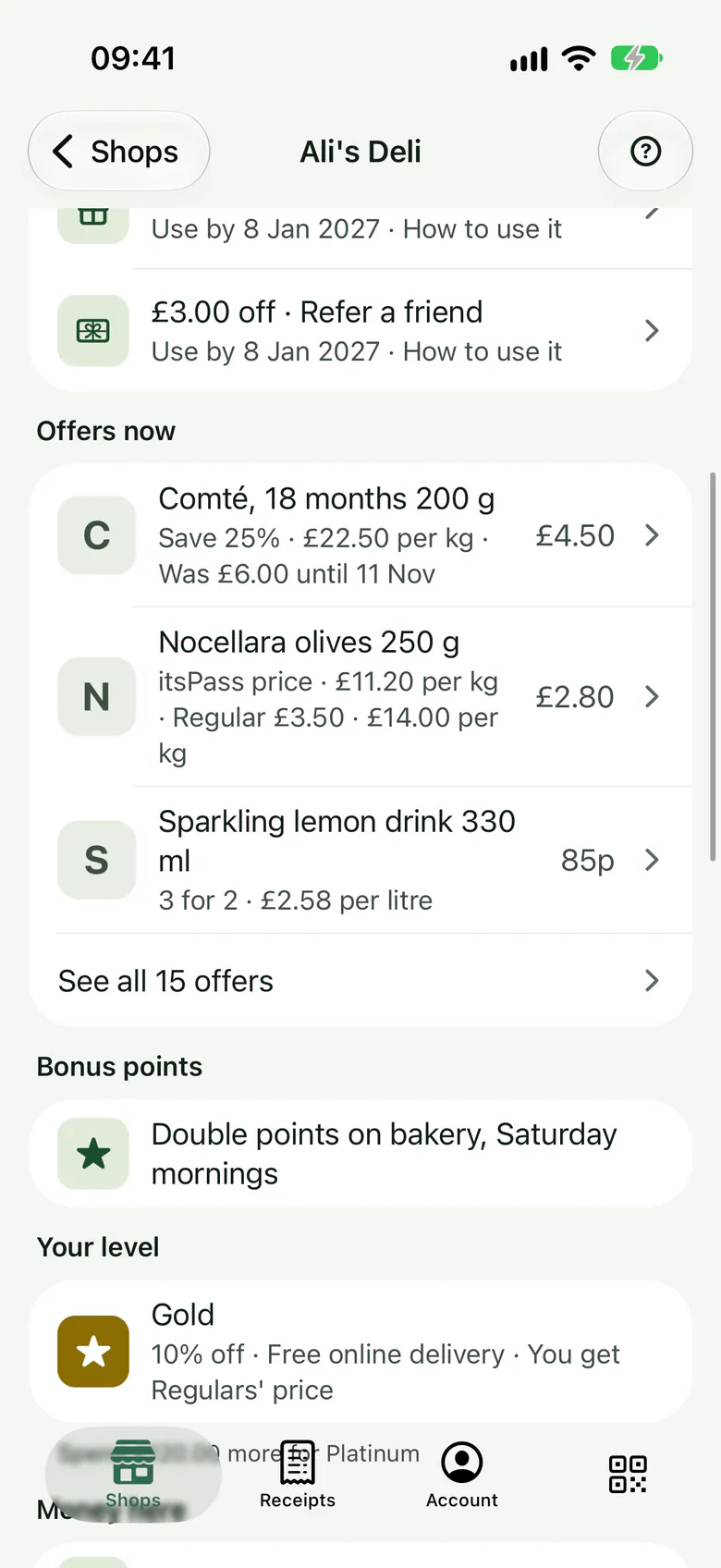
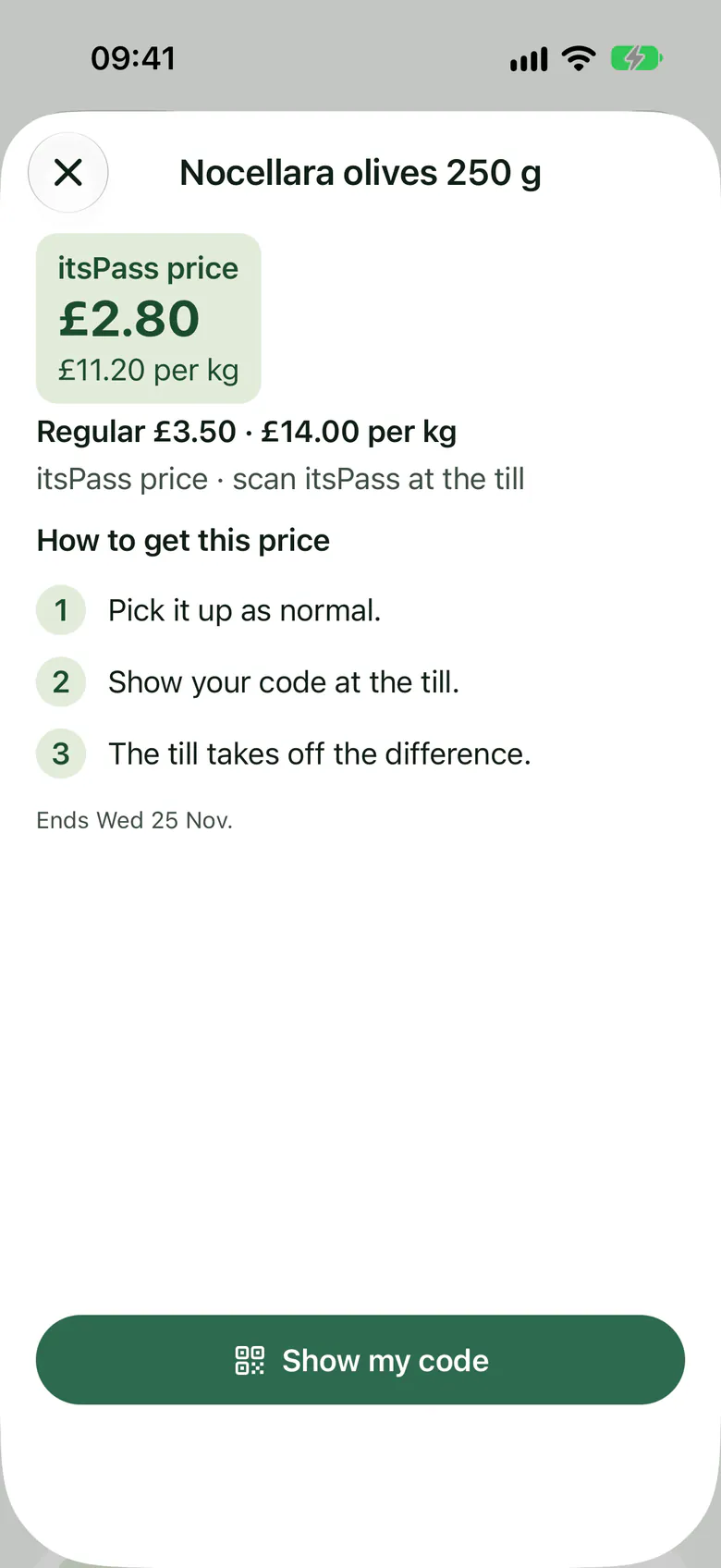
Tapping one offer shows How to get this price (or How to get this offer):
- Pick it up as normal.
- Show your code at the till.
- The till takes off the difference.
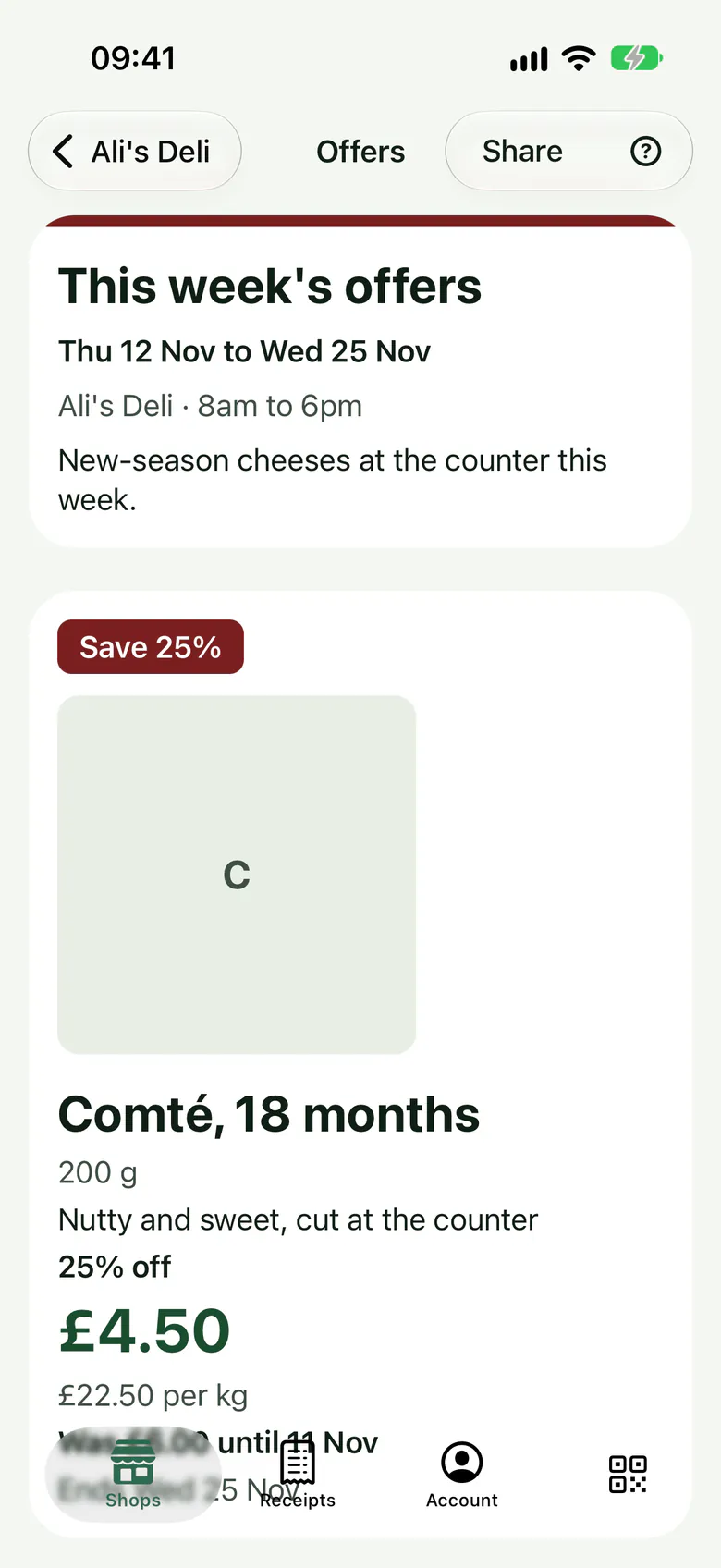
The whole flyer shows your headline and dates, the shop and today's hours, your introduction, then every offer by section: mix-and-match deals, spend-and-save, times of day, your coupon (Code and what it gives), how members earn points with you, and The small print. Share sends a link to your offers, and Print version (PDF) opens your PDF.
Prices are exactly as on your flyer:
- itsPass price: the members' price beside the regular price. Members get it when your till scans their code, or when they sign in to your online store. See itsPass prices.
- A "was" price only when proven, with its dates. See Was prices and the 28-day rule.
- Your offer words are never translated: a member using itsPass in another language still sees them as you wrote them.
Each offer's status
A message or a link can open one offer on its own. itsPass shows where it stands:
| Status | What members see |
|---|---|
| Running | How to get this price, as above |
| Not started yet | Starts on and the date: "The till takes it off from then." |
| Ended | This offer has ended: "It ended on 12 Nov, so the till won't take it off now." with See this week's offers |
| Used up | All used up: your shop has no more of this offer. "The other offers this week still work." |
When no flyer is running: No offers right now, with Back to the shop.
Your offers QR and links
Your flyer's QR code and its link open your Offers page on the web. On a phone with itsPass:
- A member of your shop sees the offers in the app, on your shop's page.
- Someone signed in but not a member sees Offers at this shop with See the offers (the web page) or joining with your QR.
- Someone signed out is asked to sign in, or can see the offers on the web.
Offers by message
When you send your offers flyer to members, it arrives in their Messages, behind the bell on My code, marked Offer, and by email for those who chose email. Each one has Stop offers from this shop. See Send news and offers to members.
Bonus points
Bonus points offers (extra points on chosen products or times) are a separate part of your shop's page, Bonus points, so they aren't mixed up with Offers now. See Bonus points offers.
Figures and privacy
Opening Offers now counts as a view, and a scan that opens the app counts as a scan, in your flyer's How it's doing. Each member counts once a day. You're never told which member looked.
Still stuck?
The itsPOS support team is here 08:00 to 20:00 every day except Christmas Day.
- Call or WhatsApp: +44 7488 880320
- Email: support@itspos.io
- In the back office: Help › Contact support, or go to app.itspos.io/help/contact after you sign in
- On our website: itspos.io/contact
Tell us your shop's name and what you were trying to do. A screenshot of the screen helps.