

Offers and messages
Share on WhatsApp
Many customers are already on WhatsApp. Store materials gives you ready pictures, words and QR codes to share from your own phone: status pictures, words with a join link, QR codes that open a chat with your shop or your Channel, and a pack for broadcast lists. itsPOS never sends WhatsApp messages for you.
For: Owners, Admins and Shop managers3 min read
Find them in Customers › Store materials, in the WhatsApp section near the bottom. They come in the look you chose (Store materials).
Before you start
- Anyone who can see Customers can download and share. Owners, Admins and Shop managers (for their own shops) add the shop's WhatsApp number and Channel link.
- With more than one shop, choose the Shop at the top of Store materials first: each shop has its own join QR.
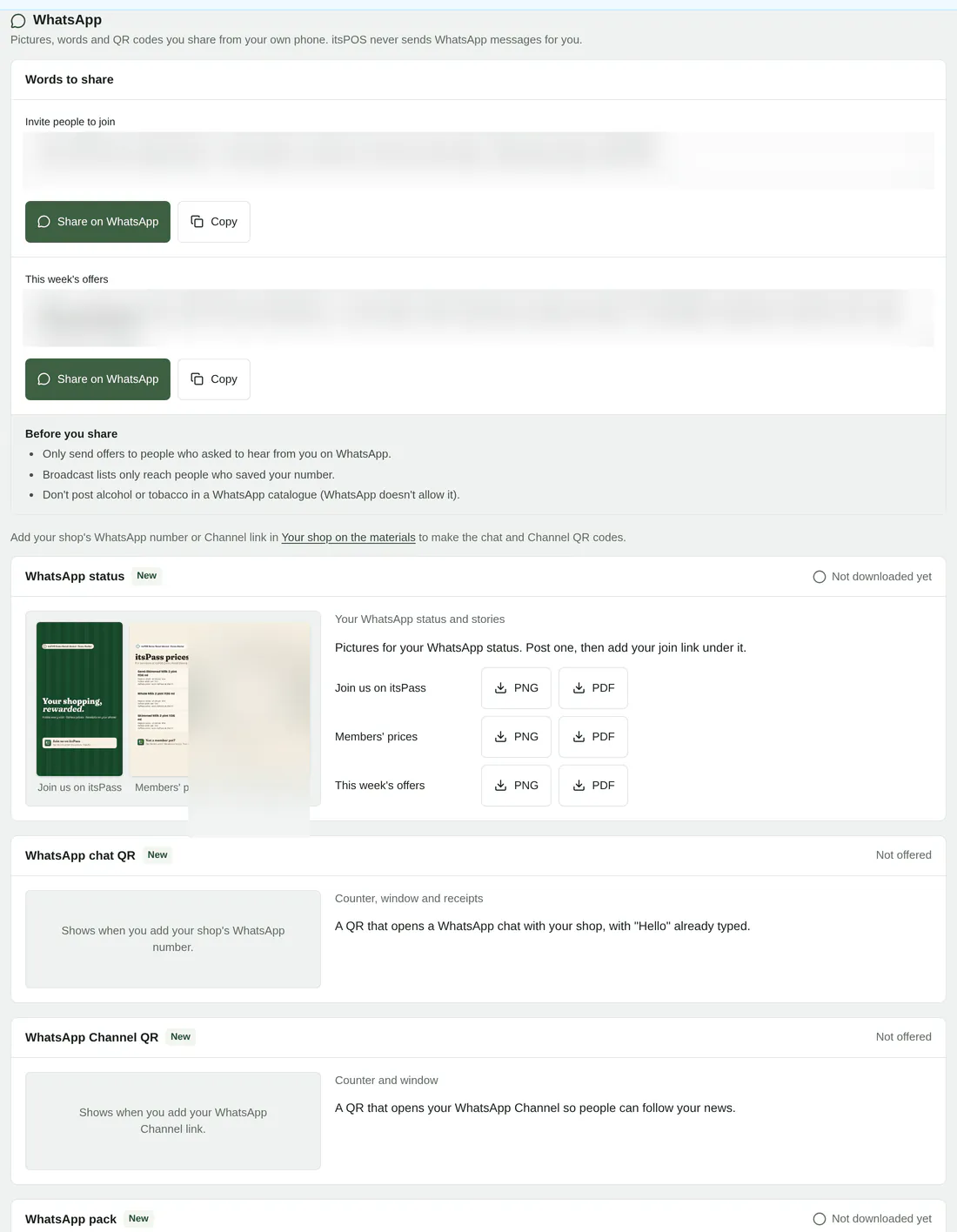
Words to share
- Invite people to join: words with your join link.
- This week's offers: your offers and their link, while you have an offers flyer live with a web page. Otherwise: "Words for this week's offers show here while you have a public offers flyer live."
Share on WhatsApp opens WhatsApp with the words already typed: pick a chat, a group or a broadcast list and send. Copy puts the words on your clipboard for anywhere else.
Status pictures
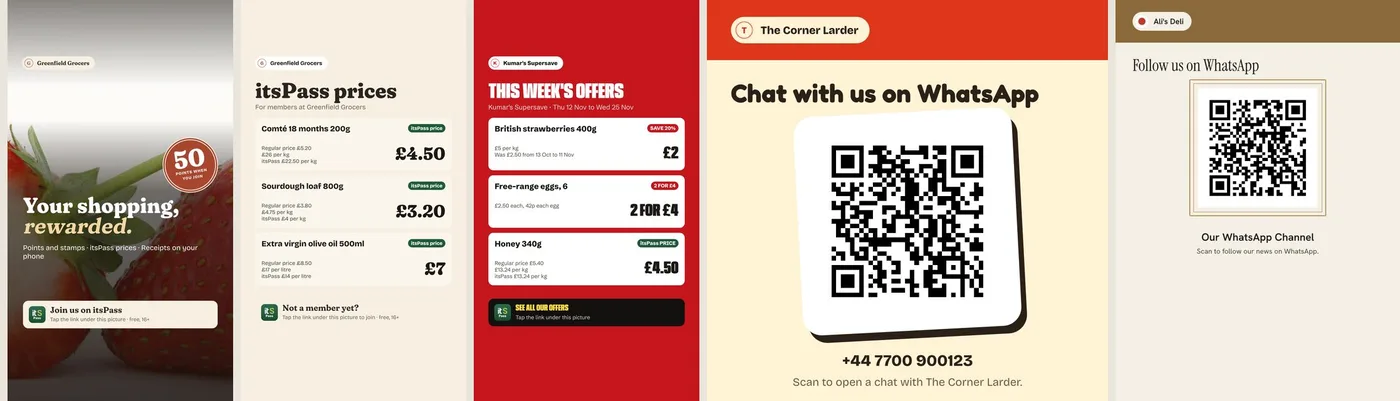
WhatsApp status has up to three pictures, sized for status and stories, with the words kept clear of WhatsApp's bars at the top and bottom:
- "Join us on itsPass": your shop, the welcome offer and "Tap the link under this picture".
- "Members' prices": up to three itsPass prices from your live offers flyer, with the regular prices and unit prices.
- "This week's offers": from your live offers flyer.
Post one as your status, then add your join link (or offers link) under it. The last two show only while an offers flyer with those prices is live.
Chat QR and Channel QR
- In Your shop on the materials, type your WhatsApp number (optional) as you'd write it (for example 07700 900118), and your WhatsApp Channel link (optional) if you have a Channel. To find the link: in WhatsApp, open your Channel, tap its name and then Share link.
- Press Save shop details: "Shop details saved." The WhatsApp part then says where the chat QR goes, for example "Chat QR opens: wa.me/447700900118".
- The "WhatsApp chat QR" opens a chat with your shop, with "Hello" already typed. The "WhatsApp Channel QR" opens your Channel. Each comes as a square picture and an A6 card for the counter, window or receipts.
Until you add the number or the link, each card says "Not offered" and what's missing, for example "Shows when you add your shop's WhatsApp number."
The WhatsApp pack
The "WhatsApp pack" is one zip file with the status pictures, a square post, the words and the rules: handy for broadcast lists and groups. It has no preview of its own: the pictures above are what's inside.
Before you share
- Only send offers to people who asked to hear from you on WhatsApp.
- Broadcast lists only reach people who saved your number.
- Don't post alcohol or tobacco in a WhatsApp catalogue (WhatsApp doesn't allow it).
Your offers flyer has its own Share on WhatsApp button too, in Print and share: see Make your offers flyer.
Still stuck?
The itsPOS support team is here 08:00 to 20:00 every day except Christmas Day.
- Call or WhatsApp: +44 7488 880320
- Email: support@itspos.io
- In the back office: Help › Contact support, or go to app.itspos.io/help/contact after you sign in
- On our website: itspos.io/contact
Tell us your shop's name and what you were trying to do. A screenshot of the screen helps.