

Customers and itsPass
Bonus points offers
A bonus points offer gives members extra points for a while: double points on bakery on Saturday mornings, triple points on a new range, or 50 extra points on every visit this week. This guide adds Double points on bakery: Saturdays from 07:00 to 12:00, every member, 21 Nov to 31 Dec 2026.
For: Owners, Admins and Shop managers4 min read
Before you start
- Owners, Admins and Shop managers can add and change offers.
- Your loyalty programme must be running (Set up your loyalty programme).
Add an offer
Go to Customers › Bonus points and press Add offer.
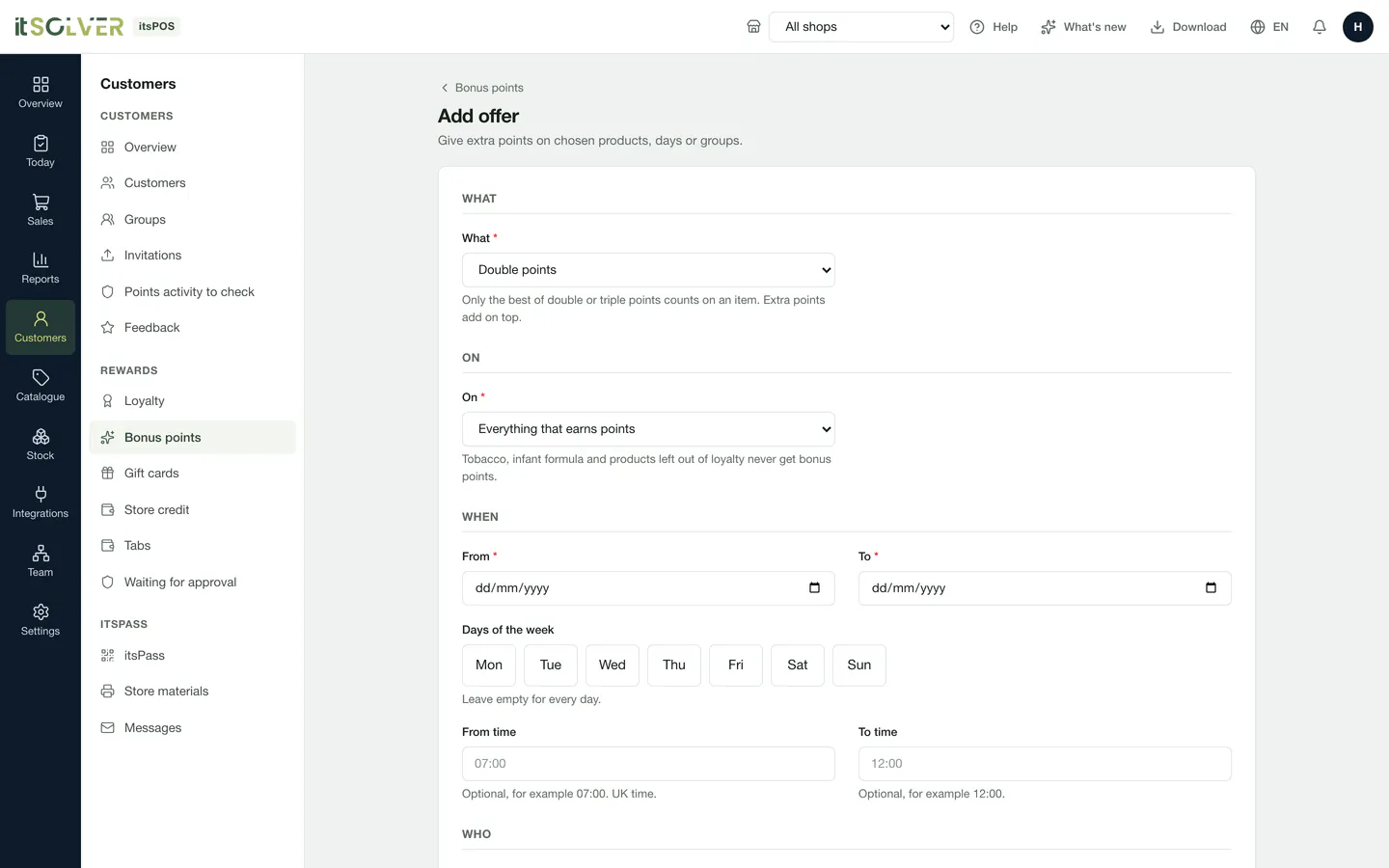
Add a bonus points offer What: Double points, Triple points or Extra points (then Extra points and Extra points for: Each item or Each visit). "Only the best of double or triple points counts on an item. Extra points add on top."
On: Everything that earns points, Chosen categories (tick Bakery) or Chosen products. "Tobacco, infant formula and products left out of loyalty never get bonus points."
When: From and To dates (it can start today at the earliest), the Days of the week (tap Sat; leave them all off for every day), and From time and To time in UK time (07:00 and 12:00).
Who: Every member, A group, An automatic group (Regular (also Best) includes Best) or A tier. An offer for a tier keeps running when you rename the tier.
Shops: leave it empty for every shop and the online store, or choose shops; Also on online orders then decides the online store.
Options: Most bonus points a member gets from this offer a day (empty or 0 for no limit), Show in itsPass, and Tell members by push ("Sent once from 08:00 on the first day to members who agreed to offers. It counts towards your monthly messages.").
Name: what members see, for example "Double points on bakery".
Press Add offer: "Saved Double points on bakery."
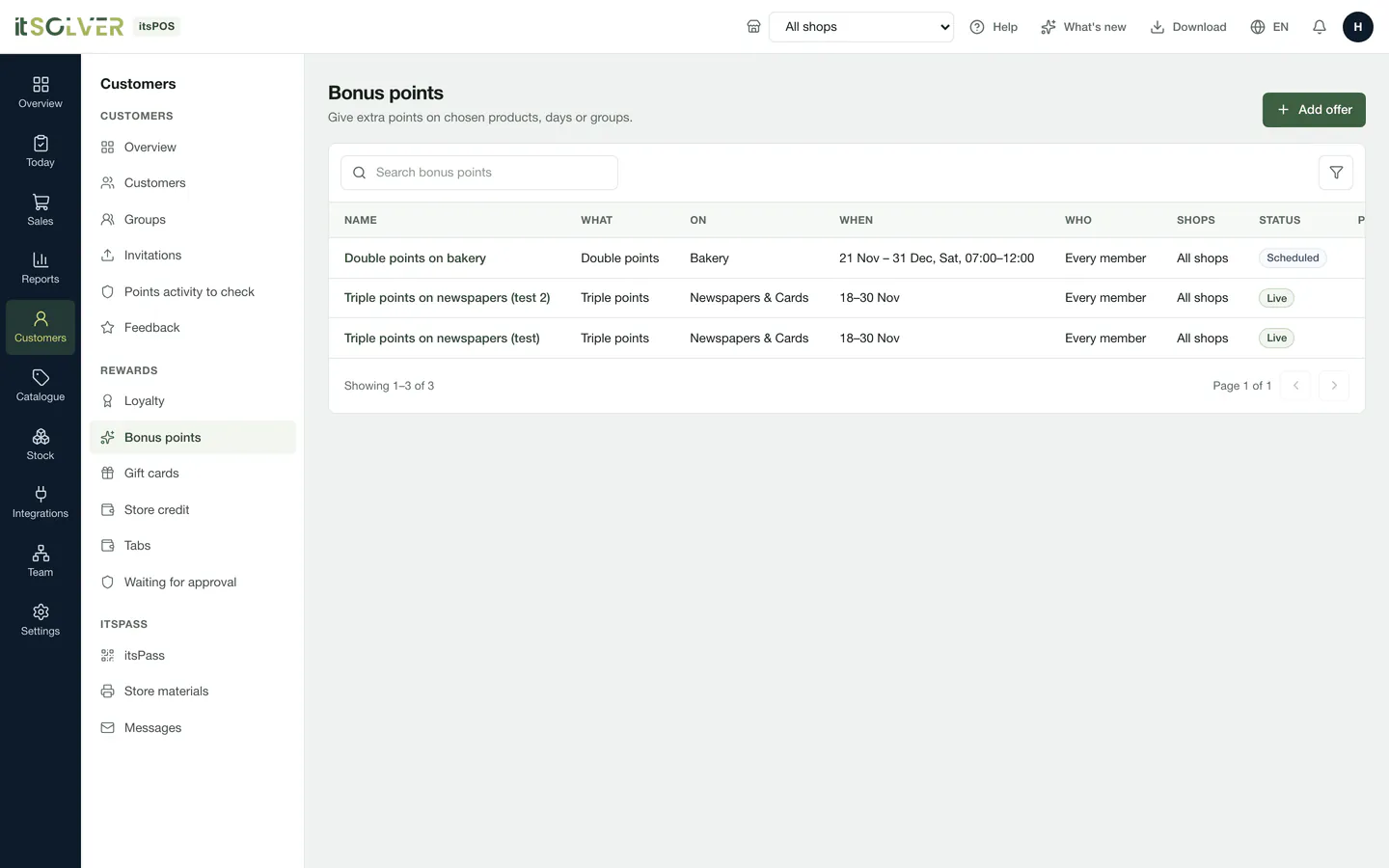
Pause, resume or end an offer
Open the offer from the list. Its page shows how members see it, the points given, members reached and their sales during the offer.
- Pause: "Offer paused." It stops from tomorrow ("Paused from 19/11/2026") when it's already running today. Resume starts it again: "Offer running again."
- End offer: "End this offer? Members keep the points they earned. If it has started or members got a push about it, members get 30 days' notice first." Then "Offer ended."
Changing a running offer saves a new version. Ending, pausing or giving less once it has started or members got a push needs 30 days' notice; if it ends sooner than that, it runs as it is.
What happens next
- Status: Scheduled, Live, Paused or Ended, and Points given.
- On the till: the member panel shows the offer, and Pay shows what the member will earn, for example "You'll earn 84 points, 42 bonus"; the receipt says "+84 points (42 bonus)". A daily limit is checked when the sale reaches itsPOS.
- Online: signed-in members earn the bonus on online orders when the offer includes the online store.
In itsPass
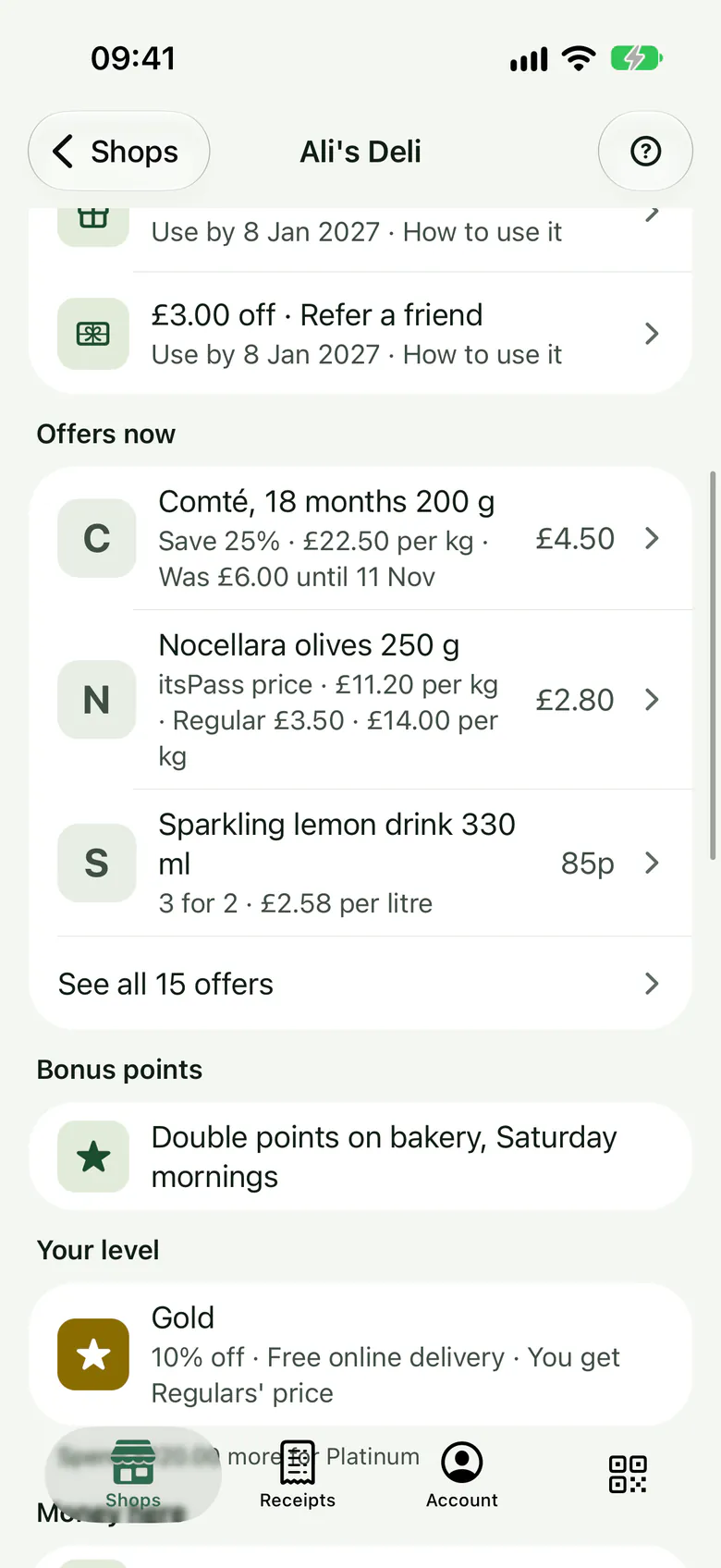
Your shop's page in itsPass lists each running offer under Bonus points, for example "Double points on bakery, Saturday mornings", and Coming soon before it starts. It's kept apart from Offers now (your offers flyer). The till adds the points when it scans the member's code.
If something goes wrong
- "An offer can start today at the earliest.": choose today or a later date.
- No bonus on a sale: check the day, time, shop and who it's for, and that the customer was on the sale.
- "Members were told about this offer, so it can't end early or give less without 30 days' notice.": members saw it in itsPass or got a push. If it ends within 30 days anyway, it runs as it is ("It ends on 30 Nov 2026 anyway, so it runs as it is.").
Still stuck?
The itsPOS support team is here 08:00 to 20:00 every day except Christmas Day.
- Call or WhatsApp: +44 7488 880320
- Email: support@itspos.io
- In the back office: Help › Contact support, or go to app.itspos.io/help/contact after you sign in
- On our website: itspos.io/contact
Tell us your shop's name and what you were trying to do. A screenshot of the screen helps.