

Customers and itsPass
Your join code and QR, and making a new one
Each shop has its own join code: six letters and numbers, a link such as pass.itspos.io/j/K7PM2Q and a QR code. A shopper who scans the QR, or types the code in itsPass, joins that shop. Put the QR where people wait and pay.
For: Owners, Admins and Shop managers4 min read
Before you start
- Owners, Admins and Shop managers download the QR and make new codes; Shop managers only for their own shops.
- Joining needs the itsPass terms accepted. See Get your shop ready for itsPass.
Download the QR
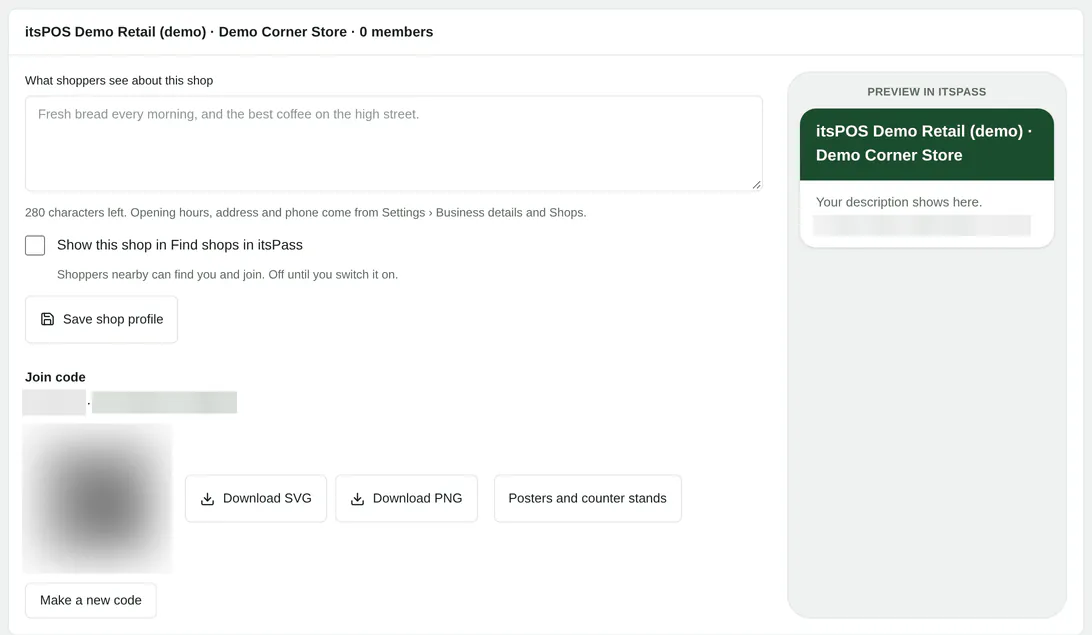
Go to Customers › itsPass and find the shop's card, for example "Green Street Grocer · 2 members".
Under Join code you see the code, the link and the QR.
Press Download PNG for a 1200 × 1200 picture, or Download SVG for a print shop. The file is named after the code, for example itspass-join-K7PM2Q.png.
The checklist step "Download the join QR and put it up" ticks for that shop.
For ready-made posters, counter cards and stickers with the QR already on them, press Posters and counter stands. See Store materials.
Where the code is used
- Every poster, counter card, sticker and social picture in Customers › Store materials.
- The customer display after a sale, if Show the join QR on the customer display after payment is on.
- Your offers flyer's join part, and your online store's offers page.
- Your tills: the join QR and welcome line reach them within a minute.
The QR printed on receipts of people who aren't members is different: it has a code of its own for that sale, so the shopper gets the sale's points when they join. See Paper receipts for members and the join QR on receipts.
Make a new code
Make a new code only if the old one is being misused, for example someone posted a photo of your QR online with a fake offer. The old code stops working everywhere at once.
- On the shop's card press Make a new code.
- Read the question: "Make a new join code? The old QR stops working: take it down and put up the new one. Store materials shows what to print again." Confirm it.
- The card shows the new code, link and QR. Your tills get the new QR within a minute.
- Go to Customers › Store materials: everything you printed with the old code shows "Out of date". Download and print it again, and take the old ones down.
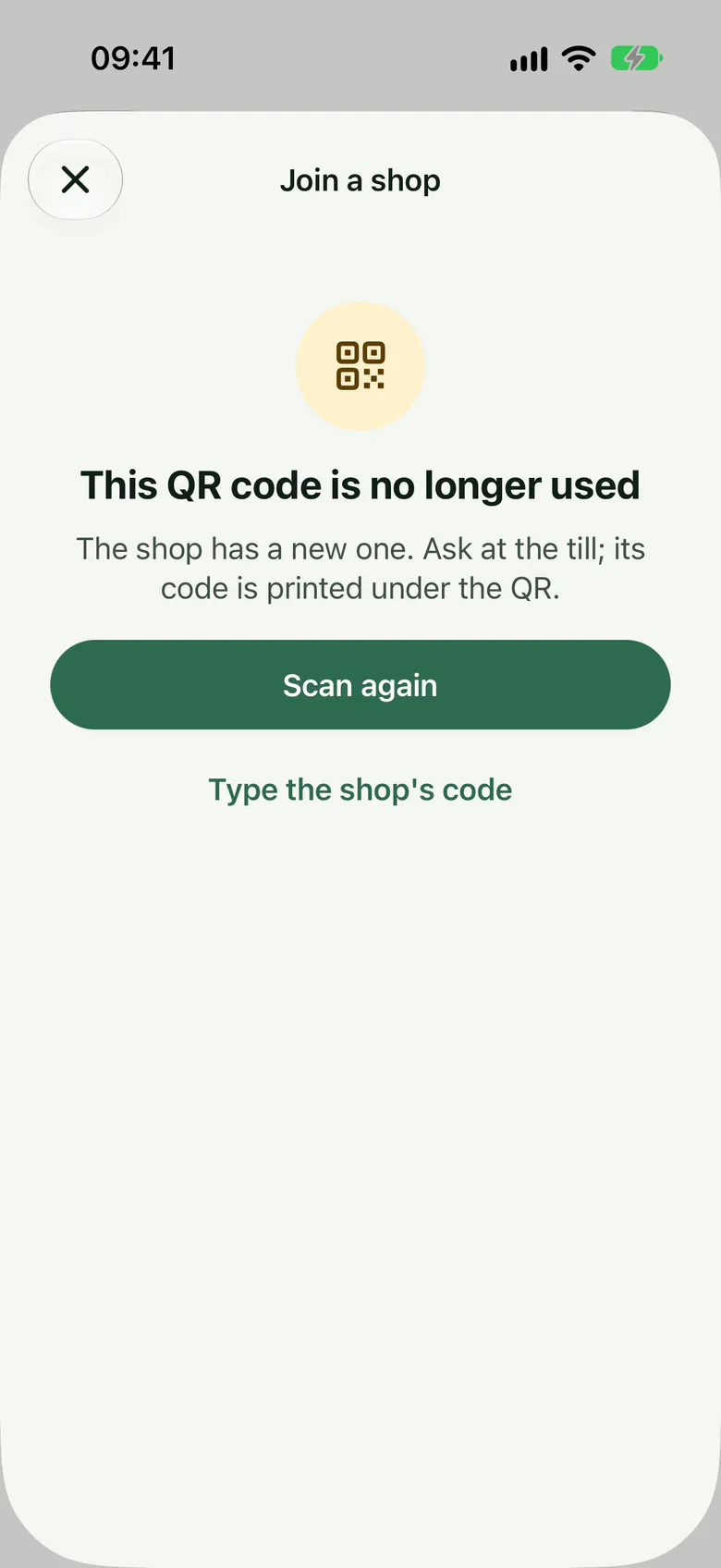
Anyone who scans an old poster is told the code is no longer used, so they can't join from it. Members who already joined keep everything: their points, receipts and membership don't change.
Team › Activity records each new code and who made it.
If something goes wrong
- The QR won't scan from a poster: print at actual size (100%). Each item in Store materials says how big its QR prints, for example "the QR is then at least 42 mm wide".
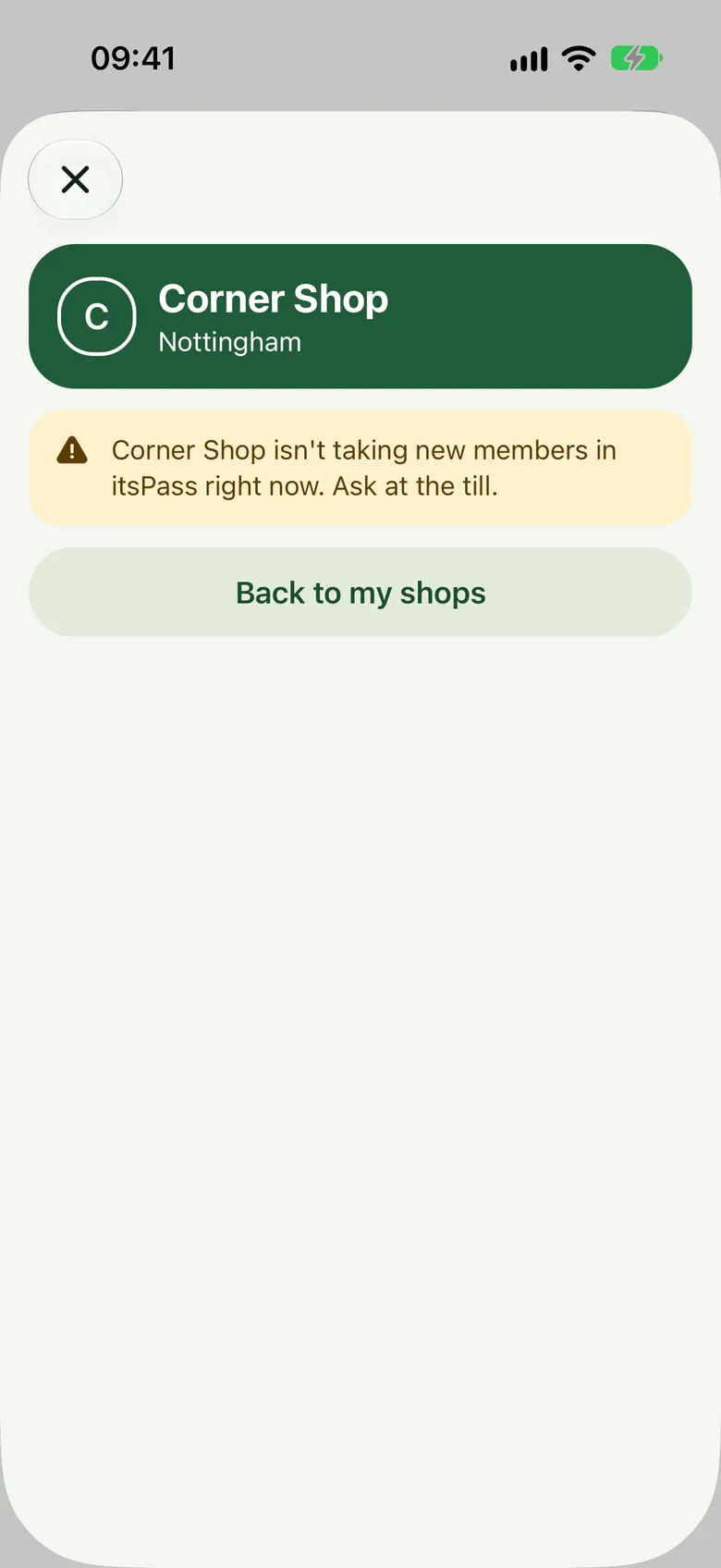
- Shoppers say the shop "isn't taking members": the itsPass terms aren't accepted, or joining is paused: Customers › itsPass says which at the top. See Get your shop ready for itsPass.
What shoppers see
In the itsPass app, a shopper taps Join a shop in Shops and points the camera at your QR, or taps Type the shop's code and types the code printed under it. Without the app, an iPhone's camera opens the itsPass App Clip and any other phone opens your join page on pass.itspos.io.
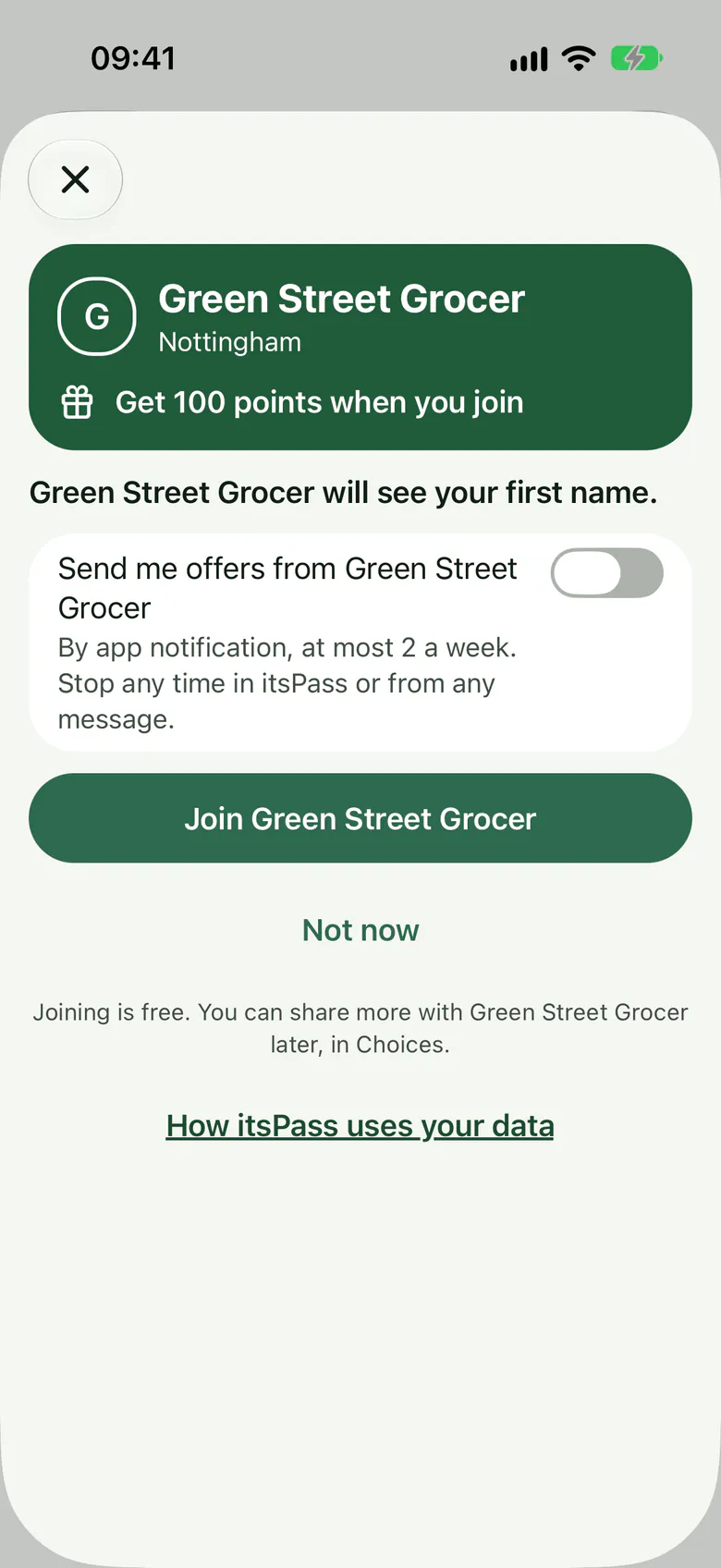
- They see Join with your shop's name, your welcome line and "Green Street Grocer will see your first name."
- Send me offers from your shop is off until they switch it on: "By app notification, at most 2 a week."
- They tap Join: "You're now a member of Green Street Grocer. 100 welcome points are yours."
What they see when it doesn't work:
| They see | Why |
|---|---|
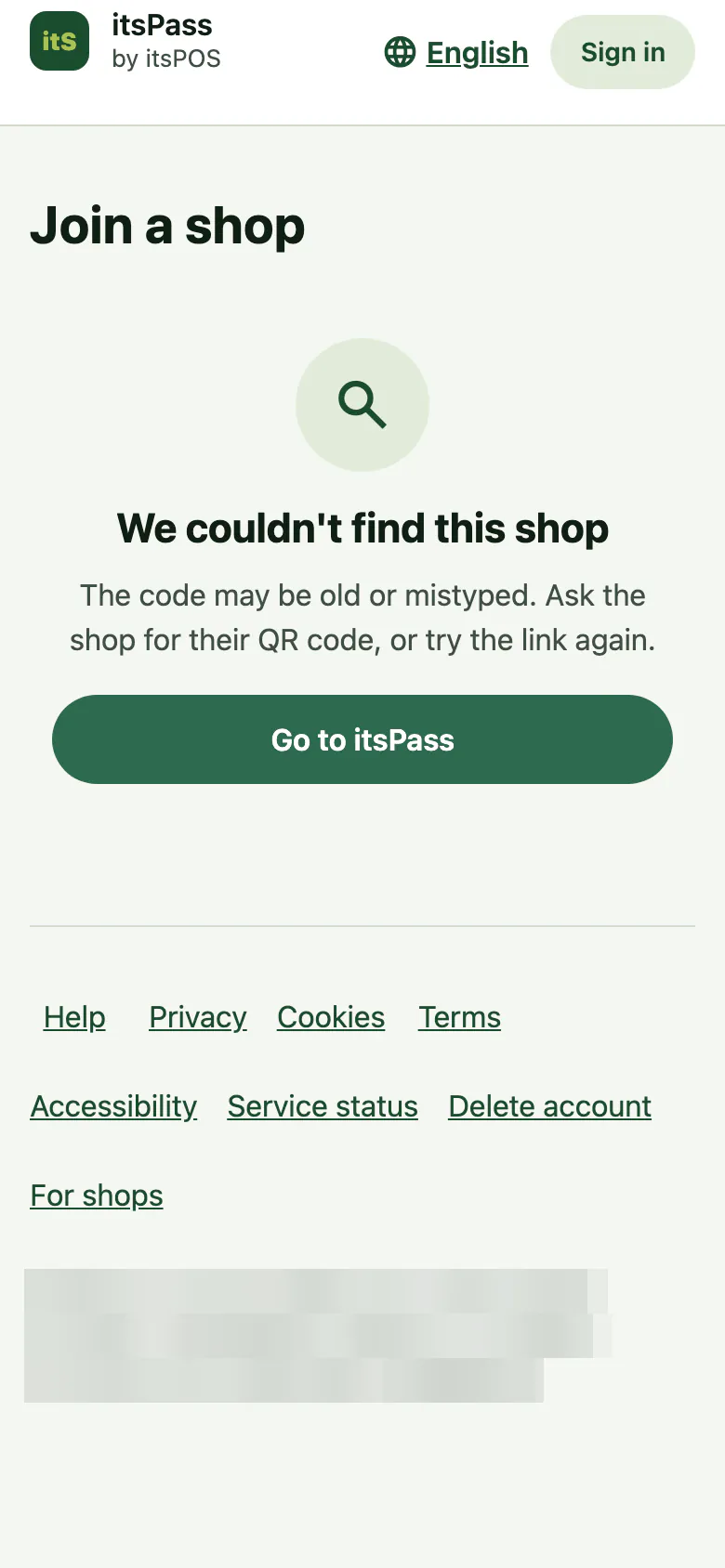
| This QR code is no longer used ("The shop has a new one. Ask at the till; its code is printed under the QR.") | You made a new code; this is the old one. The website and the App Clip say "We couldn't find this shop" for an old or mistyped code. |
| "Green Street Grocer isn't taking new members in itsPass right now. Ask at the till." | Joining is paused or the terms aren't accepted, before the Join form shows |
| That's a shopper's code | They scanned a member's My code instead of your shop's QR |
| Too many tries | Too many wrong codes typed: they wait a minute, or scan the QR |
On the website, an old or mistyped code shows this:
See What your shoppers see in itsPass for joining without the app.
Still stuck?
The itsPOS support team is here 08:00 to 20:00 every day except Christmas Day.
- Call or WhatsApp: +44 7488 880320
- Email: support@itspos.io
- In the back office: Help › Contact support, or go to app.itspos.io/help/contact after you sign in
- On our website: itspos.io/contact
Tell us your shop's name and what you were trying to do. A screenshot of the screen helps.