

Selling at the till
Change a line: quantity, price, discount, note or remove
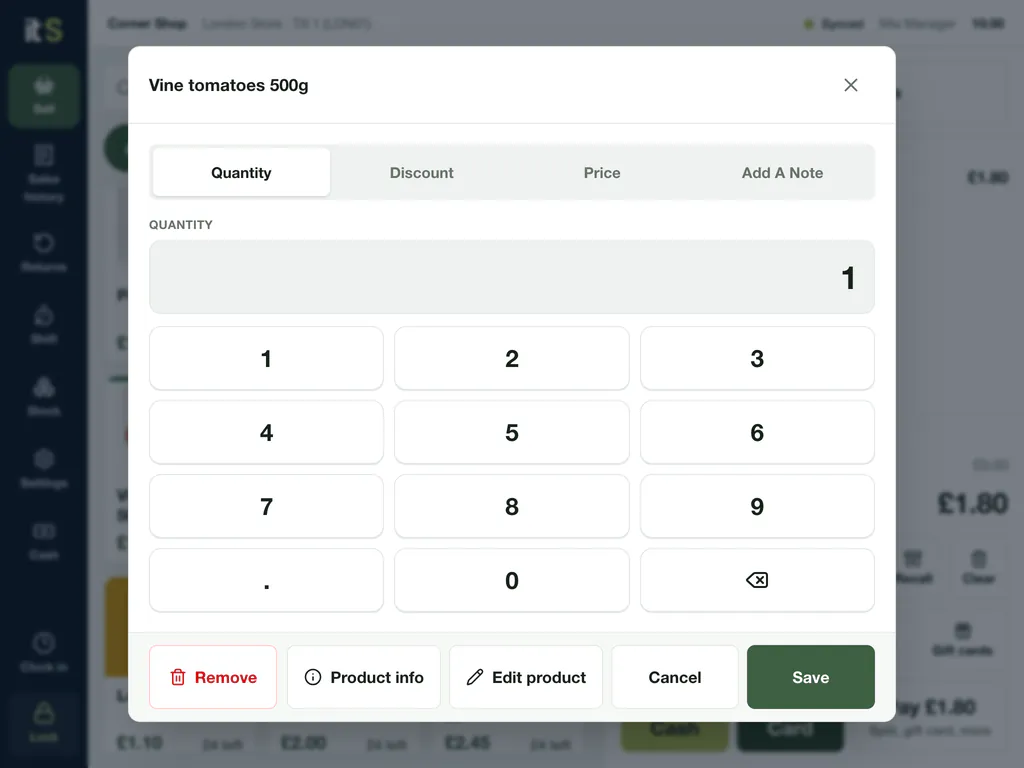
Tap a line in the basket to open its panel: change how many, give a discount, change the price, add a note for the receipt or take the line off. The example is Heinz Baked Beans in A Rich Tomato Sauce 415g, 3 at £1.55.
For: Owners, Admins, Shop managers, Supervisors and Cashiers4 min read
Needs itsPOS Till 0.5.33 or later.
The quick way: − and +
Each basket line has a large − and + either side of the number. Tap + to add one more, − to take one off. Tap the number itself to open the panel with the keypad. A line sold as cases goes up and down a whole case at a time.
The tabs
| Tab | What it does | Who can use it (itsPOS default; your business can change these) | What the customer sees |
|---|---|---|---|
| Quantity | Type how many on the keypad (up to 3 decimals for things sold by length). A line of cases says "Cases of 24" and takes whole cases. | Everyone who sells | The new quantity on the receipt |
| Discount | % off or £ off this line. The panel shows your limit, for example "Over 5% needs a manager's approval." A manual discount replaces an automatic offer on this line. | Cashiers up to 5%, Supervisors up to 15%, Shop managers up to 25%, Owners and Admins any. Above your limit a manager approves. | The discount under the line ("Discount −£0.47") |
| Price | Type a new price for this line. The till asks "Why change the price?" (for example Wrong shelf price, Damaged, Manager decision). | Owners, Admins and Shop managers; Supervisors with a manager's approval; Cashiers can't (the tab is greyed out with the reason). | The line at the new price, marked "Price changed" on the till |
| Add a note | A note of up to 140 characters on the on-screen keyboard, printed on the receipt under the line. Only when Settings › Selling rules › Allow notes on sale lines is on. | Everyone who sells | The note on the receipt |
| Sell by value | Type the amount the customer wants (for example £2.00 of pick and mix); the till works out the quantity. Only when Settings › Selling rules › Sell by length or value is on, and not for weighed items or cases. | Everyone who sells | The quantity and price on the receipt |
At the bottom of the panel:
- Remove takes the line off. If your business turns on Settings › Selling rules › Reasons › Ask for a reason: Cancel sale (off to start with), the till asks "Why remove it?" (for example Mistake or Customer left). Every removal is kept with who did it.
- Product info shows the product's details and stock.
- Edit product changes the product itself (price at this shop, short name, barcodes): see Change a product at the till.
- Cancel closes the panel; Save keeps your changes.
Approvals on a line
When a change is over your limit, the approval sheet opens: "Sam (Cashier) wants to: Give a 10% discount on Heinz Baked Beans … (limit 5%)". A manager types their PIN, taps their badge or approves on their phone. If a discount or price change was approved and you then add more of the line, the till asks again for the new quantity. Managers find every rule and its default in the customers-only guide "Manager approvals at the till" in the back office's Help.
Discounts given in a shift also count towards the person's shift limit (by default £25 for a Cashier and £75 for a Supervisor).
What happens next
- The receipt shows the new quantity, price, discount and note.
- In the back office, Sales › Sales history shows the sale with each line as it was sold. Removed lines, price changes and discounts that needed approval are listed under Sales › Things to check › Staff and till activity, with who approved them.
- A product that can't have discounts says "This product can't have discounts or promotions."
If something goes wrong
- The Price tab is greyed out: your role can't change prices. Ask a manager to do it, or to change your role in Team › Roles.
- "You can sell at most 2 of Anadin Paracetamol in one sale." The product has a most-per-sale limit in the back office (here, paracetamol). The till won't add more.
Still stuck?
The itsPOS support team is here 08:00 to 20:00 every day except Christmas Day.
- Call or WhatsApp: +44 7488 880320
- Email: support@itspos.io
- In the back office: Help › Contact support, or go to app.itspos.io/help/contact after you sign in
- On our website: itspos.io/contact
Tell us your shop's name and what you were trying to do. A screenshot of the screen helps.