

Selling at the till
Open price and products without a price
Sometimes the till doesn't know the price: a one-off item that isn't in your product list, a greeting card priced on its back, or a product added without a price. The till asks for the price on a keypad. The example is Greeting card, an open price key in our test shop.
For: Owners, Admins, Shop managers, Supervisors and Cashiers4 min read
Needs itsPOS Till 0.5.33 or later.
Sell something that isn't in your product list
- Under the basket, tap Something else.
- If you like, tap Type a description and type what it is on the on-screen keyboard, for example "Garden chair". Without one, the receipt says "Open price item".
- Type the price on the keypad in pence: 1, 2, 5, 0 for £12.50.
- Tap Add (it shows the price, for example "Add £12.50").
Everyone who sells can use it. The line takes the category and VAT rate set in Settings › Selling rules › Prices (Category for the open price button, Miscellaneous to start with, and VAT rate for the open price button, Standard Rated to start with), so it shows under that category in reports. It doesn't change stock.
The button shows while Open price button is on in the same place (on to start with). In the back office it's called the open price button; on the till it says Something else.
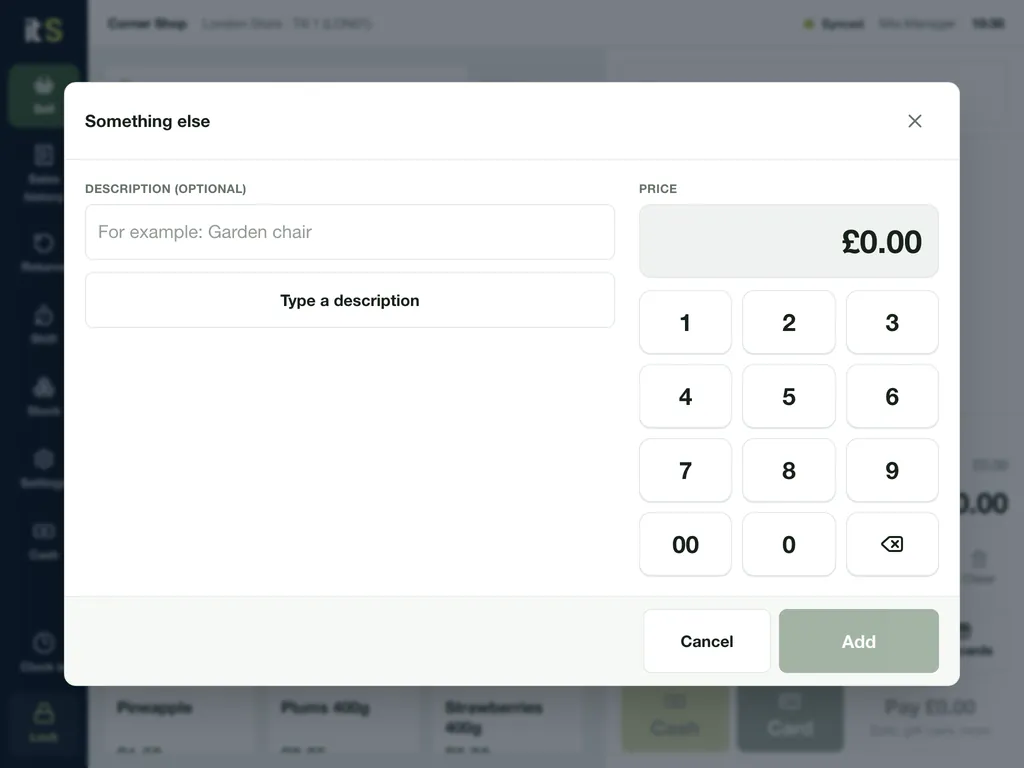
Sell an open price key
An open price key is a product whose price you type each time, such as greeting cards priced on the back. It is set up in the back office with the kind Open price key and, if you like, a Lowest price and Highest price (see Kinds of product).
- Tap or scan Greeting card.
- The till opens "Price for Greeting card". If the product has a lowest and highest price, it says so, for example "Between £0.99 and £9.99".
- Type the price and tap Add.
- Below the lowest price the till won't add it: "The lowest price for Greeting card is £0.99."
- Above the highest price the button says Ask a manager: "Greeting card is up to £9.99. A manager can allow more." A manager approves with their PIN or badge, and chooses why (for example Manager decision).
A product without a price
A product added without a price (the back office says "2 products have no standard price") is handled by Settings › Selling rules › Prices › Products without a price:
- Ask for a price (itsPOS default): the till opens "Price for …" and you type it. Typing a price is a price change, so it follows the rule Change a price (itsPOS default; your business can change these):
- Owners, Admins and Shop managers type it and choose why ("Why this price?").
- Supervisors need a manager's approval.
- Cashiers can't: "Not allowed for your role. Ask a manager to sign in."
- Do not allow: the till says "This product has no price. Ask a manager to add one".
Give the product a price in Catalogue › Products so the till doesn't ask again.
What happens next
- The receipt shows the line at the price you typed, with your description for Something else.
- In the back office, Sales › Sales history shows the sale with the price that was typed. When a manager approved the price, the approval is listed under Sales › Things to check › Staff and till activity with who approved it.
If something goes wrong
- There's no Something else button. Open price button is off in Settings › Selling rules. Ask your manager.
- The Add button stays grey. Type a price above £0.00, and for an open price key at least its lowest price.
Still stuck?
The itsPOS support team is here 08:00 to 20:00 every day except Christmas Day.
- Call or WhatsApp: +44 7488 880320
- Email: support@itspos.io
- In the back office: Help › Contact support, or go to app.itspos.io/help/contact after you sign in
- On our website: itspos.io/contact
Tell us your shop's name and what you were trying to do. A screenshot of the screen helps.