

Selling at the till
Discounts, coupons, offers and charges
Offers apply by themselves; you can give a discount on the whole basket within your limit, take a coupon code, or add a charge. The examples are our test shop's 3 for 2 on crisps, Sprite 3 for £2.50 and the coupon WELCOME10 ("Welcome 10% off").
For: Owners, Admins, Shop managers, Supervisors and Cashiers3 min read
Needs itsPOS Till 0.5.33 or later.
Offers apply by themselves
Promotions set in the back office (see Promotions) work out in the basket as you scan. Scan 3 × Pringles Original Crisps 70g: the line shows "3 for 2 on crisps −£1.25" and the basket total drops to £2.50. Offers for itsPass members apply once the member is on the sale.
When more than one discount could apply, Settings › Selling rules › When more than one discount applies decides: Give the best single discount or Add them together.
Give a basket discount
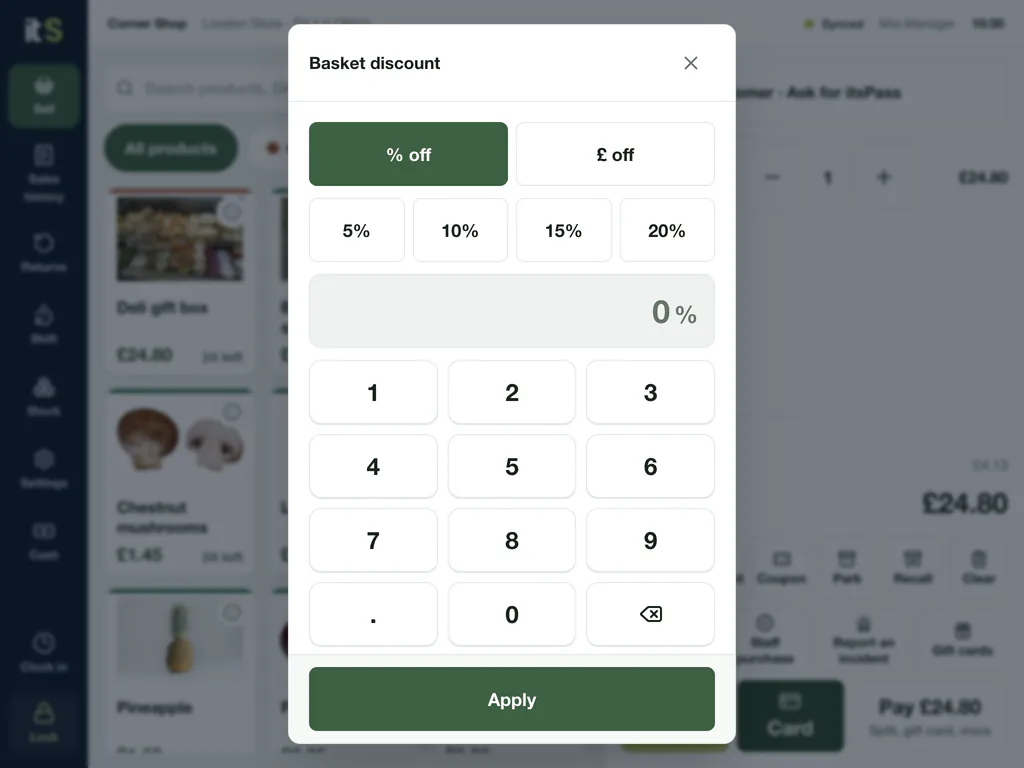
- Tap Discount under the basket (or press F6).
- Choose % off or £ off, then a quick button (5%, 10%, 15%, 20%) or type the amount.
- The sheet shows the subtotal and your limit, for example "Subtotal £24.80. Over 5% needs a manager's approval. It replaces an automatic basket offer or coupon."
- Tap Apply. Choose a reason if your shop asks (Why the discount?: for example Price match, Damaged, Goodwill).
Over your limit the approval sheet opens: "Sam (Cashier) wants to: Give a 10% discount off the basket (limit 5%)". A manager approves with their PIN, badge or phone.
The itsPOS default limits (your business can change these): Cashiers 5% and £25 of discounts a shift, Supervisors 15% and £75 a shift, Shop managers 25%, Owners and Admins any. To discount one line, tap the line instead: see Change a line.
Take a coupon
- Tap Coupon.
- Type the code on the on-screen keyboard, for example WELCOME10.
- Tap Apply coupon. The till checks it with itsPOS: "Coupon WELCOME10: Welcome 10% off". The basket shows "Welcome 10% off (WELCOME10)" and the money off.
- Coupons need the till online: "Coupons need an internet connection. Try again when the till is online."
- An unknown or used-up code is refused, for example "Coupon code 'NOPE99' is not valid."
- If a better offer applies, the basket says "Coupon WELCOME10: a better offer applies".
- Remove coupon takes it off.
Add a charge
Charges your shop adds by hand (for example delivery) show as Add charge under the basket.
- Tap Add charge.
- Tap a charge to add it; tap again to take it off.
- Tap Done. The charge shows above the total.
Charges set to apply automatically are added by themselves.
What happens next
- The receipt shows each offer, discount, coupon and charge.
- Discounts over a limit are kept with who approved them and why, and show in Sales › Things to check › Staff and till activity in the back office.
Still stuck?
The itsPOS support team is here 08:00 to 20:00 every day except Christmas Day.
- Call or WhatsApp: +44 7488 880320
- Email: support@itspos.io
- In the back office: Help › Contact support, or go to app.itspos.io/help/contact after you sign in
- On our website: itspos.io/contact
Tell us your shop's name and what you were trying to do. A screenshot of the screen helps.