

Selling at the till
Park and recall a sale
A customer has gone back to the car for their wallet. Park their sale, serve the people behind them, and bring it back when they return.
For: Owners, Admins, Shop managers, Supervisors and Cashiers2 min read
Needs itsPOS Till 0.5.33 or later.
Before you start
- Park and Recall show under the basket while Settings › Selling rules › Park sales › Allow parked sales is on (on to start with).
- Everyone who sells can park and recall sales (rule "Park and recall sales"; itsPOS default, your business can change these in Team › Roles).
Park a sale
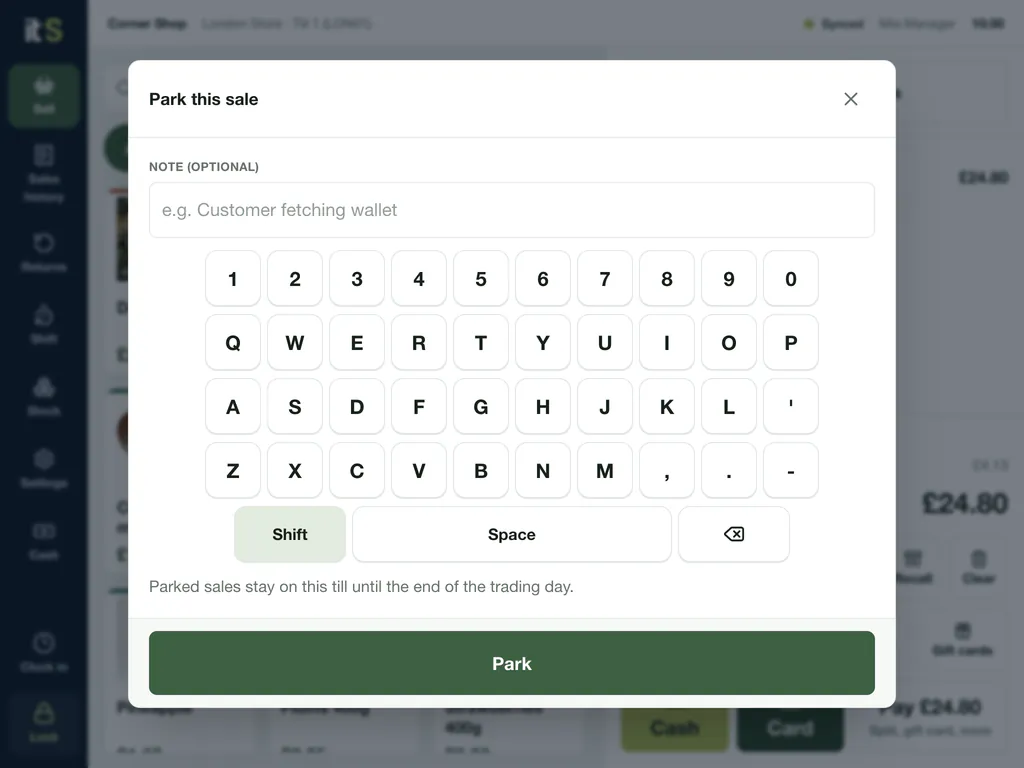
- With the items in the basket, tap Park.
- If you like, add a note on the on-screen keyboard so you know whose sale it is, for example "Wallet" (up to 140 characters).
- Tap Park. The till says "Sale parked." and the basket is empty for the next customer.
Bring it back
- Finish or park the sale you're on. The till won't recall into a basket that has items: "Park or finish the current sale first."
- Tap Recall. Parked sales lists each one with its note, then the time, the number of lines and the total, for example "Wallet" and "12:38 · 2 lines · £6.05".
- Tap Resume on the sale. Its items are back in the basket, and you carry on as normal.
Age checks are asked again for a recalled sale.
Delete a parked sale
- Tap Recall, then Delete on the sale.
- The till asks "Delete this parked sale?" with the note, lines and total: "It can't be brought back."
- Tap Delete, or Cancel to keep it.
How long parked sales stay
- A parked sale stays on the till where it was parked. Recall it on the same till.
- Settings › Selling rules › Park sales › Parked sales are removed: At the end of the trading day (itsPOS default) or Never.
- A parked sale took no money and didn't change stock, so removing or deleting it puts nothing back on sale and takes no money.
If something goes wrong
- The Park button is grey. The basket is empty, or your role can't park sales.
- "No parked sales." It was parked on another till, or it was removed at the end of the trading day.
Still stuck?
The itsPOS support team is here 08:00 to 20:00 every day except Christmas Day.
- Call or WhatsApp: +44 7488 880320
- Email: support@itspos.io
- In the back office: Help › Contact support, or go to app.itspos.io/help/contact after you sign in
- On our website: itspos.io/contact
Tell us your shop's name and what you were trying to do. A screenshot of the screen helps.