

Selling at the till
The Sell screen: scan, search, categories and quick keys
The Sell screen is where you ring up a sale: products on the left, the customer's basket on the right, and the ways to pay at the bottom. This guide uses products from our test shop, Green Street Grocer, such as Heinz Baked Beans in A Rich Tomato Sauce 415g at £1.55.
For: Owners, Admins, Shop managers, Supervisors and Cashiers5 min read
Needs itsPOS Till 0.5.33 or later.
What this screen is for
You add products to the basket, change a line if you need to, then take payment. Everything works with a finger on a touch screen, and a barcode scanner, mouse and keyboard work too. The till keeps selling without the internet for up to 24 hours.
What you see
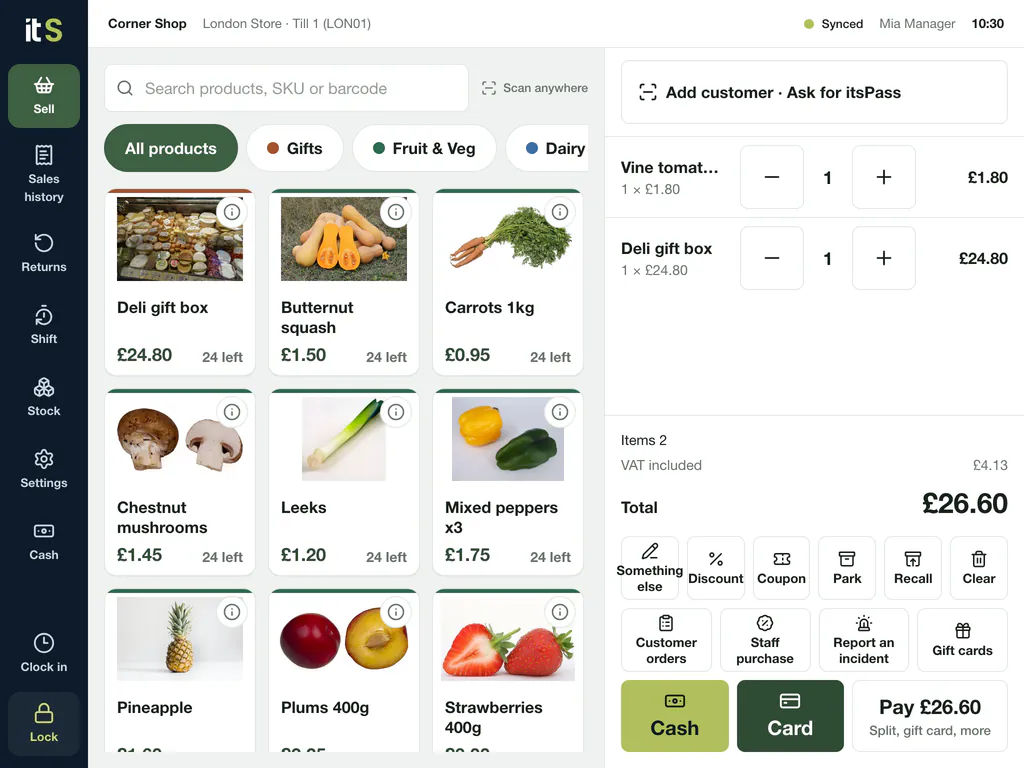
- At the top: the search box ("Search products, SKU or barcode") and Scan anywhere: the scanner works whatever has the focus.
- The category bar (or category tiles, if your shop chose them): All products, your categories, and Quick keys when your till profile has quick key pages.
- Product buttons with the price and how many are left at this shop ("18 left"). How they look (pictures, text only, a list) is set for each till profile in the back office: see Choose how your till looks.
- The basket on the right: Add customer, the lines, then Items, VAT included and the Total.
- Under the basket: the basket buttons (Something else, Discount, Coupon, Park, Recall, Clear), a second row for your shop's extras (for example Customer orders, Staff purchase, Gift cards, Report an incident), then Cash, Card and Pay.
Add a product
- Scan it. Scan the barcode with the scanner. The line goes into the basket straight away. If the same barcode is on the single and the case, the till asks: see Cases and singles.
- Or tap it. Tap a category, then the product's button.
- Or search for it. Type part of the name, the SKU or the barcode in the search box, then tap the product. Press Enter on a keyboard when only one product matches, or after typing a full barcode.
- Or use a quick key. Tap Quick keys and the key. Quick keys are set in the back office: see Quick keys.
Scan the same product again, or tap + on its line, to add another. To sell 3 at once with a keyboard scanner, type 3* and then scan, when your till profile allows it.
A scan made while a sheet is open (for example while you weigh something) waits: "Scan kept: it is added when this closes."
Price check
When your quick keys have a Price check key:
- Tap Price check. The till says "Price check: scan or tap a product to see its price and stock."
- Scan or tap the product. Product info opens instead of adding it to the basket.
- Tap Cancel to stop checking.
Product info
Press and hold a product button (or a basket line, or tap Product info in a line's panel) to see Product info: the price, Code, Barcodes, Stock here, stock at Other shops (needs a connection), Location in shop, Age limit, Returns, allergens and the note for staff when there is one. A product you can still sell is added with its own button at the bottom.
Banners while you sell
These never stop the sale; tap OK or carry on scanning:
- Not enough stock: for example "Heinz Baked Beans in A Rich Tomato Sauce 415g: only 1 in stock. This sale takes stock below zero (−1). You can still sell it." Whether the till warns, stays quiet or refuses is your shop's choice in Settings › Selling rules › When stock runs out.
- A note for staff that you added to the product in the back office, shown when it is sold.
- Often bought with …: a related product with Add and its price.
Keyboard keys
F1 search, F2 add a customer, F4 park, F6 discount, F8 Cash, F9 Card, F10 Pay, F12 lock the till. Every key is in Keyboard shortcuts.
Who can sell
Owners, Admins, Shop managers, Supervisors and Cashiers sell. A role that may not sell (for example Stock) opens on another screen instead, and Cash, Card and Pay say "Your role can't sell. Ask a manager."
Where it shows up
- Every sale reaches the back office under Sales › Sales history within a minute, or as soon as the till is back online.
- What the basket shows (prices, offers, stock) comes from your products in the back office: a price changed there reaches the till within a minute.
Related guides
Still stuck?
The itsPOS support team is here 08:00 to 20:00 every day except Christmas Day.
- Call or WhatsApp: +44 7488 880320
- Email: support@itspos.io
- In the back office: Help › Contact support, or go to app.itspos.io/help/contact after you sign in
- On our website: itspos.io/contact
Tell us your shop's name and what you were trying to do. A screenshot of the screen helps.