

Selling at the till
Add a customer or itsPass member to a sale
Put the customer on the sale so they earn points, get member prices and their receipt goes to itsPass. Members show My code in the itsPass app or their shop card in Apple Wallet or Google Wallet; you can also find them by mobile number.
For: Owners, Admins, Shop managers, Supervisors and Cashiers6 min read
Needs itsPOS Till 0.5.35 or later.
Before you start
- itsPass is set up for your shop in the back office under Customers › itsPass (see the Customers section's itsPass guides).
- Everyone who sells may find and add customers (rule "Find and add customers"). Seeing a customer's full details is a separate rule, "See full customer details": Owners, Admins and Shop managers; Supervisors with approval; Cashiers see masked details.
Scan their code
- Ask "Have you got itsPass?" If your shop has Ask for itsPass on, the basket button says "Add customer · Ask for itsPass", and Pay shows Ask for itsPass too ("Scan their code for points and member prices").
- Scan the code from their phone: My code in the itsPass app, or their shop card in Apple Wallet or Google Wallet. You can scan it at any time, even before the first item.
- The member goes on the sale: the basket button shows their first name, tier and points, for example "Sam · Gold · 1,240 points".
A card in Apple Wallet or Google Wallet earns points; to spend points the member shows My code in the app or you look up their phone: "This card only collects points. To spend, show My code in the itsPass app or look up their phone."
The itsPass website, pass.itspos.io, shows the same My code as the app (from itsPass 1.1), so scan it in the same way.
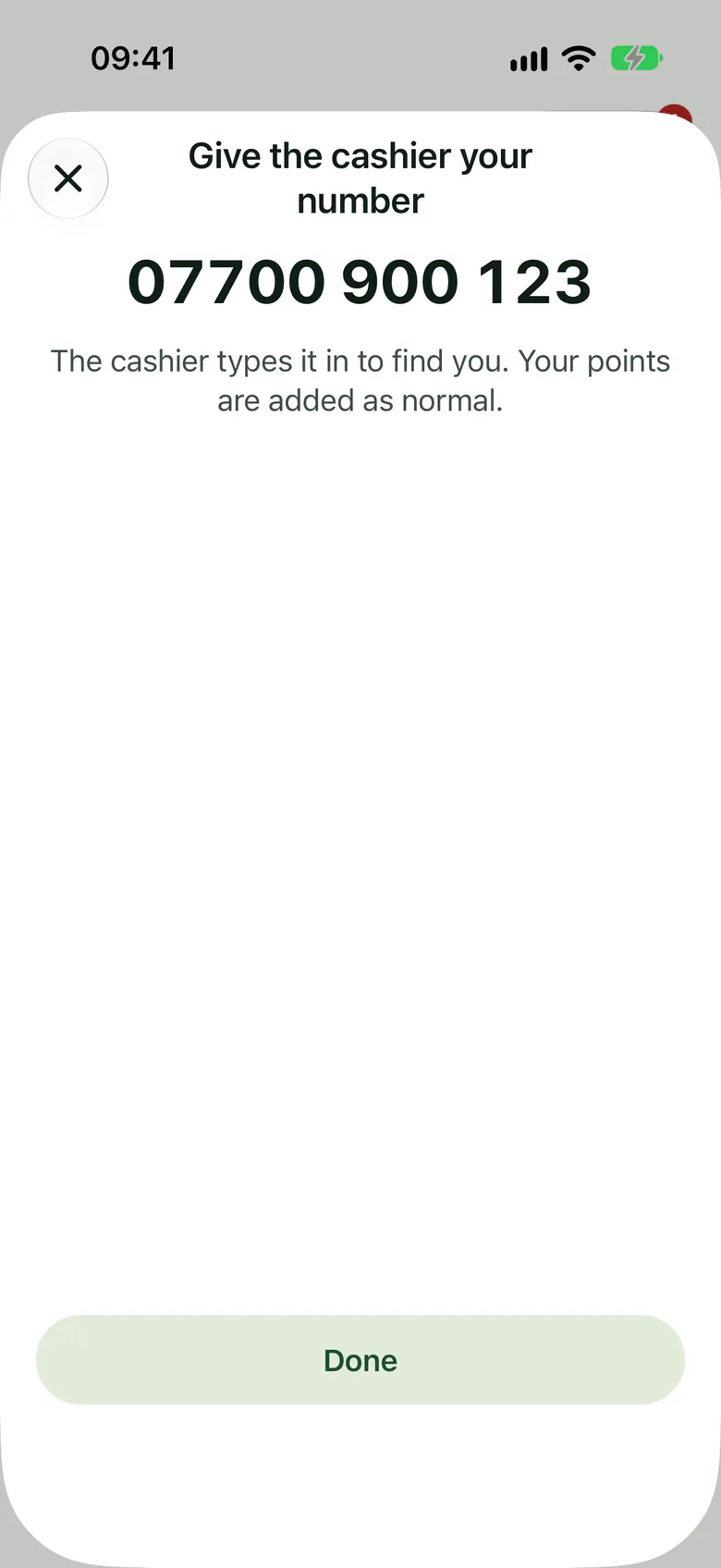
When their code can't show (for example the phone has been offline too long), itsPass offers At the till? Show my number and their mobile number shows in large type: "Give the cashier your number. The cashier types it in to find you." Find them by mobile number, below; their points are added as normal. The back of a Wallet card says the same: "Can't scan? Give the cashier your mobile number."
Find them by mobile number
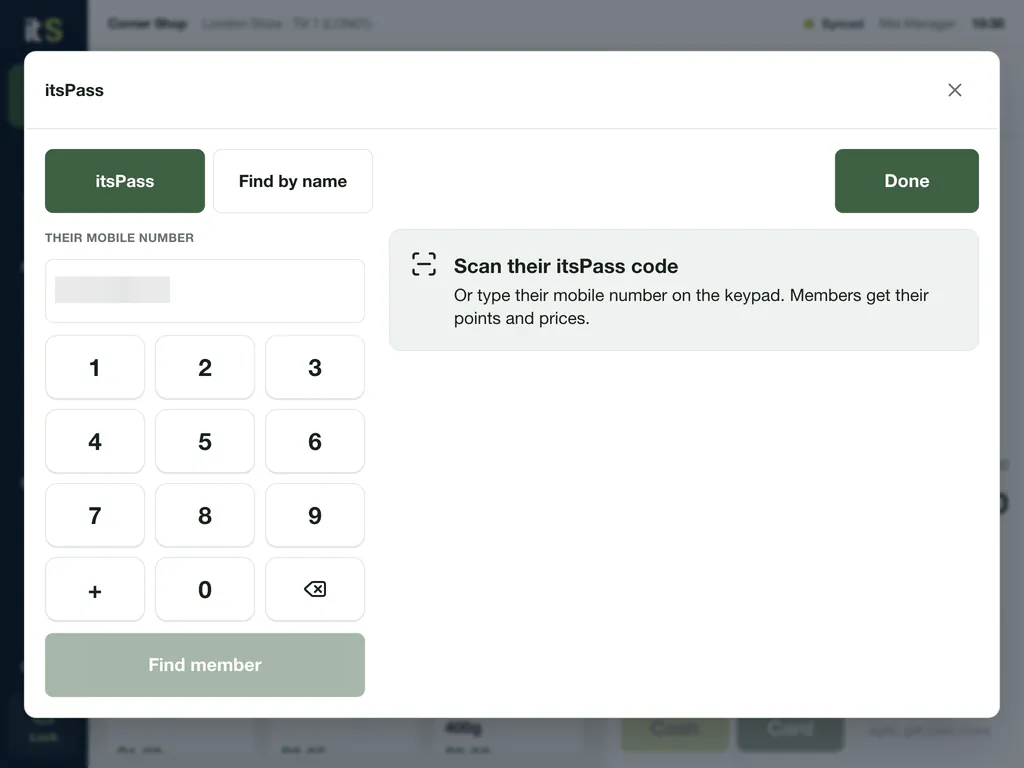
- Tap Add customer. The itsPass panel opens on the itsPass tab.
- Type their mobile under Their mobile number on the keypad, for example 07700 900113, and tap Find member.
- A member of your shop is added. Someone who isn't: "Not a member of this shop yet. They can tap Join in itsPass, or you can join them by phone." See Join itsPass at the till.
Find them by name
The Find by name tab searches your itsPass members and trade accounts by name, phone or email ("Name, phone or email"). Trade accounts have their own Trade accounts tab.
What the member panel shows
- Their first name, member number, tier and Points, and "New member" for someone who just joined.
- Store credit and gift cards with what's left.
- No paper receipts when they chose to get receipts in itsPass only.
- What they'll earn on this sale, for example "You'll earn 84 points (42 bonus)".
- Member prices and members' offers apply to the basket straight away, for example our test shop's itsPass price: Nescafé 300g £8.50.
Spend points or store credit with their PIN
A member found by phone, or by a member slip, spends with their itsPass PIN: Their itsPass PIN opens and "They type their 4-number itsPass PIN. You don't type it for them." Turn the screen to them. After too many wrong PINs, the PIN locks at your shop for 24 hours. See Gift cards, store credit and points.
Set a new PIN
A member without the app who forgot their itsPass PIN, or whose PIN is locked until they choose a new one, can set a new PIN at the till with a manager. Your business switches this on in the back office: Customers › itsPass › At the till › Let members set a new itsPass PIN at the till (off until you switch it on).
- Scan the member's itsPass code or member slip. A phone lookup or a Wallet card isn't enough: "Scan their itsPass code or member slip again, then set the new PIN. A phone lookup isn't enough."
- In Their itsPass PIN, tap Set a new PIN. It also shows after "PIN locked. With a manager, they can set a new PIN here."
- A manager types their PIN on the approval sheet. They always type it, also when they are the one signed in. A badge or a phone approval isn't enough for this.
- Turn the screen to the member. They choose a new 4-number PIN and type it (Step 1 of 2), then type it again (Step 2 of 2). You don't type it for them. If the two don't match, they start again.
- The till says, for example, "New PIN saved. Spending with the PIN starts again tomorrow at 10:15." Tap Done. itsPass tells the member a new PIN was set at your shop.
If something is in the way the till says so: "That PIN is too easy to guess. Ask them to choose another one.", "This shop has set 5 new PINs today. The member can set one in the itsPass app." or "itsPass isn't answering. Try again in a moment." Setting a new PIN needs the till online. Team › Activity lists each new PIN with the till, the cashier and the manager, never the PIN itself.
Offline
Without the internet the till still checks a scanned code and keeps it on the sale; the member is added and earns once the sale reaches itsPOS. Spending points and store credit needs the till online ("Needs the till online. Saved for next time."), and so do Ready to use rewards. See Selling without the internet.
Take a customer off
Tap the X next to the customer's name above the basket.
What happens next
- The sale is in the member's history in the back office (Customers), and their points and receipt reach itsPass.
Still stuck?
The itsPOS support team is here 08:00 to 20:00 every day except Christmas Day.
- Call or WhatsApp: +44 7488 880320
- Email: support@itspos.io
- In the back office: Help › Contact support, or go to app.itspos.io/help/contact after you sign in
- On our website: itspos.io/contact
Tell us your shop's name and what you were trying to do. A screenshot of the screen helps.