

Selling at the till
Taking payment at the till
Most sales take one tap when the basket is ready: Cash or Card under the basket. Pay opens the payment screen for everything else, such as paying part by card and the rest in cash, splitting the bill, cashback or a gift card. The till saves the sale as soon as it is paid, then asks about the receipt.
For: Owners, Admins, Shop managers, Supervisors and Cashiers8 min read
Needs itsPOS Till 0.5.27 or later. Earlier tills have only the Pay button, and ask about the receipt before the sale is saved.
Before you start
- Cash and Card show under the basket when your till profile has Cash and Card buttons on the sell screen and the payment is on for this till. Card needs a card machine linked to the till: see the card machine guide.
- Everyone who sells may take payment (rule "Sell and take payment").
Cash, Card and Pay
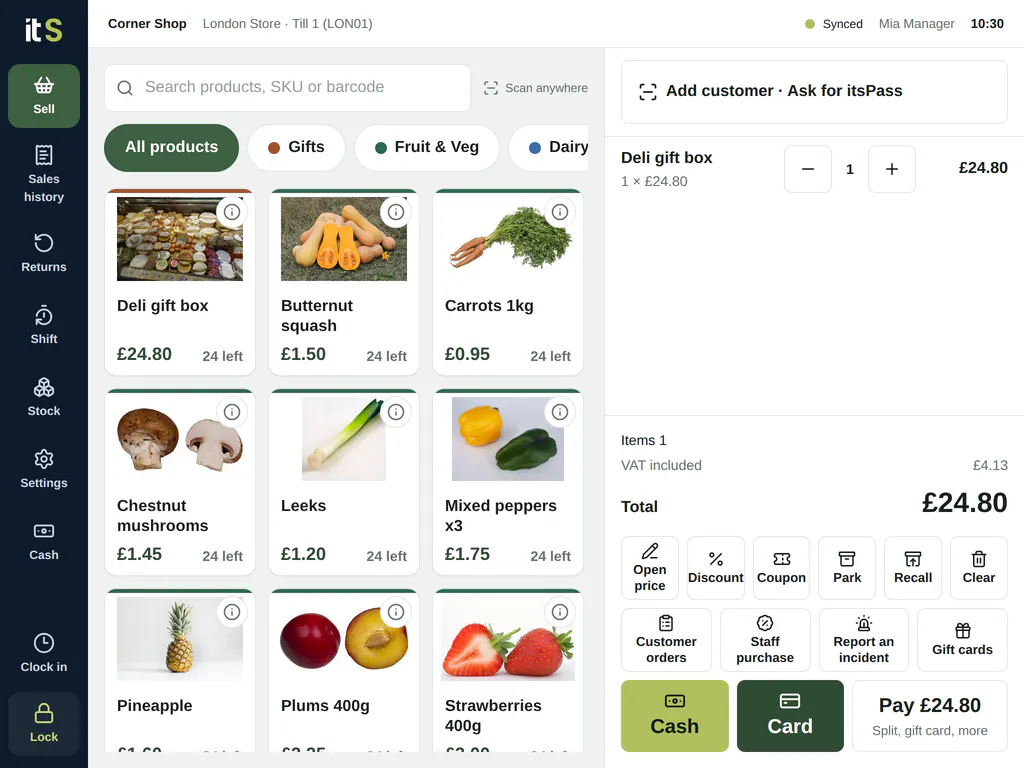
- Cash takes the payment in cash (see below).
- Card sends the whole total straight to your card machine. The customer taps or inserts their card, and when the machine approves, the till shows Sale complete. Card doesn't ask about cashback: for cashback, use Pay.
- Pay (it shows the total and "Split, gift card, more") opens the payment screen.
On a keyboard: F8 is Cash, F9 is Card and F10 is Pay.
A second tap does nothing: the buttons lock as soon as you press one, until the next screen shows, so a double tap never takes two payments.
Before any payment the till checks the same things whichever button you press: serial numbers that are still needed, a manager's approval for a refund, a customer for trade prices, and the printer when the basket has weighed items.
Cash and Card show only when that payment method is on for this till. On a refund or an exchange you see Refund £12.50 or Finish the exchange instead. To take every payment through Pay, turn the buttons off for a till profile: Choose how your till looks.
Cash
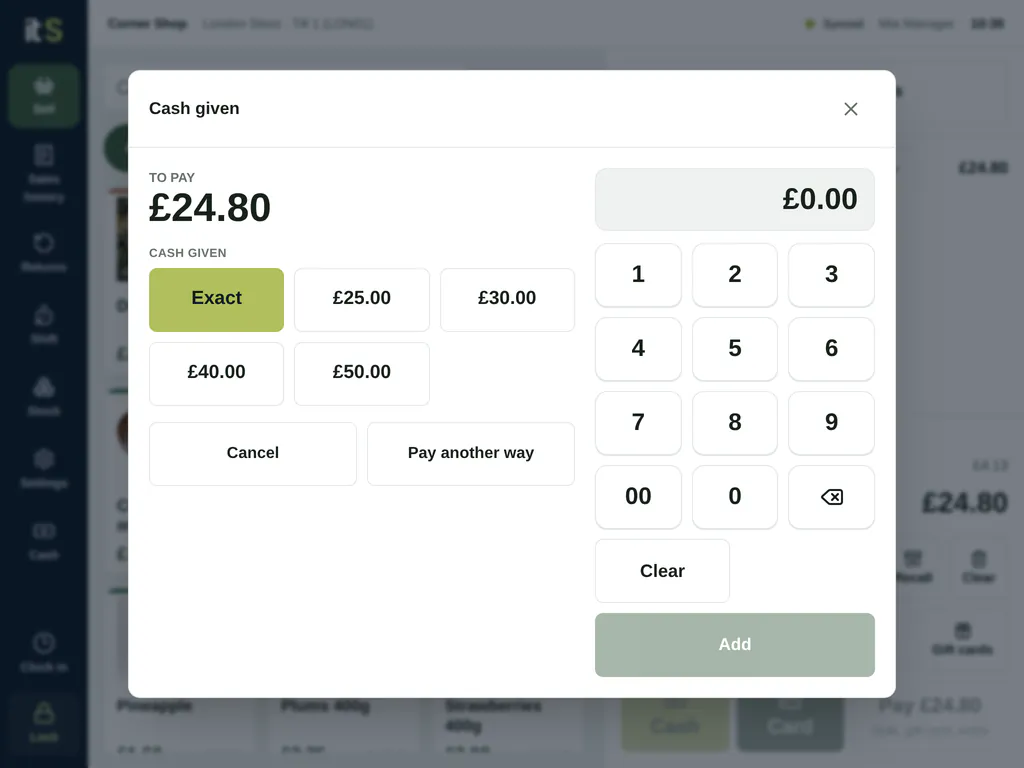
- If your shop asks how much cash was given (on unless you turn it off in the back office under Settings › Selling rules › Ask how much cash was given), Cash opens Cash given. Tap Exact, or the note the customer handed over (for example £30.00), or type the amount on the keypad. Enter on a keyboard means Exact. One tap completes the sale and the till shows the change to give.
- If your shop doesn't ask, Cash takes the exact amount in one tap.
- Pay another way opens the full payment screen instead.
Card
- Declined or cancelled: the till goes back to the sell screen with Card not taken: Pay another way. Tap it to open the payment screen with Cash given ready, or tap Card again to try another card.
- The till isn't sure the card went through (the card machine lost its connection, or didn't answer in time): the till stays on the card screen and keeps the same card payment, so trying again can never charge the customer twice. Look at the card machine's screen, then follow what the till says.
- Card machine in test mode: the payment screen says "Card machine in test mode: card payments take no real money." Use it to try the till without charging anyone.
- Card payments are paused: the till says "Card payments are paused. Take cash, or use Card on another machine." With Card on another machine, key the amount into that machine and tap Approved once it says so.
- The card machine works but the till can't reach it (for example the shop's internet is down): take the payment on the card machine by itself, then tap Paid on the card machine. See the card machine guide.
Round up for charity
If your shop asks customers to give to a charity (Settings › Selling rules › Charity round-up), the till asks first, for example "Round up £0.20 for Hospice?", with Yes and No. The customer decides; the till never picks an answer for them. Then Cash or Card carries on with the new amount.
The payment screen
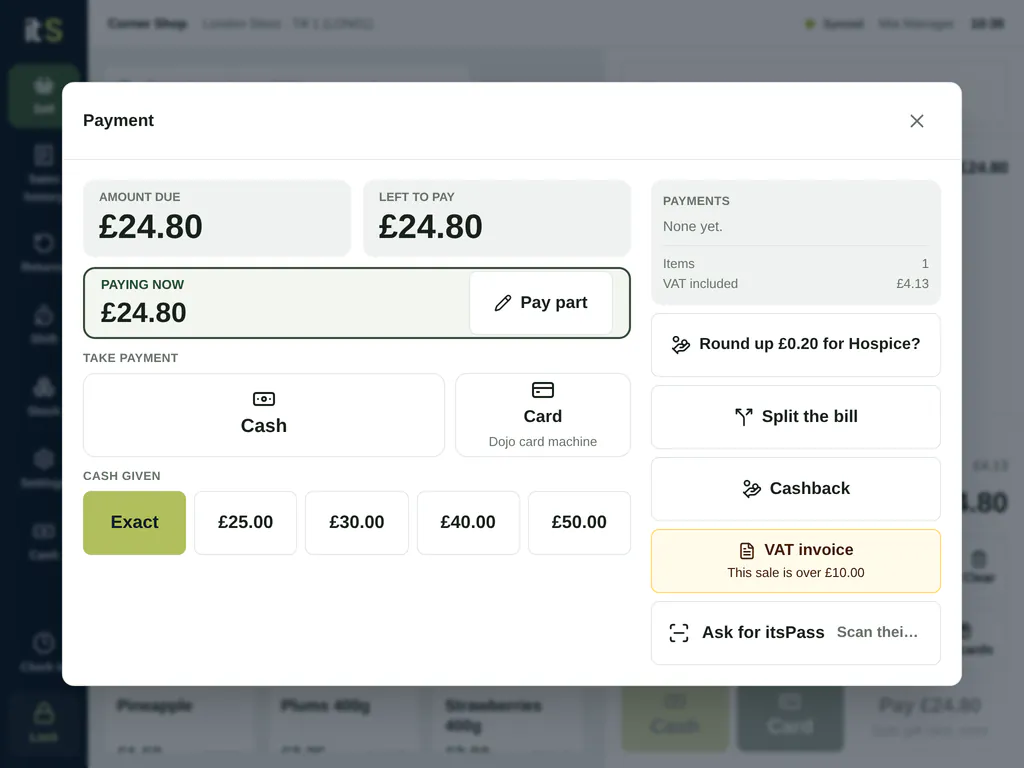
Tap Pay to open it.
- Amount due and Left to pay are at the top.
- Paying now is what the next payment takes: everything left, unless you choose Pay part or Split the bill.
- Tap how the customer pays. Card (card machine) sends Paying now to the card machine at once. Cash, or a note under Cash given, pays in cash. Other ways your shop takes payment, such as gift cards, store credit or on account, have their own buttons.
- On the right: the Payments taken so far (each with a button to remove it), and the extras your shop uses: Round up, Split the bill, Cashback, Use points, VAT invoice and Ask for itsPass.
- On every keypad, the first number you type replaces the amount: typing 1 on £24.80 gives £0.01. Clear empties it.
Removing a card payment that was already approved needs someone who may give refunds, or a manager's approval.
Pay part: some by card, the rest in cash
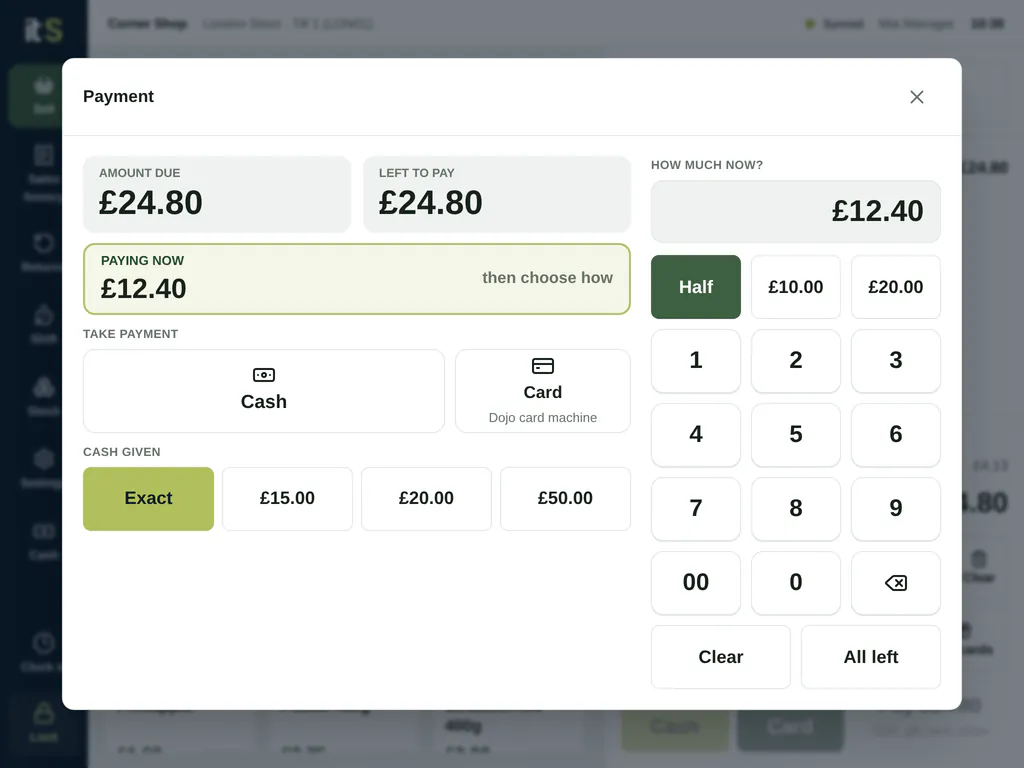
- Tap Pay, then Pay part.
- "How much now?": tap Half, £10.00 or £20.00, or type the amount. All left goes back to the whole amount.
- Tap how this part is paid, for example Card: the card machine takes £12.40.
- The screen shows Left to pay £12.40 and "Card (VISA) paid £12.40 of £24.80". Paying now goes back to what is left.
- Take the rest, for example £20.00 under Cash given. The sale is saved and the till shows £7.60 change.
A note bigger than the part pays that part and gives the change for it straight away.
Split the bill
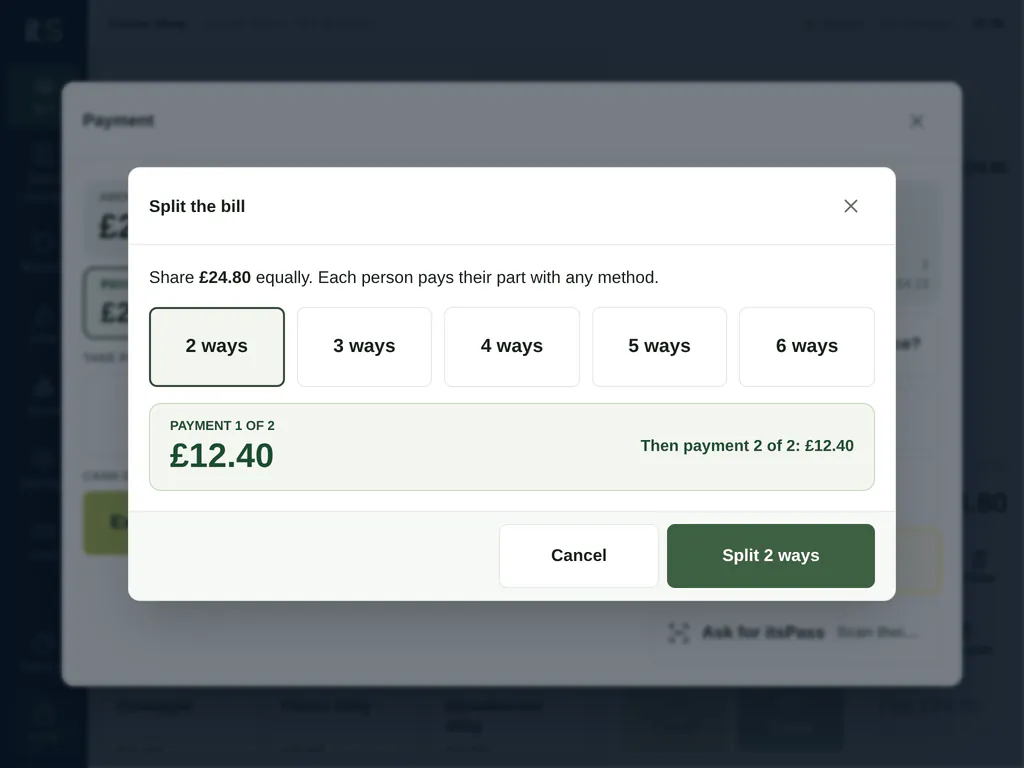
- Tap Pay, then Split the bill.
- Choose 2 ways to 6 ways. The till shows each share, for example "Payment 1 of 2: £12.40 · Then payment 2 of 2: £12.40". Tap Split 2 ways.
- Paying now says "Payment 1 of 2: £12.40". Each person pays their share any way they like: card, cash or another way.
- The last share takes whatever is left, so the pennies always add up.
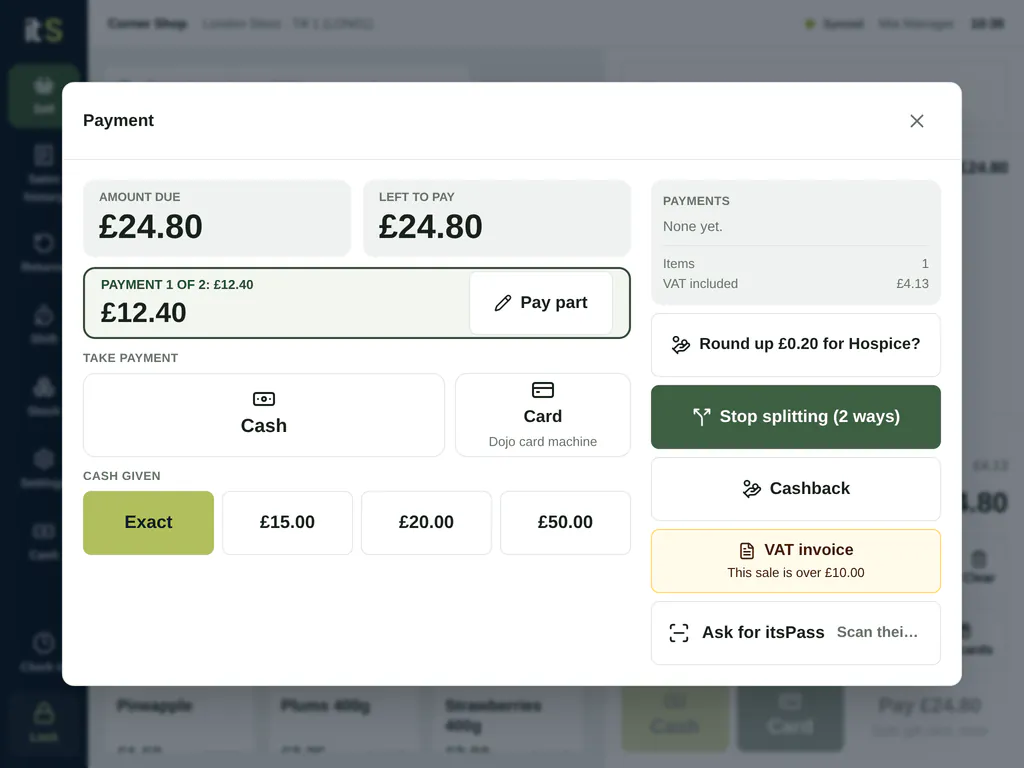
Stop splitting goes back to one payment. The bill is shared equally; if someone wants to pay only for their own items, sell those as a separate sale.
Cashback
Cashback is given through the payment screen, with your card machine, when your shop offers it. The Card button on the sell screen never asks about cashback.
- Tap Pay, then Cashback, before Card.
- Tap an amount, or type one, then Done. No cashback takes it off again.
- Paying now shows the cashback, for example "+ £20.00 cashback". Tap Card: the card machine charges the sale and the cashback together.
- When the card is approved, the drawer opens: give the customer their cash.
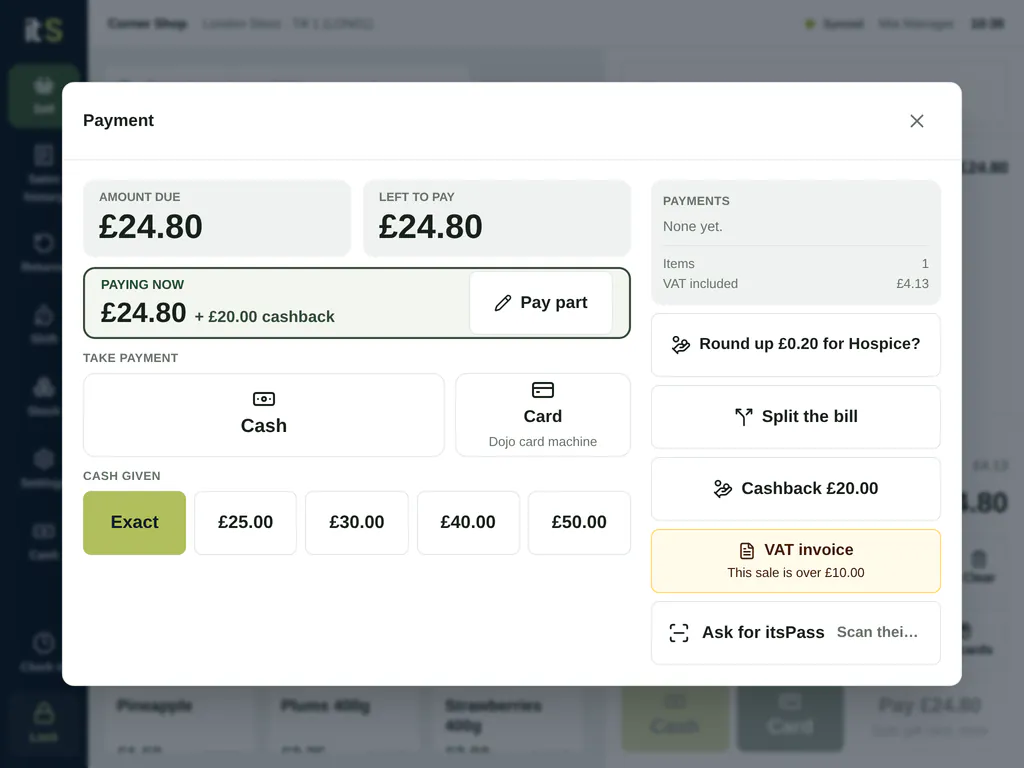
The till checks your shop's cashback limit and whether there is enough cash in the drawer. If the card machine approves the sale but not the cashback, the till tells you not to give the cash.
Sale complete and receipts
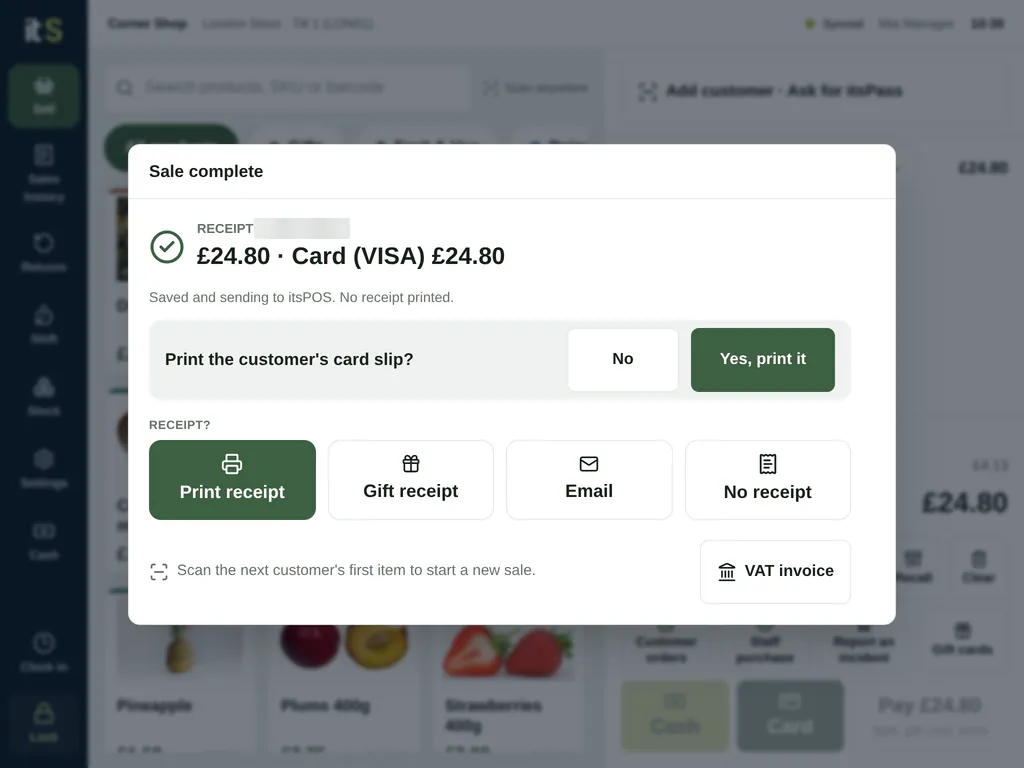
The till saves the sale as soon as it is paid (the cash drawer opens for cash). The Sale complete screen then follows your shop's receipt rule, set in the back office under Settings › Selling rules › Print a receipt (a till profile can have its own rule under Settings › Till profiles › Receipt):
- Ask after each sale (the usual choice): "Receipt?" with Print receipt, Gift receipt, Email and No receipt. Nothing prints until you tap. No receipt starts the next sale. After Print receipt, Gift receipt or Email, the screen stays so you can hand over the change, with Print copy and New sale.
- Always print: the receipt prints by itself.
- Never print: nothing prints; tap Print receipt if the customer asks for one.
Whatever the rule:
- Weighed items and VAT invoices always print, because the law needs a receipt for them.
- An itsPass member who chose paperless receipts gets theirs in the app: the till says "Receipt sent to itsPass".
- If the printer has a problem, the till says "The receipt didn't print" with Try again.
- If your shop asks about the card slip, Sale complete asks "Print the customer's card slip?" with No and Yes, print it.
- Gift receipt prints the sale without prices, with the barcode for a return.
- Email opens an on-screen keyboard with @, .com, .co.uk, gmail.com and outlook.com keys.
- VAT invoice makes a VAT invoice for a business customer.
- The change stays on screen until you move on; no timer closes it.
Scan the next customer's first item to start the next sale straight away, with no receipt. If the till locks after every sale, it locks and the scanned item waits in the basket until someone signs in.
If saving the sale needs a manager (for example a refund over your limit) and nobody approves, the payment screen keeps a large Complete the sale button so you can try again.
Still stuck?
The itsPOS support team is here 08:00 to 20:00 every day except Christmas Day.
- Call or WhatsApp: +44 7488 880320
- Email: support@itspos.io
- In the back office: Help › Contact support, or go to app.itspos.io/help/contact after you sign in
- On our website: itspos.io/contact
Tell us your shop's name and what you were trying to do. A screenshot of the screen helps.