

Selling at the till
Join itsPass at the till
Sign a customer up to itsPass while you serve them: by phone with a 6-digit text code, or, for someone with no mobile, with a 4-digit PIN and a printed member slip. In our test shop the welcome line is "Get 25 points when you join".
For: Owners, Admins, Shop managers, Supervisors and Cashiers4 min read
Needs itsPOS Till 0.5.33 or later.
Before you start
- Joining by phone is switched on in the back office under Customers › itsPass, and needs the till online: "Join by phone needs the till online. They can scan the QR on the counter later."
- Everyone who sells can join customers (rule "Find and add customers").
- Customers can also join by themselves: they scan your shop's QR on the counter or the customer display, or download the itsPass app from the App Store or Google Play.
Join by phone
- Tap Add customer, then the join button (or Join itsPass on Sale complete). Join Green Street Grocer on itsPass opens with what to say: "It's free. We'll text you a code. Read it to me and you've joined. Your shopping stays with us, and you choose any offers later in the app."
- How old are they? Tap 18 or over or 16 or 17. Under 16: they can't join itsPass yet.
- Type Their mobile number on the keypad and tap Send code. Only UK mobile numbers get texts.
- The customer reads out the code from their text. Type it under Type the 6-digit code from their text (or they type it). No text yet? Send again after the countdown.
- They're a New member, already on this sale, earning from it. The till tells them: "You'll get a text link to finish your account and see your points."
Someone with no mobile
- On the join sheet tap They have no mobile. itsPass card (no mobile) opens.
- Ask their age, then type their first name: "What's their first name?" "It goes on their card and slip."
- Turn the screen to them. They choose a 4-digit PIN and type it again: "Turn the screen to them. They type it; you don't. Don't use 1234 or a birthday."
- Tap Agree and join. "By saving your PIN you join itsPass and agree to its terms. The terms and privacy notice are at pass.itspos.io and on your slip."
- The member slip prints with their name, member number and code. They show the slip next time and type their PIN to spend points. Print member slip prints a new one later (the old one stops working).
If the code doesn't work
- "That code didn't match. Check the text and try again. 2 tries left."
- "That code has expired. Send a new one."
- "This number has had 3 codes today. They can scan the counter QR, or try tomorrow."
- "Texts are paused. Ask them to scan the QR on the counter instead."
- "This number's itsPass needs to confirm in the app. They've been sent a notice." They already have itsPass on another phone: they confirm in the app.
The join QR on the customer display
If your shop has a customer display and shows its join QR there (set in Customers › itsPass), after a sale with no member the display shows your join QR with your welcome line for 10 seconds. After a member's sale it says, for example, "Thanks Sam · +42 points".
What the shopper gets
- A text link to finish their itsPass: it opens Finish your itsPass on pass.itspos.io ("You joined a shop at its till with your mobile number. Finish now to see your code, points and receipts."). No code to type: their number is already checked. Each link works once, for 30 days. Or they simply sign in to the itsPass app with the same mobile number: your shop is already there.
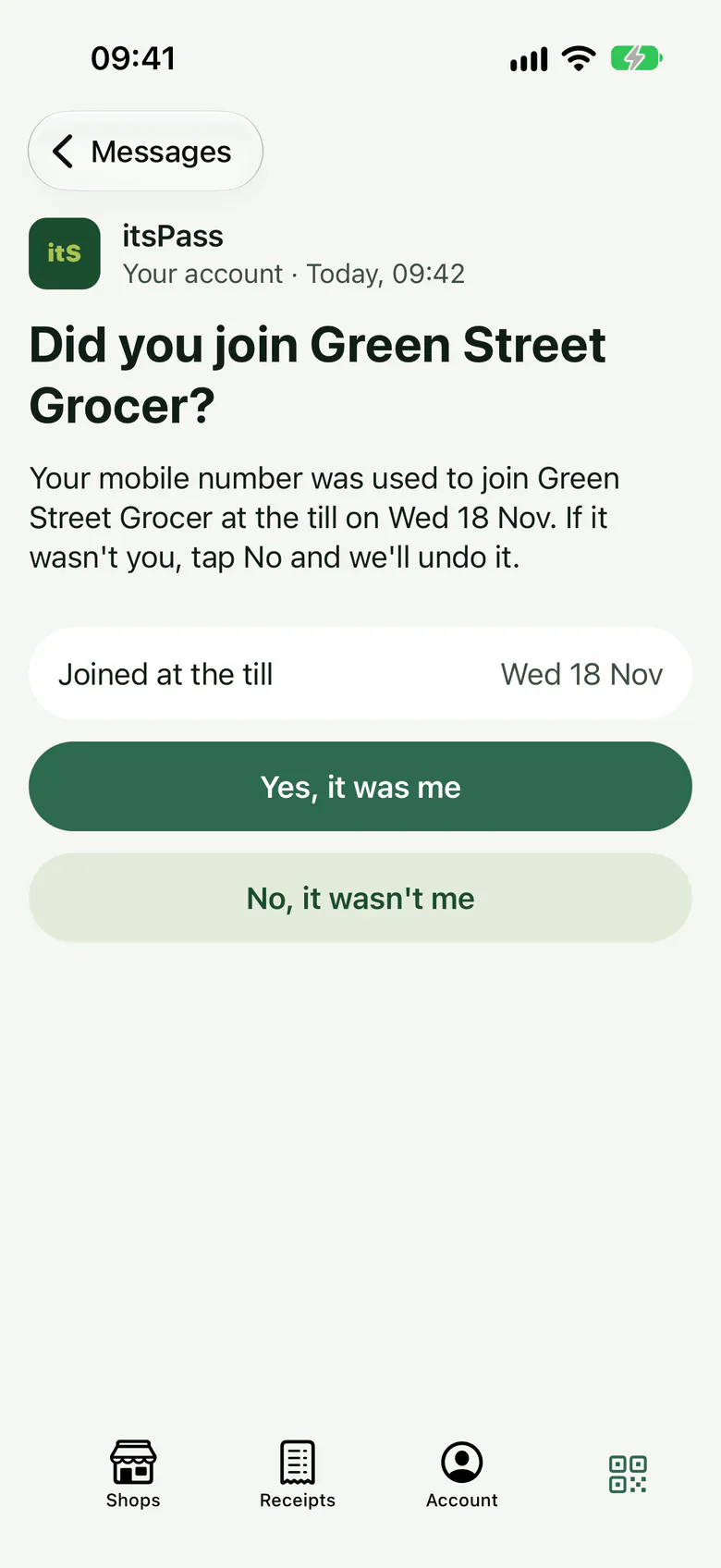
- "Did you join Green Street Grocer?" in itsPass Messages: Yes, it was me or No, it wasn't me. No undoes the join at your till and nothing is shared with your shop, unless 7 days have passed or points, money or a tab with you were used since; then they're asked to contact your shop.
- The text and the till's join screens are in English; the itsPass app and website follow the shopper's language.
What happens next
- The new member is in the back office under Customers.
- No consent for marketing is asked at the till: members choose offers themselves in the app.
Still stuck?
The itsPOS support team is here 08:00 to 20:00 every day except Christmas Day.
- Call or WhatsApp: +44 7488 880320
- Email: support@itspos.io
- In the back office: Help › Contact support, or go to app.itspos.io/help/contact after you sign in
- On our website: itspos.io/contact
Tell us your shop's name and what you were trying to do. A screenshot of the screen helps.