

Settings
Weighed goods and unit prices: receipts, trade use of your scales and price per kg
When you sell by weight, the law says the customer gets a receipt with the weight and the price per kg, and the weight must come from a scale approved for trade. Products sold by weight or size also show a unit price, such as £3.30 per kg, on shelf labels and online. itsPOS does this for you; Settings › Compliance shows where you stand.
For: Owners and Admins5 min read
Before you start
- Set up the products you sell by weight, for example Vine Tomatoes (loose) at £3.30 per kg (see Products sold by weight).
- Give packed products their size, for example 500 g or 2 litres, so their unit price can be worked out.
Check weighed goods
Open Settings › Compliance and scroll to Weighed goods.
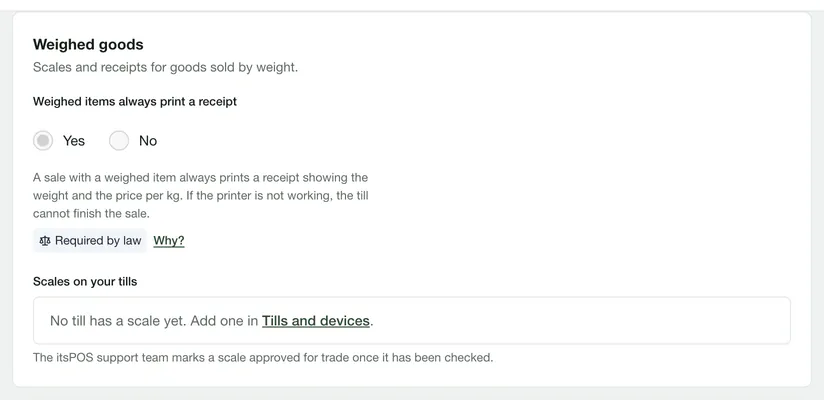
Weighed goods and Unit prices Weighed items always print a receipt is Required by law and can't be turned off. Why? says "Goods sold by weight need a printed receipt showing the weight and price (Weights and Measures Act 1985)." A sale with a weighed item always prints its receipt; if the printer isn't working, the till can't finish the sale.
Scales on your tills lists each till whose till profile has a scale: its shop, the scale and till profile, and Trade use on, Not for trade use or Needs re-checking, with who switched trade use on and when, and the till's weighing software ("Weighing software 1.0.0 · checksum 3afbc0df", from till 0.5.43) so a verifier can compare it with the till's own Settings › Hardware › Scale. "Trade use lets a till sell weighed items by the scale's weight. Switch it on once an approved verifier has checked the scale and till together." With no scale yet, it points you to Till profiles, where a till's scale is chosen (see Till profiles).
Trade use of a till's scale
- Until trade use is on, weights from a till's scale are "Not for trade use": the till won't sell a weighed line at a price from it.
- Once an approved verifier or Trading Standards has checked the scale and that till together in your shop, an Owner or Admin presses Switch on trade use on the till's row, optionally types the scale's serial number and who checked it, ticks the declaration ("I confirm this scale is an approved model, and that an approved verifier or Trading Standards has checked this scale and this till together in this shop. I keep the papers.") and presses Switch on trade use. The till drops "Not for trade use" within a minute. Shop managers see the state but can't change it.
- The declaration is yours: itsPOS keeps your name, the date, the wording and the scale in Team › Activity, and doesn't see the papers. Keep them in the shop.
- Every scale set-up itsPOS supports can be switched on, one cable included. Where the till works out the price (a scanner-scale on one cable, or Other serial scale), the dialog adds: "The verifier must check this scale with this itsPOS till. An approval for another till system doesn't count." Your business is responsible for the set-up and its verification.
- Switch off (after a question) puts the till back to "Not for trade use"; no declaration is needed.
- Any change to the scale (another scale in the till profile, or another cable, port or adapter on the till) switches trade use off and shows Needs re-checking until you switch it on again or press Keep it off.
- Typing a weight by hand at the till follows your role limits (see Weighed items at the till). A till with trade use on never offers a typed weight.
- More on the law: Selling by weight legally.
- Counter scales that print their own labels (the deli or butcher's counter) are set up on Settings › Hardware: see the Dibal label scales guide.
Check unit prices
- Under Unit prices, Show unit prices on shelf labels and online is Required by law ("Goods sold by weight or measure must show a unit price (Price Marking Order 2004)"). Products sold by weight or with a size show their price per kg, litre or metre, including VAT and leaving out any deposit.
- Show unit prices per kg and per litre: Yes (the default). The law since 6 April 2026: products shown per 100 g or 100 ml were changed to per kg or per litre, so reprint their shelf labels. Turning it off asks first, because your business is then responsible for following the law.
- Add the Unit price field to your shelf label design in Catalogue › Print labels › Label designs (see Label designs).
Status shows products that look sold by size but have no size, for example "11 products look sold by size but have no size" with Fix to add their sizes.
What happens next
- At the till: weighed items print a receipt with the weight and the price per kg.
- Shelf labels: labels with the Unit price field show the price per kg, litre or metre.
- Online store: product pages show the unit price next to the price.
If something goes wrong
- The till won't finish a sale with a weighed item: the receipt printer isn't working. Fix the printer (see Settings on the till).
- A label has no unit price: give the product its size, and check the label design has the Unit price field.
Still stuck?
The itsPOS support team is here 08:00 to 20:00 every day except Christmas Day.
- Call or WhatsApp: +44 7488 880320
- Email: support@itspos.io
- In the back office: Help › Contact support, or go to app.itspos.io/help/contact after you sign in
- On our website: itspos.io/contact
Tell us your shop's name and what you were trying to do. A screenshot of the screen helps.