

Getting started
Train staff in the Practice shop
The Practice shop is a copy of itsPOS with sample products, prices and customers, where new staff can sell, refund and cash up without touching your real sales. Every business has one, on every plan.
For: Owners, Admins and Shop managers4 min read
Needs itsPOS Till 0.5.19 or later.
Before you start
- In the back office, Owners and Admins open the Practice shop. Others see "Only the owner and admins can open the Practice shop."
- On a till, a manager's PIN switches it to the Practice shop and back: Owners, Admins and Shop managers to start with.
- The till needs the internet to switch, and anything it hasn't sent yet must be sent first.
- Your staff and their till PINs are copied in, so everyone signs in as usual. Passwords aren't copied.
Open it in the back office
- Open the account menu (your initial at the top right) and choose Practice shop. The page says "Ready to open.", when it was last opened, and the date it is removed if nobody opens it.
- Press Open the Practice shop. The first time, it says "Setting up your Practice shop with sample products and customers. This takes about a minute."
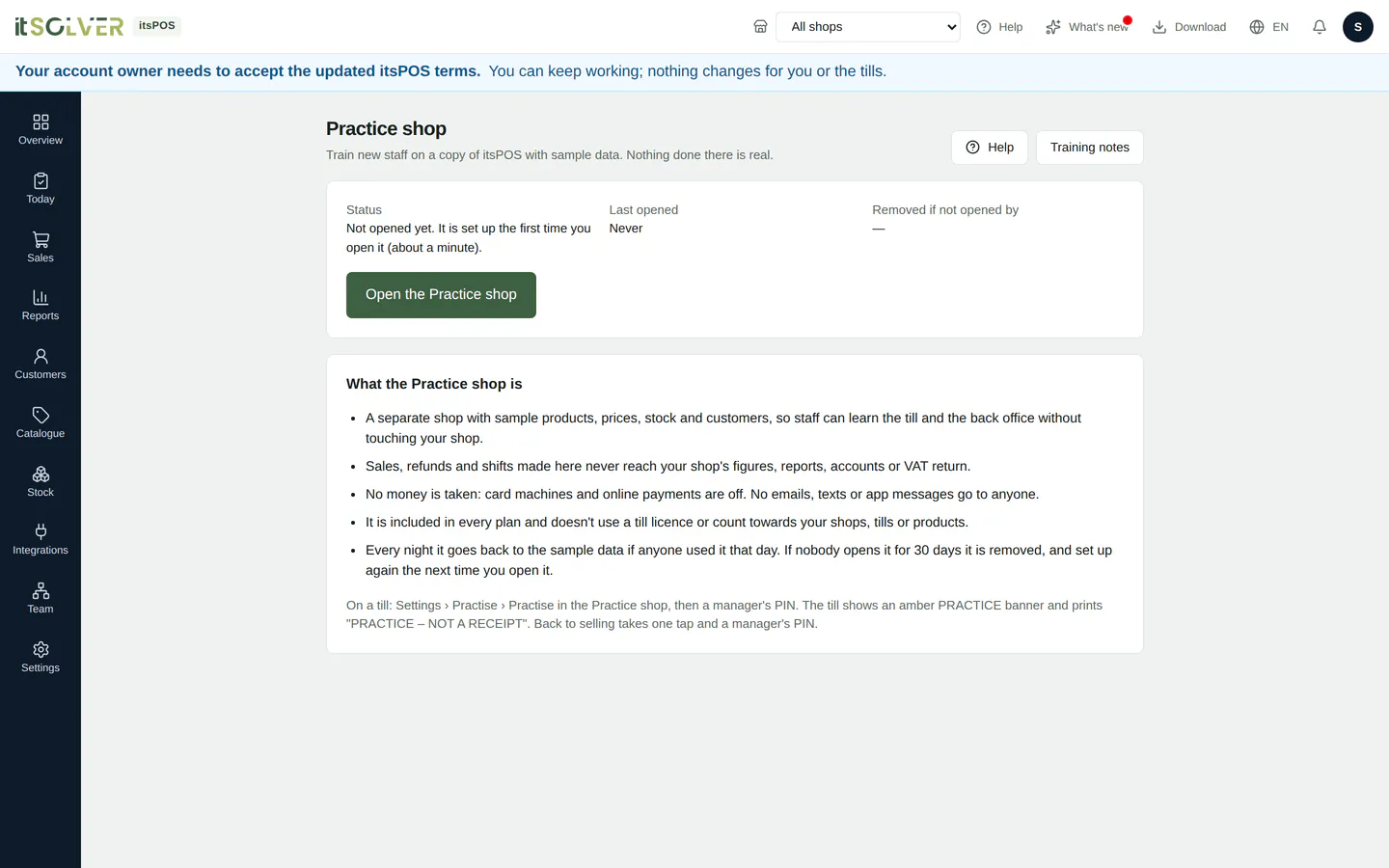
The Practice shop page - You are now in the Practice shop: an amber PRACTICE bar across the top says "You're in the Practice shop. Nothing here is real", and the business is called "(Practice)". Look round, add products, sell from a till, change settings: nothing reaches your shop.
- Press Back to my shop in the amber bar when you're done. You're back in your own business straight away.
Switch a till to it
- On the till, tap Settings, then Practise.
- Tap Practise in the Practice shop. A manager enters their PIN.
- The first time, the till says "Setting up the Practice shop. This takes about a minute." Then it says "This till is in the Practice shop." and an amber PRACTICE banner runs across the top.
- Staff sign in with their own PIN, as usual.
- When you're done, tap Back to selling in the banner and a manager enters their PIN. The till says "Back in your shop." Your open shift stayed open the whole time.
A first session (about 30 minutes)
Let the new person do each of these on the sample products, with you beside them:
- Sign in with their PIN, and clock in.
- Scan or tap a few products, take Cash and give change: see The Sell screen and Taking payment.
- Take a card payment. In the Practice shop it is recorded without the card machine.
- Park a sale and bring it back: Park and recall a sale.
- Refund a sale with its receipt: Refunds with a receipt.
- What your shop does most: an age check, a weighed item, a discount, adding a customer.
- Open a shift and close it at the end, counting the drawer: Close the shift and cash up.
What's different in the Practice shop
- Receipts print "PRACTICE – NOT A RECEIPT". Give them to nobody.
- The cash drawer doesn't open and no card machine is used. Online payments are off.
- No emails, texts or app messages go to anyone. The online store and itsPass are off.
- Practice sales, refunds and shifts never reach your shop's figures, reports, accounts or VAT return.
- What's new and the Download menu aren't shown in the Practice shop's back office.
What happens next
- Every night, the Practice shop goes back to its sample products and customers if anyone used it that day. Nothing you did is kept.
- If nobody opens it for 30 days, it is removed. Opening it again sets it up fresh, which takes about a minute.
- It's on every plan and doesn't use a till licence or count towards your shops, tills or products.
If something goes wrong
- "Switching to the Practice shop needs the internet." Connect the till and try again.
- "… still waiting to be sent to your shop. Send them first (Settings › Sync)." Let the till send its sales, then switch.
- "The Practice shop isn't available right now. Try again later." Wait a few minutes. If it keeps saying so, contact the itsPOS support team.
- A till is in the Practice shop and you need to sell. Tap Back to selling and a manager enters their PIN. The till is back in your shop straight away.
Still stuck?
The itsPOS support team is here 08:00 to 20:00 every day except Christmas Day.
- Call or WhatsApp: +44 7488 880320
- Email: support@itspos.io
- In the back office: Help › Contact support, or go to app.itspos.io/help/contact after you sign in
- On our website: itspos.io/contact
Tell us your shop's name and what you were trying to do. A screenshot of the screen helps.