

Getting started
Moving from another till: what you can bring and in what order
Changing till system doesn't mean starting again. Export spreadsheets from your old till, then bring them into itsPOS in the order below. Every import shows what will change before anything is saved, and most can be undone for 7 days.
For: Owners and Admins4 min read
The order that works
Each import finds what it needs from the ones before it: stock needs products, and old sales are matched to products. Do them in this order.
| What you bring | Where | What it keeps | Undo | |
|---|---|---|---|---|
| 1 | Your business, shops and VAT | Settings › Get started | Typed in, not imported: Get started: the set-up checklist | — |
| 2 | Products with prices, barcodes, categories and VAT | Catalogue › Import products | Names, SKUs, barcodes, prices (and each price list's prices), cost, categories, VAT, tags, sizes and colours | 7 days |
| 3 | Opening stock for each shop | Stock › Import stock | How many of each product at each shop, its cost, location in shop, batches, and reorder rules | 7 days |
| 4 | Loyalty customers with points, store credit and gift cards | Customers › Invitations | Name, email, mobile, points, store credit and gift card balances, waiting for each person to join on itsPass | 7 days |
| 5 | Trade customers and what they owe | Sales › Trade customers › Import from another system | Company, contact, address, credit limit, payment terms and the balance owed as an opening balance | All or none: nothing is added if a row is wrong |
| 6 | Sales from your old till, up to 24 months | Sales › Sales from your old till | Daily sales per product, for comparisons only: no sales, VAT or money go into your accounts | 7 days |
Staff and suppliers aren't imported: add them by hand, which takes a minute each (Adding staff, Add and manage your suppliers).
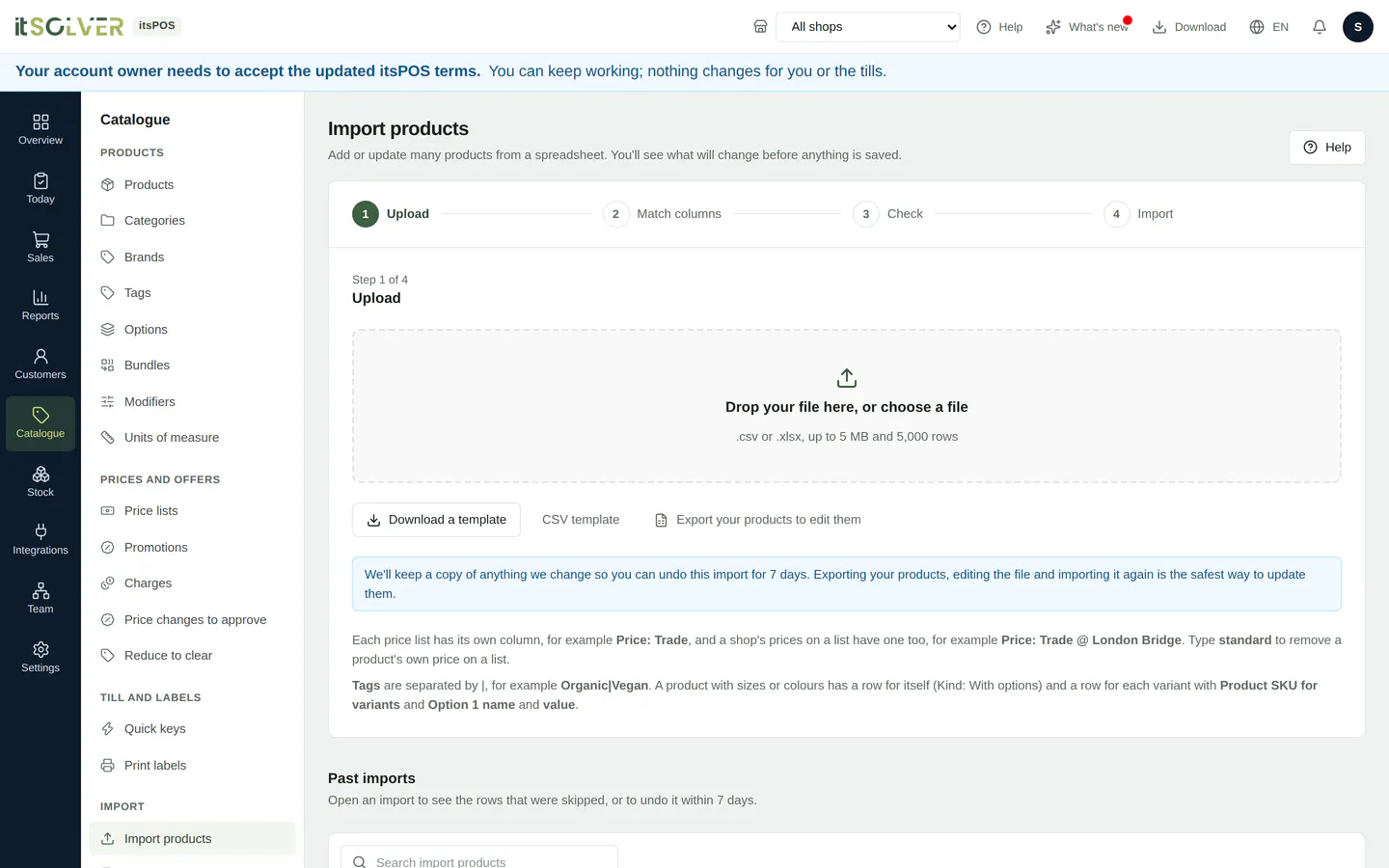
Products first
Export your product list from the old till as CSV or Excel (up to 5,000 rows). Download a template shows the columns itsPOS reads. Add your categories first, or let the import create them. See Bring your products from your old till.
If a product's barcode is in the itsPOS Product Library, you can also add it one at a time with its photo and details filled in: see Add a product from its barcode.
Then your opening stock
One row per product and shop, found by SKU or barcode. The import never adds products, so do this after step 2. Count your shelves the day before you switch and import that count. See Import opening stock.
Your loyalty customers
Import your loyalty list with each person's points, store credit and gift cards. Nobody is added as a member straight away: each person is invited to join your shop on itsPass, and their points carry over when they accept. People who agreed to your emails get an email; everyone else is invited in the shop, at the till, with their mobile number. See Invite customers from your old till system.
Trade customers and what they owe
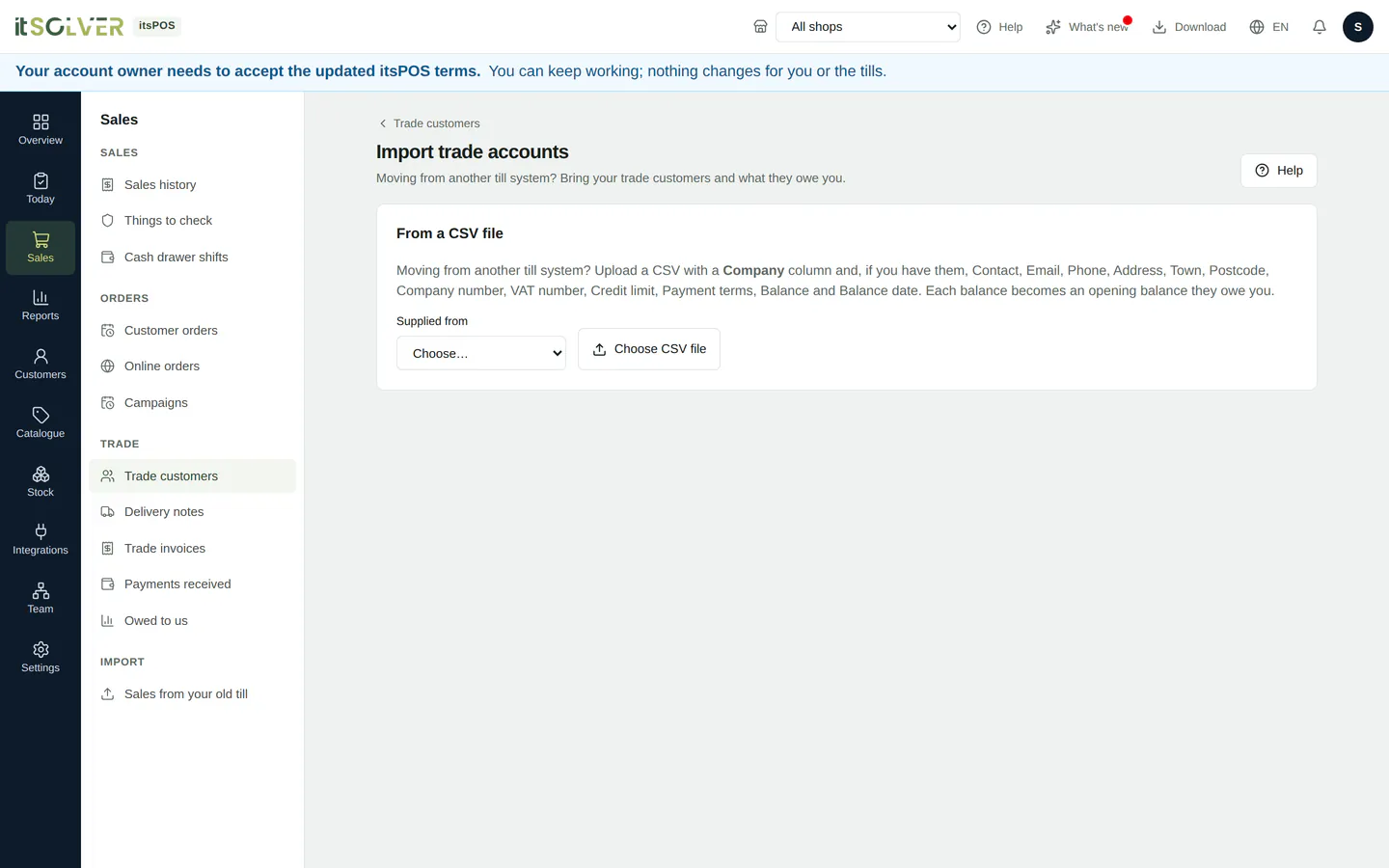
Cafés, restaurants and other businesses you supply on account come in from a CSV with a Company column, and their credit limit, payment terms and balance. What they owe becomes an opening balance, due from the balance date plus their terms. itsPOS checks every row first: if one is wrong, nothing is added, so fix the file and try again. See Bring trade customers and what they owe.
Your old till's sales
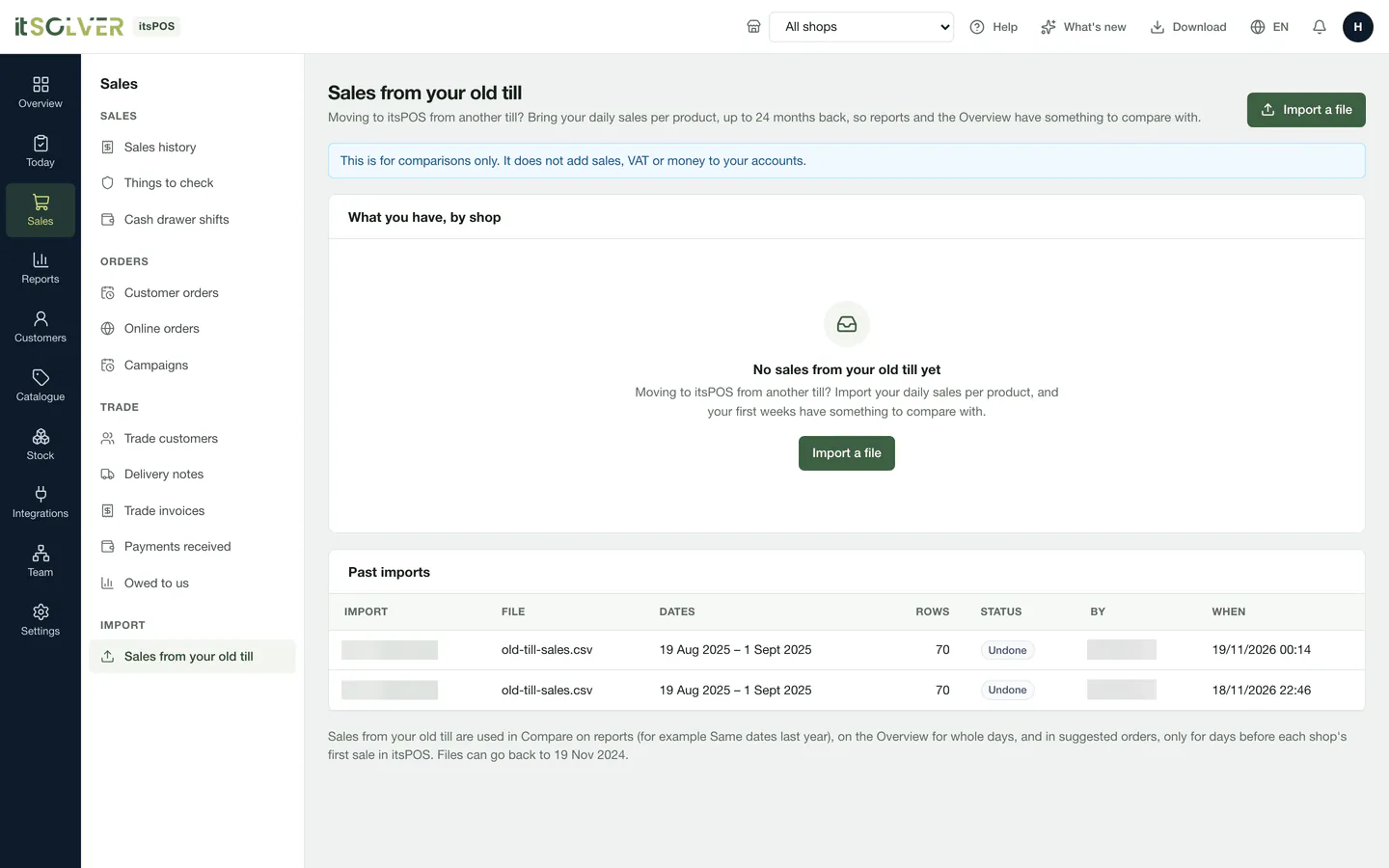
Daily sales per product, up to 24 months back, so reports' Compare, the Overview and suggested orders have something to compare with from your first day. "This is for comparisons only. It does not add sales, VAT or money to your accounts." Your own sales in itsPOS always win: days on or after each shop's first sale in itsPOS are left out. See Bring your sales from your old till.
Undo an import
Every import is listed under Past imports on its page. Open it and press Undo this import within 7 days: what it added is taken away and what it changed goes back. Trade customers are the exception: their import adds all the rows or none, so there is nothing to undo; change or close an account by hand.
Before your first day
- Check a few products on a till: price, barcode, VAT.
- Run a test sale on the till: see Run a test sale.
- Then follow Your first day with itsPOS: the checklist.
- A whole move, step by step, with a shop's 1,200 loyalty card holders: Moving to itsPOS from another till.
Still stuck?
The itsPOS support team is here 08:00 to 20:00 every day except Christmas Day.
- Call or WhatsApp: +44 7488 880320
- Email: support@itspos.io
- In the back office: Help › Contact support, or go to app.itspos.io/help/contact after you sign in
- On our website: itspos.io/contact
Tell us your shop's name and what you were trying to do. A screenshot of the screen helps.