

Getting started
Find your way round the back office
The back office at app.itspos.io is where you set up your shops and see how they are doing. It works on a computer, a tablet and a phone, and every page is in the same place on each.
For: Owners, Admins, Shop managers, Stock staff and Accountants6 min read
What this page is for
This guide shows where things are: the menu on the left, each section's own menu, the bar along the top, and the Help panel that is on every page. What you see depends on your role: a Shop manager sees their own shops, and an Accountant sees figures but can't sell. If a page or button you expect isn't there, see Why can't I see this page or button?.
The menu
On a computer the menu is down the left side: Overview, Today, Sales, Reports, Customers, Catalogue, Stock, Integrations, Team and Settings.
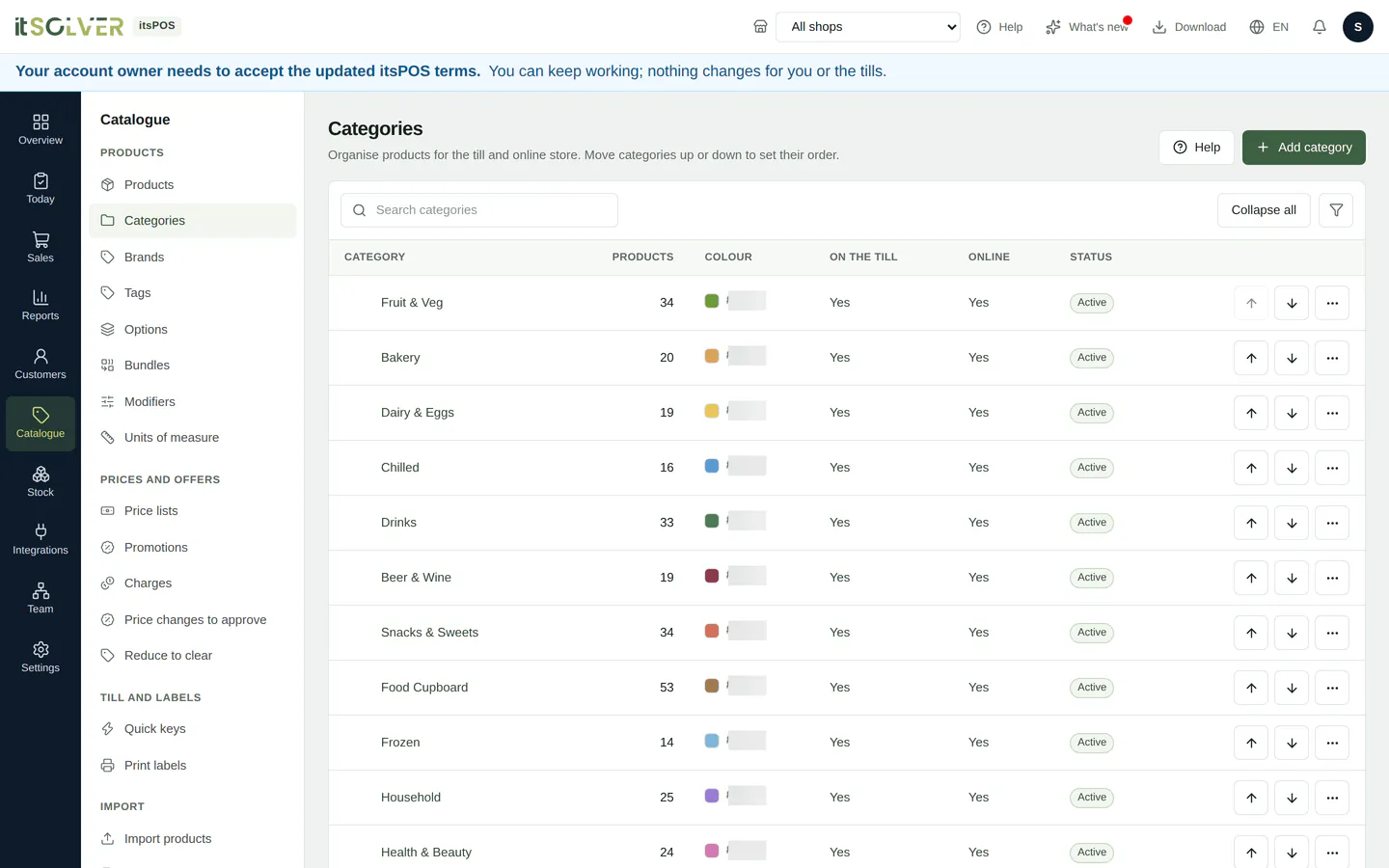
- Tap a section, for example Catalogue. It opens on its first page.
- Its own menu shows next to it, in groups. Catalogue has Products, Prices and offers, Till and labels and Import; Stock has groups such as Buying, Supplier money and Waste and returns.
- Tap the page you want. The page's title and a line under it say what it is for.
| Section | What it holds | Guides |
|---|---|---|
| Overview | How today is going in your shops | Your Overview |
| Today | What to do in each shop today | The Today list |
| Sales | Sales history, Things to check, shifts, orders and trade customers | Sales history |
| Reports | Key figures, every report, the VAT return and files for your accountant | Reports home |
| Customers | Customers, loyalty, gift cards and itsPass | The Customers section |
| Catalogue | Products, prices, promotions, quick keys and labels | Add a product |
| Stock | Stock levels, suppliers, deliveries, counts and waste | The Stock section |
| Integrations | Card payments, scales, API keys and webhooks | Integrations |
| Team | Staff, roles, hours and Activity | Adding staff |
| Settings | How your business, shops and tills work | How settings work |
On a phone
On a phone the menu moves to a bar at the bottom: Overview, To check, Today and Menu. Menu opens every section, the shop to show and your account. The top bar keeps Help, What's new, Download, the bell and your account.
The top bar
From left to right, on a computer:
- The shop list ("All shops", or one shop): the shop the pages show figures for. Pages with their own Shop box follow it until you change that box.
- Help: opens the Help panel beside the page (below).
- What's new: what changed in itsPOS, Ideas: vote for what comes next, and Email me a monthly update of what's new. See What's new and ideas.
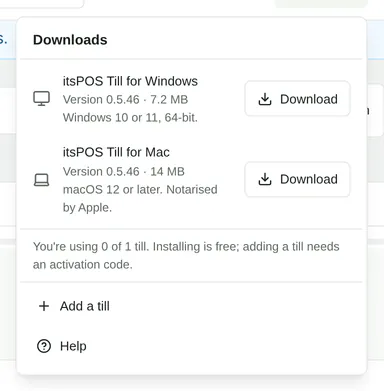
- Download: the itsPOS Till for Windows and Mac, itsPOS Scale Sync for Windows, how many tills you are using, and the itsPass app for your customers. The same downloads are at app.itspos.io/downloads.
- EN: the back office's language. It is English for now.
- The bell: what needs your attention in your shops. See The notifications bell below.
- Your initial (a round button): the account menu, with Notifications, Signed-in devices, Sign-in and security, My activity, Your data, Approval requests, Exports, Practice shop, Help, Contact support, Report a problem, Your requests and Sign out. See Your own account.
The notifications bell
The bell shows what is waiting for you, in the shops you look after. A red number on it says how many you haven't read yet.
- Tap the bell. The newest are at the top, each with its shop and how long ago.
- Tap one to open it. It opens the page where you deal with it, for example the waste record to approve, and stops counting as unread.
- Tap Mark all as read to clear the number.
What it shows depends on your role and your shops:
- Waiting for your approval: stock adjustments, waste, production, stock counts, stock requests, purchase orders, supplier returns, price changes, store credit and a till asking you from the phone. Only those you may approve, up to your limit in Settings › Stock rules › Who may approve how much, and never your own.
- Things to check from the last 14 days.
- Stock: a recall to take off the shelf, dated stock that reaches its date today or is past it, and low stock, once a day for each shop.
- Integration problems, such as a card machine that needs attention.
Once something is dealt with (approved, checked or taken off the shelf) it leaves the bell by itself. With nothing waiting it says "You're all caught up". See everything for today opens the Today list. The bell sends nothing: emails and phone alerts are in your account menu under Notifications.
Find a setting
You don't need to know which page a setting is on.
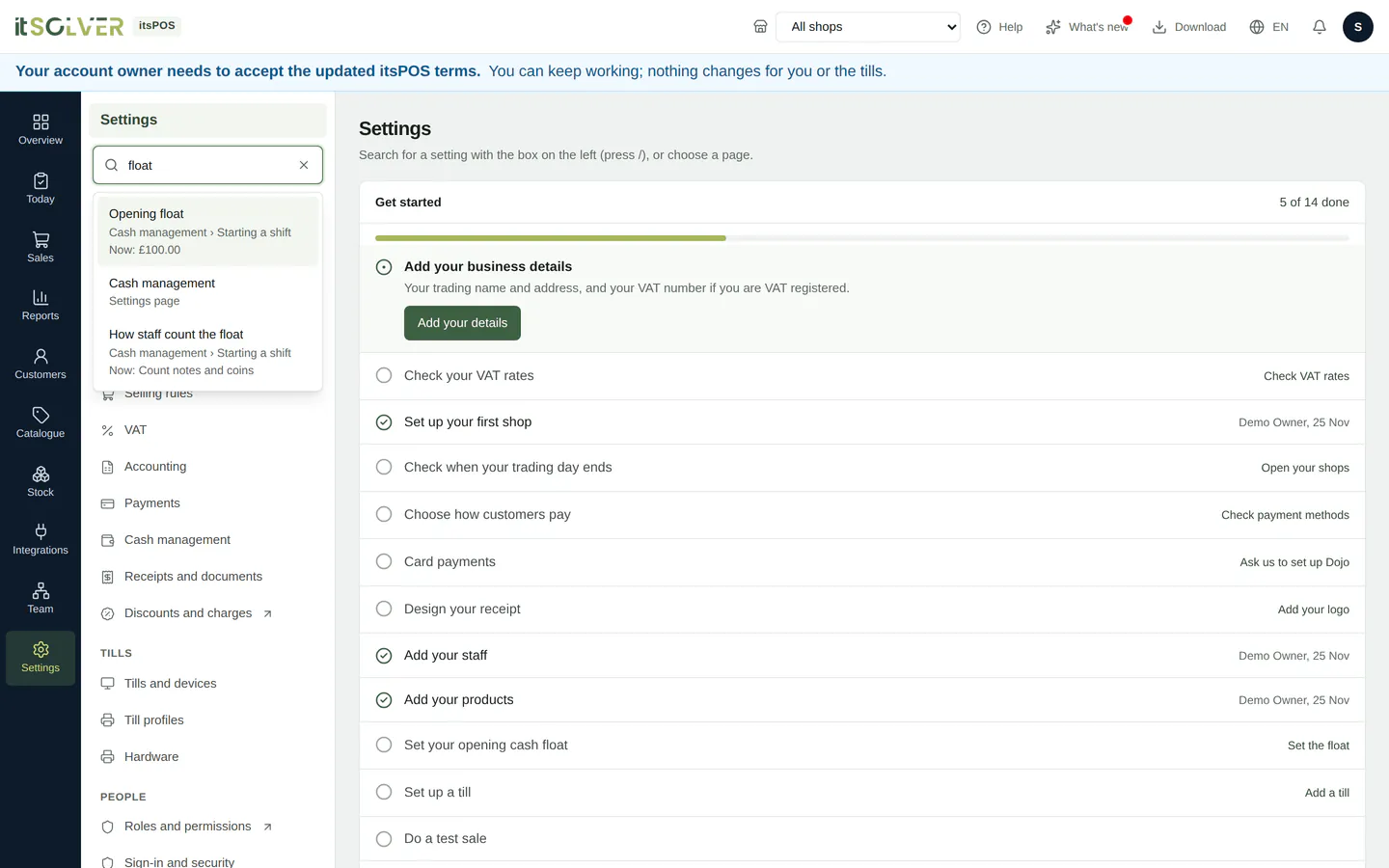
- Open Settings.
- Type in Search settings at the top of Settings' menu (or press / on a keyboard), for example "float".
- Each result shows the setting, the page it is on and what it is set to now, for example "Opening float · Cash management › Starting a shift · Now: £100.00". Tap it to open it.
Help on every page
Tap Help at the top of any page. The Help panel opens beside the page, so you can read and follow the steps at the same time.
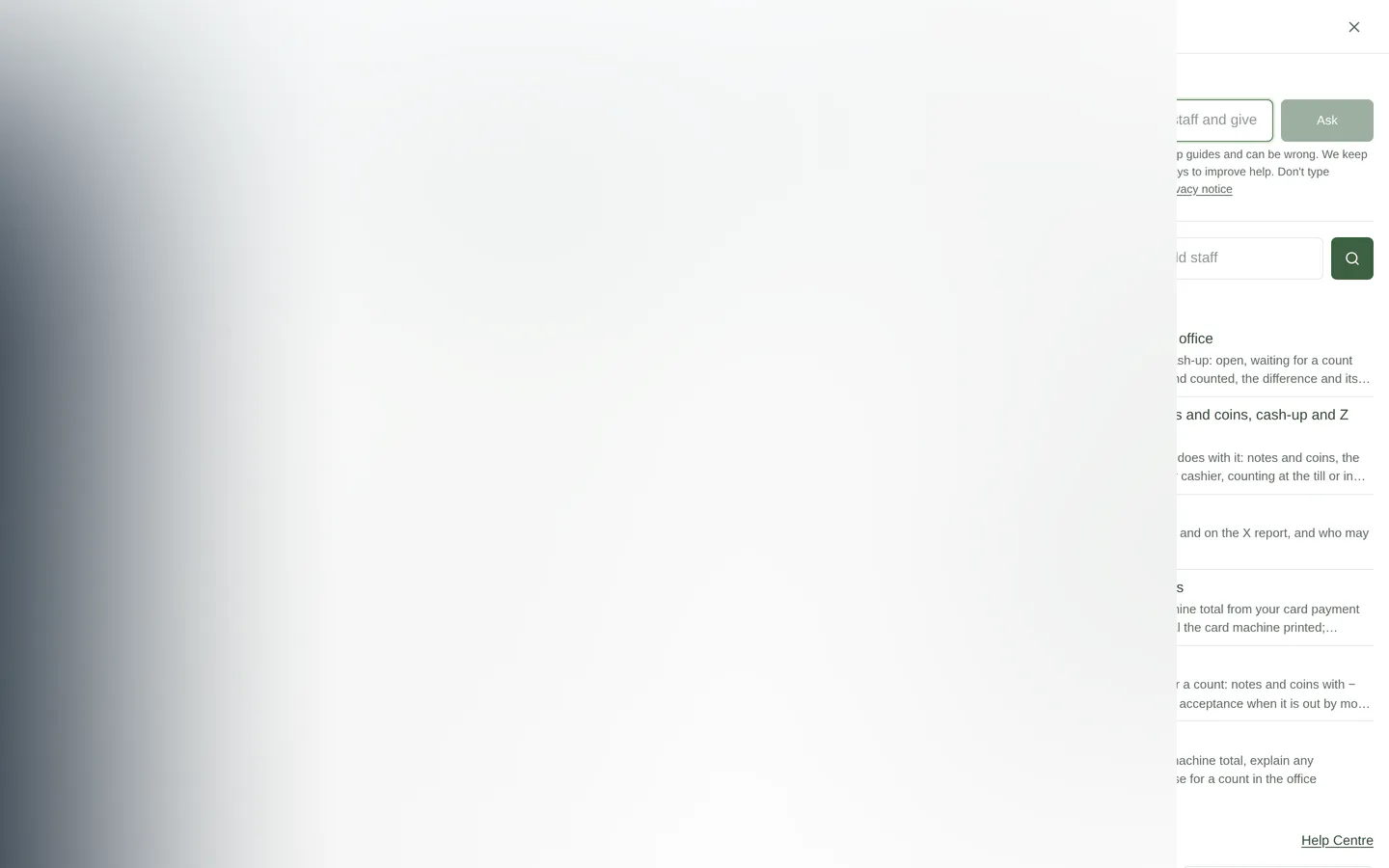
- Help for this page lists the guides for the page you are on, and Browse all help every section of the Help Centre.
- Search help: type what you want to do, in your own words ("add staff", "cashing up").
- Ask itsPOS answers a question in a few steps from these guides, when your plan has it. See Ask itsPOS about your sales.
- Still stuck? at the bottom: Contact support, Report a problem on this page, Your requests, and the itsPOS support team's phone number.
Help in the account menu, or Help Centre in the panel, opens the Help Centre itself: ask or search, every help section, Most read, and What's new. See Find help in itsPOS.
Find your reading list
Start with the list for your role. Each is a short list of guides in the order you'll need them:
- Your first week as an owner or admin
- Your first week as a shop manager
- Your first week on stock
- itsPOS for your accountant
- At the till: Your first shift as a cashier and Your first shift as a supervisor
If a word on screen is new to you, see Words itsPOS uses.
Still stuck?
The itsPOS support team is here 08:00 to 20:00 every day except Christmas Day.
- Call or WhatsApp: +44 7488 880320
- Email: support@itspos.io
- In the back office: Help › Contact support, or go to app.itspos.io/help/contact after you sign in
- On our website: itspos.io/contact
Tell us your shop's name and what you were trying to do. A screenshot of the screen helps.