

Settings
Business details: every field and where it shows
Settings › Business details says who you are: the name customers know, your legal details, your address and how customers reach you. Receipts, invoices, emails, your online store and itsPass all read them from here, so you type them once.
For: Owners, Admins, Shop managers and Accountants5 min read
For example, Green Street Grocer's business has the VAT number GB999999973, the registered address 14 Green Street, Manchester, M4 1AA and the phone 0161 496 0123.
Owners and Admins change them; Shop managers and Accountants can look. Press Save changes when you are done: "Saved. Tills get this change within 1 minute."
About your business
| Option | What it does | What staff or shoppers see | Also changes |
|---|---|---|---|
| Trading name | The name customers know | At the top of every receipt, with the shop's name | The online store's name, emails, the shop card in itsPass ("Name – Shop" when you have several shops) |
| Legal name (optional) | The name registered at Companies House, if different. Type the name or number and pick your company: the company number and registered address fill in | A4 invoices, and trade invoices, credit notes and delivery notes, under your trading name | — |
| Company number (optional) | 8 characters, like 01234567 or SC123456 | Receipts and invoices, when the receipt shows Company number | The footer of your online store |
| Are you VAT registered? | Yes or No | No: receipts show no VAT lines, VAT letters or VAT number | — |
| Do you employ 50 or more people? | Counts everyone on your payroll | — | With Yes, less healthy food (HFSS) can't go into multi-buys (Settings › Compliance) |
| VAT number | GB or XI followed by 9 or 12 digits. It can't change after your first sale: "Contact itsPOS support if it's wrong." | On receipts and invoices. Without a VAT number the receipt shows no VAT lines, even when you are VAT registered | The footer of your online store |
| Tobacco Economic Operator ID (optional) | 13 letters and numbers from the UK ID issuer, if you sell tobacco | — | Printed on purchase orders to suppliers marked "Supplies tobacco". Each shop's Facility ID is on Shops |
| Deposit return registration number (optional) | Your return point registration, if you take back drinks containers | — | The deposit return scheme (Settings › Compliance) |
Fill it in from Companies House
- In Legal name (optional), type your company's name or number, for example "Booker".
- Pick your company from the list. Each line shows its name, whether it is Active, its number and its registered address, for example "BOOKER LIMITED, Active, 00197380".
- The legal name, Company number (optional) and the registered address fill in. Check them and press Save changes.
Only UK companies are listed. A sole trader or a business outside the UK types its details in.
Registered address
Address line 1, Address line 2 (optional), Town or city and Postcode. Start typing the first line and pick your address from the list: every line fills in. You can always type it yourself.
Your first shop starts with this address. Receipts print the address of the shop where the sale was made, from Shops. Country is set when your account is made and is locked.
Contact details
| Option | What it does | What staff or shoppers see | Also changes |
|---|---|---|---|
| Phone (optional) | A UK number, like 01632 960 001 | On receipts when the receipt shows Phone | itsPass shows it on your shop card. A shop's own phone on Shops prints instead |
| Email (optional) | When customers reply to an email receipt, the reply goes here | On receipts when the receipt shows Email (off unless you turn it on) | A shop's own email prints instead |
| Website (optional) | Must start with https:// | On receipts when the receipt shows Website | itsPass shows it on your shop card |
Which of these print is chosen in Receipts and documents.
Logo and colours
Your logo and two brand colours: see Your logo and colours. See how your receipt email looks shows an email receipt with your saved logo, colour and name. Nothing is sent.
Bank details
Account name (optional), Sort code (optional) (6 digits), Account number (optional) (8 digits), IBAN (optional) and BIC (optional). They print only on A4 invoices, for trade and account customers who pay by bank transfer. Never on till receipts.
Language and formats
| Option | What it does | What staff or shoppers see |
|---|---|---|
| Currency | Locked: "Currency cannot change." | Every price and total |
| Prices include VAT | Set by your country: shelf prices include VAT in the UK | — |
| Time zone | The time zone your business days and reports use. Each shop can have its own on Shops | Times on receipts and in the back office |
| Language for receipts and emails | Only English (UK) for now | Receipts and emails |
| Date format | DD/MM/YYYY (31/12/2026), YYYY-MM-DD (2026-12-31) or MM/DD/YYYY (12/31/2026) | Receipts and the back office |
| Clock | 24-hour (17:30) or 12-hour (5:30pm) | Receipts and the back office |
Which day your week starts on for reports is in Settings › Reports.
What happens next
Tills get the new details within a minute, between sales, and print them on the next receipt. The online store and itsPass show them straight away.
In itsPass
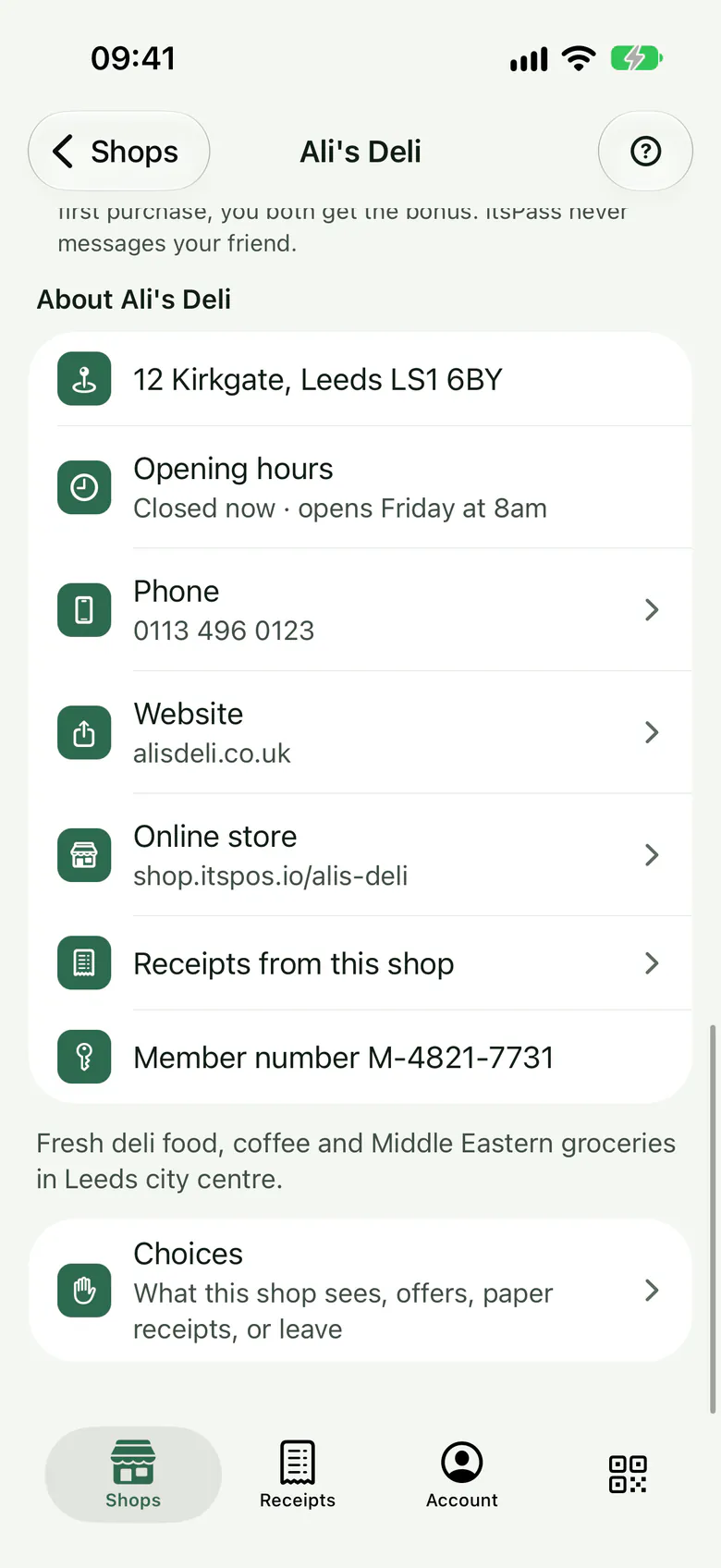
Members see your trading name at the top of your shop's page in itsPass (with the shop's name when you have several), and your Phone and Website under About your shop, where a tap calls you or opens the website. Account › Help › Contact a shop in itsPass shows them too, for questions about purchases, points, returns and offers.
Still stuck?
The itsPOS support team is here 08:00 to 20:00 every day except Christmas Day.
- Call or WhatsApp: +44 7488 880320
- Email: support@itspos.io
- In the back office: Help › Contact support, or go to app.itspos.io/help/contact after you sign in
- On our website: itspos.io/contact
Tell us your shop's name and what you were trying to do. A screenshot of the screen helps.