

Settings
Till profiles: the sell screen, receipts, printer, scanner, scale and security for many tills
A till profile is one set of till settings that many tills share: how the sell screen looks, what the receipt does, which printer, scanner and scale the till has, and when it locks. Change the profile once and every till using it gets the change within 1 minute. Every business has a profile called Standard.
For: Owners, Admins and Shop managers12 min read
Owners, Admins and Shop managers change profiles in Settings › Till profiles. Only Owners and Admins change the scale.
The list of profiles
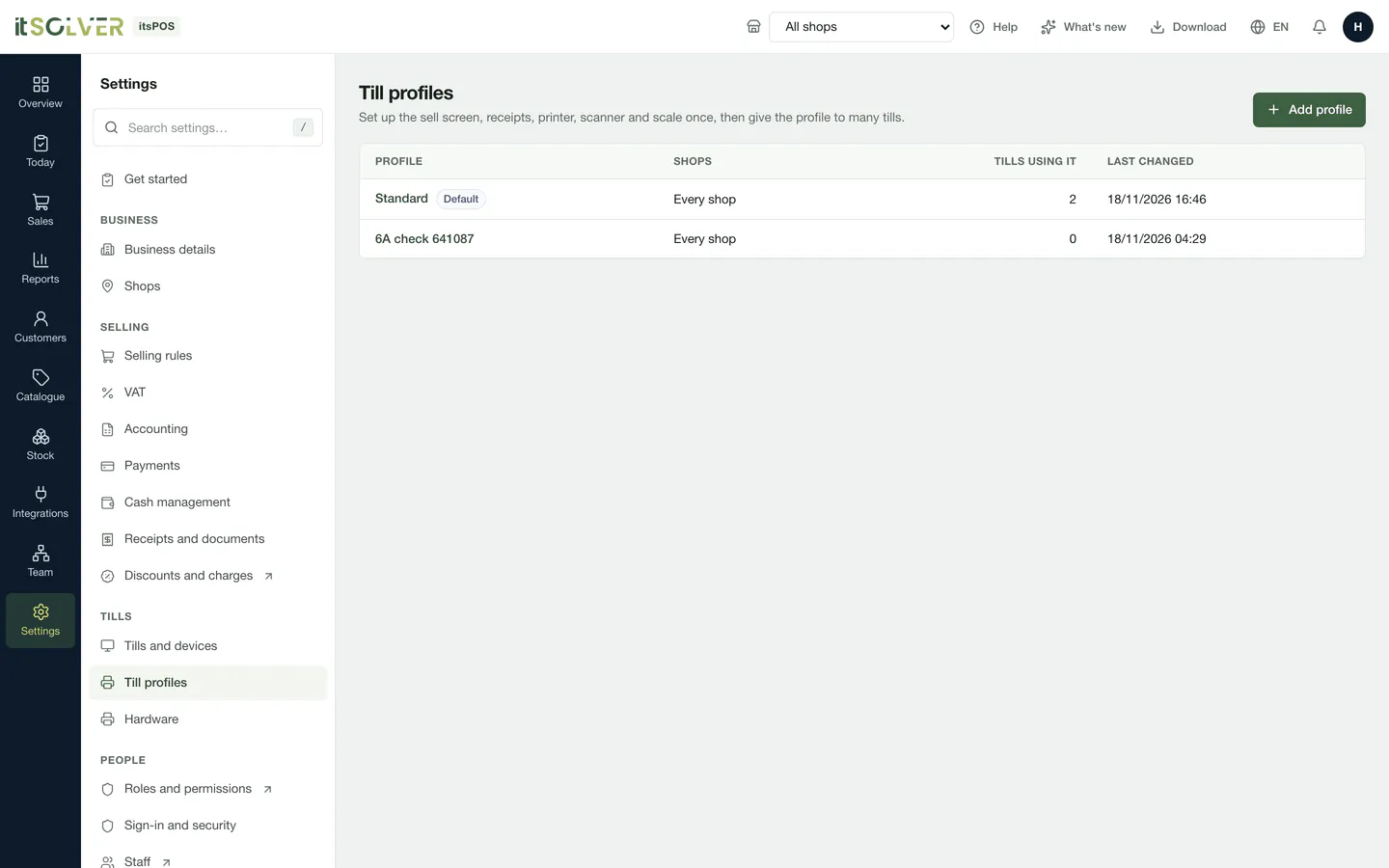
Each row shows the Profile, the Shops that may use it, how many Tills using it and when it was Last changed. Standard is marked Default: "Every account has a Standard profile. It cannot be renamed or deleted."
A till uses its shop's default profile unless you choose another for that till in Settings › Tills and devices (see Tills and devices). A shop's default is set on the shop in Settings › Shops.
Add a profile
- Press Add profile.
- Start as a copy of: choose the profile to copy, for example Standard.
- Profile name: for example "Small counter" or "Self checkout" (up to 40 characters).
- Shops that can use this profile: Every shop, or Only these shops and tick them.
- Press Add profile. "Small counter is ready. Change its settings below, then give it to tills."
- Change the settings you need and press Save changes, then give the profile to tills in Settings › Tills and devices.
How the options work
Each option shows where its value comes from: Default (itsPOS's), Company value (from another settings page) or Changed for this profile, with Use default to go back. Press Save changes at the bottom: "Saved. Tills using this profile get the change within 1 minute." A till takes the change between sales. The side list Tills using this profile names each till and whether it uses the profile because it's the shop's default.
A number outside its range isn't saved, for example "Lock the till after 0 to 240 minutes (0 locks it after every sale)."
Sell screen
See How the sell screen looks for pictures of each choice.
| Option | What it does | What staff or shoppers see | Also changes |
|---|---|---|---|
| Product buttons | Text (fits the most products), Picture (suits most shops, the default), Large picture (few products, big pictures) or List (one product per row) | The product buttons on the sell screen | — |
| Categories | Category bar (the default, more room for products) or Category tiles with pictures (each category's picture from Catalogue › Categories) | The categories above the products | — |
| Cash and Card buttons on the sell screen | On (Cash, Card and Pay, the default) or Off (Pay only) | Cash and Card take the payment straight from the sell screen | — |
| Show product pictures | For Text and List: off shows names only, and older tills open pages faster | Pictures on the buttons | — |
| Space for product pictures on each till | 100 MB to 2 GB, default 500 MB (about 5,000 products). When it's full the till removes the pictures used least | — | — |
| Text size | Normal or Large ("Large suits 12-inch screens") | Bigger words on the sell screen | — |
| New items appear at | Bottom of the basket (default) or Top of the basket | Where a scanned or tapped item goes | — |
| When searching | Filter the products as you type (default) or Show a results list | The search box on the sell screen | — |
| Match more than one word | On (default): "red wine" also finds "Wine, red 75cl" | Search results | — |
| Quantity shortcut | On (default): type 3* then scan to add 3 | — | — |
| Start on category | The category the sell screen opens on; All products (empty) shows everything | The first page of products | — |
| Categories on these tills | All categories (default) or Choose categories: only the ticked ones show. Their products can still be scanned | Fewer categories on that till | — |
Quick keys
The Quick keys tab of a profile holds the pages of buttons that tills with this profile open on: up to 6 pages of 24 buttons, each a product, a category or an action (Open price, Carrier bag, Price check). With no pages, tills open on All products. A new profile starts with a copy of the profile it was copied from. How to set them up is in Quick keys.
Receipt
What the receipt says is designed in Settings › Receipts and documents. The profile decides what the till does with it.
| Option | What it does | What staff or shoppers see | Also changes |
|---|---|---|---|
| Print a receipt | Ask after each sale, Always print or Never print. It comes from Settings › Selling rules (Company value) unless the profile changes it. "Weighed items and VAT invoices always print, because the law needs a receipt for them." | The till asks on the Sale complete screen, or prints, or doesn't | — |
| Show the receipt on screen before printing | Off (default). On: staff see the receipt first and then tap Print | A receipt preview on the till | — |
| Receipt layout | Standard (default) or Compact ("single lines and less paper") | The printed receipt | — |
Printer
| Option | What it does | What staff or shoppers see | Also changes |
|---|---|---|---|
| Printer model | Epson TM-T88VII, Epson TM-T20III, Star TSP143IV, Star mC-Print3, Other receipt printer (ESC/POS) (the default, "Not certified: may not work as expected") or No printer. Each model links its Setup guide | — | — |
| Paper width | 80 mm (default) or 58 mm: check the width of your paper roll | Receipts fit the paper | — |
| Copies | 1 to 3 copies of each receipt, default 1 | — | — |
| Blank lines before the cut | 0 to 10, default 4: lower it if receipts end with too much blank paper | — | — |
| Line spacing | Printer default, Tight (fits more) or Normal | — | — |
| Print speed | Fast (recommended), about 0.1 seconds, or Exact layout (slower), about 0.5 seconds | — | — |
| Simple mode for low-cost printers | Off (default). Turn on if receipts print strange characters. Logos and QR codes will not print | No logo or QR code on receipts | — |
Printer guides: Epson TM-T88VII, Epson TM-T20III, Star TSP143IV, Star mC-Print3.
Cash drawer
| Option | What it does | What staff or shoppers see | Also changes |
|---|---|---|---|
| Cash drawer plugged into the printer | Off (default). On when a drawer is plugged into the receipt printer: the till opens it for cash sales | The drawer opens | — |
| Warn if the drawer is left open for | Never, 15 seconds, 30 seconds (default) or 60 seconds | A warning on the till | — |
See the cash drawer guide.
Scanner
| Option | What it does | What staff or shoppers see | Also changes |
|---|---|---|---|
| Scanner type | USB scanner (types like a keyboard), the default for most scanners, Scanner-scale on a serial port (Datalogic Magellan), or Scanner on its own serial port (RS-232) for a scanner with its own serial cable, such as a Magellan 9800i's HOST port beside its Dialog06 scale port | With a serial scanner, an Owner or Admin chooses its port on each till: Settings › Hardware › Scanner › Change | — |
| Read batch and expiry from barcodes | On (default): reads the batch and expiry parts of GS1 barcodes. Only with batch and expiry tracking | The batch and date fill in when scanned | Batches |
Scale
Only Owners and Admins change the scale: others see "Only an Owner or Admin changes the scale."
| Option | What it does | What staff or shoppers see | Also changes |
|---|---|---|---|
| Scale | None (default), Datalogic Magellan 9800i, Datalogic Magellan 9800i (Dialog06: the scale works out the price) or Dibal KS-400, D-POS 400, G-325 or PI-100 (Dialog 06: the scale works out the price) or Other serial scale (uses the Magellan's commands) (one RS-232 cable; the scale must answer the Magellan's single-cable commands, ask us first) | The till weighs items on the scale | Weighed items |
Any change to the scale switches off trade use on the tills that use the profile: they show "Scale needs re-checking" and weighed items "Not for trade use" until an Owner or Admin switches trade use on again. Settings › Compliance › Weighed goods lists each till's scale and its trade use (see Weighed goods and unit prices). Setting up a Magellan 9800i? Download its printable set-up guide (one cable or two cables), which says what to choose here: Set up a Datalogic Magellan 9800i scanner-scale. Guides: Magellan 9800i, Magellan 9800i with Dialog06, Magellan 9800i on two serial cables, Dibal KS-400.
Customer display
| Option | What it does | What staff or shoppers see | Also changes |
|---|---|---|---|
| Customer display | Off (default). On shows the basket on a second screen with pictures and videos between sales. "Pictures and videos are chosen by itsPOS; ask the itsPOS support team to show your own offers." | The second screen | — |
A till can have its own setting in Settings › Tills and devices. The card lists those tills, for example "This till has its own customer display setting, which wins over this profile: Till 1 (Green Street Grocer): on on this till", with Use this profile's setting on this till. See The customer display.
Security
| Option | What it does | What staff or shoppers see | Also changes |
|---|---|---|---|
| Lock the till after | Minutes without a tap before the till asks for a PIN again, 0 to 240. 0 locks it after every sale. Comes from the company value (5 minutes) unless the profile changes it | The lock screen | — |
| Clock staff out when the shift closes | On (default): staff still signed in are clocked out when the shift closes | — | Hours |
| Kiosk mode | Off (default). On: the till fills the screen and stays in front of every other window; staff can't close or minimise it. A manager can turn it off for one till in the till's Settings | A full-screen till | — |
Kiosk mode suits touch-screen tills that only run itsPOS: see Touch screens and kiosk mode.
Offline and data
| Option | What it does | What staff or shoppers see | Also changes |
|---|---|---|---|
| Stop shift close while sales are unsent | On (default): the shift can't close until every sale has reached itsPOS | — | Z reports are complete |
| Speak an alert when the internet drops | On (default): the till says "The internet is down" out loud | A spoken alert | — |
| Keep sent sales on this till for | 3 to 60 days, default 7: for reprints and refunds without the internet | Older sales need the internet | — |
Selling without internet shows your plan's rule, for example "Up to 24 hours. After 24 hours without the internet the till stops new sales; shift close, reprints and sending sales still work. The till warns from hour 20." "Set by your plan. It cannot be changed here."
Sales history
| Option | What it does | What staff or shoppers see | Also changes |
|---|---|---|---|
| Show sales from other tills in Sales history | On (default): when the till is online, its Sales history lists every till's sales in this shop. Off: this till's sales only | Sales history on the till | — |
Label printer
| Option | What it does | What staff or shoppers see | Also changes |
|---|---|---|---|
| Label printer | None (default), Zebra (ZPL), Other ZPL printer, Xprinter (TSPL) or Other TSPL printer (TSC, Gprinter, Rongta). Connect it on each till with Test label | Shelf-edge and item labels print from the till | — |
| Label size | 38 x 25 mm (default), 40 x 30 mm, 50 x 25 mm, 58 x 40 mm or 100 x 50 mm | — | — |
Guides: Xprinter XP-470B, TSPL label printers.
Stock jobs on this till
Which stock jobs the till's Stock screen offers. All are on by default; each shows only when your plan has it.
| Option | What it does |
|---|---|
| Count stock | Planned counts and "Count a few products" |
| Record waste | Out of date, damaged, staff use and other losses, by weight on the scale for weighed food |
| Receive deliveries | Check what arrived against the supplier's invoice, with temperatures, batches and dates |
| Receive transfers | Stock sent from another shop or the warehouse (sending stays in the back office) |
| Gap scan | Scan the shelf label of each empty space |
| Make and cut | Record what was made, cut or repacked, weighing on the scale |
Keyboard
Shortcut set: Standard F-keys: F1 Search, F2 Customer, F4 Park, F6 Discount, F8 Cash, F9 Card, F10 Pay, F12 Lock. See Keyboard shortcuts.
Delete a profile
- Give its tills another profile in Settings › Tills and devices, and shops another default in Settings › Shops.
- Open the profile and press Delete profile at the bottom ("Give its tills and shops another profile first.").
- "Delete Small counter? Its settings are removed. This cannot be undone." Press Delete profile.
If a till still uses it, nothing is deleted: "Till 2 uses this profile. Give it another profile first." Standard can't be deleted.
Where it shows up
- On the till: everything here reaches every till using the profile within 1 minute, between sales. The till's Settings › This till shows the values, marked "Set in the back office" (see Settings on the till).
- Receipts: paper width, layout, copies and simple mode change printed receipts.
- Hardware: the till's Settings › Hardware connects and tests the printer, drawer, scanner, scale and label printer chosen here (see Settings on the till).
Still stuck?
The itsPOS support team is here 08:00 to 20:00 every day except Christmas Day.
- Call or WhatsApp: +44 7488 880320
- Email: support@itspos.io
- In the back office: Help › Contact support, or go to app.itspos.io/help/contact after you sign in
- On our website: itspos.io/contact
Tell us your shop's name and what you were trying to do. A screenshot of the screen helps.