

Settings
Product rules: what every product needs, price approvals, prices below cost and warranties
Settings › Products holds the rules for every product: which details each product must have, whether price changes need a second person, what happens when a price would sell at a loss, and what tills may do with products. Owners and Admins change it; Shop managers and Accountants can look. Press Save changes: "Saved. Tills get this change within 1 minute."
For: Owners and Admins6 min read
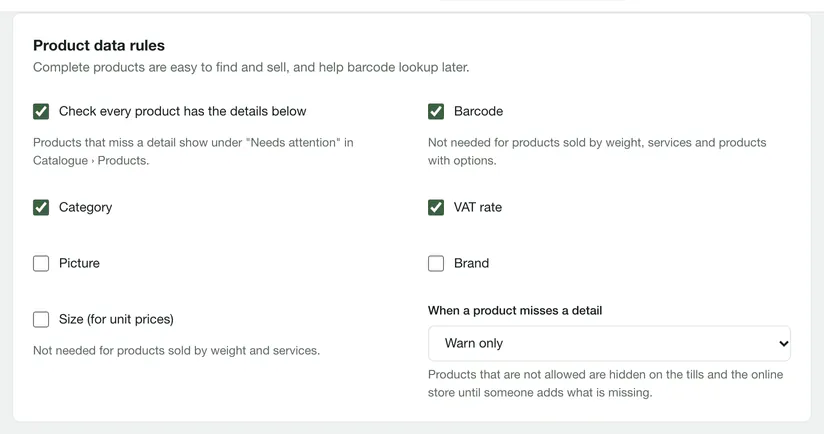
Product data rules
"Complete products are easy to find and sell, and help barcode lookup later."
| Option | What it does | What staff or shoppers see | Also changes |
|---|---|---|---|
| Check every product has the details below | On (default): products that miss a ticked detail show under "Needs attention" in Catalogue › Products | — | Products needing attention |
| Barcode | Ticked by default. Not needed for products sold by weight, services and products with options | — | — |
| Category | Ticked by default | — | — |
| VAT rate | Ticked by default | — | — |
| Picture | Not ticked by default. Pictures show on the till and the online store | — | — |
| Brand | Not ticked by default | — | — |
| Size (for unit prices) | Not ticked by default. Not needed for products sold by weight and services | — | Unit prices on labels and online |
| When a product misses a detail | Warn only (default) or Don't allow selling until fixed: products that aren't allowed are hidden on the tills and the online store until someone adds what is missing | With Don't allow selling, the product can't be found at the till or online | — |
Price changes
"A second person checks new prices before customers see them."
| Option | What it does | What staff or shoppers see | Also changes |
|---|---|---|---|
| Price changes need approval | Off (default). On: price changes by staff without the "Approve price changes" permission wait in Catalogue › Price changes to approve. Only approved prices reach the tills and the online store | The till keeps the old price until it's approved | Labels are offered after approval |
| New products' first price also needs approval | Shown when the switch above is on. Off (default). On: a new product made by staff without "Approve price changes" has no price until a manager approves it. The till asks for a price until then | — | — |
How approvals work day to day: Approve price changes.
Prices and cost
"One price also sells the older batches on the shelf. itsPOS checks new prices against every batch still in stock."
| Option | What it does | What staff or shoppers see | Also changes |
|---|---|---|---|
| When a price would sell stock below cost | Warn and ask to confirm (default): staff who may allow prices below cost confirm; others need a manager's PIN. Block: the price can't be saved. Allow. Every allowed price is in the Activity log | A warning or a manager's PIN on the till and in the back office | Team › Activity |
| Minimum margin (%) | A price that leaves less than this on any batch in stock is treated like a price below cost. Leave blank for no minimum | As above | — |
| Reduce to clear and promotions | Only warn (default): reductions and offers show the loss but are never stopped. Follow the rule above also blocks them when the rule is Block | — | Reduce to clear, Promotions |
More in Prices below cost.
Notes for staff
| Option | What it does | What staff or shoppers see | Also changes |
|---|---|---|---|
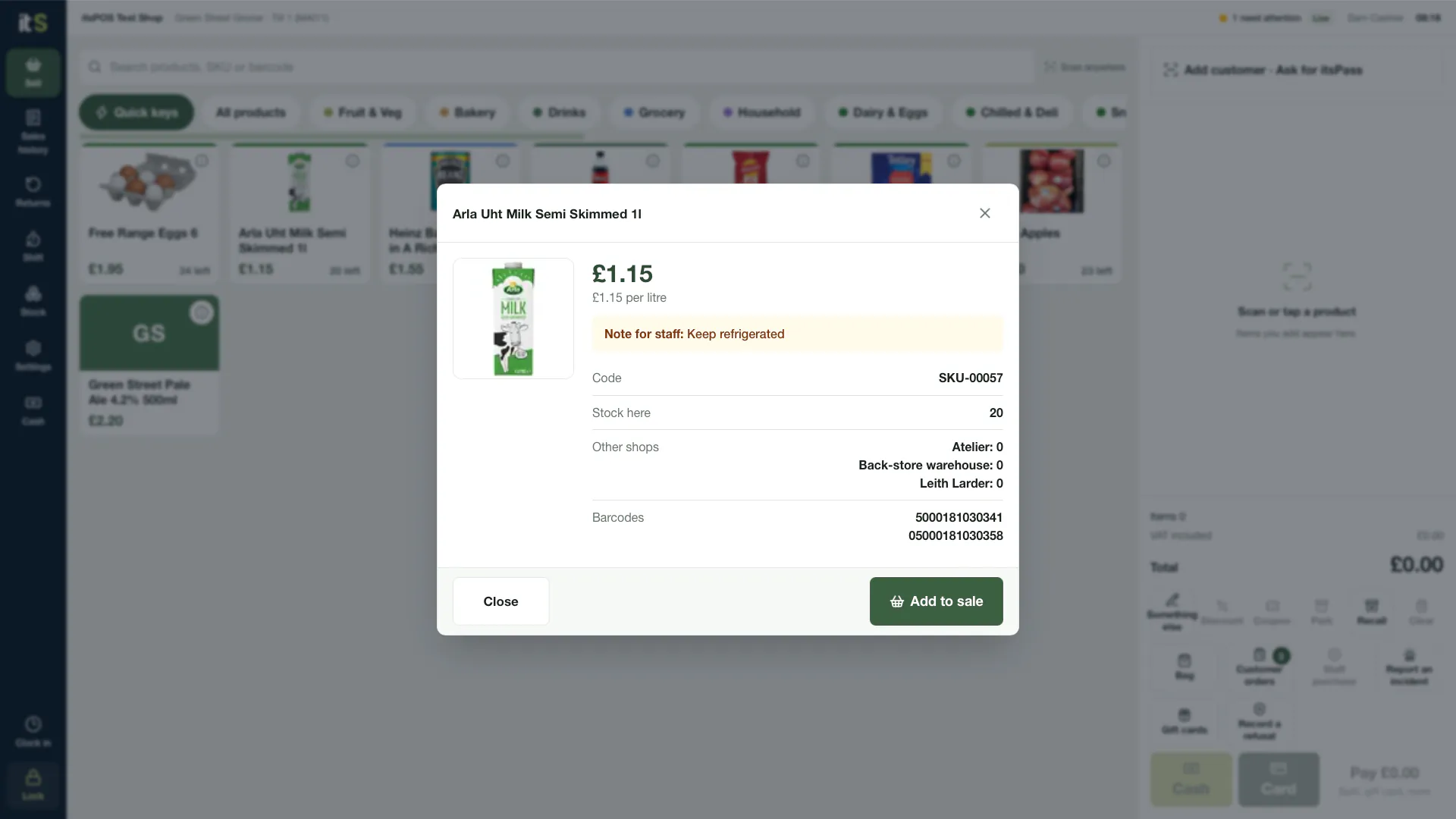
| Notes for staff on products | Off (default). On adds Note for staff to every product, for example "Keep refrigerated". Customers never see it | The till shows it on the product details | The product editor |
Warranty
| Option | What it does | What staff or shoppers see | Also changes |
|---|---|---|---|
| Warranty on products | Off (default). On adds Warranty to every product. Receipts print it, for example "Warranty: 2 years, until 8 Nov 2028" | The receipt line under the item | The product editor; receipts (see Serial numbers) |
Barcode lookup On some plans
"Add products faster from their barcode."
| Option | What it does | What staff or shoppers see | Also changes |
|---|---|---|---|
| Fill in new products from their barcode | On (default). When you scan or type a barcode, itsPOS looks for the product's name, brand and size: in the itsPOS product library (other itsPOS shops' products and wholesalers' lists), then in Open Food Facts, Open Beauty Facts and Open Products Facts. Never prices, VAT rates, age limits or allergens | Fill in from barcode when adding a product | — |
| Offer AI drafts of names and descriptions | On (default). "Draft a description" suggests a product name, a short name and an online description from the product's details. You check and edit each one before saving | Draft a description in the product editor | — |
The itsPOS product library: "Your products' basic facts (name, brand, size and category) help other itsPOS shops add products. Prices, stock and who you are are never shared." See The product library.
Batch and expiry On some plans
"What new products start with, and whether a delivery can be finished without the date. Each product can change both."
| Option | What it does | What staff or shoppers see | Also changes |
|---|---|---|---|
| Batch and expiry for new products | Don't track (default), Batch and date, Date only or Batch only. Each product can change it | — | New products |
| Date when receiving | Required (default), Use the shelf life if not typed (fills it from the product's shelf life and marks it, so someone checks the pack) or Optional (best-before only). Use-by dates are always needed: food past its use-by date can't be sold | The till's Receive job asks for the date | Batches |
Products at the till
| Option | What it does | What staff or shoppers see | Also changes |
|---|---|---|---|
| Let tills add a product when a barcode isn't found | On (default). The till offers "Add this product" with name, price, VAT rate and category, also offline. Supervisors and managers can add; a cashier needs a manager's PIN | Add this product on the till | The new product in the back office |
| Let tills change products | On (default). Staff with permission change a product's price at this shop, short name, barcodes, category and whether it's on sale here, also offline. A cashier needs a manager's PIN. VAT rate, age check and cost stay in the back office | Change product on the till | Price changes (and approvals when they're on) |
See Add a product at the till and Change a product at the till.
Where it shows up
- Till: notes for staff, warranties and adding or changing products reach the tills within 1 minute.
- Online store: products that miss a required detail are hidden there too when selling isn't allowed until fixed; approved prices only.
- Catalogue: Needs attention, Price changes to approve and the product editor's Note for staff and Warranty follow these switches.
Still stuck?
The itsPOS support team is here 08:00 to 20:00 every day except Christmas Day.
- Call or WhatsApp: +44 7488 880320
- Email: support@itspos.io
- In the back office: Help › Contact support, or go to app.itspos.io/help/contact after you sign in
- On our website: itspos.io/contact
Tell us your shop's name and what you were trying to do. A screenshot of the screen helps.