

Settings
How your figures show: with or without VAT, the week start, comparisons and sales targets
Settings › Reports decides how the Overview and your reports show figures, what today is compared with, and the daily sales target for each shop. Owners and Admins change it; Shop managers and Accountants can look. It changes the back office only: tills and Z reports are not affected.
For: Owners and Admins3 min read
Figures
"The same figures as your till's Z report."
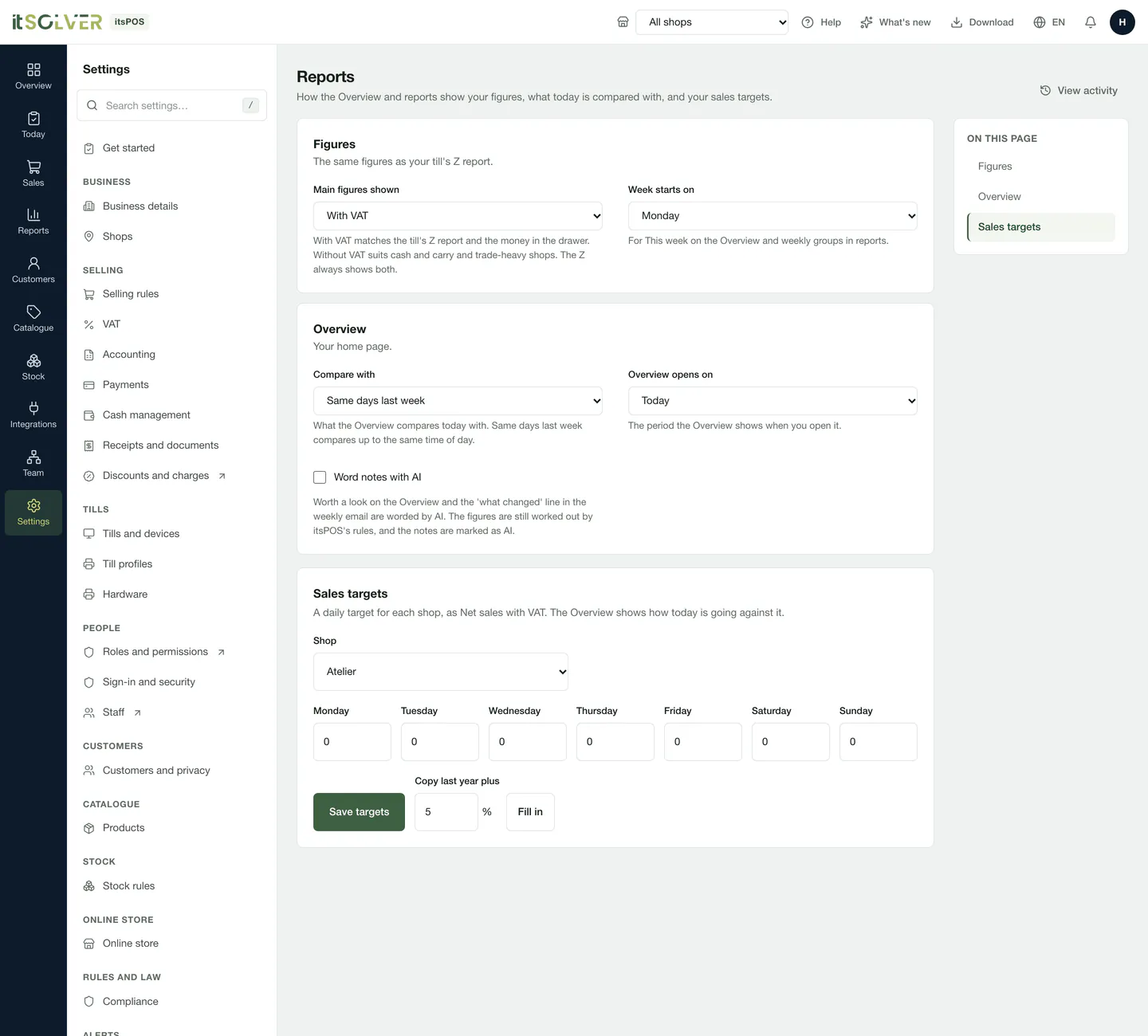
| Option | What it does | What you see | Also changes |
|---|---|---|---|
| Main figures shown | With VAT (default) matches the till's Z report and the money in the drawer. Without VAT suits cash and carry and trade-heavy shops | The Overview's Today so far says "Net sales with VAT" (and "Without VAT £184.14" under it), or "Net sales without VAT" (and "With VAT £190.16") | Reports' main figure. The Z always shows both |
| Week starts on | Monday (default) or Sunday | This week on the Overview | Weekly groups in reports |
Overview
"Your home page."
| Option | What it does | What you see | Also changes |
|---|---|---|---|
| Compare with | Same days last week (default, up to the same time of day), Your usual (the 4 weeks before), Same dates last year or Same weekdays last year | What the Overview compares today with | — |
| Overview opens on | Today (default) or Last 7 days | The period the Overview shows when you open it | — |
Word notes with AI
Word notes with AI: off by default. On: "Worth a look" on the Overview and the "what changed" line in the weekly email are worded by AI. The figures are still worked out by itsPOS's rules, and the notes are marked as AI.
Press Save changes. "Saved."
Sales targets
"A daily target for each shop, as Net sales with VAT. The Overview shows how today is going against it."
- Under Sales targets, choose the Shop, for example Green Street Grocer.
- Type a target for each day from Monday to Sunday, for example 300 for Thursday. Leave a day empty for no target ("No target").
- Or let itsPOS suggest them: type a percentage under Copy last year plus, for example 5, and press Fill in. "Filled in from last year. Check them, then save." When the shop has no sales a year ago: "No sales a year ago: filled in from the last 8 weeks. Check them, then save."
- Press Save targets. "Targets saved."
The Overview's Today so far then shows, for example, "£1,240 of £1,800 · on track", "behind", "met", or "missed" for yesterday. Today follows your trading day: until the shop's day ends (04:00 unless you changed it in Settings › Shops), the Overview still counts the day before, with that day's target.
Where it shows up
- Overview and Reports: the main figure, the week and the comparison.
- Weekly email: the "what changed" line, worded by AI when that's on.
- Tills and Z reports: not changed.
Still stuck?
The itsPOS support team is here 08:00 to 20:00 every day except Christmas Day.
- Call or WhatsApp: +44 7488 880320
- Email: support@itspos.io
- In the back office: Help › Contact support, or go to app.itspos.io/help/contact after you sign in
- On our website: itspos.io/contact
Tell us your shop's name and what you were trying to do. A screenshot of the screen helps.