

Settings
Your logo and colours: receipts, emails, online store and itsPass
Your logo and two brand colours live in one place: Settings › Business details › Logo and colours. Printed receipts, email receipts, A4 invoices, your online store and itsPass all use them. Your online store has no logo of its own.
For: Owners and Admins3 min read
Before you start
- Who: Owners and Admins.
- A PNG, JPG or SVG, up to 2 MB and at least 300 pixels wide. A wide logo on a white or clear background prints best.
- Your brand colours as codes, for example #1E7B34 for green.
Add your logo
- Go to Settings › Business details and scroll to Logo and colours.
- Press Upload logo and choose the file, for example green-street-logo.png.
- Check the two previews: "Colour: online store, emails and A4 invoices", and "Black and white: printed receipts". Receipt printers only print black, so thin lines and pale colours can disappear.
- Press See where this appears to see it on a receipt header and in your online store's footer.
- Press Save changes.
Choose your brand colours
| Option | What it does | Where it shows |
|---|---|---|
| Main brand colour | Your main colour, for example #1E7B34 | Your online store, email receipts, itsPass and A4 invoices. itsPass keeps text readable on it |
| Second brand colour | Buttons and highlights | Your online store |
Change or remove it
Change logo uploads a new file. Remove logo takes it off everywhere: receipts then print your trading name with no logo. Press Save changes either way.
To keep the logo online but not on paper, turn off Logo in Receipts and documents. Logo size there makes it Small, Normal or Large on the receipt.
What happens next
- Tills get the new logo within a minute and print it at the top of the next receipt, sized for 80 mm or 58 mm paper.
- See how your receipt email looks shows an email receipt with your saved logo, colour and name. Nothing is sent.
- The itsPass shop card shows it straight away. Your online store's header shows it within about a minute, once the store has made its picture sizes; until then the header shows your shop's name, never a broken picture.
If something goes wrong
| What you see | What to do |
|---|---|
| "The logo must be a PNG, JPG or SVG file" | Save it as PNG or JPG and upload it again |
| "The logo must be smaller than 2 MB" | Make the picture smaller, for example 1200 pixels wide |
| The black and white preview is a dark block | The logo has a dark background. Use a version on white or with a clear background |
| Nothing prints at the top of the receipt | Logo is off in Receipts and documents, or the till hasn't got the change yet: wait a minute between sales |
In itsPass
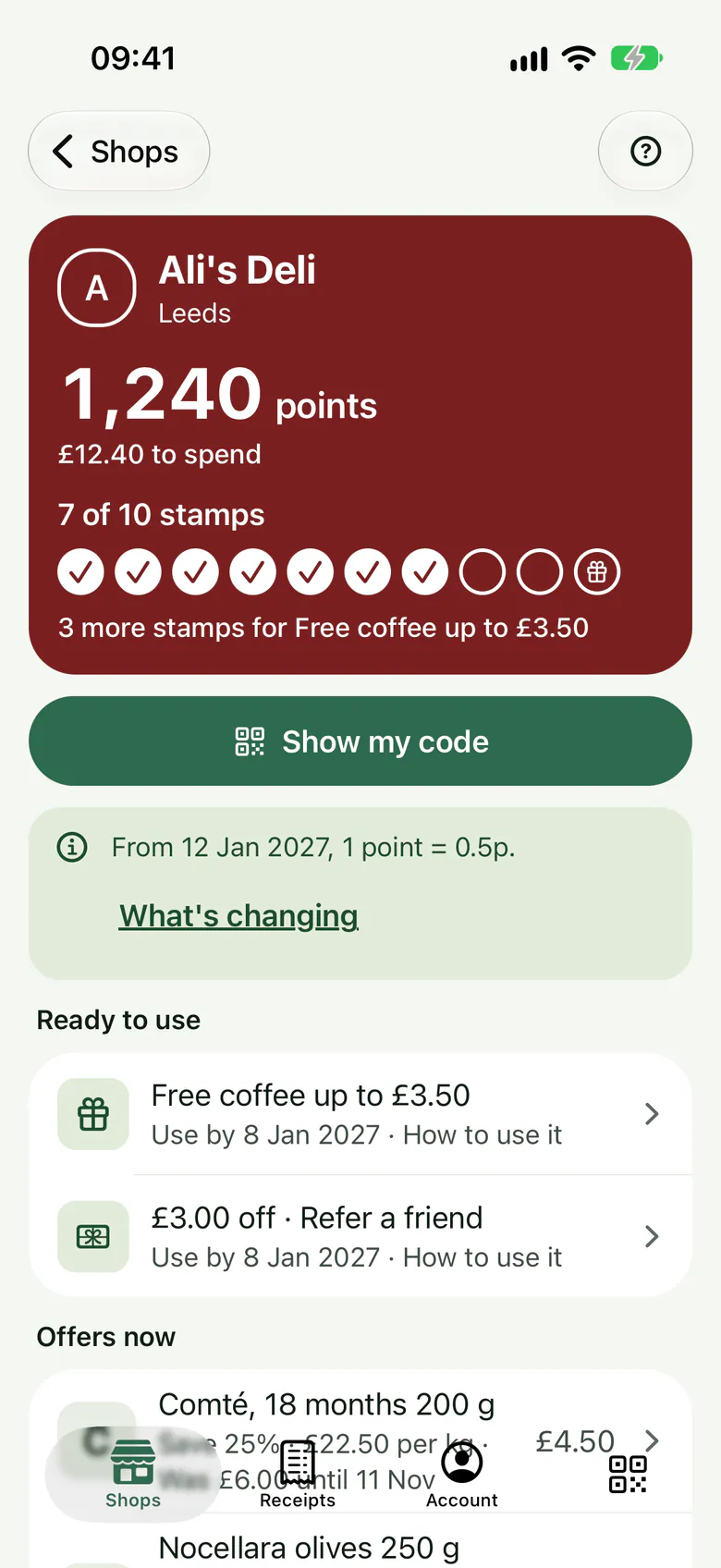
From itsPass 1.1, your logo and main colour show only in your shop's own header at the top of your shop's page, in light and dark mode; the rest of the page keeps itsPass's own look, so it reads the same for every shop. The App Clip and your join page on pass.itspos.io show them too.
Still stuck?
The itsPOS support team is here 08:00 to 20:00 every day except Christmas Day.
- Call or WhatsApp: +44 7488 880320
- Email: support@itspos.io
- In the back office: Help › Contact support, or go to app.itspos.io/help/contact after you sign in
- On our website: itspos.io/contact
Tell us your shop's name and what you were trying to do. A screenshot of the screen helps.