

Settings
Tills and devices: add a till, rename it, its card machine, test print and unpair
Settings › Tills and devices lists every till in your business and how it's doing. From here you add a new till, give each till its name, till profile, customer display and card machine, send it a test print, and unpair a till you no longer use.
For: Owners, Admins and Shop managers8 min read
What this page is for
- See at a glance that every till is online, up to date and has sent its sales.
- Add a till: get the one-time activation code the new till needs.
- Change one till: its name on receipts, its till profile, its customer display and its card machine.
- Check its printer from the back office with Send test print.
- Unpair a till that's broken, lost or replaced, so its till licence is free again.
What you see
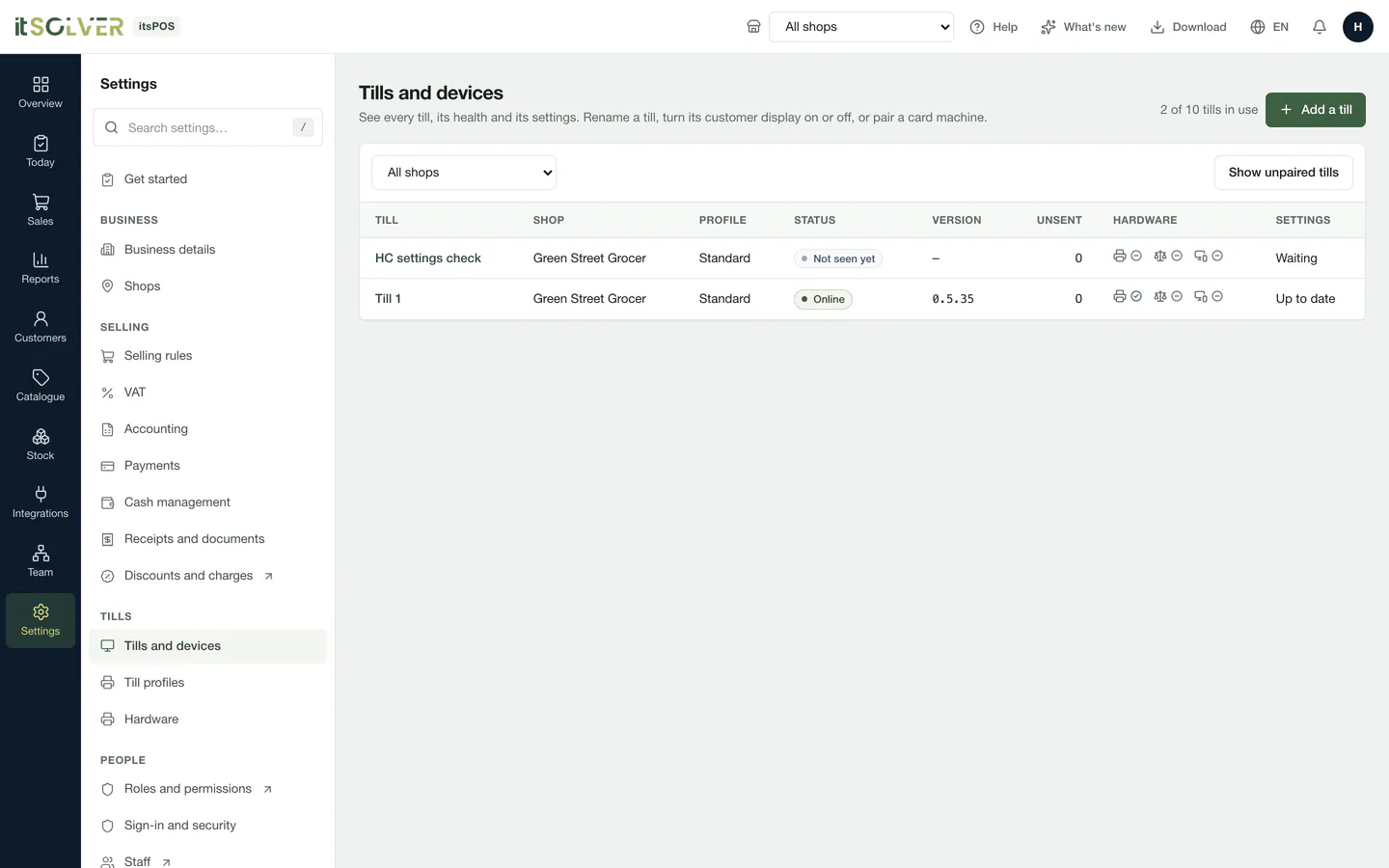
- At the top, how many of your till licences are in use, for example "2 of 10 tills in use". How many tills you can have depends on your plan (Settings › Plan and add-ons shows it).
- One row per till: Till (its name), Shop, Profile, Status (Online, Offline since a time, Not seen yet), Version (the itsPOS Till version), Unsent (sales the till hasn't sent yet, in amber when there are any), Hardware (printer, scale and customer display, each ready, needs attention or none) and Settings (Up to date or Waiting for the till to take a change).
- Shop at the top shows one shop's tills when you have more than one.
- Show unpaired tills lists the tills you unpaired too, as Unpaired; Hide unpaired tills hides them again.
- Tap a till to open its panel on the right.
Shop managers can do everything here except unpair a till. People who can only look see "You can view tills but not change them. Ask an owner or admin."
Add a till
Press Add a till.
Press Get activation code. "A new till needs a one-time activation code. The code works once and stays valid for 24 hours."
Under 1. Install itsPOS Till on the new till, press Download for Windows or Mac on the new till's computer (the button names the till's version, for example "Download for Mac (0.5.35)"), or copy the code first and download there.
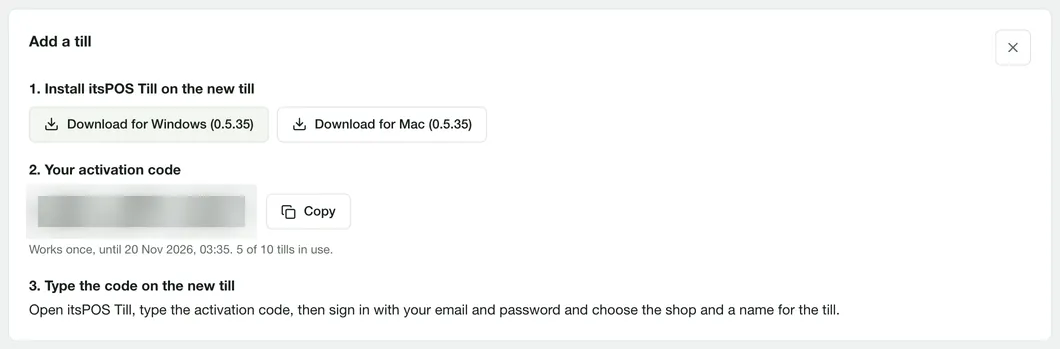
Add a till 2. Your activation code shows the code, when it stops working ("Works once, until 20 Nov 2026, 02:54") and how many tills you use. Press Copy if you want to paste it.
On the new till, type the code, sign in with your email and password, and choose the shop and a name for the till. The whole set-up on the till is in Set up a new till.
The new till appears in the list with the shop's default till profile. If every till licence is in use, the code isn't made: "Your plan includes 2 tills. Ask us to add a till." Unpair a till you no longer use, or contact us to add one.
Change one till
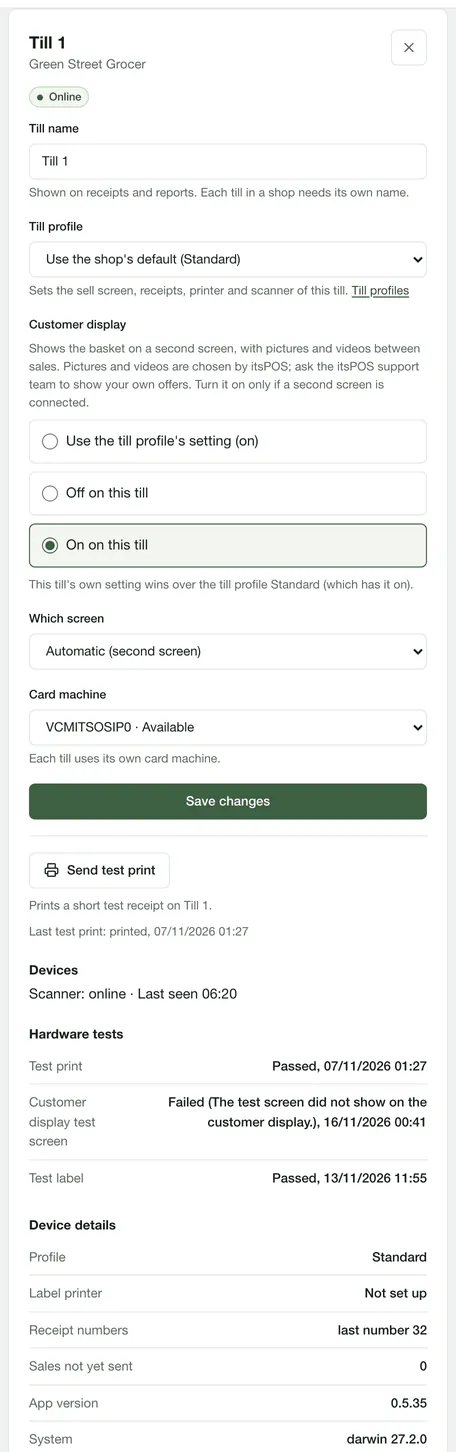
Tap the till. Its panel has Settings of the till at the top:
| Option | What it does | What staff or shoppers see | Also changes |
|---|---|---|---|
| Till name | "Shown on receipts and reports. Each till in a shop needs its own name." Up to 40 characters, for example "Till 2" | The name on the till and its receipts | Reports, Sales history, Z reports |
| Till profile | Use the shop's default (Standard unless the shop has another), or a profile your shop may use. The profile sets the sell screen, receipts, printer, scanner and scale (see Till profiles) | The till's look and devices | — |
| Customer display | Use the till profile's setting, Off on this till or On on this till. "Pictures and videos are chosen by itsPOS; ask the itsPOS support team to show your own offers. Turn it on only if a second screen is connected." | The basket on a second screen (see The customer display) | — |
| Which screen | Automatic (second screen), Screen 2 or Screen 3, when the till has more than one extra screen | — | — |
| Card machine | No card machine, or one of your shop's card machines with its terminal number, for example "VCMITSOTIP0 · Available". "Each till uses its own card machine." | Card payments go to that machine | Card totals at the end of the day |
Press Save changes: "Saved. The till gets this change within 1 minute." The till takes it between sales. The row's Settings column says Up to date once the till has it.
A card machine already on another till. Choosing it asks "This card machine is used by Till 1. Use it on this till instead?" with Yes, use it on this till. Saying yes takes it off the other till. Card machines appear here once card payments are connected for the shop (see "Set up card payments" in Help).
The till's own customer display wins. When you choose On on this till or Off on this till, that till keeps it even if the till profile changes. The panel says "This till's own setting wins over the till profile Standard (which has it on)." Choose Use the till profile's setting to follow the profile again.
Send a test print
- Make sure the till is on and online.
- In its panel, press Send test print. "A test receipt is printing on Till 2."
- The till prints a short test receipt within seconds. The panel then says "Last test print: printed" with the time, or "failed" with what the till reported.
If the till is offline, the panel says "Till 2 is offline. A test print needs the till to be online." and pressing it says "Till 2 is offline. Try again when it is online."
Hardware tests lists the last tests run on the till itself (test print, customer display test screen, test label) with Passed, Failed and what went wrong. Devices shows what the till last reported, for example "Scanner: online". Run the tests on the till in Settings › Hardware (see Settings on the till).
Device details
At the bottom of the panel: Profile, Label printer, Receipt numbers (the till's last receipt number; "Receipt numbers never reset"), Sales not yet sent, App version, System, Last seen, Settings (Up to date or Waiting for the till), Device code and Till code. The itsPOS support team may ask you for the device code. "To move a till to another shop, unpair it and set it up again there."
Unpair a till
Unpair a till that's broken, lost, sold or moving to another shop. Only Owners and Admins can.
Open the till and press Unpair till. "The till stops selling straight away and its licence seat is freed."
The box asks "Unpair Till 2?" with Cancel and Unpair till.
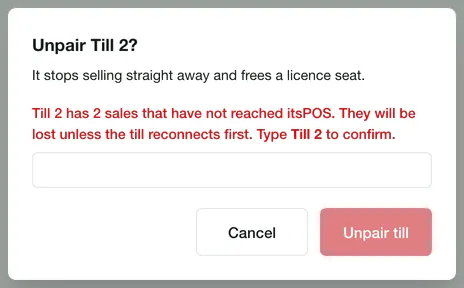
Unpair Till 2? If the till still has sales it hasn't sent, it says, for example, "Till 2 has 2 sales that have not reached itsPOS. They will be lost unless the till reconnects first. Type Till 2 to confirm." Type the till's name. If you can, bring the till online first so it sends them.
Press Unpair till. "Till 2 is unpaired. Its licence seat is free."
The till shows "This till has been switched off". Its sales and receipts stay in itsPOS. To use the computer again, set it up with a new activation code. Moving a till to a new computer is in "Move a till to a new computer" in Help.
A till with an open cash drawer asks the same: close the drawer on the till first, or type the till's name to unpair it anyway.
Where it shows up
- On the till: a new name, till profile, customer display or card machine arrives within 1 minute, between sales. The till's own Settings › This till shows the values set here (see Settings on the till).
- Receipts and reports: the till name prints on receipts and shows in Sales history, shifts and Z reports.
- Things to check and alerts: a till holding unsent sales shows on the Today list and in alerts (see Alert thresholds).
- Your plan: Settings › Plan and add-ons shows the same "tills in use".
Still stuck?
The itsPOS support team is here 08:00 to 20:00 every day except Christmas Day.
- Call or WhatsApp: +44 7488 880320
- Email: support@itspos.io
- In the back office: Help › Contact support, or go to app.itspos.io/help/contact after you sign in
- On our website: itspos.io/contact
Tell us your shop's name and what you were trying to do. A screenshot of the screen helps.