

Settings
Email and phone alerts: your own, the defaults for new staff, and the emails itsPOS sent
itsPOS can email you, or send an alert to your phone, when a till goes offline, cash is short, a big refund happens, stock runs low and more. Everyone chooses their own alerts in My notifications. Owners and Admins set what each role gets until people choose, and see every email itsPOS sent for the business.
For: Owners, Admins, Shop managers, Stock staff and Accountants5 min read
Choose your own alerts
Everyone who signs in to the back office has their own list. "Changes save straight away."
Open Settings › Notifications › My notifications.
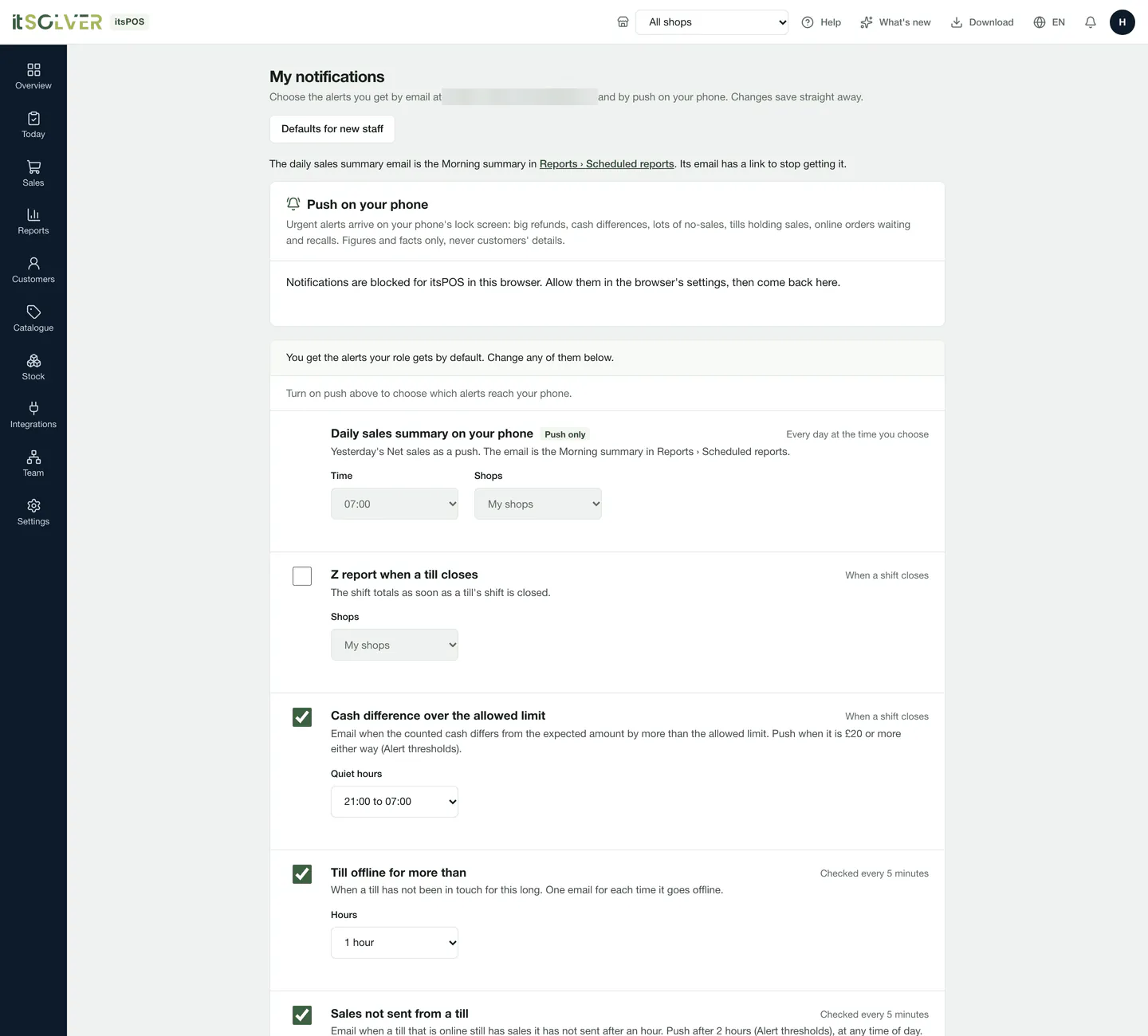
My notifications Tick the alerts you want by email. "You get the alerts your role gets by default. Change any of them below."
Change an alert's options where it has them, for example Hours for "Till offline for more than" (1 hour, 2 hours or 4 hours), Amount for "Refund over", Quiet hours (21:00 to 07:00, 22:00 to 07:00, 20:00 to 08:00 or None), Expiring within (7 days, 14 days or 30 days) and Shops (My shops or All shops). Each change says "Saved".
Push on your phone: urgent alerts arrive on your phone's lock screen: big refunds, cash differences, lots of no-sales, tills holding sales, online orders waiting and recalls. "Figures and facts only, never customers' details." Allow notifications when your phone's browser asks, then choose which alerts reach it. Push follows your sign-in on that phone (see Your phone and computer).
You only get an alert about what your role may see. The daily sales summary email is now the Morning summary in Reports › Scheduled reports; its email has a link to stop getting it.
The alerts
| Alert | When it's sent |
|---|---|
| Z report when a till closes | When a shift closes |
| Cash difference over the allowed limit | When a shift closes; push at £20 or more either way |
| Till offline for more than | Checked every 5 minutes; one email each time a till goes offline |
| Sales not sent from a till | Checked every 5 minutes, when an online till still has unsent sales after an hour |
| Refund over | When the refund is made |
| A sale a till couldn't send | Within 15 minutes |
| Refund over what was sold | Within 15 minutes |
| Lots of no-sales by one person | Email within 15 minutes, push at once |
| Things to check, every Monday | Mondays at 07:00, also when there was nothing to check |
| Low stock and Items expiring soon | Every day at 08:00 |
| Important settings published | When someone publishes changes to VAT, receipts, payments or roles |
| Access changes | When someone gets a permission that matters, or an Owner or Admin is added |
| Unusual reading | Within 15 minutes, when someone opens far more customers, products or sales than they usually do |
| New online order | When the order is paid |
| Shifts waiting for a cash count for more than 12 hours | Checked every 5 minutes |
| Integration problems | When it happens |
| Email me what's due and Email me the Today list | Every day |
When each one speaks up is set in Alert thresholds.
Set the defaults for new staff
Owners and Admins choose which emails each role gets until people choose their own.
Open Settings › Notifications › Defaults for new staff.
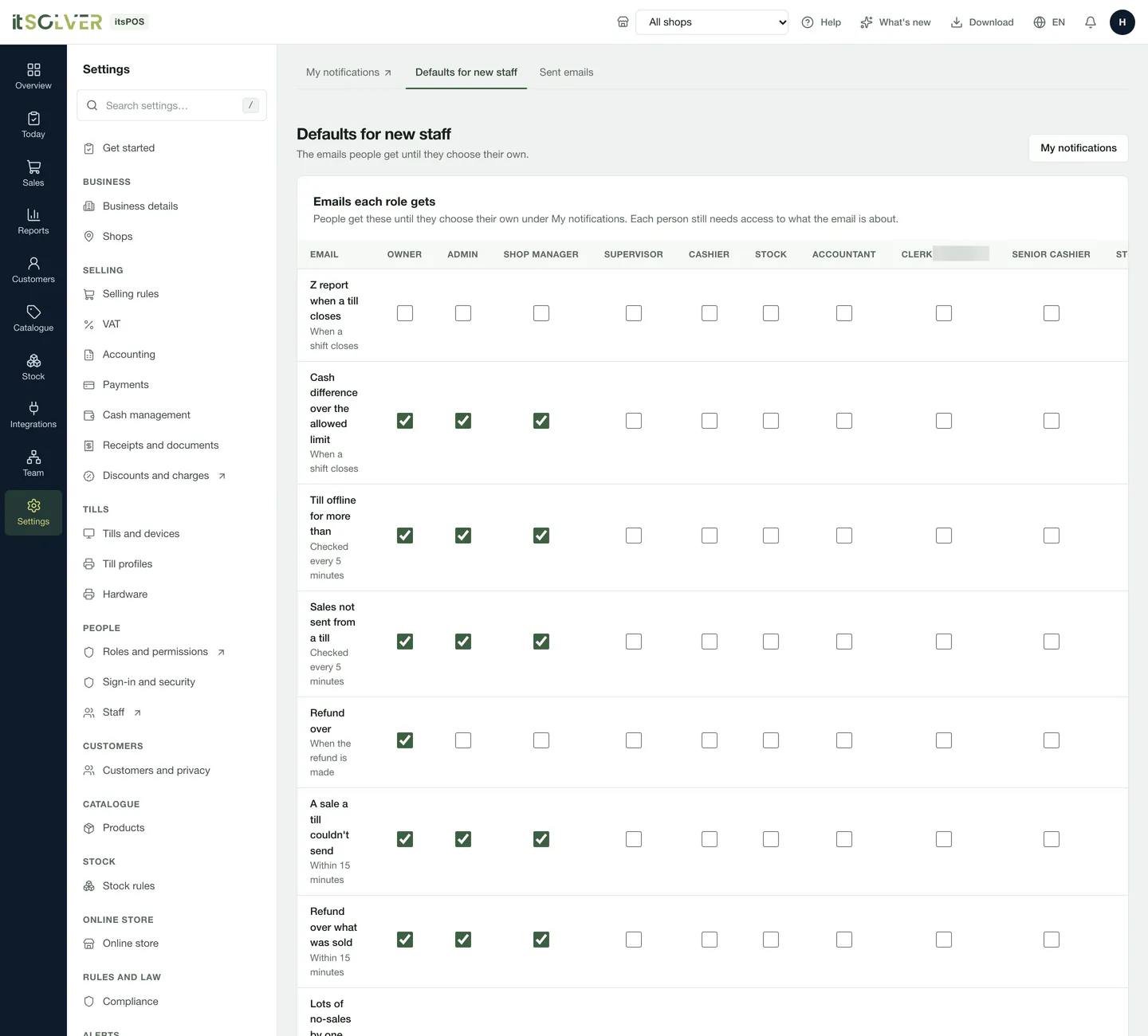
Defaults for new staff Under Emails each role gets, tick or untick each email for each role (Owner, Admin, Shop manager, Supervisor, Cashier, Stock, Accountant and your own roles).
Press Save changes. "Saved. People who have not chosen their own emails now get these."
Each person still needs access to what the email is about. People who already chose their own in My notifications keep their choice. itsPOS's own defaults: "Cash difference over the allowed limit", "Till offline for more than", "Sales not sent from a till", "A sale a till couldn't send" and "Refund over what was sold" go to Owners, Admins and Shop managers; "Low stock" and "Items expiring soon" to Shop managers and Stock; "Refund over", "Things to check, every Monday" and the other security emails to Owners.
Check the emails itsPOS sent
Open Settings › Notifications › Sent emails. "Every email itsPOS sent for your business, newest first. Addresses are partly hidden."
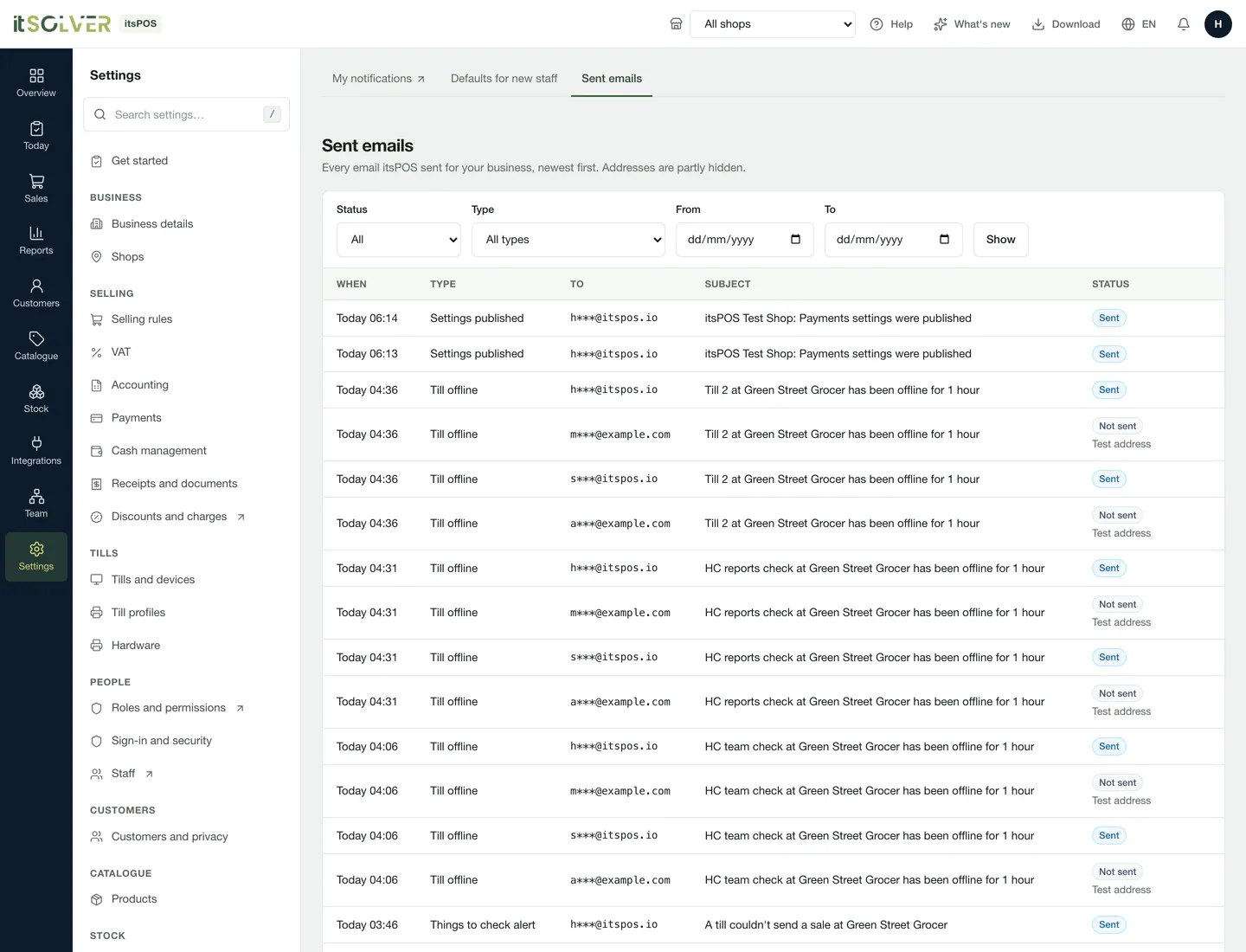
Sent emails Filter by Status (All, Failed, Sent, Waiting, Not sent), Type (for example Till offline or Trade statement), From and To, and press Show.
A failed email has Send again. Only Owners and Admins can send emails again.
Not sent with "Test address" means the address was a made-up one (such as an example.com address) and itsPOS didn't send to it.
Not sent with "an earlier email to this address bounced" means an email to it couldn't be delivered before, so itsPOS doesn't send there again: check the address on the person or customer and change it. If the address was right after all (for example they set up the mailbox), an Owner opens the customer, staff member or supplier and presses Allow emails again under the email, with a reason. With "they marked an earlier offer email as spam", itsPOS sends that person no more offers; their receipts and order emails still go.
If something goes wrong
- You don't get an email: check it's ticked in My notifications, your shops are chosen, and your role may see what it's about. Then look for it in Sent emails.
- An email failed: check the address on the person or customer, then press Send again.
Still stuck?
The itsPOS support team is here 08:00 to 20:00 every day except Christmas Day.
- Call or WhatsApp: +44 7488 880320
- Email: support@itspos.io
- In the back office: Help › Contact support, or go to app.itspos.io/help/contact after you sign in
- On our website: itspos.io/contact
Tell us your shop's name and what you were trying to do. A screenshot of the screen helps.