

Stock
Add and manage your suppliers
Stock › Suppliers is everyone you buy from: how you order from them, when they deliver, how you pay them and what they sell you. Purchase orders, deliveries, returns and supplier invoices all start from the supplier. This guide uses Demo Cash & Carry Ltd: rep Dev Rep on Tuesdays, your account GSG-10442, a £250 minimum order, pay on delivery.
For: Owners, Admins, Shop managers, Stock staff and Accountants5 min read
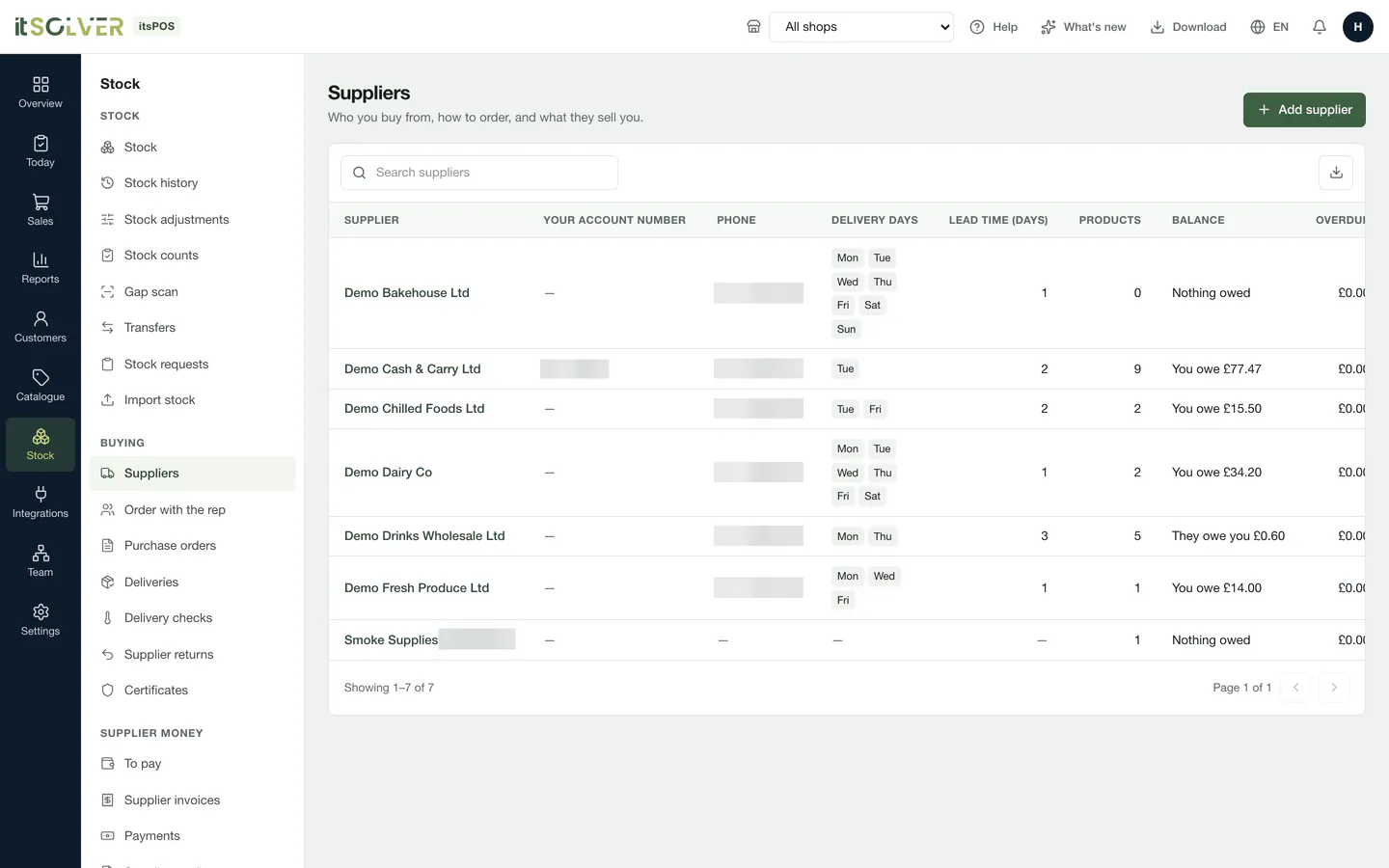
What you see
One row per supplier: Your account number, Phone, Delivery days, Lead time (days), Products (how many are linked to them), Balance and Overdue (people who may see supplier money). Press Add supplier to add one.
Add a supplier
- Press Add supplier and type the Supplier name as you call them.
- Company name: for a UK company, type its name or number and pick it from the list ("From Companies House"). The legal name, Company number and registered address fill in by themselves. Not in the UK, or no match? Type them in: a company number is 8 characters, like 01234567 or SC123456. Leave it empty for a supplier that isn't a UK company.
- Address: start typing the address or postcode and pick it from the list, or type it yourself. Check it before you save.
- Fill in what you know: VAT number, Rep's name and Rep's phone, Email, Phone, Website.
- Ordering:
- How you order: Through the rep, Email a PDF, Their website or app or Phone. Purchase orders can always be emailed as a PDF or marked as sent.
- Order email: where purchase orders are emailed (empty: their Email).
- Your account number with them: printed on your purchase orders.
- Delivery days and Lead time (days) (empty: 2 days): orders are expected on the first delivery day after the lead time.
- Minimum order: orders below it say how much more is needed.
- Paying:
- How you pay them: Pay on delivery, Pay in advance, Pay within a number of days (then Days to pay) or End of the following month. Due dates on their invoices come from this.
- Charges VAT: choose No (not VAT registered) for a supplier that isn't VAT registered, so you never claim back VAT you didn't pay.
- Opening balance and Opening balance on: what you owed them when you started with itsPOS.
- Returns to them usually end in: A credit note or Money back.
- Legal: if they sell you alcohol, type their Alcohol wholesaler number (AWRS URN) (15 characters, on their invoices), check it on GOV.UK and set Last checked on GOV.UK. Orders and deliveries with alcohol warn when the check is more than 12 months old. Tick Supplies tobacco for a tobacco supplier: purchase orders then print your tobacco IDs.
- Bank details (for your records) and Notes, then press Add supplier.
Link products to the supplier
On a product's Suppliers card (in Catalogue › Products), press Add a supplier and fill in Their product code, Their name for it, Cost of one and Case size, and tick Main supplier for the one you usually buy from. Tick They sell it by weight for cheese, meat or produce bought by the kilo, with the Price per kg. The main supplier's cost is the product's cost price. Suppliers are never shown on the till or online.
A wholesaler's price file links many products at once: the supplier's Products tab › Upload their price file.
A supplier's page
Open a supplier. The buttons at the top start an order: Order with the rep, Suggested order, New purchase order. The tabs:
| Tab | What it shows |
|---|---|
| Details | Everything you typed when you added them |
| Account | What you owe, payments, credits and the statement (PDF or CSV). See Supplier invoices, payments and what you owe |
| Products | Their products with their code, cost, case size and your price |
| Deals | Prices for a time, used on orders and deliveries while the deal is on |
| Rebates | Money back after the event. See Supplier deals, rebates and performance |
| Containers | Crates, kegs and cages with a deposit. See Crates, kegs and cages |
| Certificates | Their halal, kosher, organic and other certificates |
| Performance | On time, fill rate, short and damaged lines, price changes |
| Activity | Every change to the supplier, with who made it and when |
Certificates
A product's Halal, Kosher or Organic claim shows on labels, receipts, the tills and online only while a valid certificate backs it. On the supplier's Certificates tab, press Add a certificate, choose the Claim, type the Certifying body, the Valid until date and What it covers (all their products, or Only some products), add a photo or PDF and press Save certificate. Stock › Certificates lists every certificate, with Expiring soon and Expired, and your own under Your own.
Who can do what
Owners, Admins and Shop managers add and change suppliers. Stock staff and Accountants see them. Only people who may see supplier money see Balance, Overdue, the Account tab and Opening balance.
Still stuck?
The itsPOS support team is here 08:00 to 20:00 every day except Christmas Day.
- Call or WhatsApp: +44 7488 880320
- Email: support@itspos.io
- In the back office: Help › Contact support, or go to app.itspos.io/help/contact after you sign in
- On our website: itspos.io/contact
Tell us your shop's name and what you were trying to do. A screenshot of the screen helps.