

Customers and itsPass
Invite customers from your old till system
Moving to itsPOS from another till? Customers › Invitations brings your customers across with the points on their old card, their store credit and their gift cards. Each person is invited to join your shop with itsPass; their points wait for them and carry over when they join.
For: Owners, Admins and Shop managers5 min read
Before you start
- Owners, Admins and Shop managers can invite. A list with store credit or gift cards over £50.00, or more than 1,000 points for one person, needs the account owner to import it (those are your shop's approval limits).
- Invitations are marketing. "We only email people who agreed to your emails or bought from you." Everyone else is invited in the shop: they join at the till with their mobile number and keep their points.
- Your plan sends up to a number of invitation emails a day; the page shows it, for example "0 of 10,000 sent today".
Invite one person
Go to Customers › Invitations and press Invite one person.
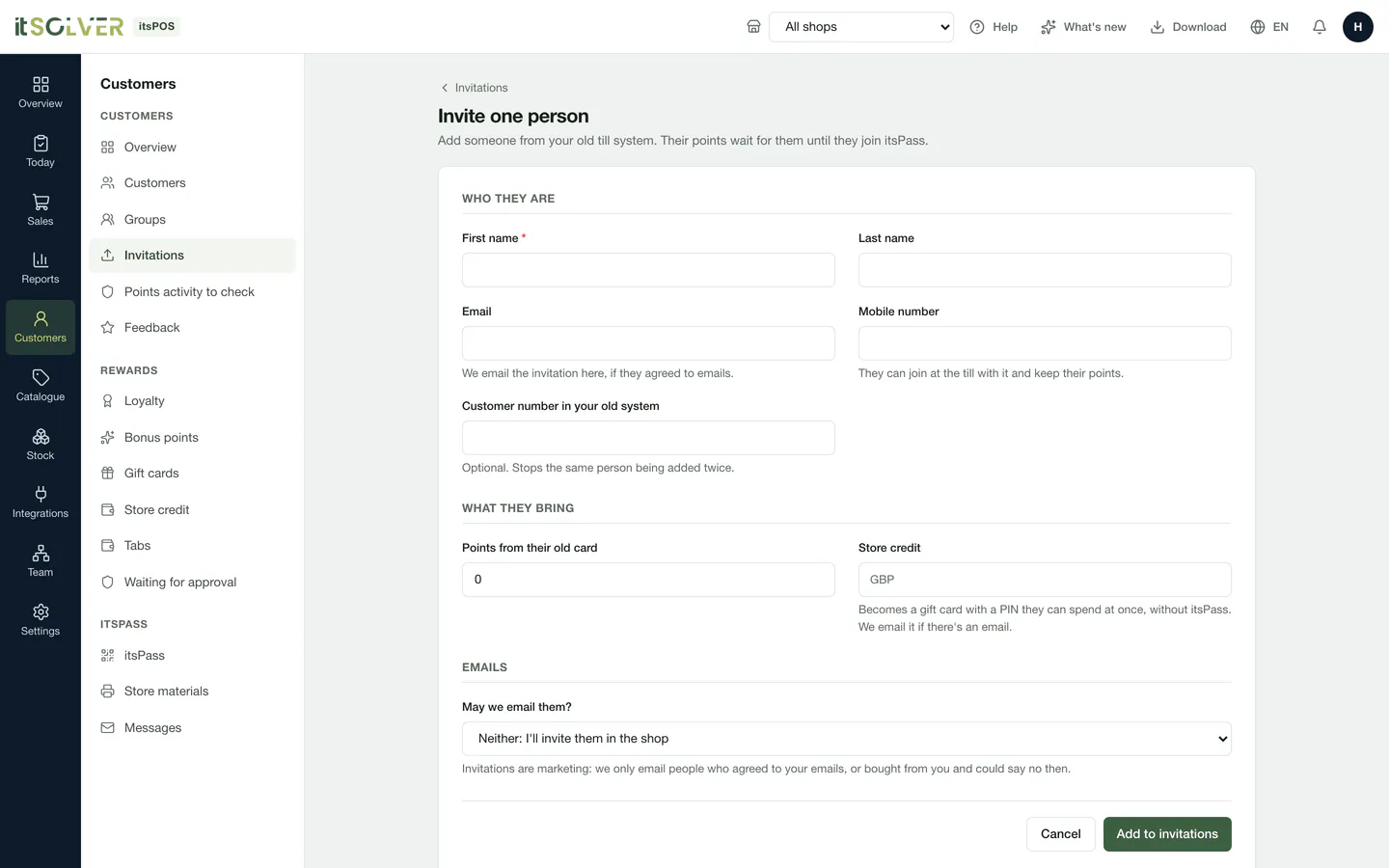
Invite one person Who they are: First name, Last name, Email, Mobile number ("They can join at the till with it and keep their points") and Customer number in your old system ("Stops the same person being added twice").
What they bring: Points from their old card, and Store credit, which "Becomes a gift card with a PIN they can spend at once, without itsPass."
May we email them?: They agreed to emails from us, They bought from us and could say no to emails then, or Neither: I'll invite them in the shop.
Press Add to invitations. For Ivy Invite (300 points, no email consent) the page said: "Ivy Invite is on your invitation list. Invite them in the shop: they can join at the till with their mobile number and keep their points."
Import a list
- Press Import and invite a list. Download the template if you need one: its columns are First name, Last name, Email, Mobile, Customer number, Points, Store credit, Agreed to emails, Bought from you, Gift card number and Gift card balance.
- Upload your file (CSV or Excel) and check that each column is matched, then press Check the file.
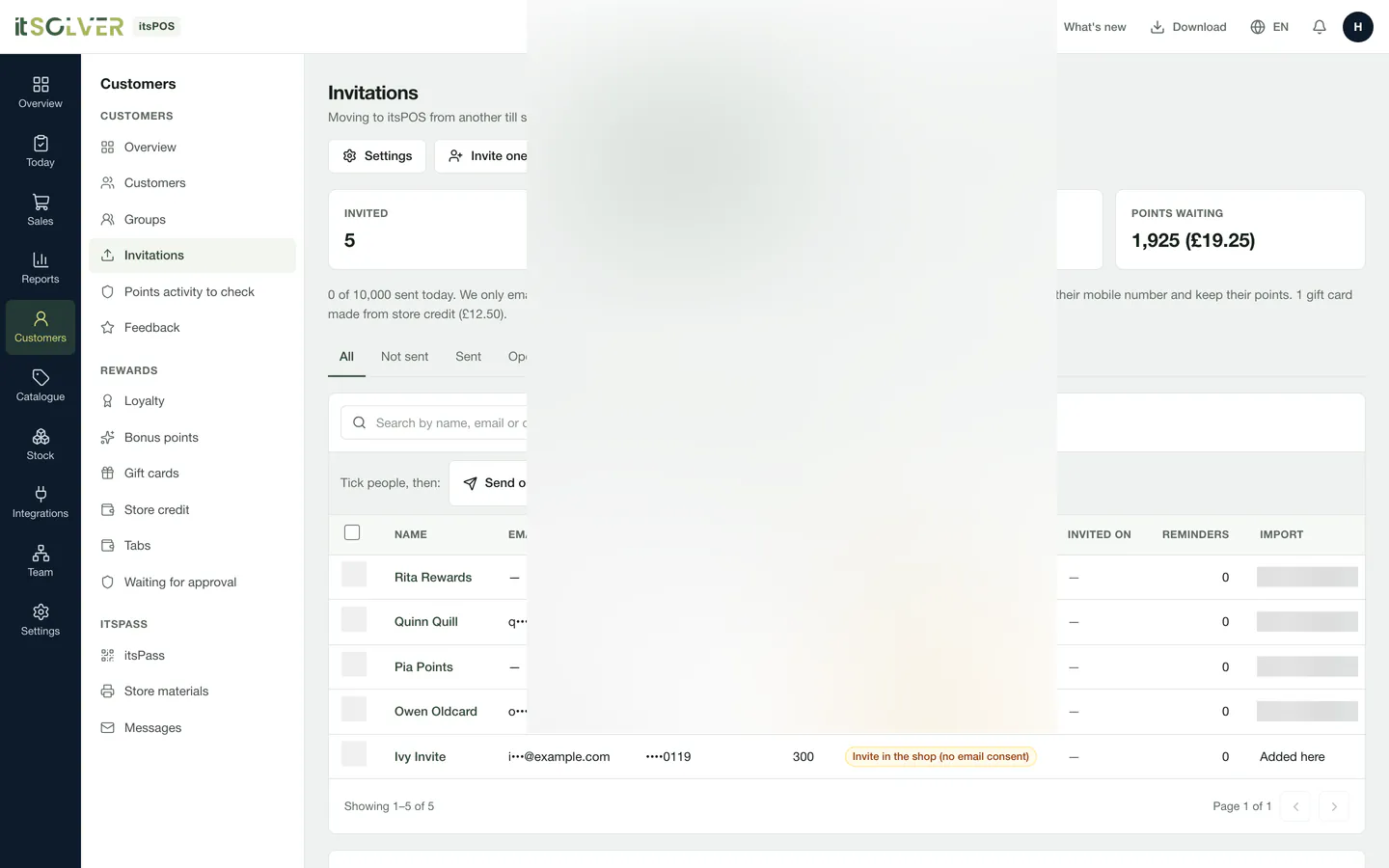
- Read the check. Our 5-row test file said: "5 rows: 4 new, 0 updated, 0 unchanged, 1 with problems. 0 get an email invitation, 4 are invited in the shop. 1 gift card for store credit (£12.50)." The row with a problem said "Add an email or a mobile number." Fix rows in the table and press Check again, or import the rest. If you aren't the account owner, rows that bring more than your shop's approval limits say Needs the account owner in What happens, with the reason on the cell, for example "Needs the account owner: 1,240 points (your limit is 1,000 for one person)." The check counts them ("1 needs the account owner") and says "1 row needs the account owner: store credit or gift cards over £50.00, or more than 1,000 points for one person." Lower those amounts and press Check again, or ask the Owner to import the file.
- Press Import 4 rows (the number of good rows). "Done. 4 invited, 0 updated, 0 unchanged. 1 skipped." Skipped rows are listed under Past imports with what to fix.
- Undo this import takes the whole import back for 7 days.
Importing the same list again updates people rather than adding them twice.
What happens next
- Points waiting shows the points for everyone who hasn't joined yet, for example "300 (£3.00)". Points wait for 12 months.
- People who may be emailed get the invitation when you send it: tick them and press Send or invite again, or Send to everyone not sent yet. Reminders follow from Settings on this page (Remind after (days), 7 to 30; Invitation link lasts (days), 30 to 180).
- People invited in the shop join at the till: the cashier types their mobile number and the till offers their old points (see Join itsPass at the till).
- Gift cards for store credit are live straight away, with a PIN.
If something goes wrong
- A row without an email or mobile: it is skipped. Add one of them.
- Someone isn't emailed: they didn't agree to emails and didn't buy from you, so they're invited in the shop.
- Import is greyed out and the check says rows need the account owner: only the Owner can bring over more than your approval limits. Ask them to import the file, or lower the amounts.
- Wrong file imported: press Undo this import within 7 days.
What the invited person sees
- The invitation email's button opens your shop's join page on pass.itspos.io, or the itsPass app on their phone: Your points are waiting, for example "Ali, your 1,240 points from your old card are waiting. Join to keep them."
- They sign in with their mobile number and the text code (a new itsPass takes about a minute: first name and age once), then tap Join.
- "You're now a member of Ali's Deli. Your 1,240 points are here, with the ones from your old card."
An old or used link says "This invitation link doesn't work any more. You can still join, and the shop can add your old points at the till." Signing in step by step: What your shoppers see in itsPass.
Still stuck?
The itsPOS support team is here 08:00 to 20:00 every day except Christmas Day.
- Call or WhatsApp: +44 7488 880320
- Email: support@itspos.io
- In the back office: Help › Contact support, or go to app.itspos.io/help/contact after you sign in
- On our website: itspos.io/contact
Tell us your shop's name and what you were trying to do. A screenshot of the screen helps.