

Stock
Import opening stock
When you start with itsPOS, or after counting your stock on paper, load the figures from a spreadsheet instead of typing them. One row is one product at one shop. This guide adds 6 Tropicana Pure Smooth Orange Fruit Juice 850ml and 4 Patak's Tikka Masala Sauce 450g at Green Street Grocer, and puts their Location in shop.
For: Owners, Admins and Shop managers3 min read
Before you start
- You need to be an Owner, Admin or Shop manager.
- The products must already be in Catalogue › Products: an import never adds products. Import your products first if you need to.
- Your file is a .csv or .xlsx, up to 5 MB and 100,000 rows. Each row needs the product's SKU or barcode, and a shop (or you choose one shop for the whole file), and the quantity.
- Optional columns: Location in shop, Cost of one (what one cost before VAT, for the stock you add), Batch and Date for products tracked by batch, and How to reorder, Reorder at, Order quantity, Order up to. Columns you leave out keep what the product has.
Import the file
Go to Stock › Import stock. Press CSV template under Download a template if you want a file with the right columns.
Drop your file on the page, or choose it.
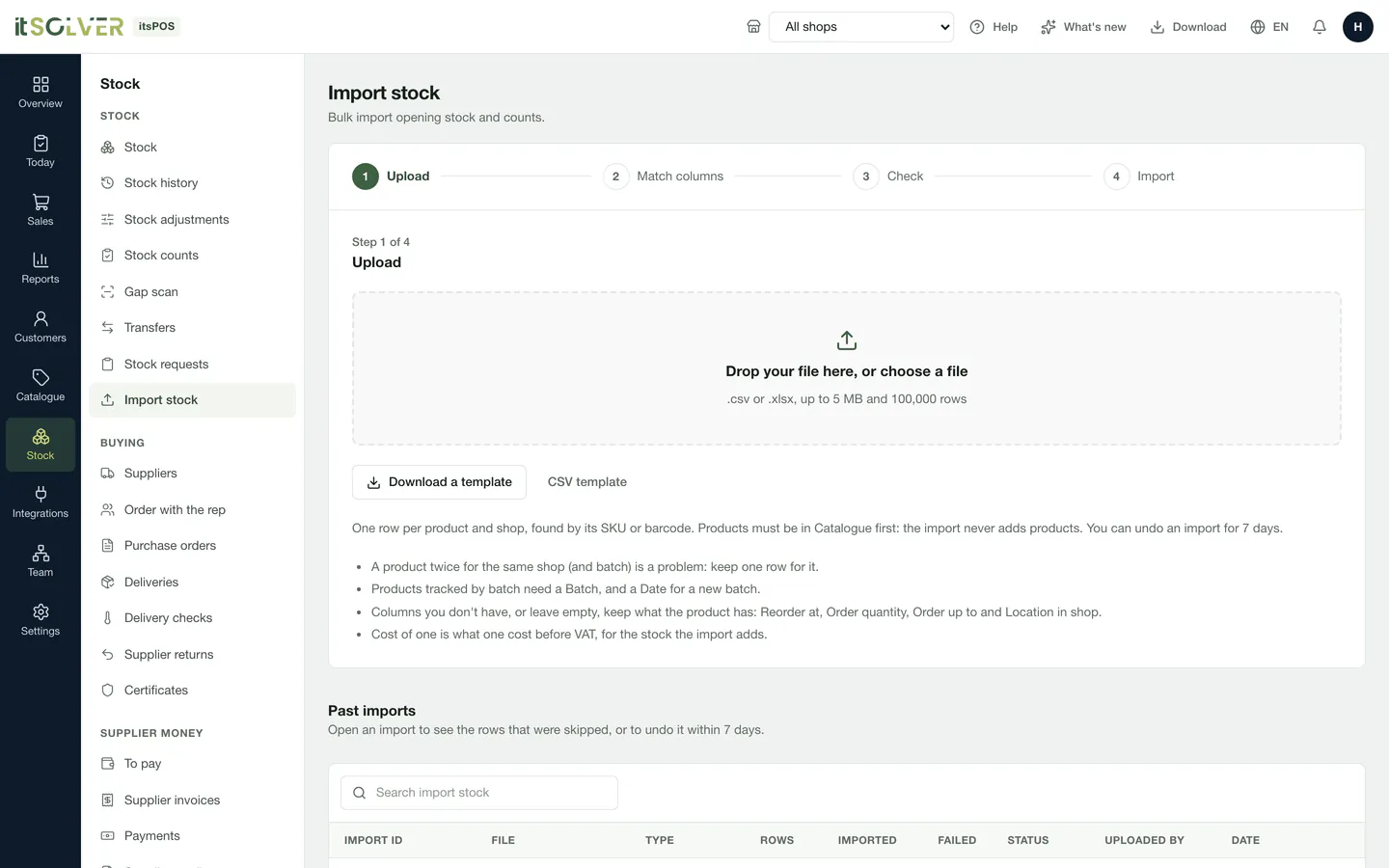
Import stock, step 1 Upload Match columns: check that each column of your file goes to the right field. Columns you don't want say Not imported.
Under What the quantity means, choose:
- Set stock to this: stock becomes the quantity in the file (after a full count);
- Add this to stock: the quantity is added to what itsPOS has (stock that arrived without a delivery).
Under Shop for rows without one, keep Use the file's Shop column, or choose one shop for the whole file.
Press Check the file. Step 3 says what each row will do, for example "2 rows: 2 to add to, 0 unchanged, 0 with problems". Tick Only rows with problems to see just those, fix them in the grid or in your file, and press Check again.
Press the import button (it says how many rows, for example "Import 2 rows"). You see "Done. 2 rows imported, 0 unchanged. Tills get the changes within 1 minute."
Common problems
- A product twice for the same shop (and batch) is a problem: keep one row for it.
- Products tracked by batch need a Batch, and a Date for a new batch.
- A SKU or barcode that isn't in your catalogue is skipped; open the import to see the rows that were skipped.
Undo an import
For 7 days you can undo an import. Open it under Past imports and press Undo this import, then Undo import. Its stock changes are taken back (stock sold since stays sold), and reorder rules and locations go back to how they were. The import then shows Undone with the date and who undid it.
What happens next
- Stock › Stock, Stock history and the tills show the new figures within a minute.
- Stock you add gets its value from Cost of one, or from the main supplier's cost when the column is empty.
Still stuck?
The itsPOS support team is here 08:00 to 20:00 every day except Christmas Day.
- Call or WhatsApp: +44 7488 880320
- Email: support@itspos.io
- In the back office: Help › Contact support, or go to app.itspos.io/help/contact after you sign in
- On our website: itspos.io/contact
Tell us your shop's name and what you were trying to do. A screenshot of the screen helps.